

Creating a one-off job
Create a one-off job for work you do once, such as a repair or an installation.
Who can do this: Admins, dispatchers and accountants, and technicians whose Jobs permission is View, edit, and create or View, edit, create, and delete.
Also called: work order, booking.
-
Open the jobs list and click New job. Office staff can also use Create → Job in the left menu, or the New job button on a client’s Jobs tab.
On a computer: Left menu → Jobs On a phone: More → Jobs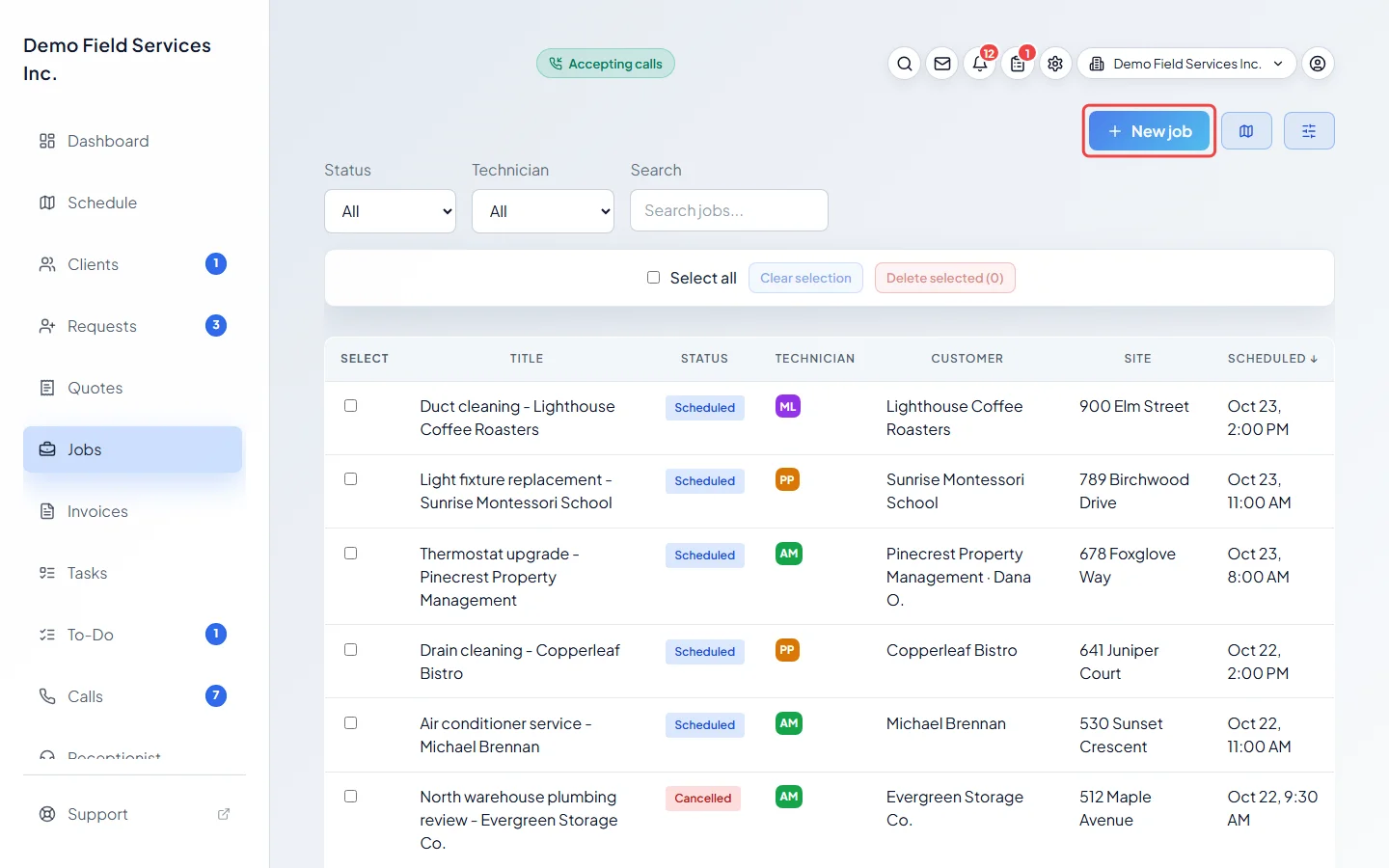
-
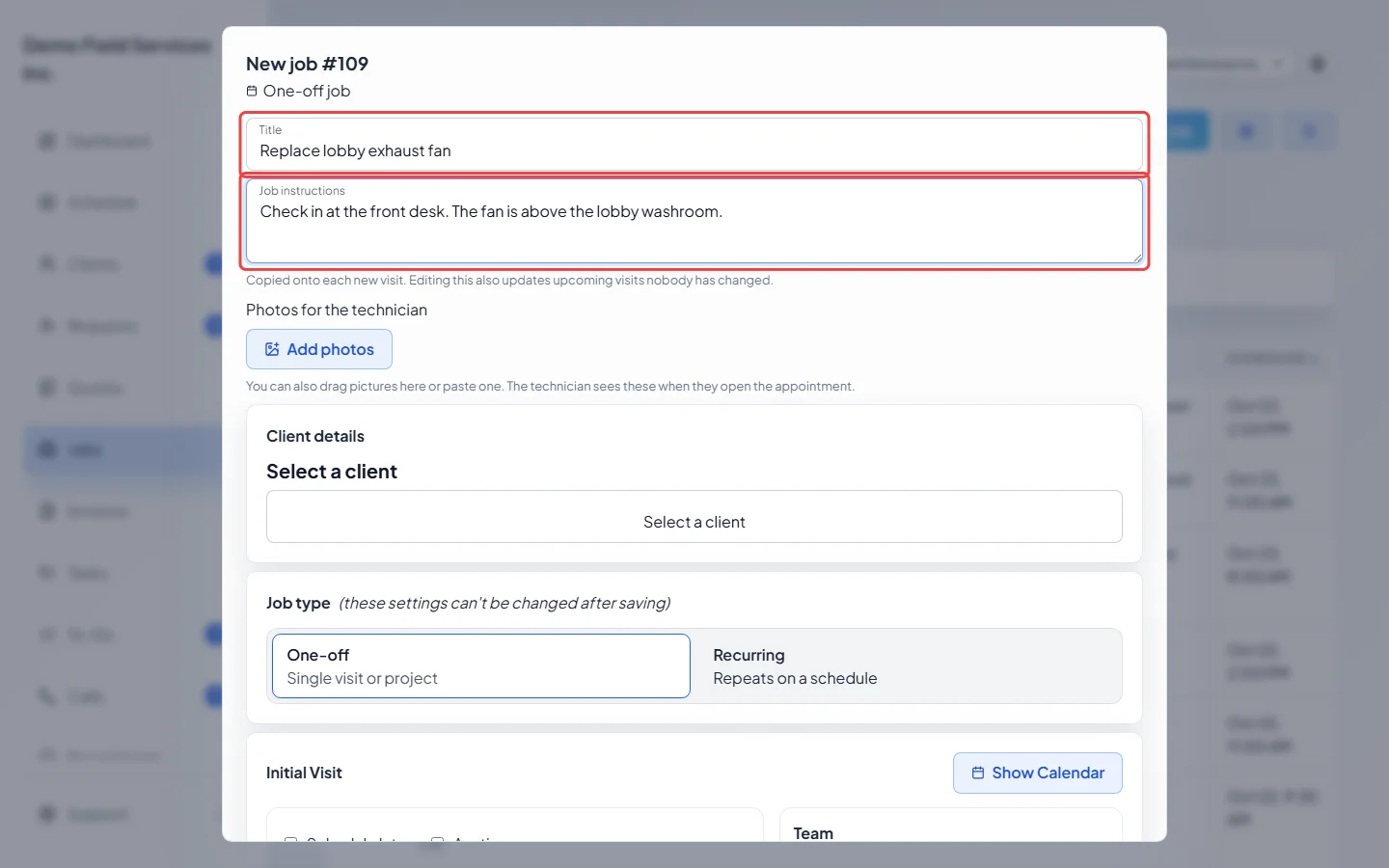
Type a Title. Under Job instructions, write what the technician needs to know, such as a gate code or where to park. The instructions are copied onto each visit.
-
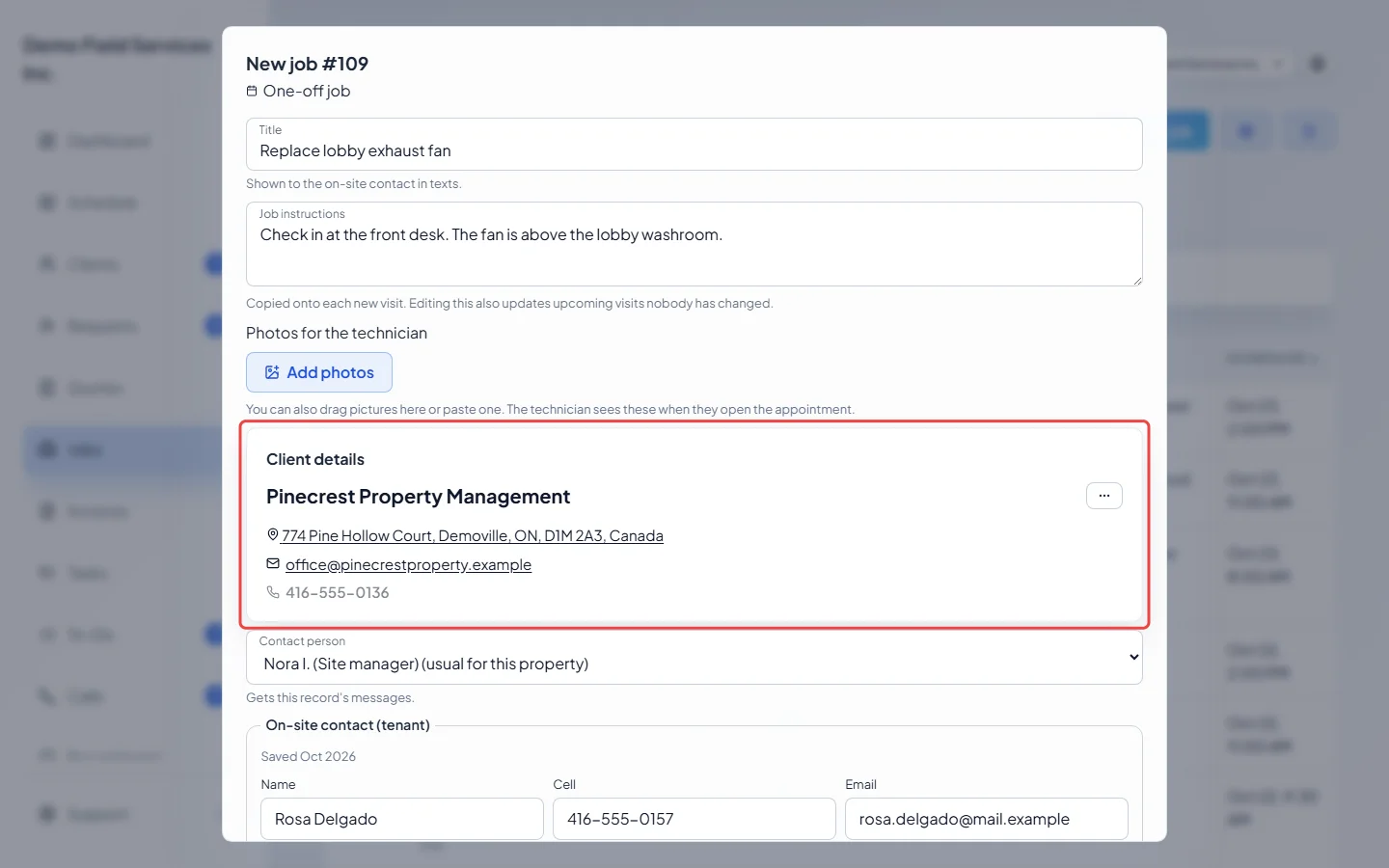
Under Client details, click Select a client and search for the client. If they are new and you can edit clients, click Create new client, or paste their details into Smart paste a new client. A client with more than one property asks which property the job is for. Use the ⋯ button to Change client, Change property or Edit client details.
-
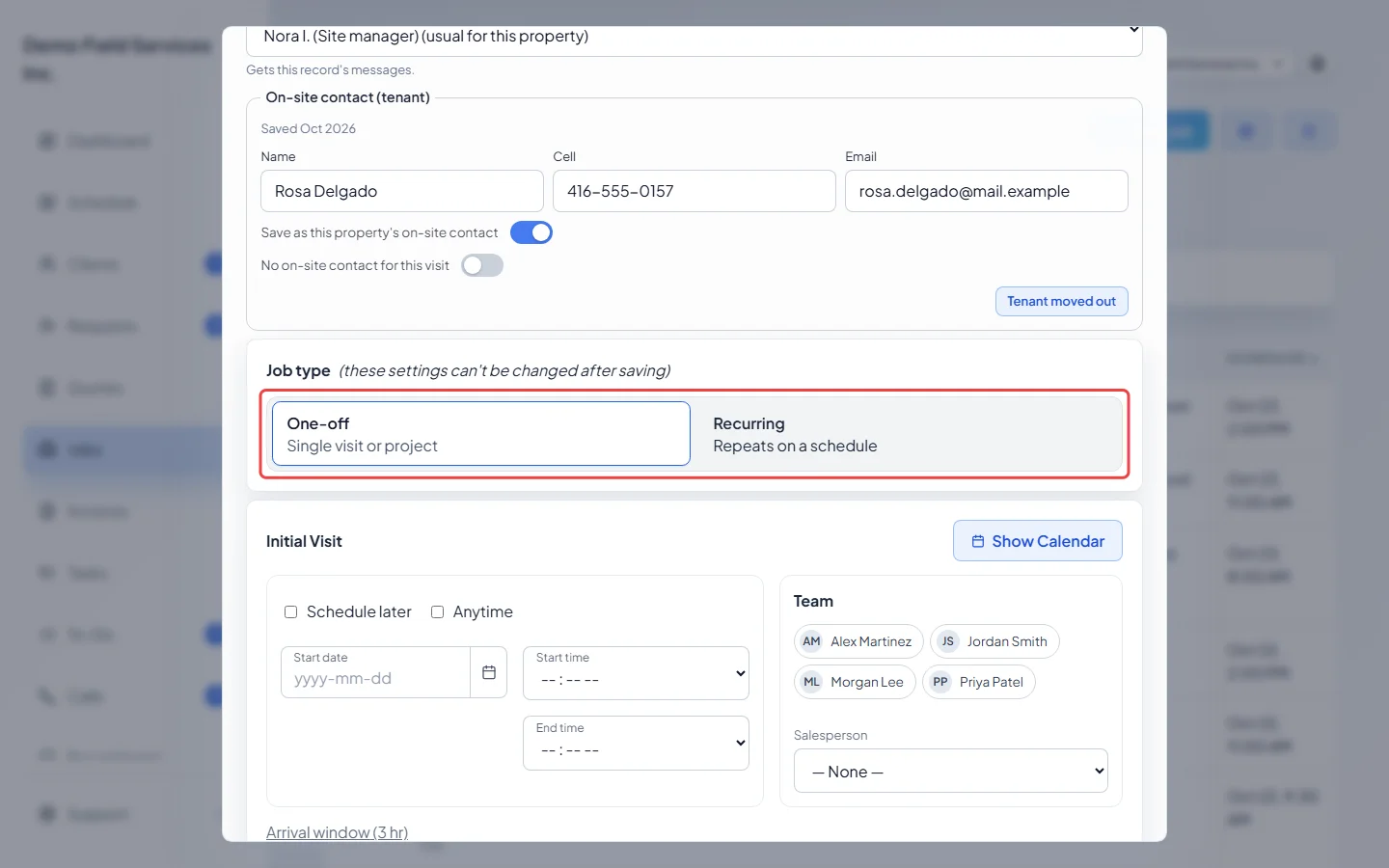
Under Job type, leave One-off picked. You can’t change the job type after saving. For work that repeats, see Recurring jobs.
-
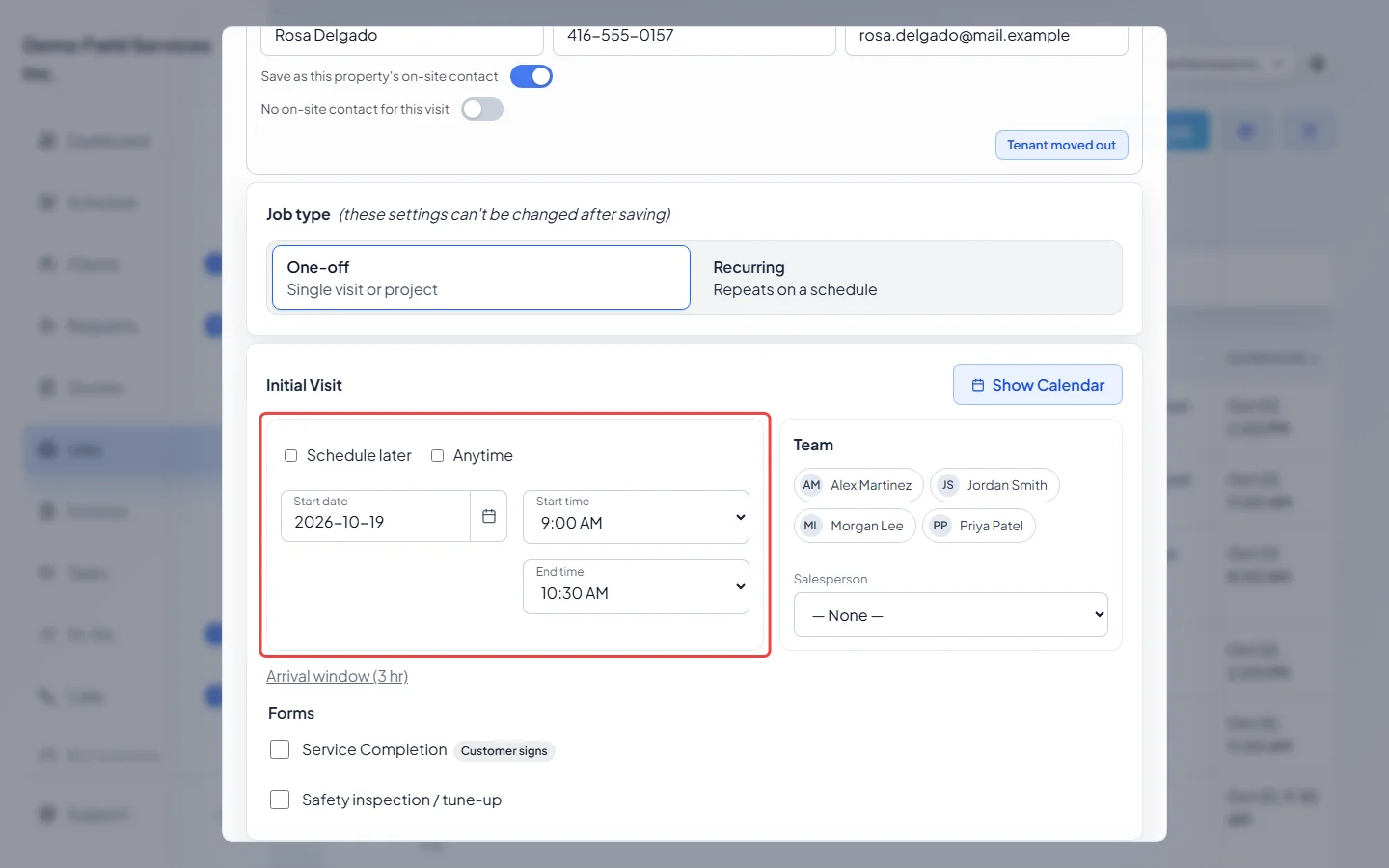
Under Initial Visit, pick the Start date, Start time and End time. The end time fills in from your usual visit length. Tick Anytime for a visit with no set time, or Schedule later to save the job without a date. Show Calendar opens the schedule so you can see who is free.
-
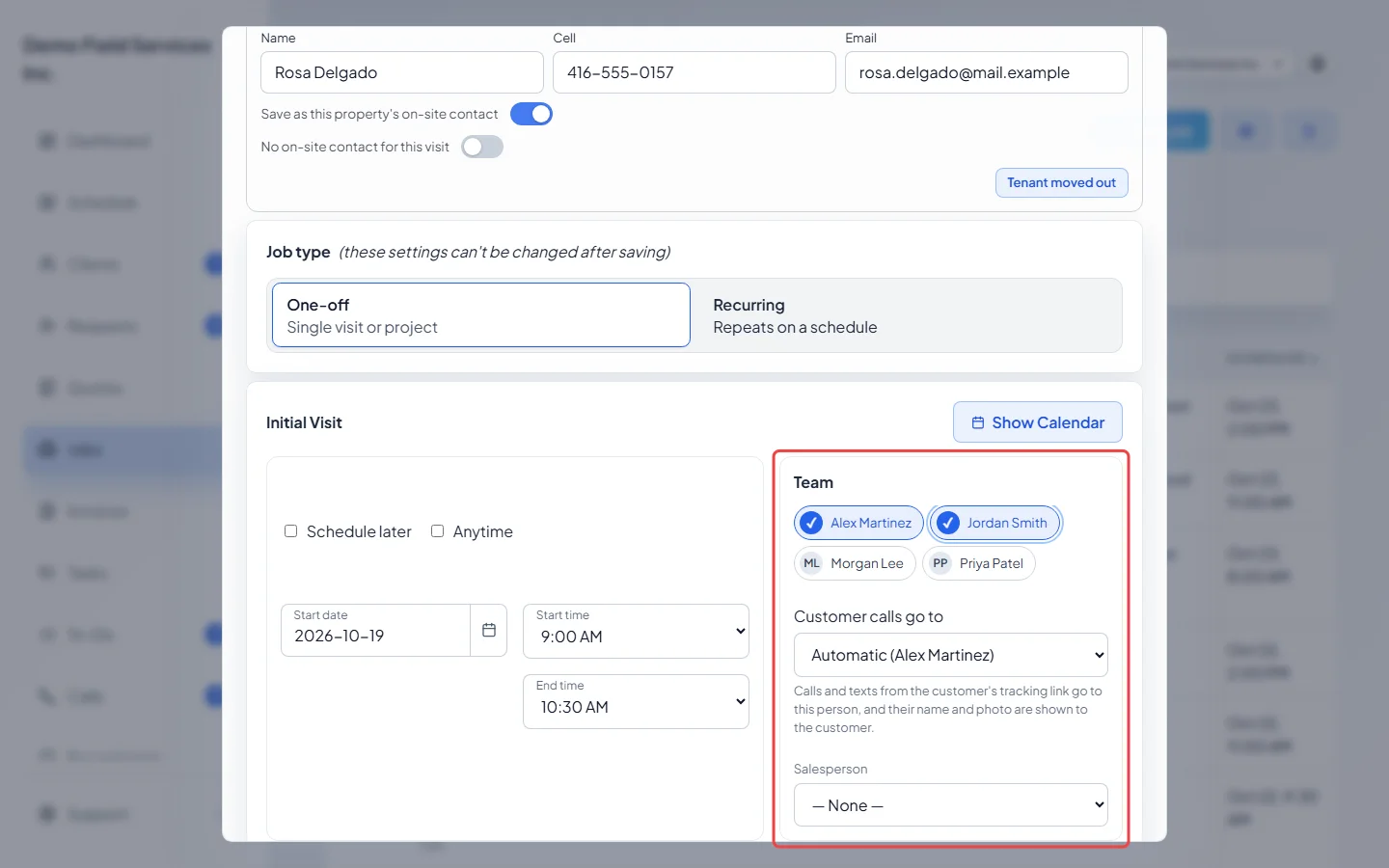
Under Team, tick everyone going on the job. Pick the Salesperson who sold the work, if you track that. With two or more people ticked, choose who the client reaches under Customer calls go to. See Assigning technicians for more.
-
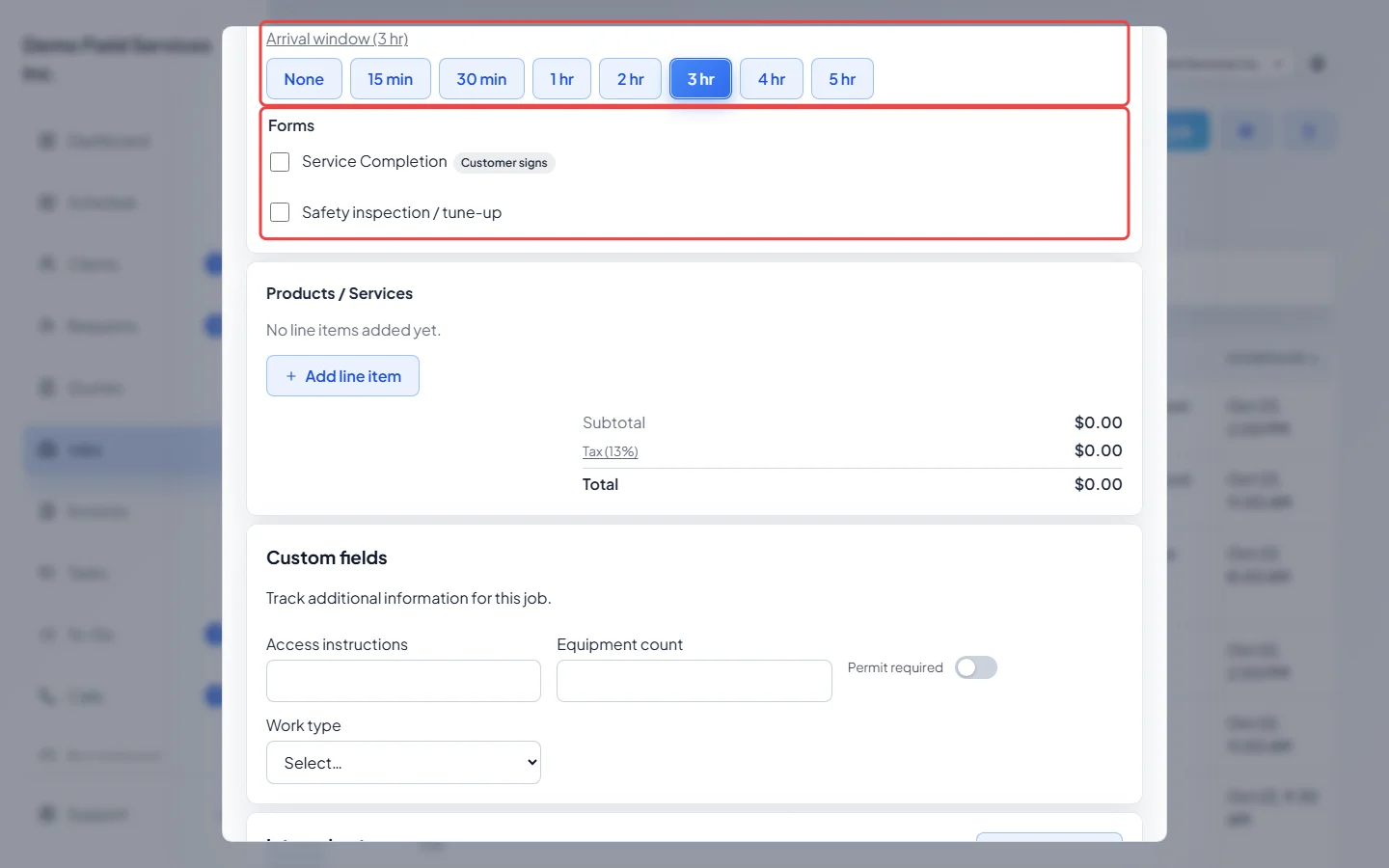
Click Arrival window to change how long a window the client is promised, from None up to 5 hours. Under Forms, tick the checklists the technician fills in on this job. Forms set to be added automatically are already ticked.
-
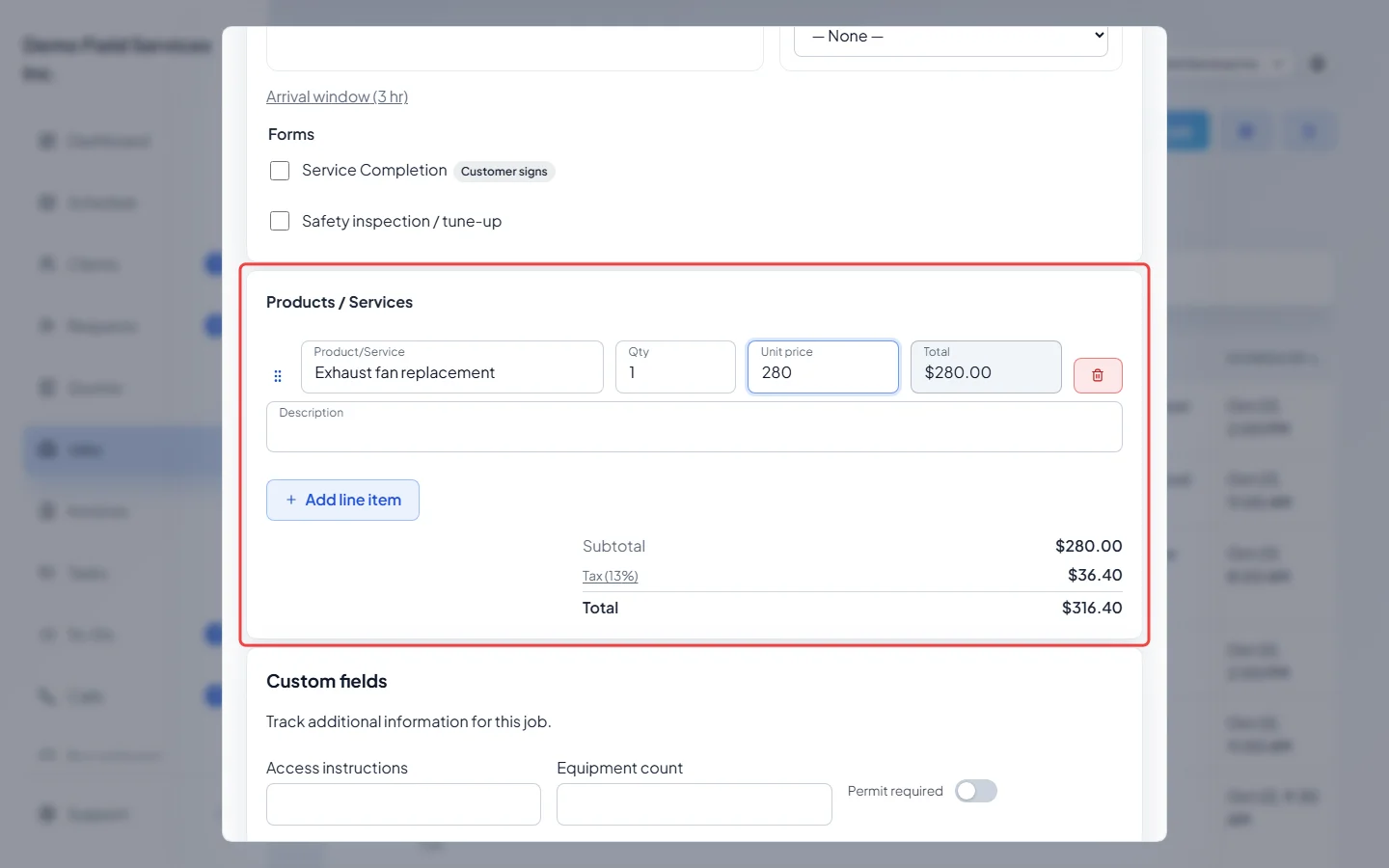
Under Products / Services, click Add line item. Type to pick a product or service from your list, then set the Qty and Unit price (Base price for products with options). Drag a line to reorder it, or click the bin to remove it. Click Tax to choose a tax rate. The Subtotal, tax and Total update as you type.
-
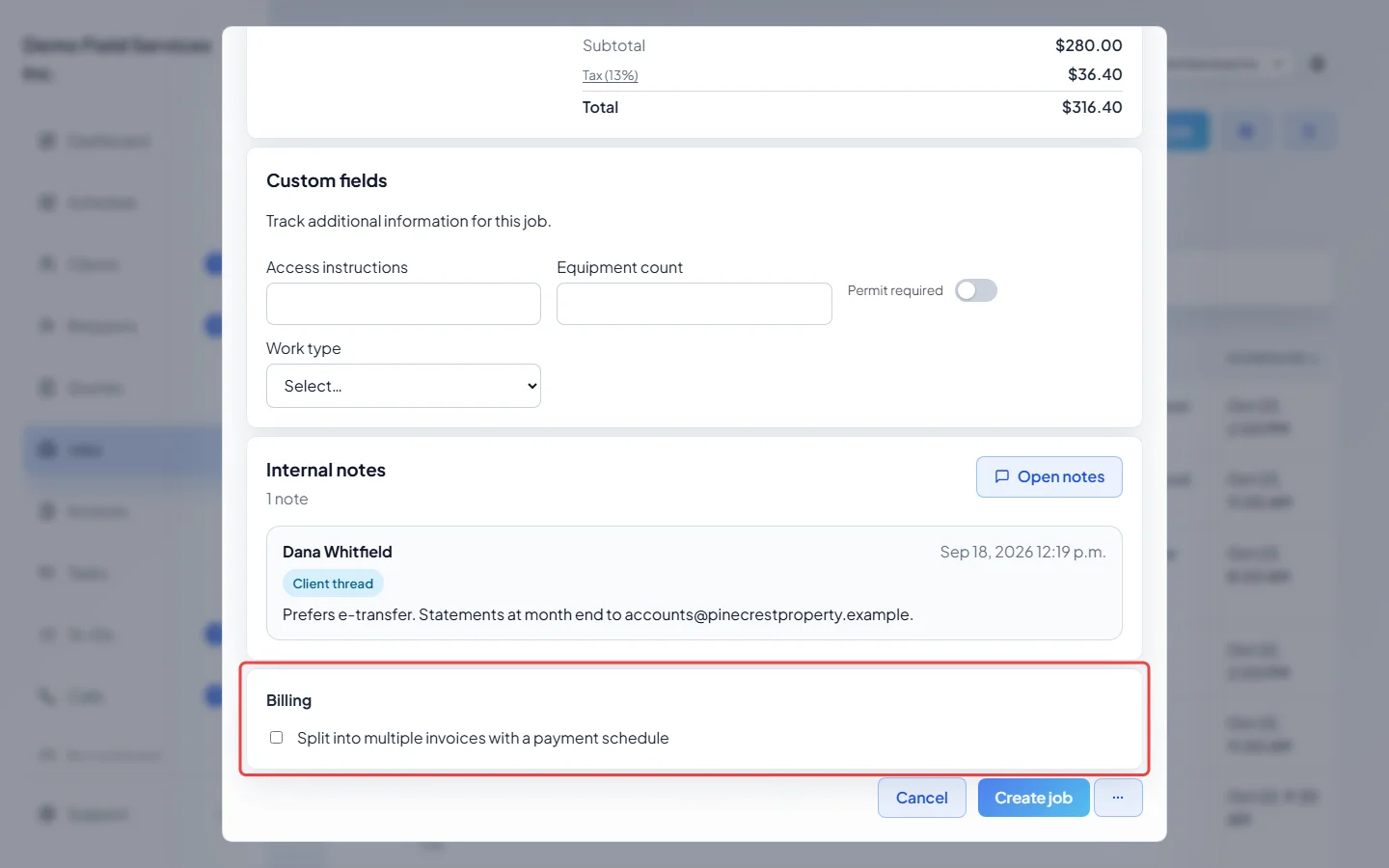
Under Billing, tick Split into multiple invoices with a payment schedule if the client pays in parts, for example half before and half after. See Payment schedules.
-
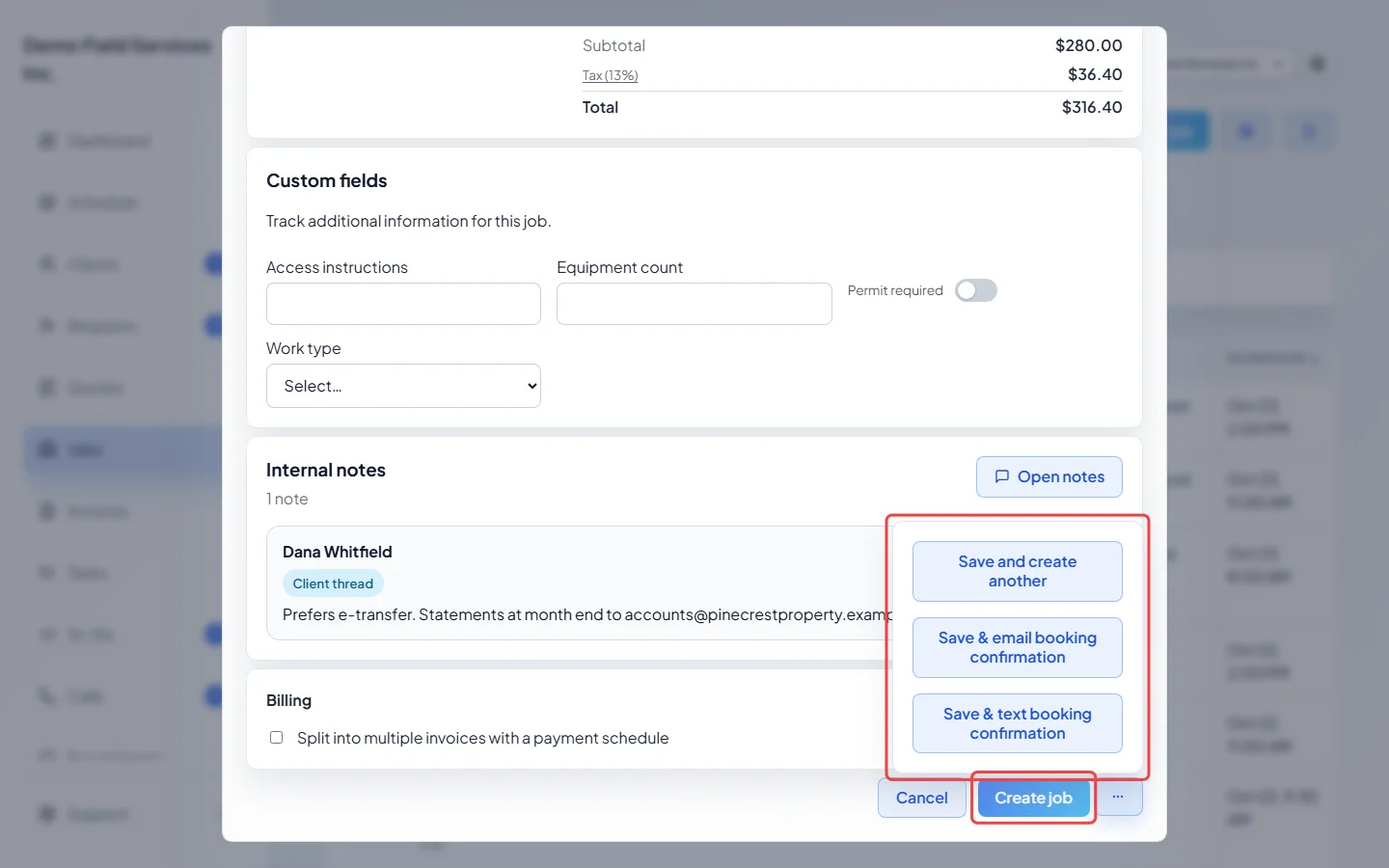
Click Create job. The ⋯ button next to it has Save and create another, Save & email booking confirmation and Save & text booking confirmation. The last two let you check the message before anything is sent.
Good to know
Section titled “Good to know”- A job needs a title, a client and a property. If nobody is ticked under Team, Astragal asks before saving.
- Admins, dispatchers and accountants can attach pictures for the technician under Photos for the technician before saving. See Adding photos.
- Internal notes and Custom fields on the form save with the job. See Notes and files on a job.
- When the client has people on the account or the property has an on-site contact, the form lets you pick who hears about the visit.
- A job made from an online booking shows Create job & email confirmation (or text), so the client gets their link to view or cancel.
- On a one-off job, the line items belong to the job. Its visits show them but don’t change them.
Related articles
Section titled “Related articles”- The job details page
- Converting a quote to a job
- Turning a request into a quote or job
- Booking confirmations and job follow-ups
Next step: Visits and completing them
Checked against Astragal on October 18, 2026