

The client details page
The client details page shows everything about one client and lets you start new work for them.
Who can do this: Admins and anyone whose Clients permission lets them see clients. Team members set to View client name and address only see just the name and property addresses. The tabs other than Profile need View full client and property info or higher.
Also called: client profile, customer page.
-
Open the clients list and click the client.
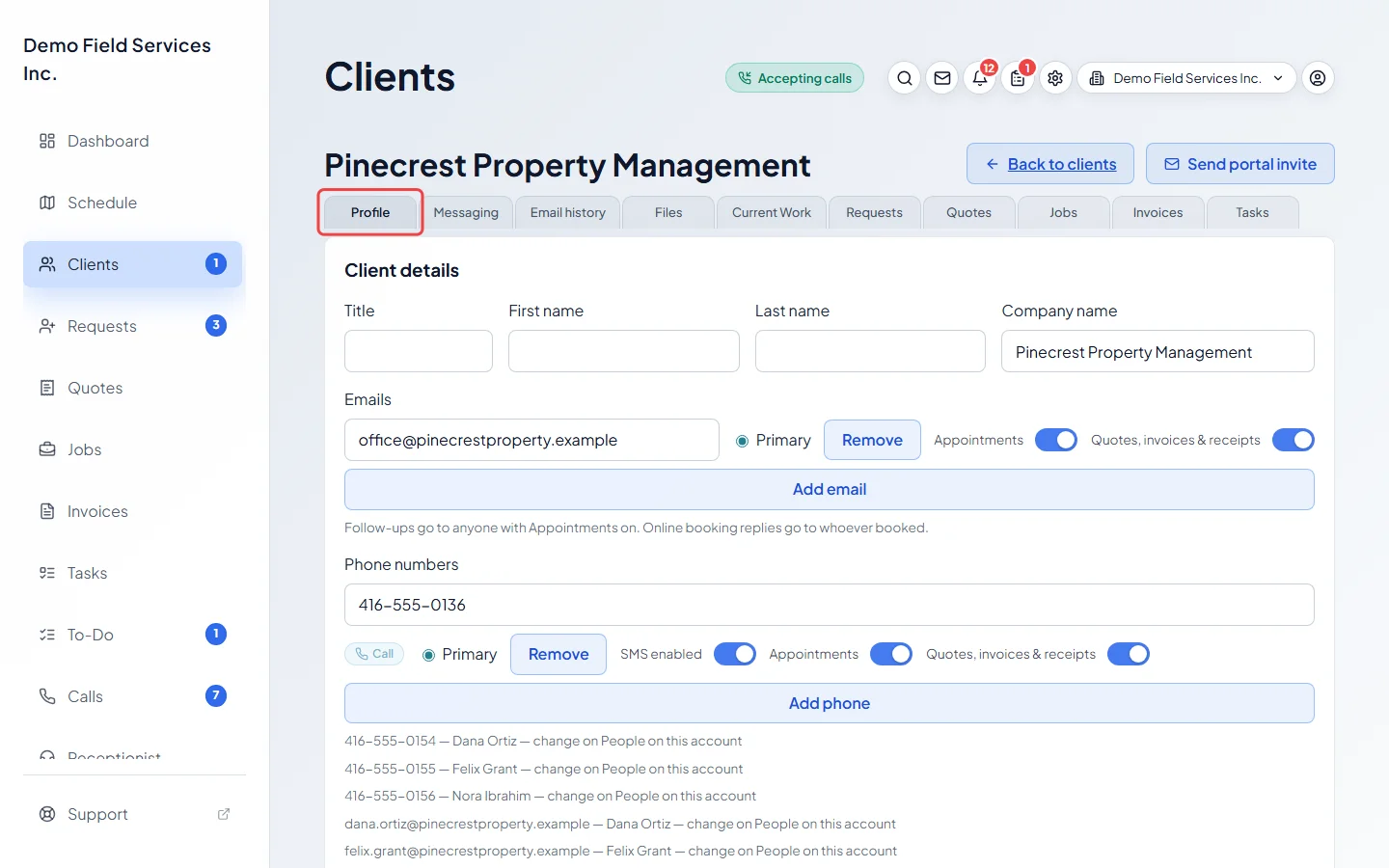
On a computer: Left menu → Clients On a phone: Bottom bar → ClientsThe page opens on the Profile tab, with the client’s name at the top.
-
Check the notes at the top of the page. Depending on the client, you may see:
- Card on file: a card they saved while booking online. See Saved cards.
- “Agreed to texts & emails”, with the date and the form they agreed on.
- “Possibly the same household or business as” another client, with a Review link (only for people who can merge clients). See Merging duplicate clients.
- “Merged into” another client, with an Open link, if this record was merged away.
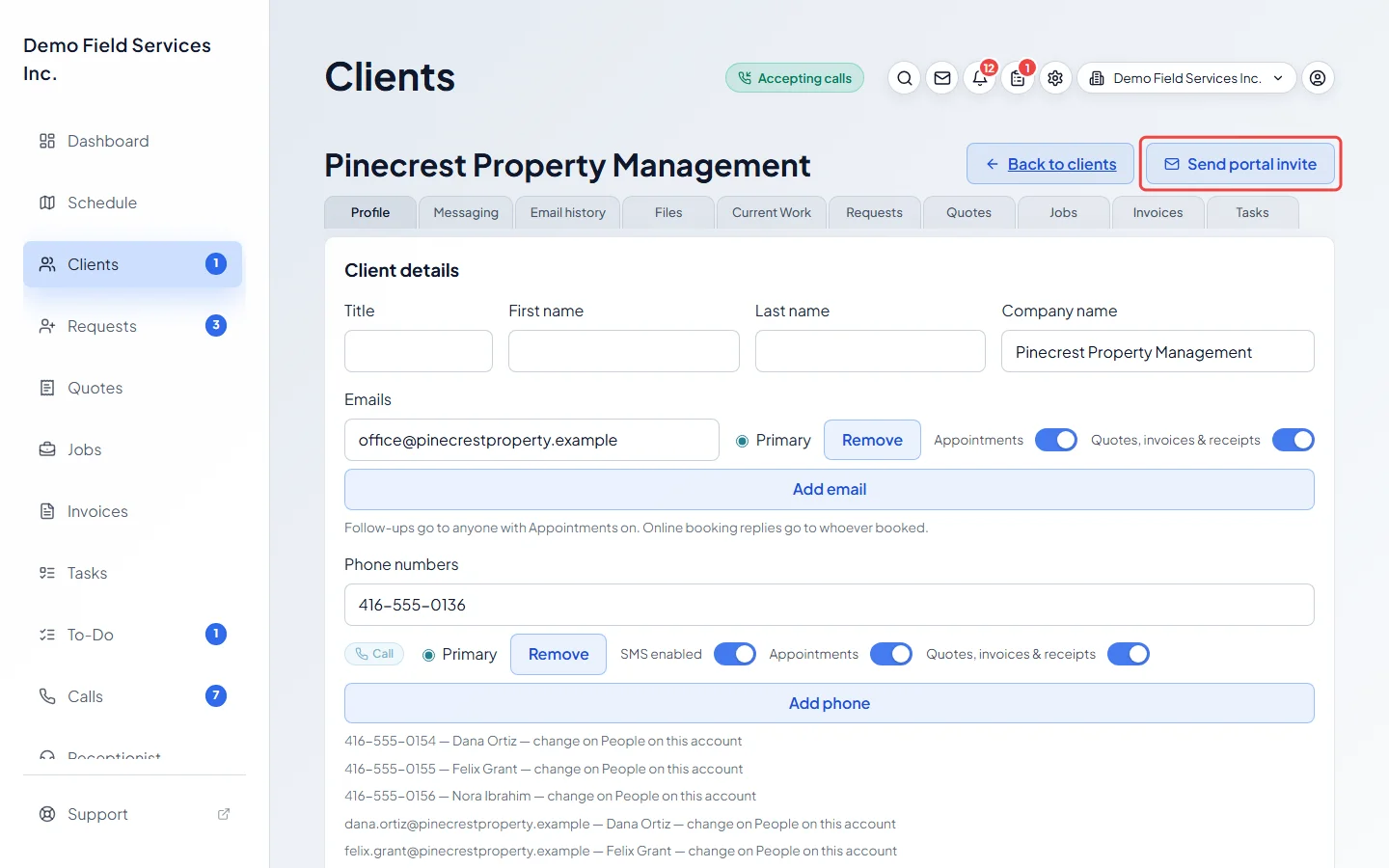
Send portal invite at the top right emails the client a link to their client portal, to every address that has Quotes, invoices & receipts switched on (including people on the account), and copies the link for you. Back to clients returns to the list; when the client page is open as a pop-up over another screen, that button reads Close.
-
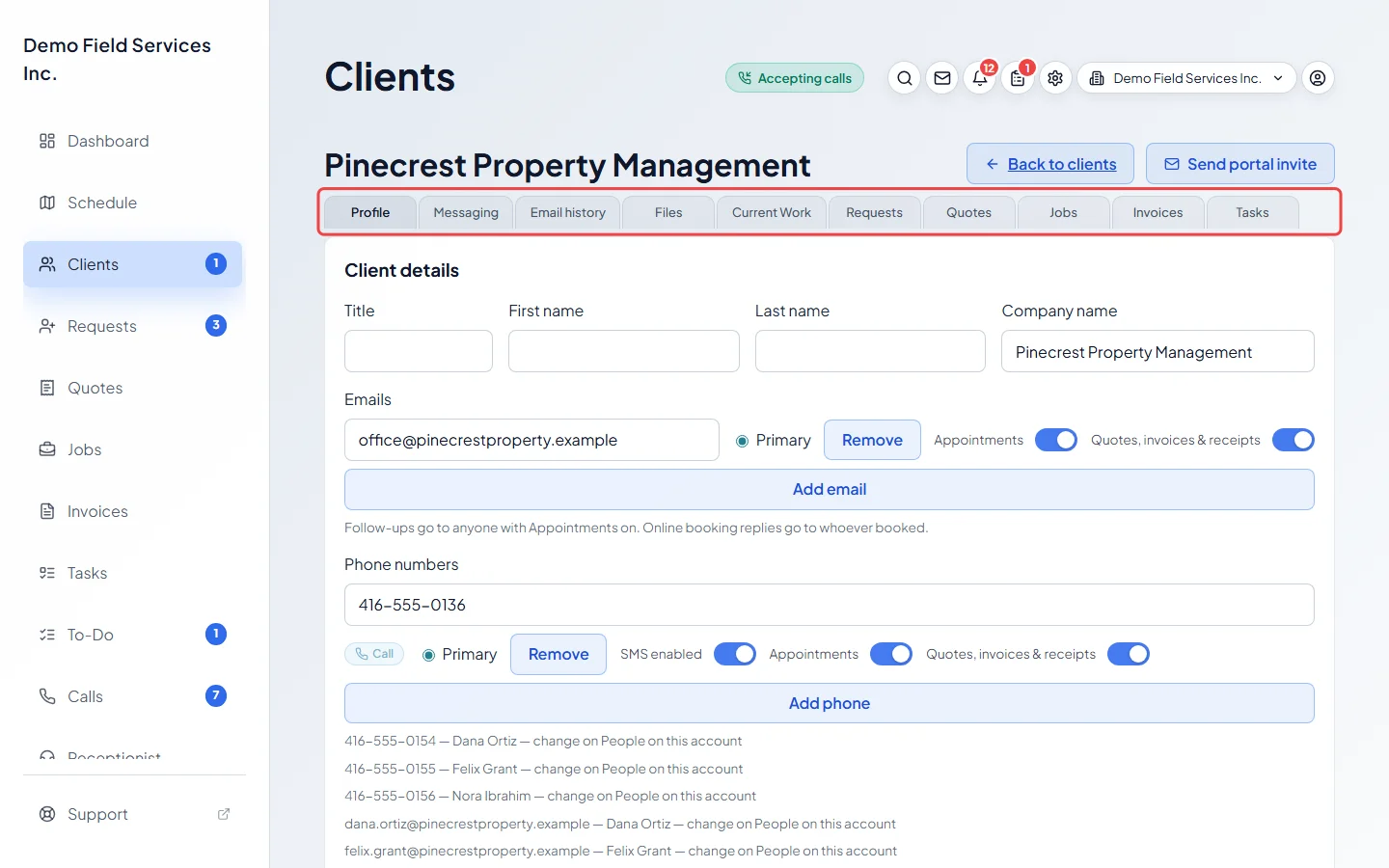
Use the tabs to move around: Profile, Messaging, Email history, Files, Current Work, Requests, Quotes, Jobs, Invoices and Tasks. On a phone the tabs fold into one menu that shows the tab you’re on; tap it to pick another.
-
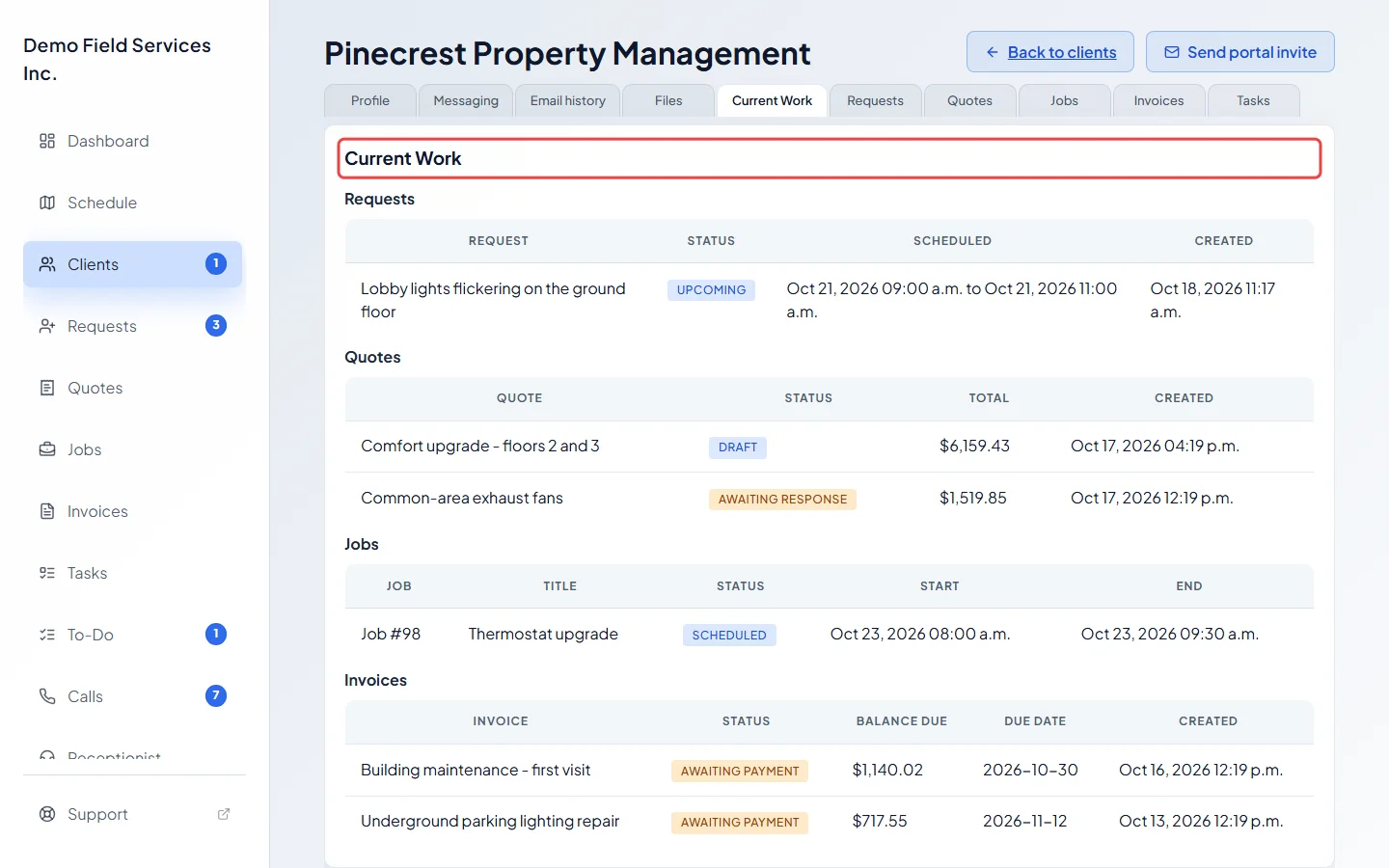
Click Current Work to see only what’s still open: upcoming requests, quotes that are draft, sent or approved, upcoming jobs, and invoices with money still owing.
-
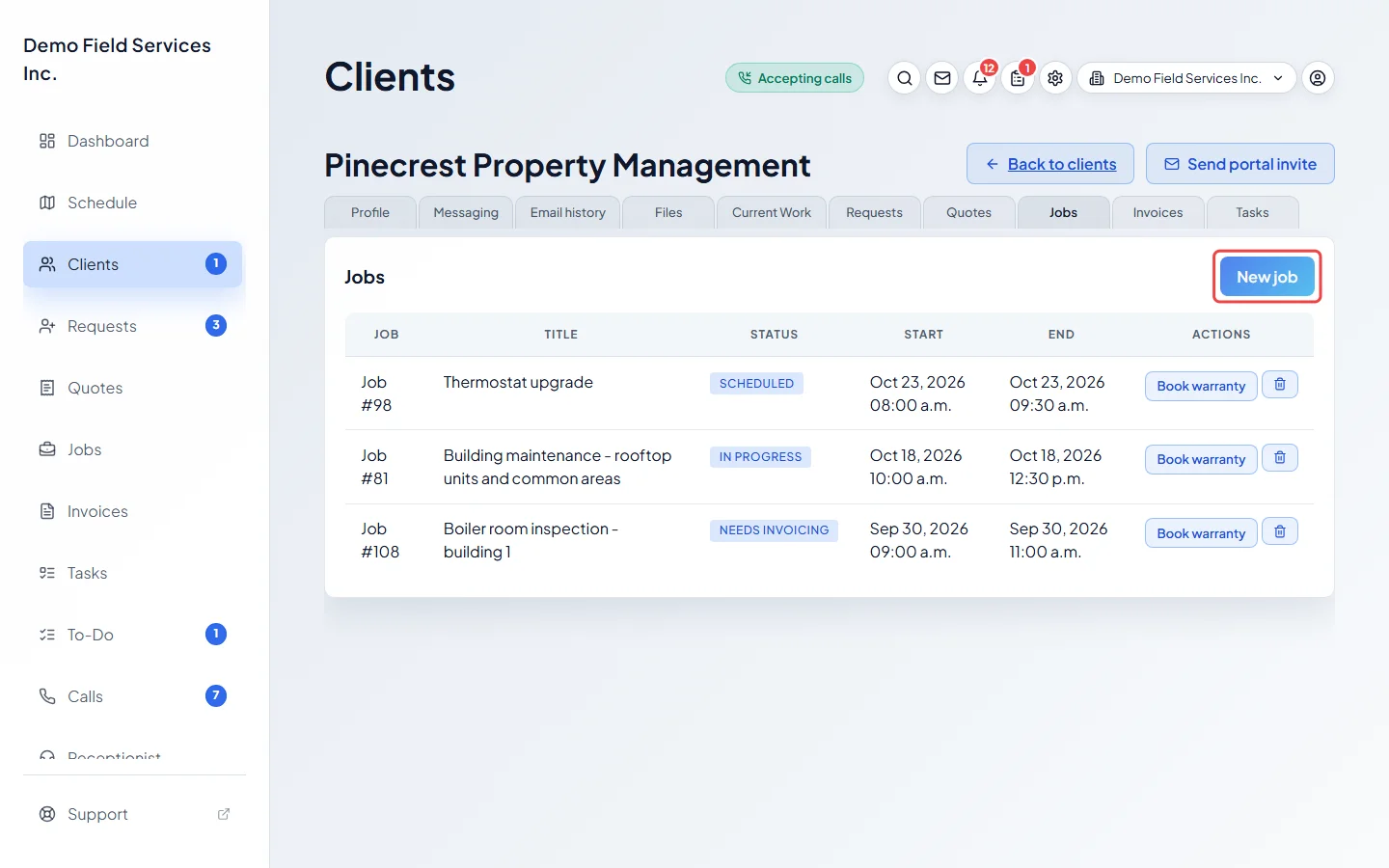
Click Requests, Quotes, Jobs, Invoices or Tasks to see every one of them for this client, newest first (jobs and tasks by their scheduled date). Each tab has a button to start a new one already filled in for this client: New request, New quote, New job, New invoice or New task. If your permissions don’t allow it, New request, New quote and New job are hidden, and New invoice and New task are greyed out.
-
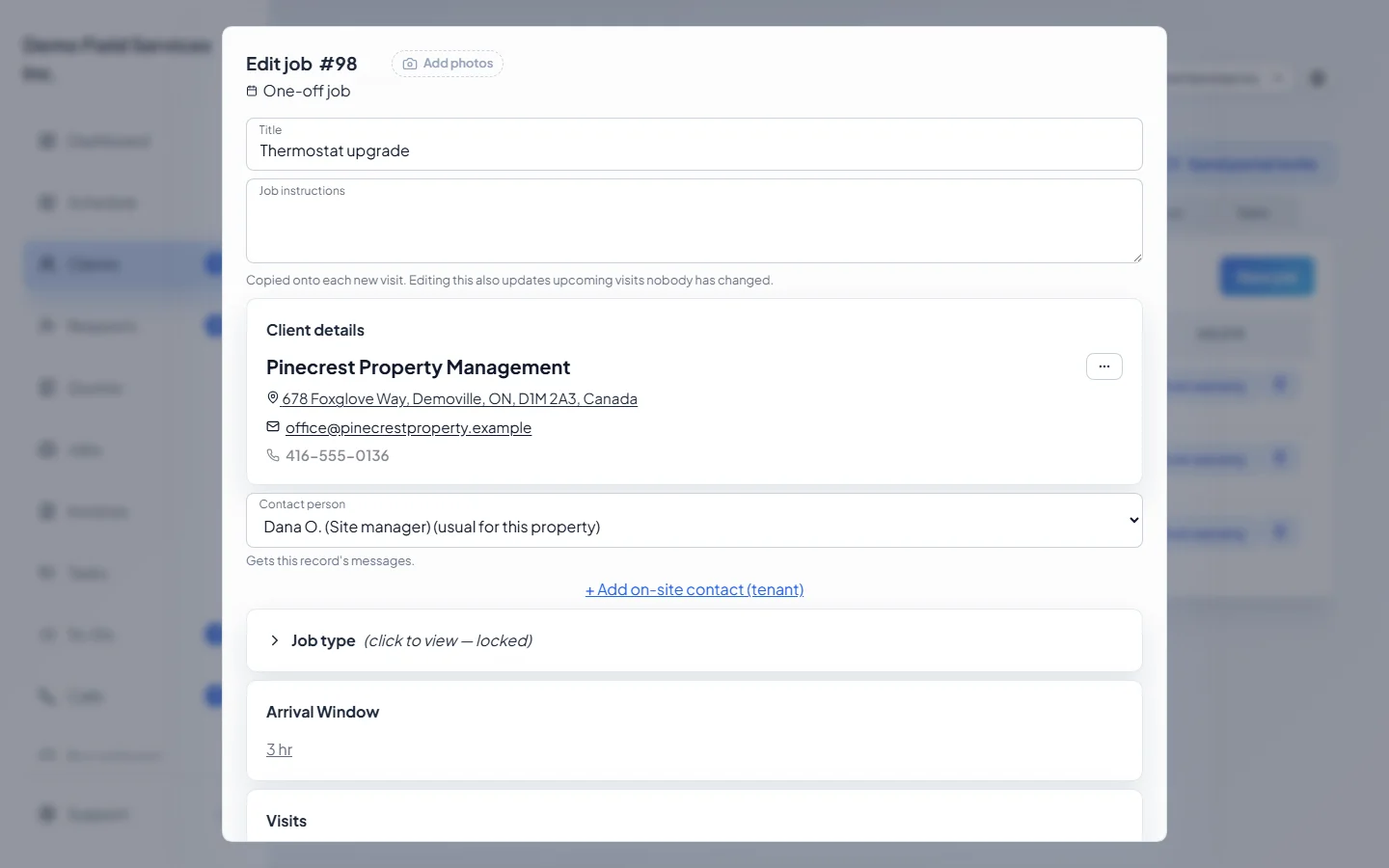
Click any row to open it. Requests, jobs, invoices and tasks open on top of the client page; quotes open on their own page. For people who can create jobs, each job row also has Book warranty, which adds a no-charge warranty visit to that job.
What’s on the Profile tab
Section titled “What’s on the Profile tab”From top to bottom:
- Client details: name, company, emails, phone numbers and billing address. See Editing a client.
- People on this account: other people who deal with you for this client. See People on an account.
- Properties: every address, with Edit property, Add property and, when there are two or more properties, Remove property. See Multiple properties per client.
- Client custom fields and Internal notes. See Internal notes and custom fields.
- At the bottom: Delete client, Merge with another customer, Close and Save. Close becomes Cancel once you’ve changed something. Merge with another customer doesn’t show on archived clients, and is greyed out with “Save or cancel your changes first” while you have unsaved changes.
Deleting a client
Section titled “Deleting a client”Click Delete client at the bottom of the Profile tab, turn on I understand this permanently deletes this client, and click Delete client. Only admins and team members set to View, edit, and delete full client and property info see this button.
A client can’t be deleted while they have an open quote or job, a request that’s still waiting, or any invoice, payment or refund; Astragal tells you why. Archived quotes and jobs and finished requests don’t block it: they are deleted with the client, along with the client’s files and saved cards. Deleting can’t be undone.
Good to know
Section titled “Good to know”- The trash button on each row of the Requests, Quotes, Jobs, Invoices and Tasks tabs deletes that record after you confirm. It’s greyed out if your permissions don’t allow it.
- Messaging, Email history and Files have their own articles: Messaging a client, Email history and Client files.
Related articles
Section titled “Related articles”Checked against Astragal on October 17, 2026