

Rescheduling a visit
Move a visit to a new date or time and let the client know in the same step.
Who can do this: Admins, dispatchers and accountants. Technicians whose schedule permission is Edit their own schedule can move their own visits; technicians who can edit everyone’s schedule can move any visit.
Also called: moving an appointment, changing a booking.
-
Open the visit: click it on the Schedule, or click it in the visit list on its job. The Visit details window shows its Start date.
On a computer: Left menu → Schedule On a phone: Bottom bar → Schedule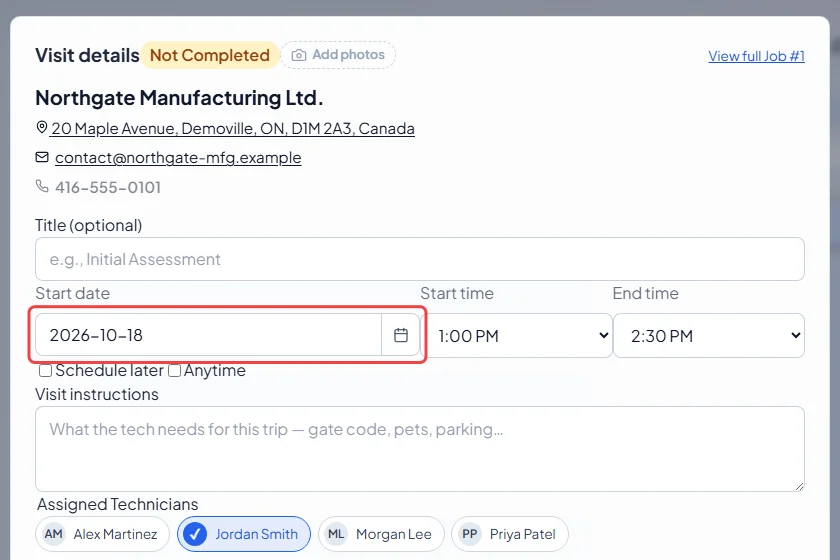
-
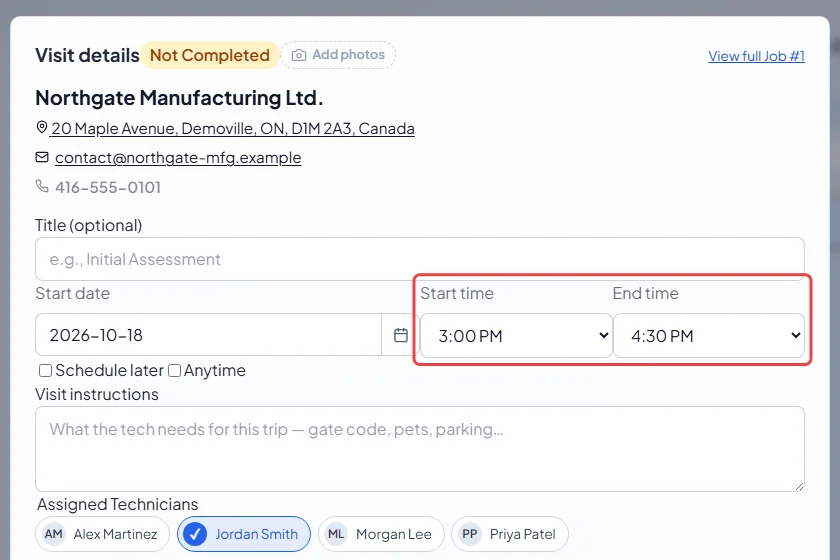
Pick the new Start date, Start time and End time. Tick Anytime for a visit with no set time, or Schedule later to take it off the calendar for now.
-
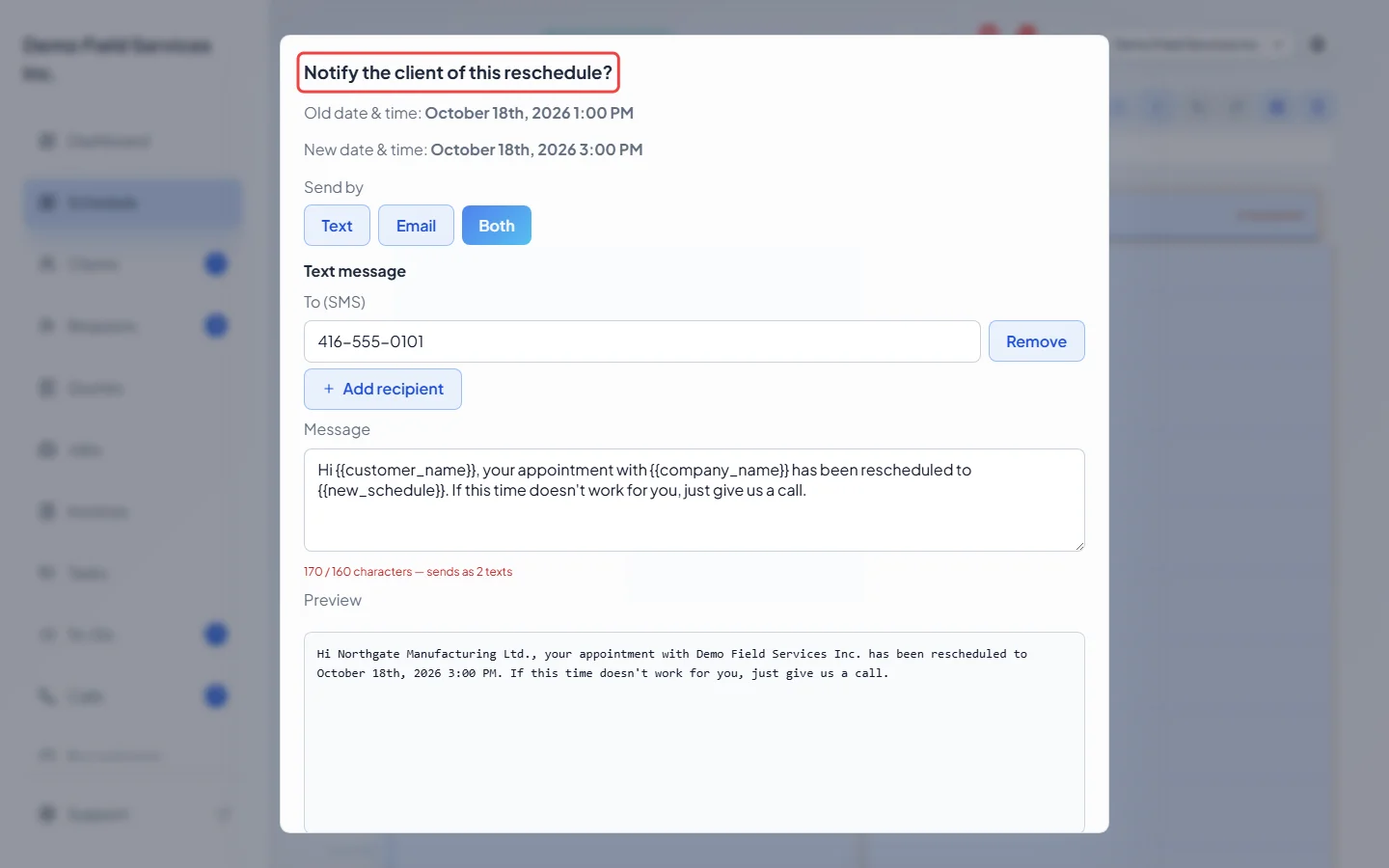
Click Save. If the new start is outside the client’s promised arrival window, Astragal asks Notify the client of this reschedule? and shows the old and new date and time.
-
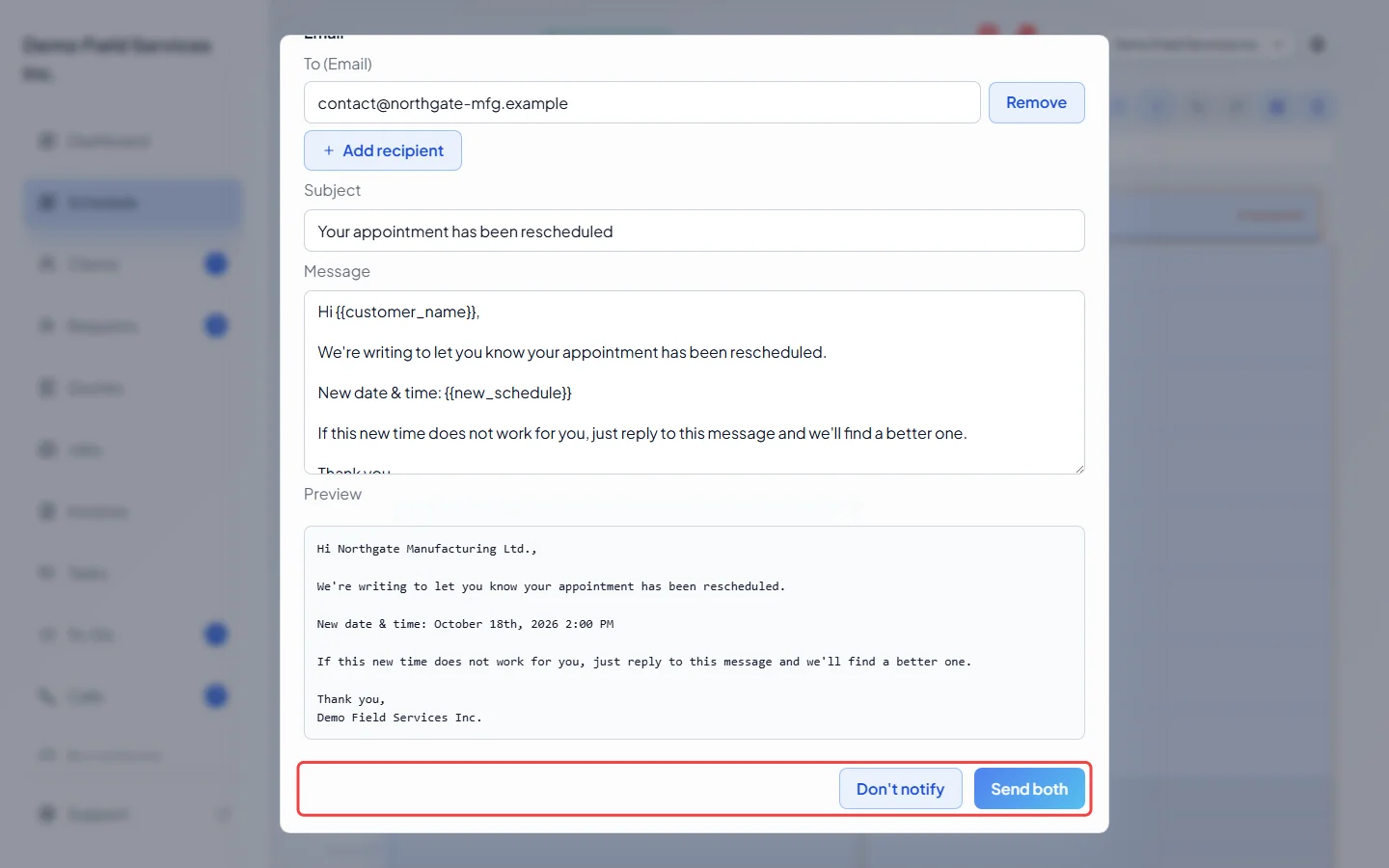
Choose how to tell them. Under Send by pick Text, Email or Both, check who it goes to, and edit the Message if you like; Preview shows it with the client’s details filled in. Then click the send button, or Don’t notify to keep the new time without a message.
Good to know
Section titled “Good to know”- On a repeating job, tick Apply changes to all future visits in this series to move every later visit too. Visits that are already invoiced are never changed. See Recurring jobs.
- The message starts from your “appointment rescheduled” text and email templates. See Message templates.
- Remove takes someone off this message only; Add recipient adds another number or email.
- The question isn’t asked if the client has no mobile number or email on file.
- You can also move a visit by dragging it on the Schedule. There, the notify window also has Cancel (undo move).
Related articles
Section titled “Related articles”Checked against Astragal on October 18, 2026