

Fixed stop numbers and stop rules
Tell Optimize Route what must stay put: a stop that always comes first or last, a time a stop can’t be reached before or after, or a stop that must come before another.
Who can do this: Admins and dispatchers. Technicians on their own day, when Plan their own route is switched on for them under Settings → Team.
Also called: stop order, route rules.
-
Open the map, pick one team member under Technician, and click Fixed place on the stop in the list beside the map (or click the stop’s pin, then Fixed place). It only shows for today and later days.
On a computer: Left menu → Schedule → Map On a phone: Bottom bar → Schedule → Map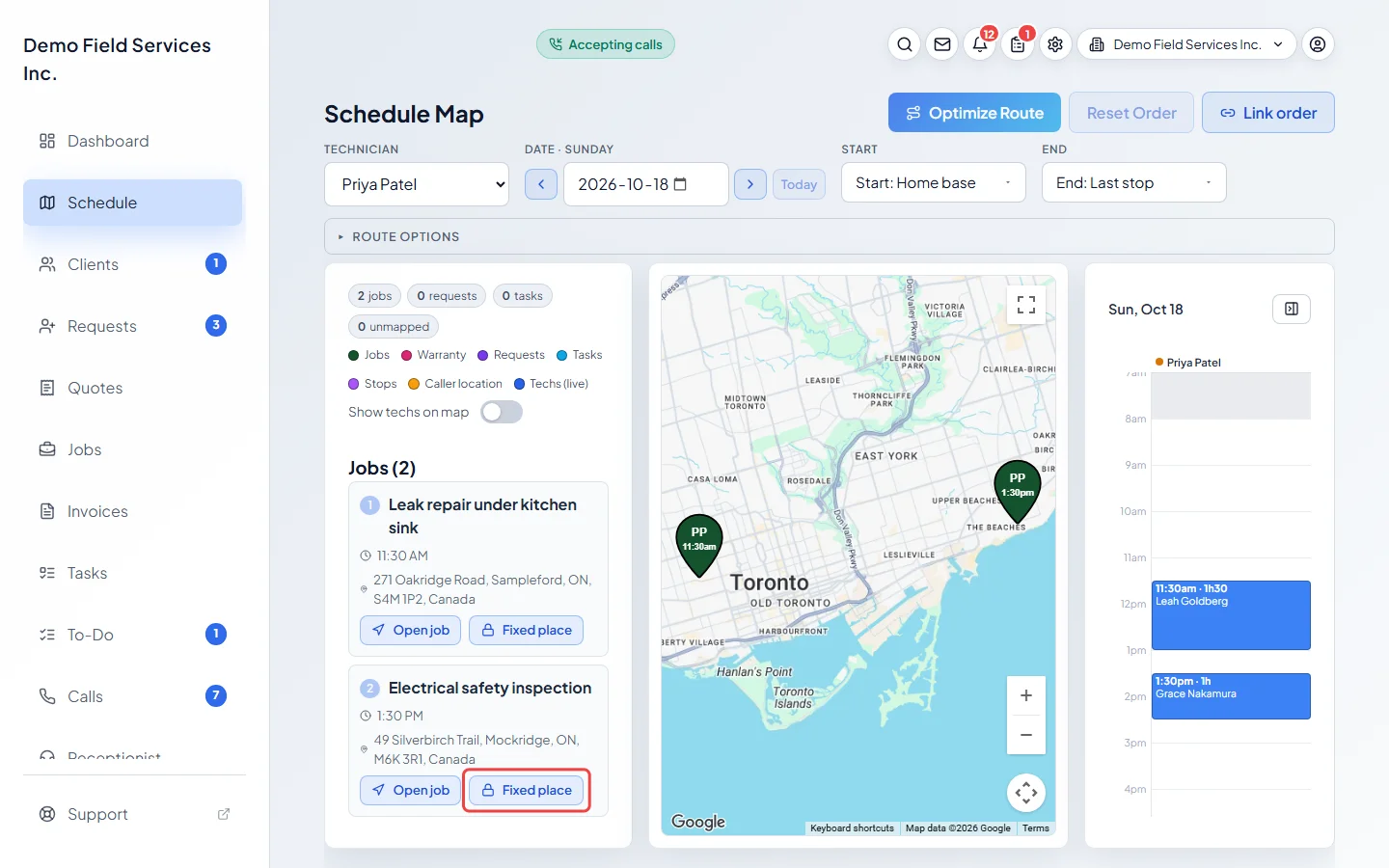
-
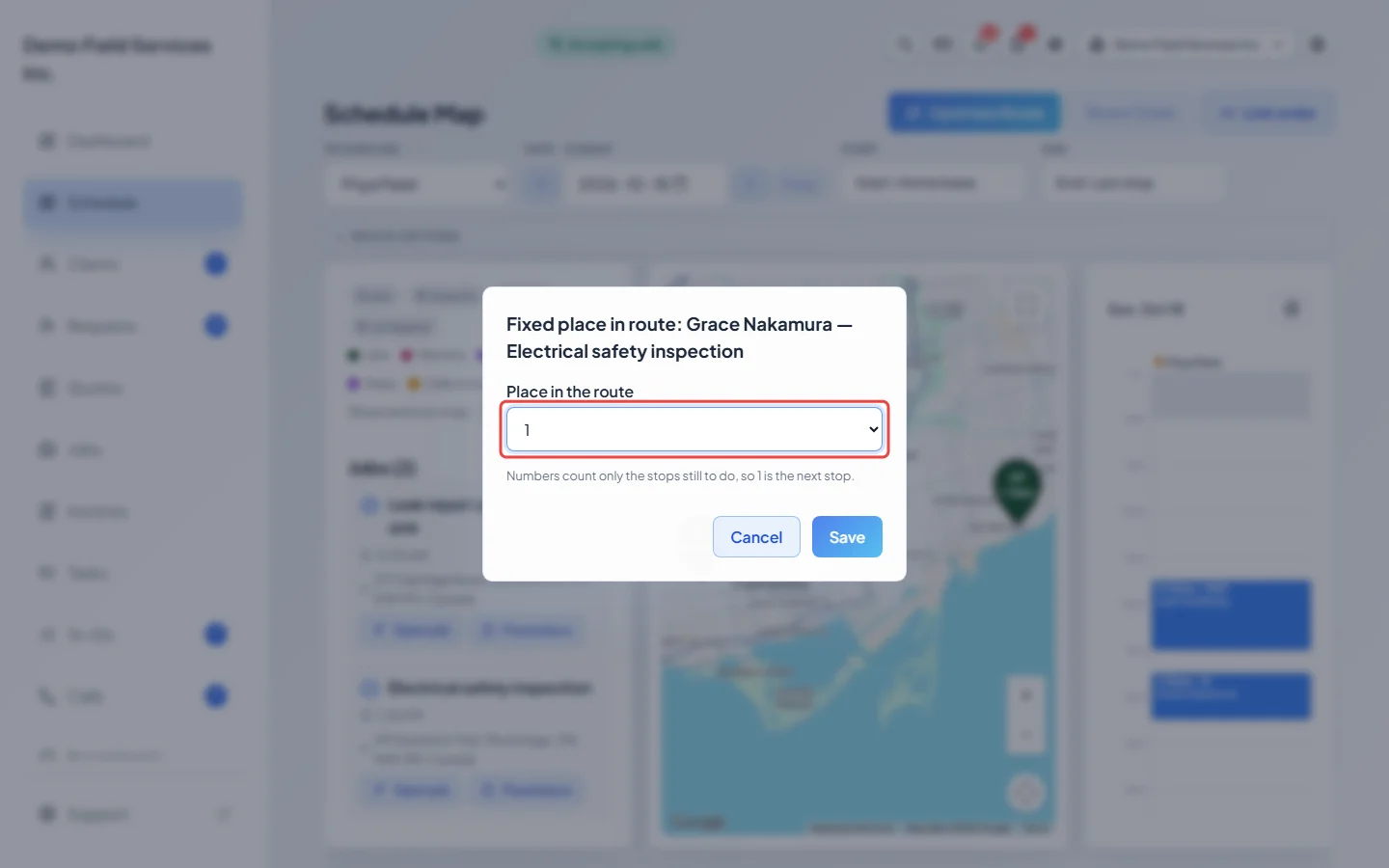
Under Place in the route, pick a number, or Last, and click Save. Numbers count only the stops still to do, so 1 is the next stop. A number already used by another stop shows that stop’s name; saving moves that stop back to automatic.
-
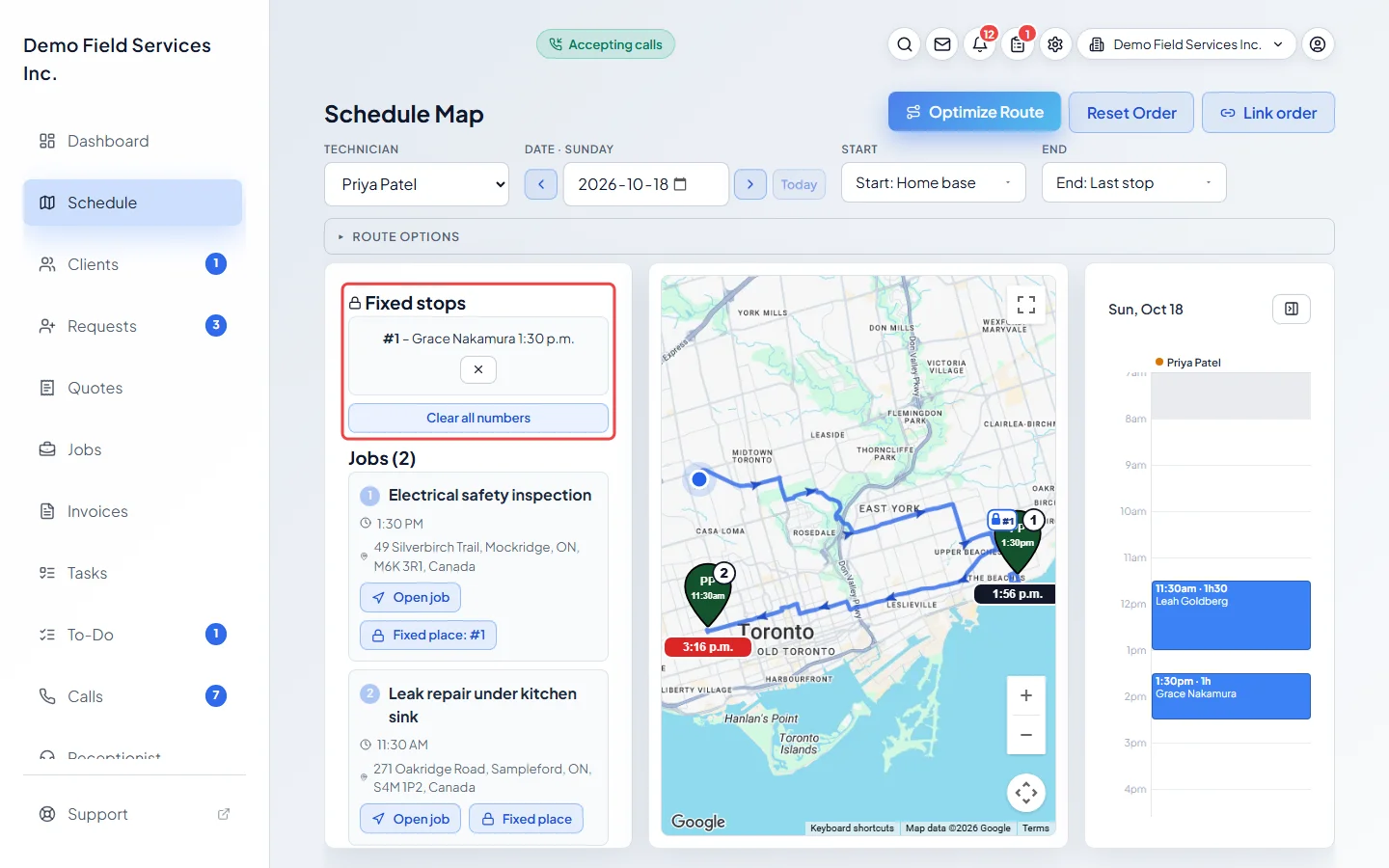
Click Optimize Route to plan the day around it. The stop’s pin gets a blue padlock tag with its number (or L for last), and the day’s fixed places are listed under Fixed stops. Click the × next to one to free it, or Clear all numbers and then Clear numbers to free them all.
-
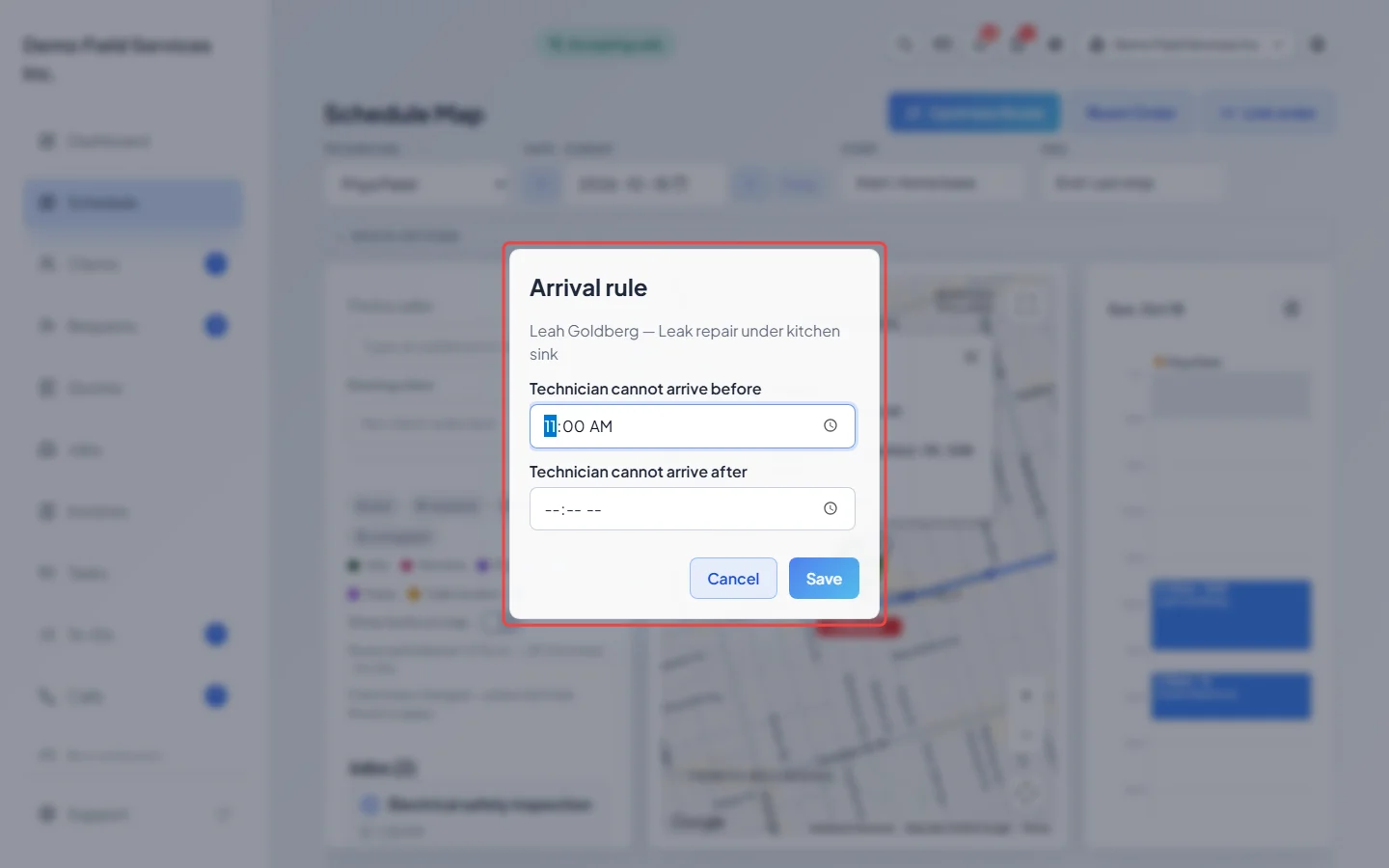
To set a time limit, click the stop’s pin, then Rules. Fill in Technician cannot arrive before, Technician cannot arrive after, or both, and click Save. Clear rule removes it. A rule the client’s promised arrival window can’t meet is refused, with a note to change the appointment’s time instead.
-
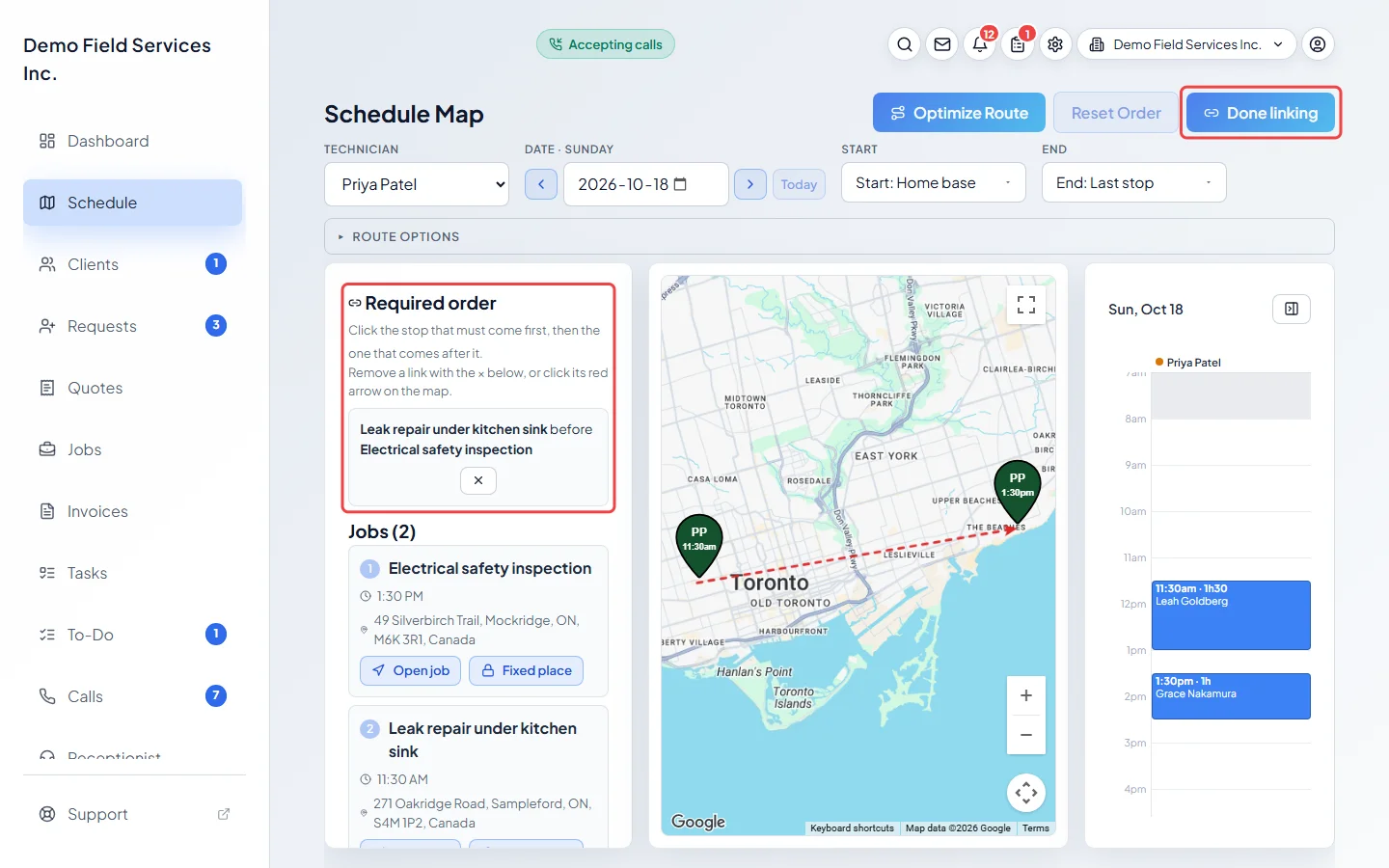
To make one stop come before another, click Link order, click the stop that must come first, then the one that comes after it. A dashed red arrow joins them and the pair is listed under Required order. Click Done linking when you’ve finished. To remove a link, click × in the list or click its arrow on the map.
Good to know
Section titled “Good to know”- Fixed places always win, even over a client’s arrival window and over linked order. After Optimize Route the map tells you which stops will be late or which links weren’t followed.
- A fixed place belongs to one team member on one day. If you move the visit to another day or team member, or cancel it, its fixed place is removed the next time the route is optimized, and the map says so.
- For a repeating job, set the place on each day’s visit where you need it.
- A stop fixed as 1 becomes the start when Start: Pick a stop is chosen; a stop fixed as Last becomes the end when End: Pick a stop is chosen.
- Changing a fixed place keeps the drawn route until you press Optimize Route again.
Related articles
Section titled “Related articles”Checked against Astragal on October 18, 2026