

During a call
While you talk to a caller in the phone app, Astragal writes down the conversation and fills in a booking for you.
Who can do this: Anyone who answers or places a call in the phone app.
Add-on: Phone lineAlso called: live transcript, call notes.
The call window only appears on a live call, and the demo company has no phone service, so it can’t be pictured here. This article describes it from the app itself; the pictures show the same call afterwards on the Calls page. The note-taking only runs when Automatically record and take notes on calls your team answers is on (it is unless someone turned it off) under Inbound call capture.
What you see while you talk
Section titled “What you see while you talk”- The caller: their number, the call timer and when the call came in. When the number belongs to a client, it says Existing customer and shows a Client history panel: open jobs, open requests, open quotes, unpaid invoices (with “past due” when any are late) and the latest note. Open full client record opens their record and shrinks the call to a small floating button, so the call keeps going.
- Why they’re calling: a tag such as Job booking or Question about an invoice, worked out from the conversation. Change it with the list next to it if the AI guessed wrong.
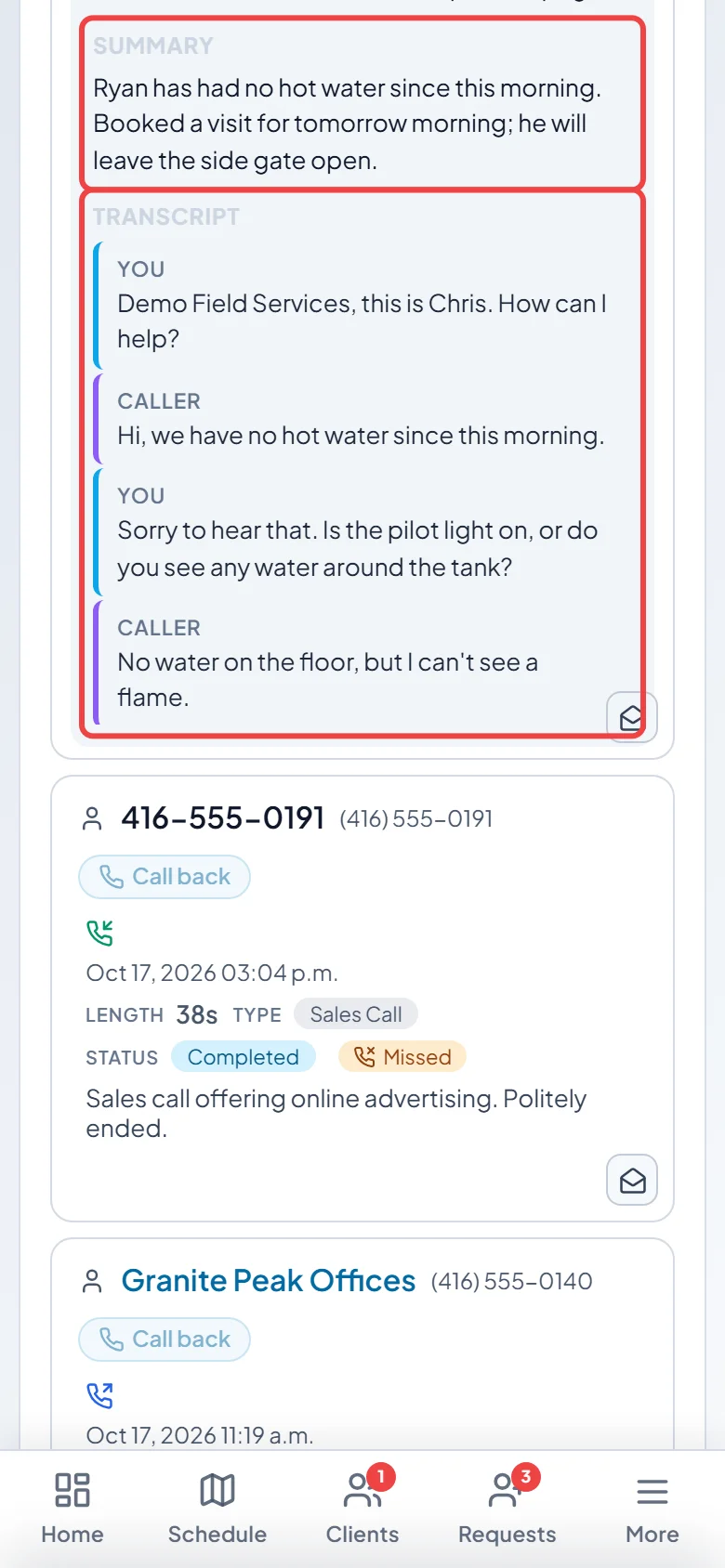
- Live transcript: each line is labelled Caller or You as it’s said (Receptionist on a call the AI took). Pause live AI stops sending the conversation to the AI for this call (the transcript keeps showing, with an AI paused tag); Resume live AI catches it up.
- Booking details: the caller’s name, company, phone numbers, email, service address, billing address, a job title, Notes for the technician, a start time and an Arrival window. Fields the AI filled carry an AI tag; details already on the client’s record carry an On file tag and the AI won’t overwrite them. Type in any field to correct it, and the AI stops changing that field.
- Caller updated their info — confirm to apply: when a known caller gives a new phone number, email or address, it’s shown here. Click Accept to use it on this booking or Dismiss to ignore it.
- AI to-do: things you promised on the call, such as “send the quote by end of day”. Checked items save to your To-Do list; uncheck any you don’t want.
- Assign technicians: on a booking call, tick who should do the work.
When you’re done, save the booking or the notes. See Reviewing what the call booked.
Keeping the call while you use the app
Section titled “Keeping the call while you use the app”Tap the shrink button at the top of the call window to keep talking while you look something up, check the schedule or finish a form. The call becomes a small floating button showing the caller’s name. Drag it out of the way, and tap it to bring the call window back.
-
After the call, open the Calls page on your phone. The call is there with its length and who answered it.
On a computer: Left menu → Calls On a phone: More → Calls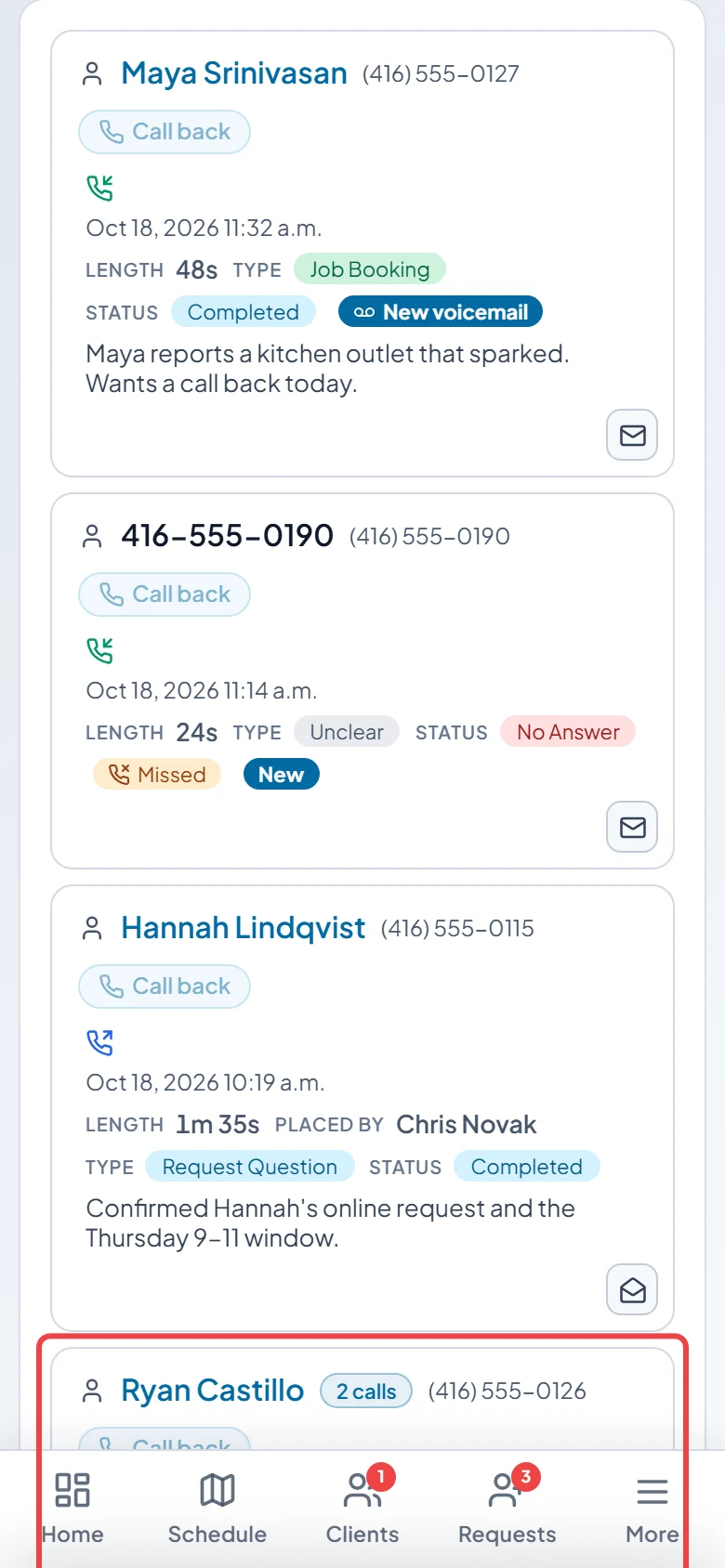
-
Tap the call to read the summary and transcript. A recorded call also has a player to listen back.
Good to know
Section titled “Good to know”- The buttons for Mute, Speaker, Bluetooth and Hang up are covered in Answering calls in the app.
- If the transcript takes a moment after you hang up, the window says Preparing the transcript… and fills in on its own.
Related articles
Section titled “Related articles”Checked against Astragal on October 17, 2026