

Company holidays
List the days your whole company is closed, so customers can’t book them and your team can see them on the schedule.
Who can do this: Admins, dispatchers and accountants.
Also called: closures, statutory holidays, shutdown days.
-
Open Company holidays. Your holidays are listed with the next one first.
On a computer: Left menu → Settings → Company holidays On a phone: More → Settings → Company holidays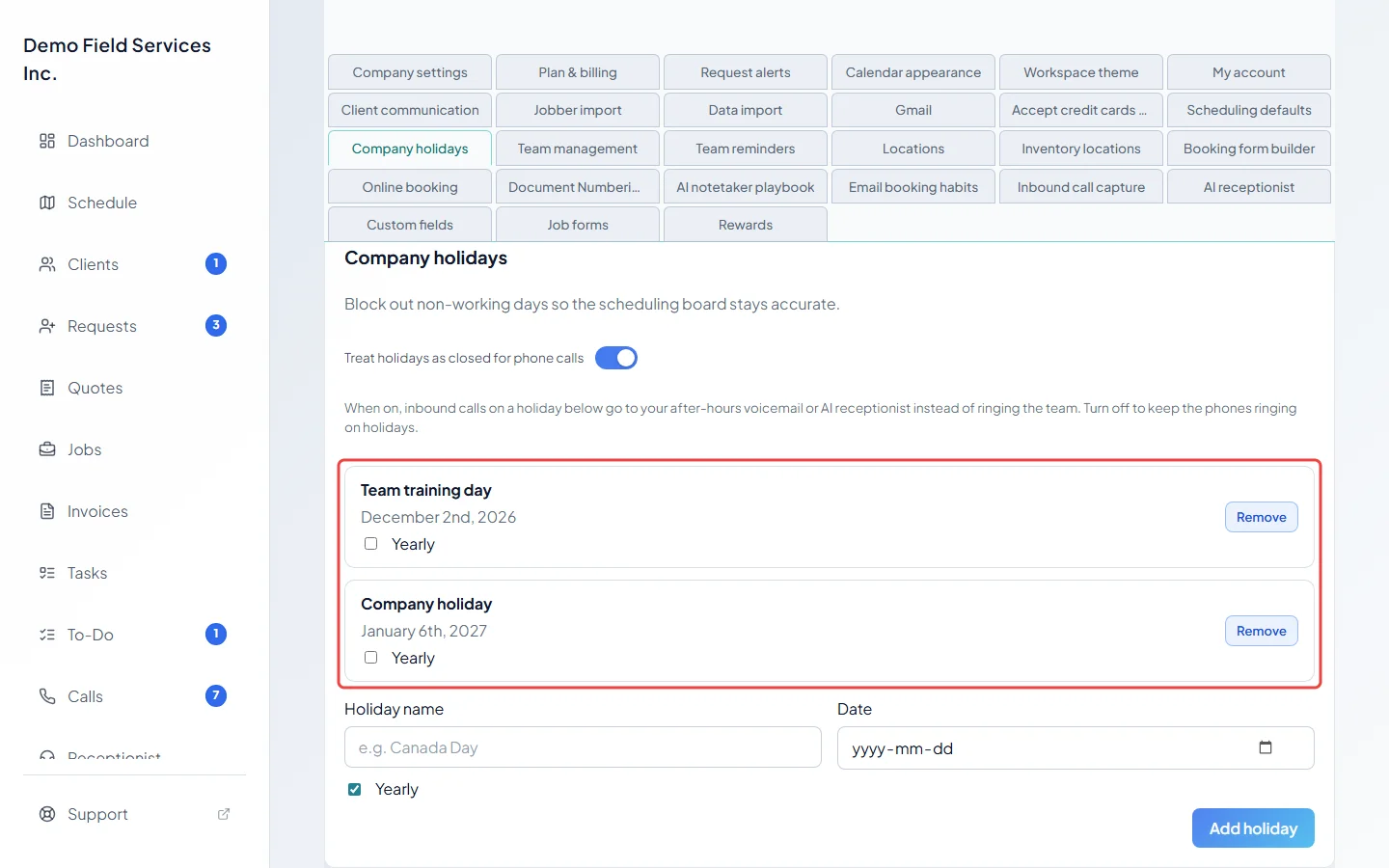
-
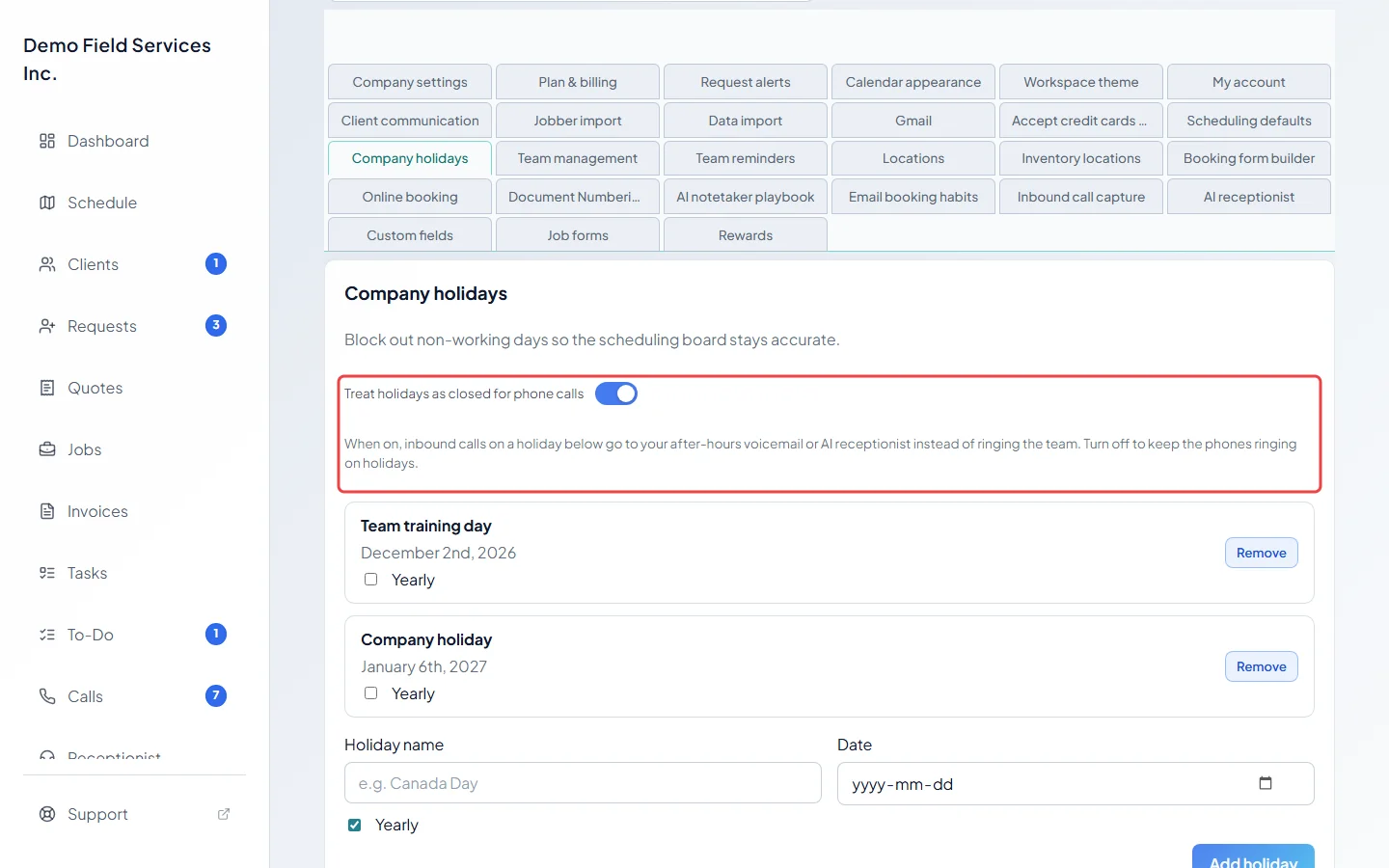
If you have the phone line add-on, leave Treat holidays as closed for phone calls on to send calls on a holiday to your after-hours voicemail or AI receptionist instead of ringing the team. Turn it off to keep the phones ringing on holidays. It saves as soon as you click it.
-
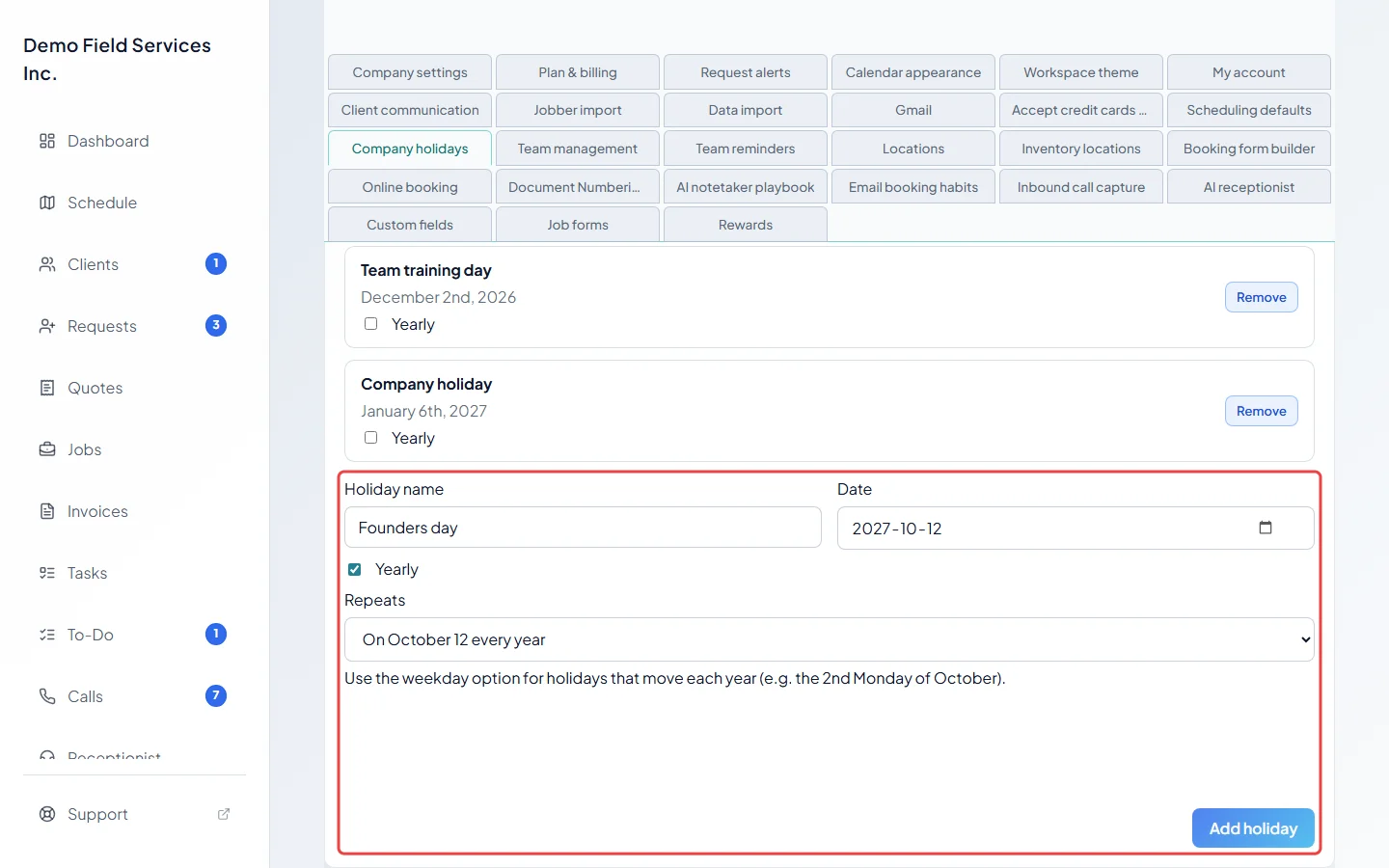
To add a holiday, type its Holiday name and pick its Date. Leave Yearly ticked if it comes back every year, then choose in Repeats whether it falls on the same date each year or on the same weekday (for example the 2nd Monday of October). Click Add holiday.
-
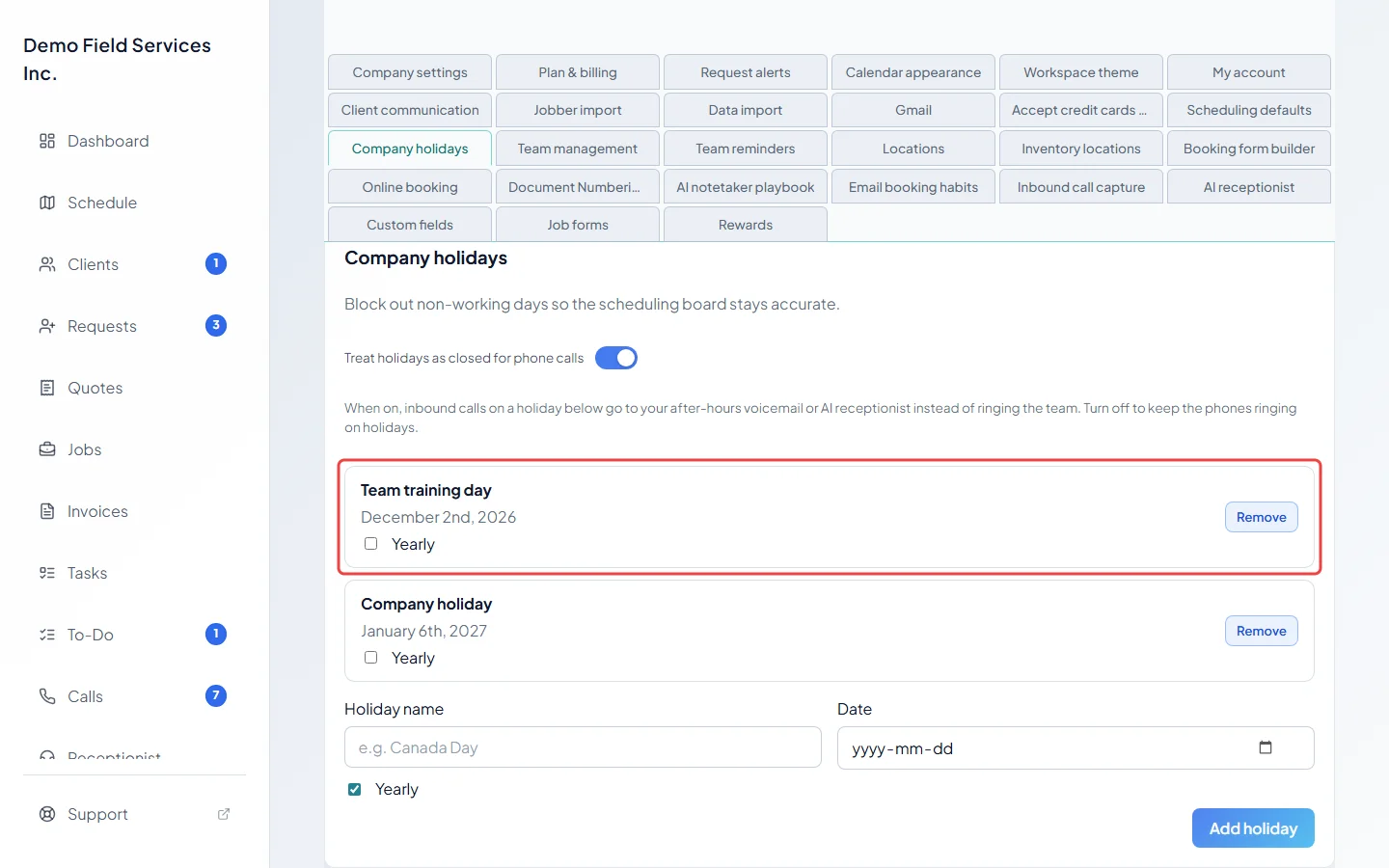
To change a holiday later, tick or untick Yearly next to it, or click Remove to take it off the list. Both happen straight away, with no extra question.
What a holiday does
Section titled “What a holiday does”- The schedule shows the holiday’s name on that day.
- Your online booking page offers no times that day, whatever your business hours say.
- The AI receptionist won’t book anyone in that day.
- Phone calls go to your after-hours setup, unless you turned off Treat holidays as closed for phone calls.
Good to know
Section titled “Good to know”- A holiday closes the day for the whole company. Each person’s usual working days are set separately. See Working hours.
- You can still put work on a holiday yourself from the schedule.
- To close a day to online booking only while you stay open for other work, use blackout dates instead. See Service area and limits.
Related articles
Section titled “Related articles”Checked against Astragal on October 18, 2026