

Add your first client
Add a client so you have someone to quote, schedule and invoice.
Who can do this: Admins and team members set to View, edit, and delete full client and property info.
Also called: customer, account.
Step 3 of 6 in setting up Astragal for your company.
For practice, add yourself or a friend as the client. You’ll use this client in the next step to try a quote, a job and an invoice.
-
Open Clients and click New client. You can also use Create → Client in the left menu.
On a computer: Left menu → Clients On a phone: Bottom bar → Clients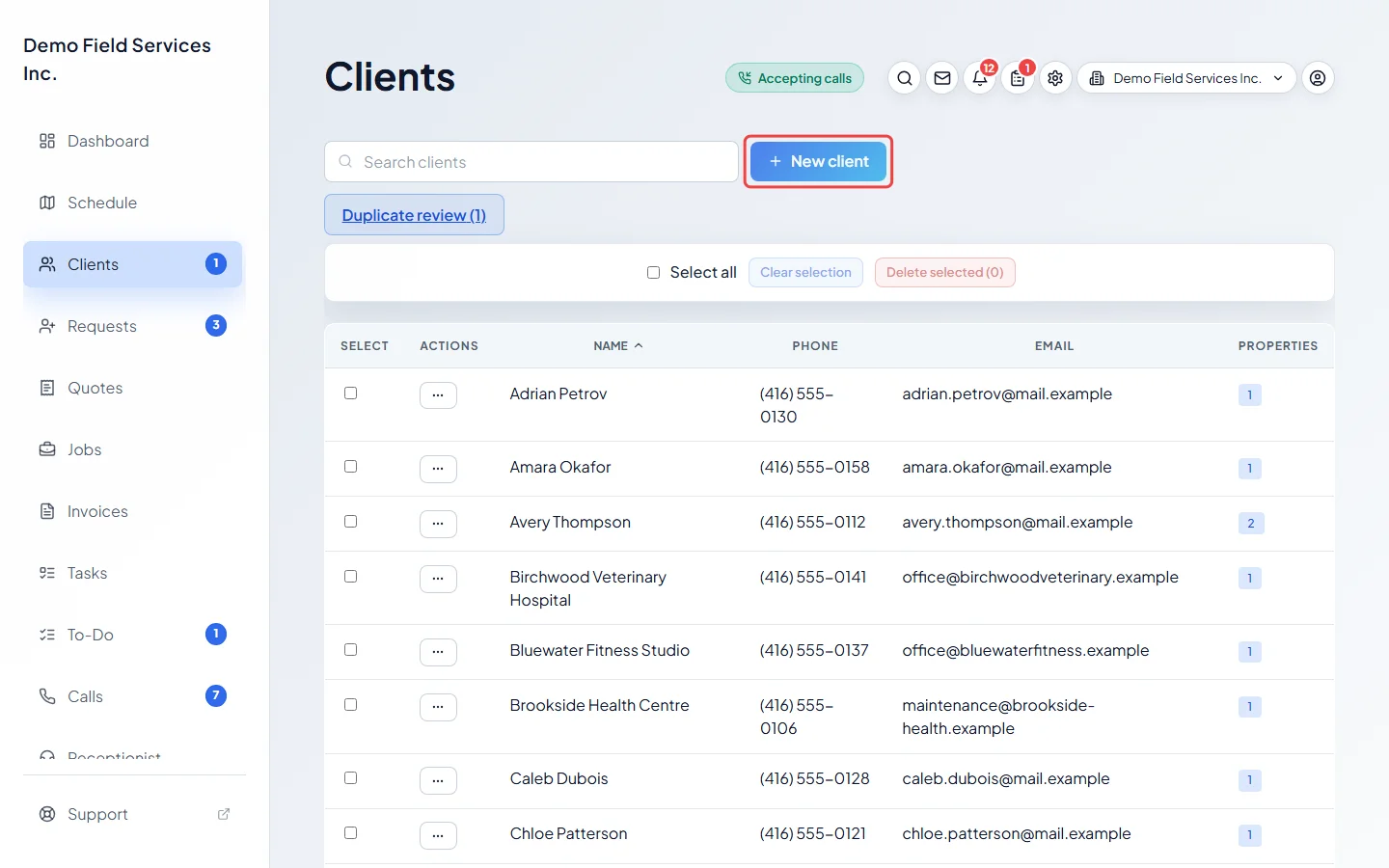
-
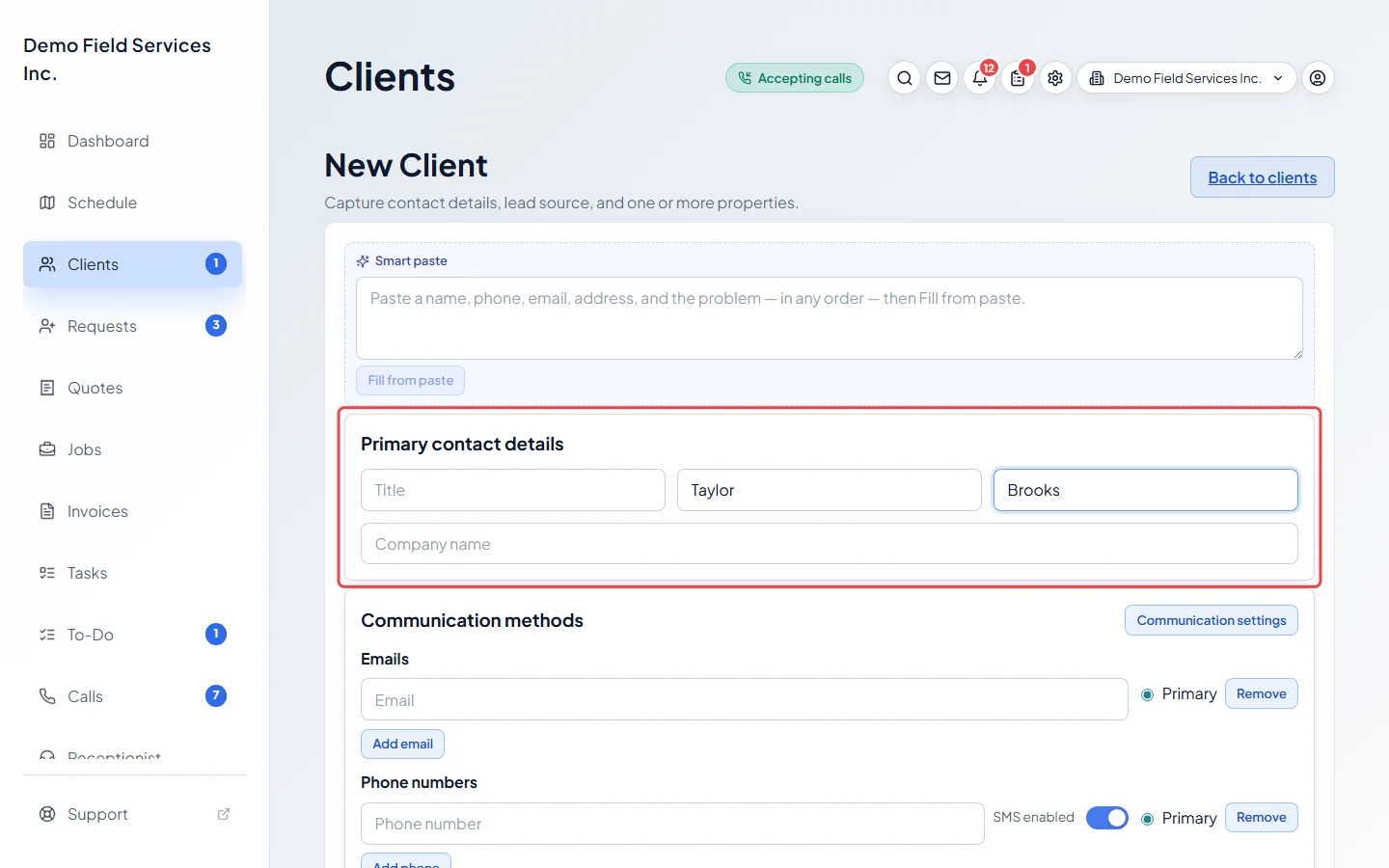
Under Primary contact details, type the client’s First name and Last name, or a Company name for a business.
-
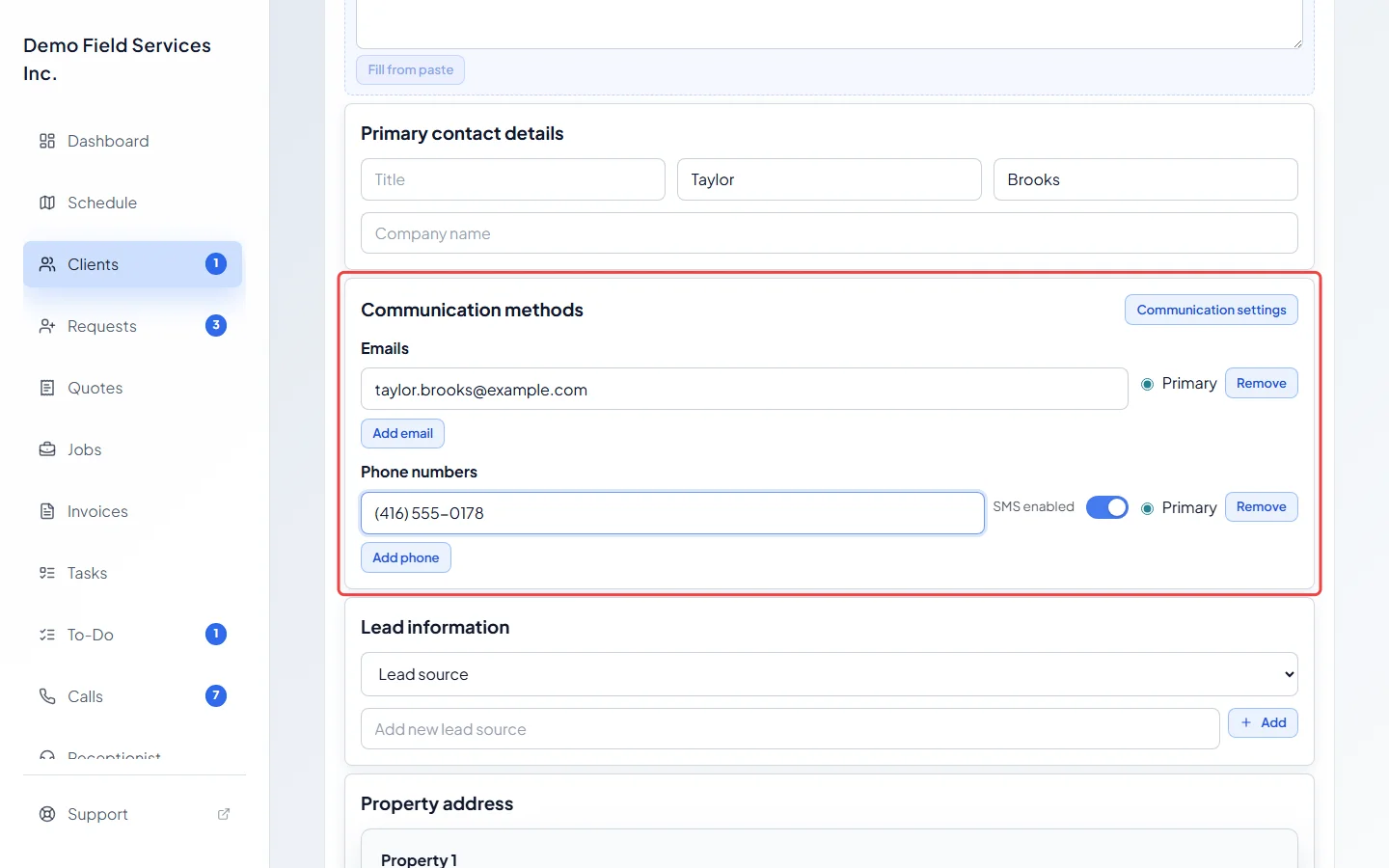
Under Communication methods, add their email and mobile number. Quotes, invoices and visit reminders go to these.
-
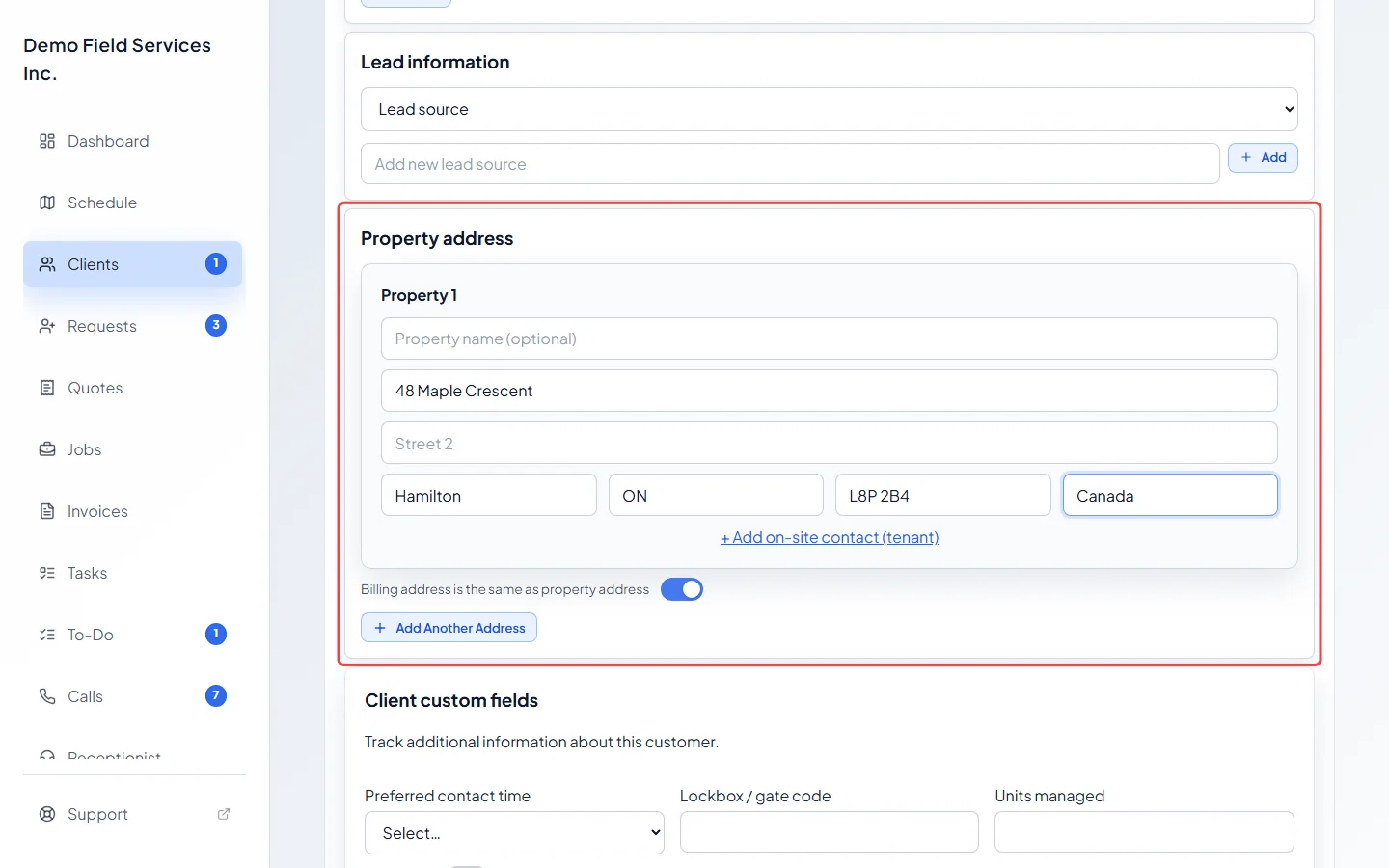
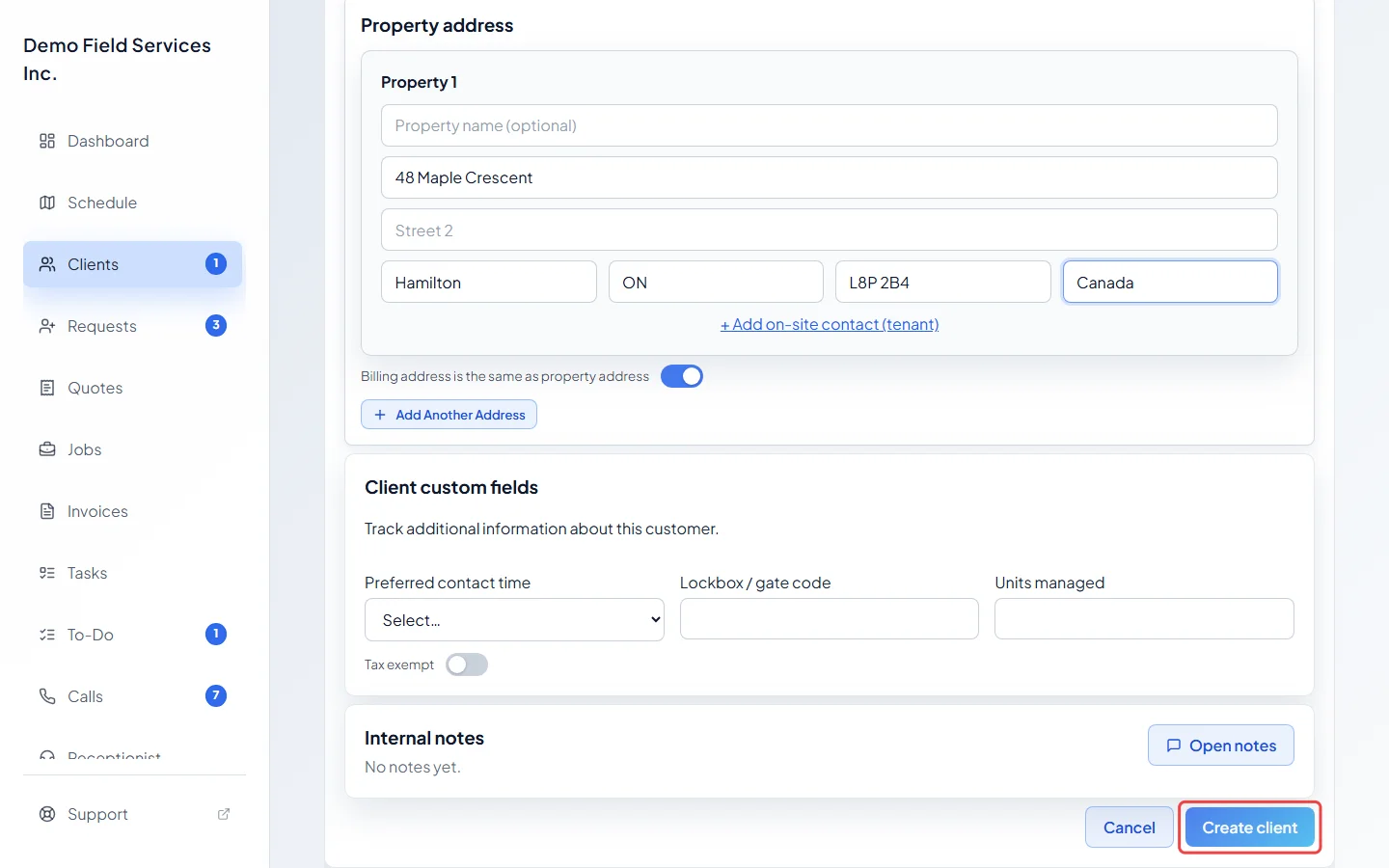
Under Property address, type the street where you’ll do the work. Pick the matching address if one drops down, or type the city, province and postal code yourself.
-
Click Create client. The client is added to your clients list.
Good to know
Section titled “Good to know”- Got the details in an email or text? Paste them into Smart paste at the top of the form and click Fill from paste.
- Lead source, more than one property, on-site contacts and custom fields are all optional. Adding a client explains every box on the form.
- Already have your clients in another app or a spreadsheet? See Moving your data from Jobber or another app.
Related articles
Section titled “Related articles”Next step: From quote to job to invoice
Checked against Astragal on October 18, 2026