

People on an account
Add the other people on a client’s account, such as a spouse, an office manager or a property manager, so each job’s messages reach the right person.
Who can do this: Admins and team members set to View and edit full client and property info or higher.
Also called: household members, contact persons.
If a client is just one person, you don’t need any of this. Nothing changes until you add someone.
-
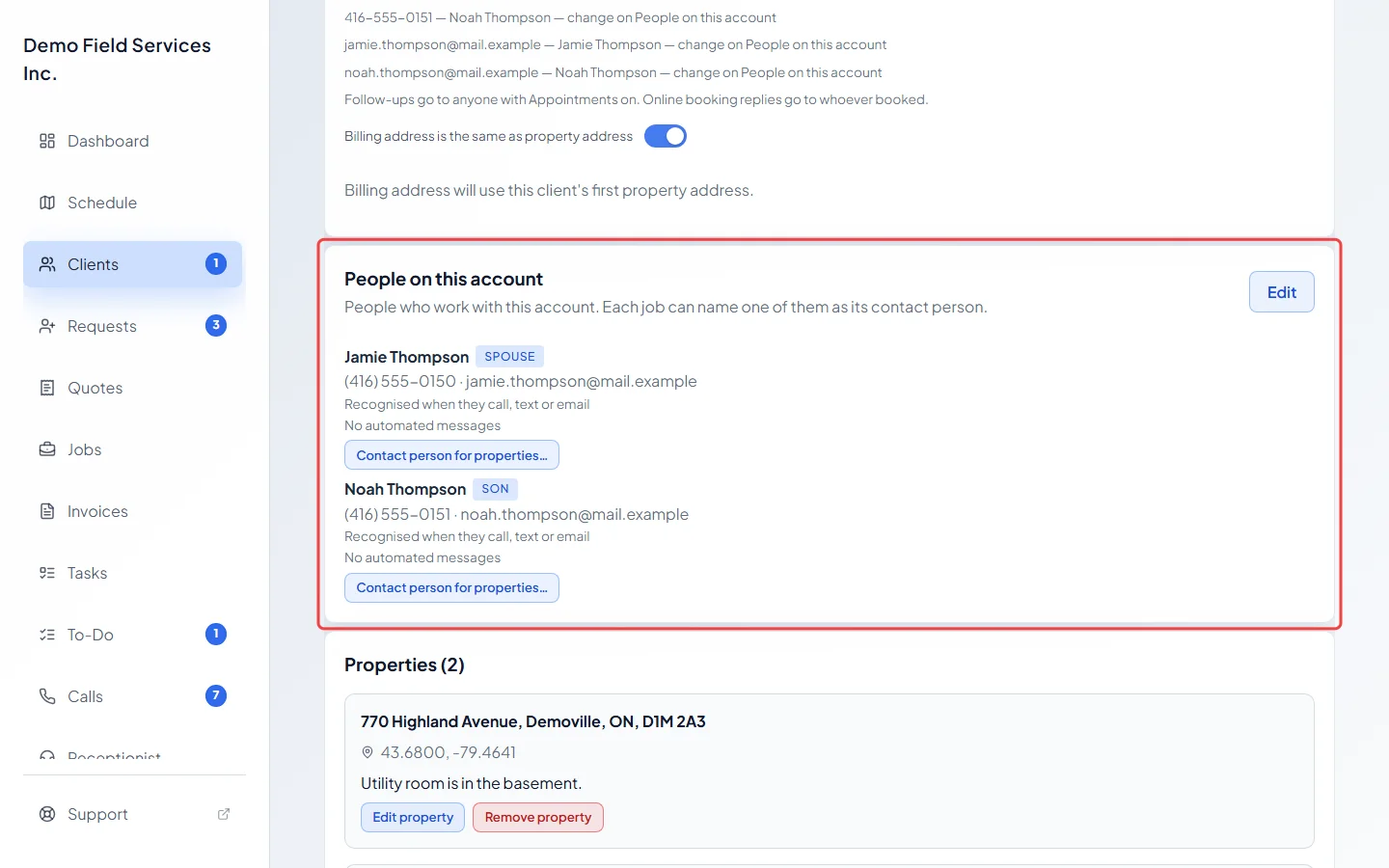
Open the client and find the People on this account card on the Profile tab, under Client details.
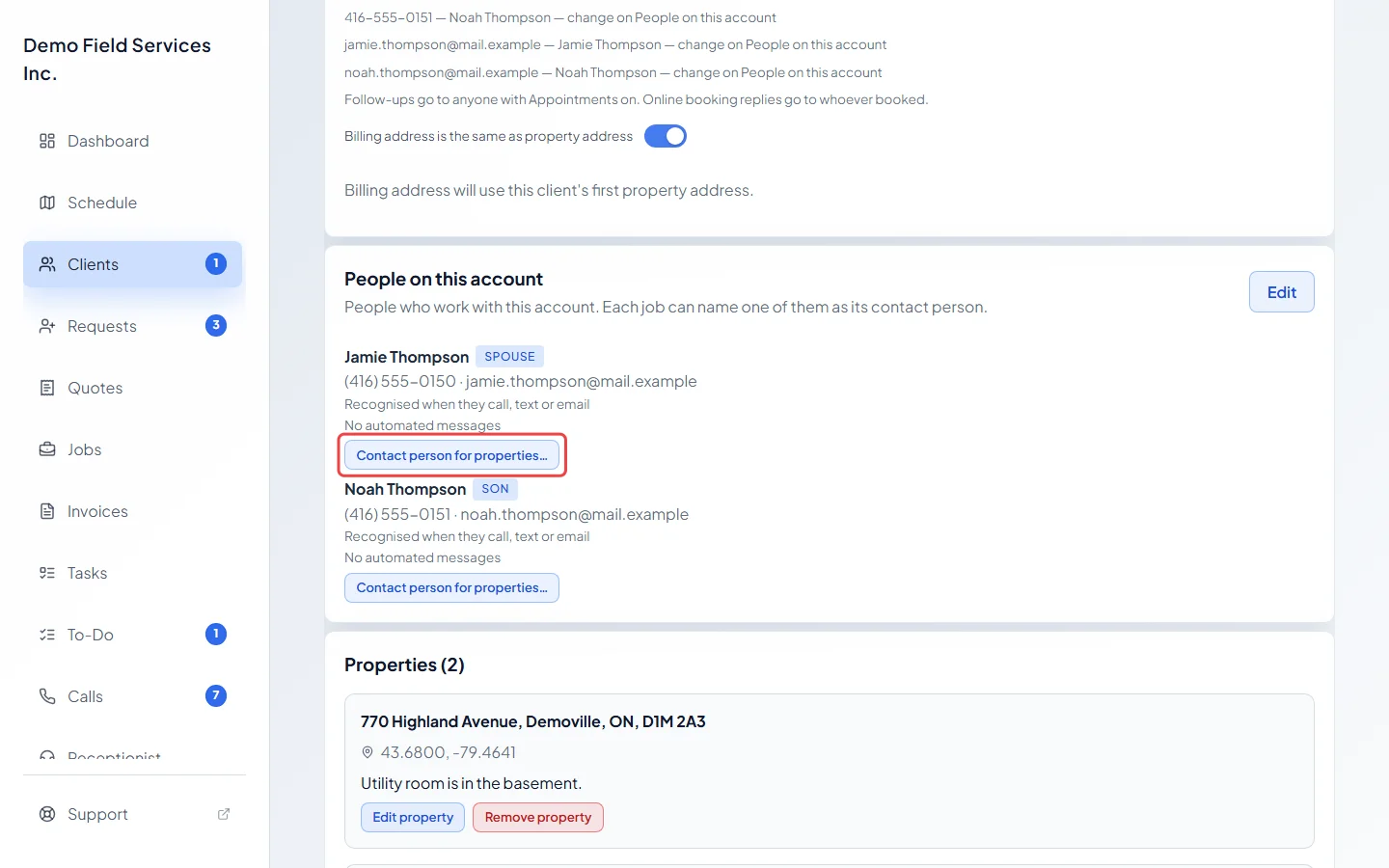
On a computer: Left menu → Clients On a phone: Bottom bar → ClientsFor each person the card shows their label, phone and email, what messages they get (for example “Gets: appointments, quotes & invoices” or “No automated messages”) and what they’re the contact for, such as “Contact for: 4 open jobs · 2 unpaid invoices”. It also says whether Astragal recognises them when they call, text or email. A note such as “Already on” another client ”— not linked”, or “This is a property’s on-site contact — not linked”, means that number or email belongs to someone else, so it isn’t tied to this person.
-
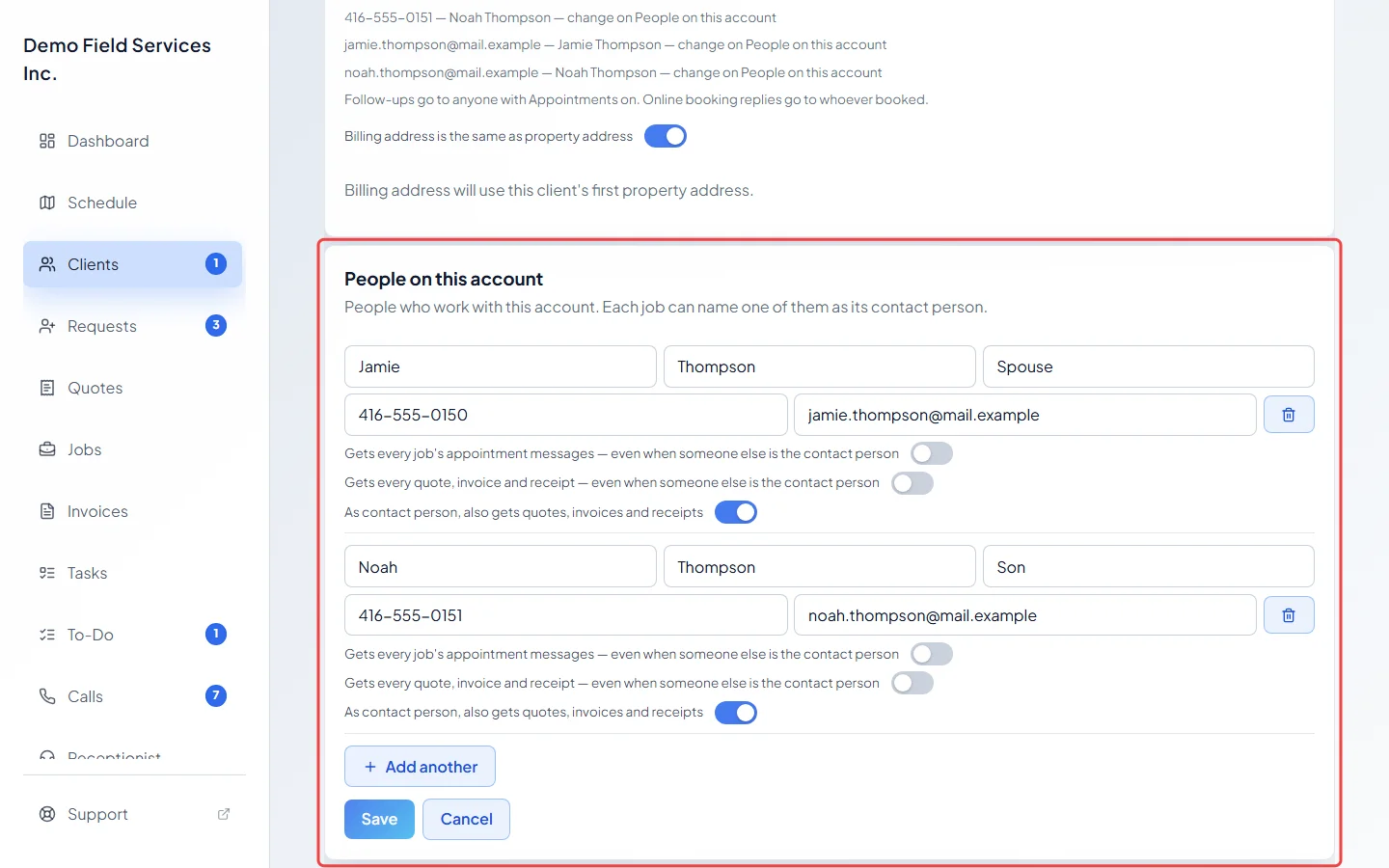
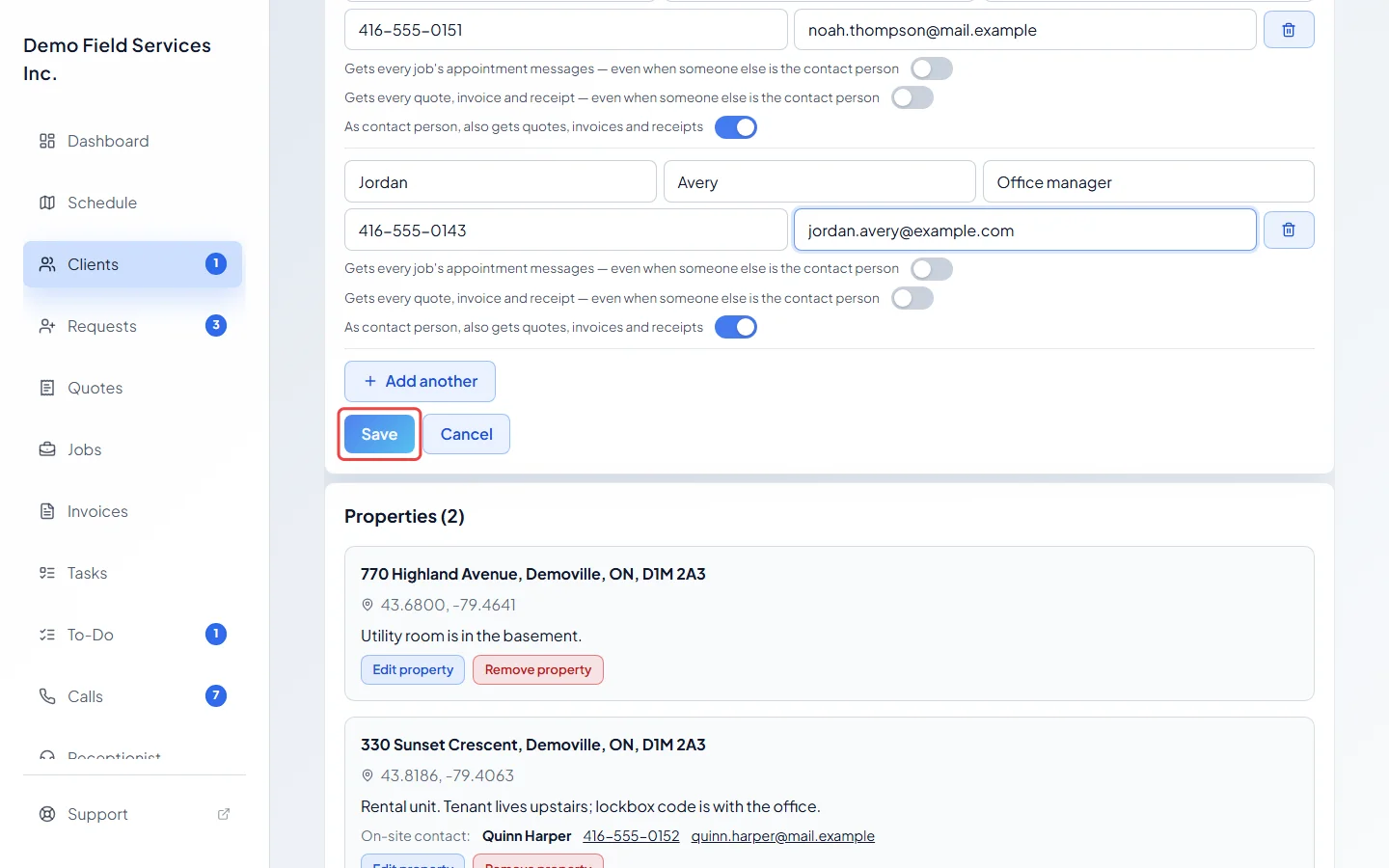
Click Add person, or Edit if there are people already. Click Add another for each extra person.
-
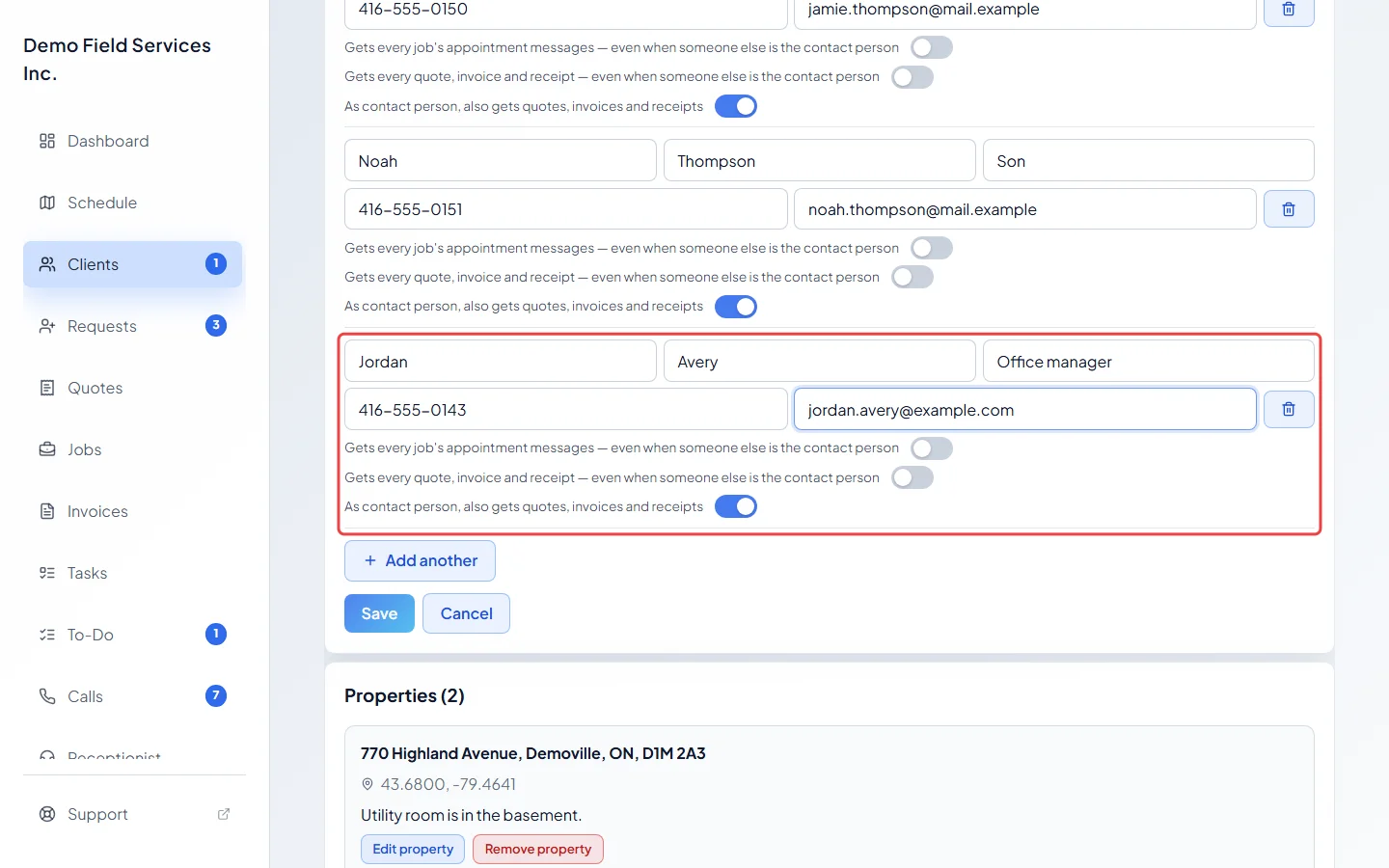
Type their first name, last name and a label such as “Spouse” or “Office manager”, then their phone and email.
-
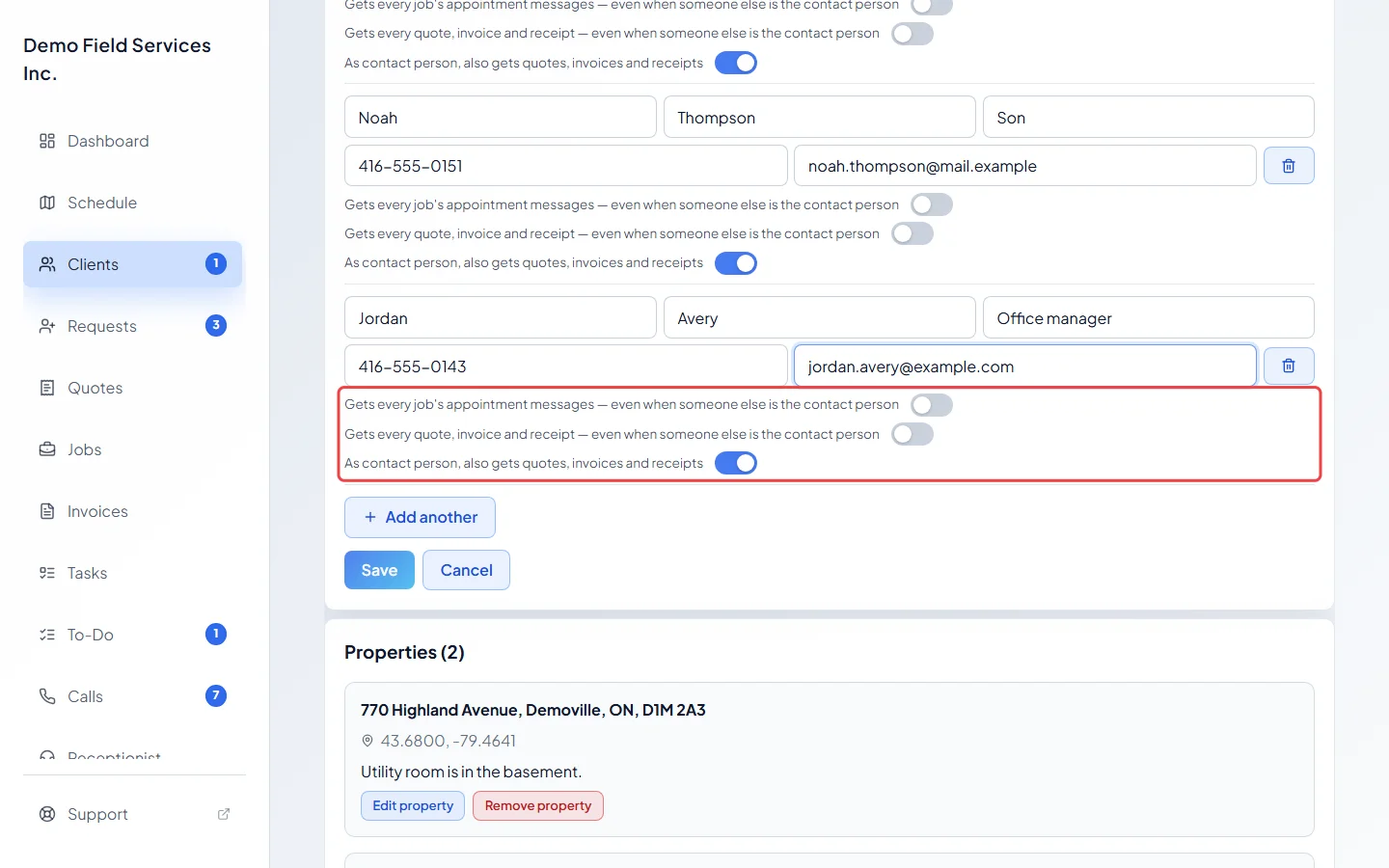
Once a person has a phone or email, three switches appear under them:
- Gets every job’s appointment messages — even when someone else is the contact person: for someone who should hear about every visit on the account.
- Gets every quote, invoice and receipt — even when someone else is the contact person: for a bookkeeper who pays every bill.
- As contact person, also gets quotes, invoices and receipts: on by default. Turn it off for someone who should get visit messages for their own jobs but never the bills; the card then says “As contact person: appointment messages only”.
-
Click Save.
Choosing the contact person on a job, quote or invoice
Section titled “Choosing the contact person on a job, quote or invoice”Once a client has people on the account, new requests, quotes, jobs and invoices show a Contact person box with the note “Gets this record’s messages.” Pick Account holder (the client) or one of the people. If the property has a usual contact, they are marked “(usual for this property)”. With more than eight people, a Search people… box appears.
You rarely need to touch it. It fills itself in, in this order:
- Whoever booked, when someone on the account books online, through the client portal, through your request form, or by calling your AI receptionist.
- The record it came from, when you turn a request into a quote or job, a quote into a job or invoice, or a job into an invoice.
- The property’s usual contact.
- Otherwise, the account holder.
Changing it sends nothing; it just decides who gets that record’s messages from then on.
Who gets what
Section titled “Who gets what”- The contact person gets the record’s messages: booking confirmations, reminders, on-my-way texts, reschedules and cancellations, plus quotes, invoices, receipts and follow-ups (unless their As contact person, also gets quotes, invoices and receipts switch is off).
- The account holder gets a copy only if the client’s communication settings say so (below).
- Anyone else on the account gets a copy only if their “Gets every…” switch is on.
- An on-site contact at the property still gets visit texts. See On-site contacts.
If the contact person has no phone and no email, the record’s messages go to the account holder, and the card warns “No phone or email — their jobs’ messages go to the account holder.”
Copying the account holder
Section titled “Copying the account holder”In the client’s communication settings, find When someone else on the account is the contact person, also send to the client’s name. Choose Appointments and Quotes and invoices separately:
- Automatic: for a client whose main name is a company, “Automatic — currently no, because the company name is the main name”. For a household, “Automatic — currently yes”.
- Always or Never.
A property’s usual contact
Section titled “A property’s usual contact”-
On the People on this account card, click Contact person for properties… under the person.
-
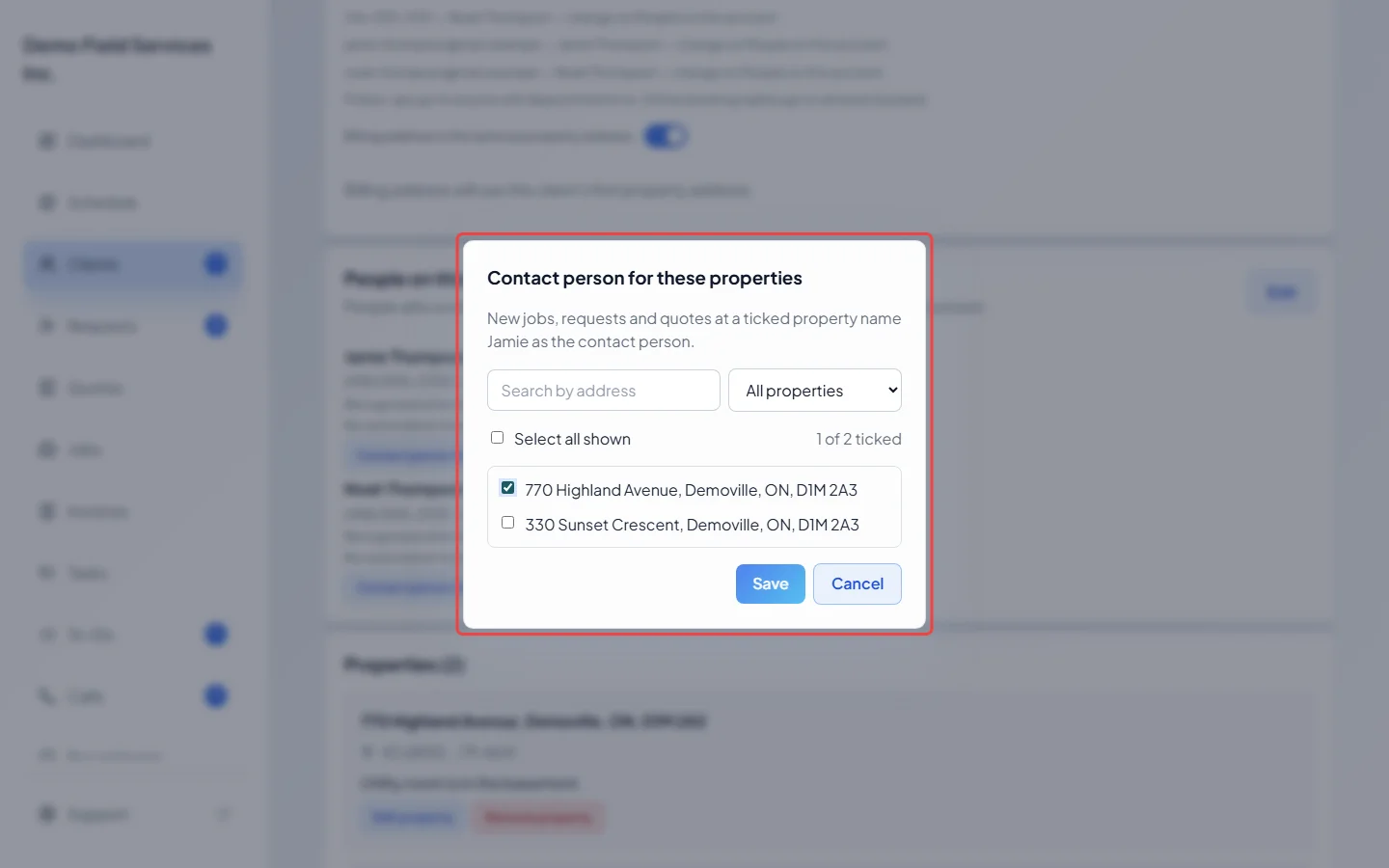
Tick their properties. Type in the search box, use the filter (All properties, Unassigned, the person’s own, or Others’) and Select all shown for a long list. Click Save. If open work at those properties has no contact person yet, Astragal asks whether to make this person the contact on it too. Click Apply or Skip.
You can also set one property at a time: click Edit property on it and pick a name under Contact person for this property, or None (account holder). New jobs, requests and quotes there name that person automatically. A booking never changes a property’s usual contact.
Removing or renaming someone
Section titled “Removing or renaming someone”Click Edit, click the bin next to the person, and click Save. If they’re still the contact on open work or properties, Astragal asks who takes over. Pick someone under Hand them to: and click Continue. If their phone or email is recognised, you’re also asked whether to remove those from the client (Remove them too) or keep them with messages switched off (Keep, switched off).
Renaming someone who is a contact person warns that their work will now show under the new name. Click Save the new name, or cancel and add a new person instead.
Good to know
Section titled “Good to know”- Lists and the schedule show the client and the contact person together, like “Exclusive Rental · Jenny R.”. Quotes and invoices print an “Attn:” line for a contact person other than the account holder.
- A portal link sent to a person on the account opens the portal as that person. They can approve or decline only the quotes that name them as the contact person.
Related articles
Section titled “Related articles”Checked against Astragal on October 17, 2026