

Chart vs table view
Switch a report between its chart and its tables, and sort or search the longer lists.
Who can do this: Anyone who can open Reports (see The reports page).
-
Open a report that has a chart, such as Requests & leads. Click Table view at the top right.
On a computer: Left menu → Reports On a phone: More → Reports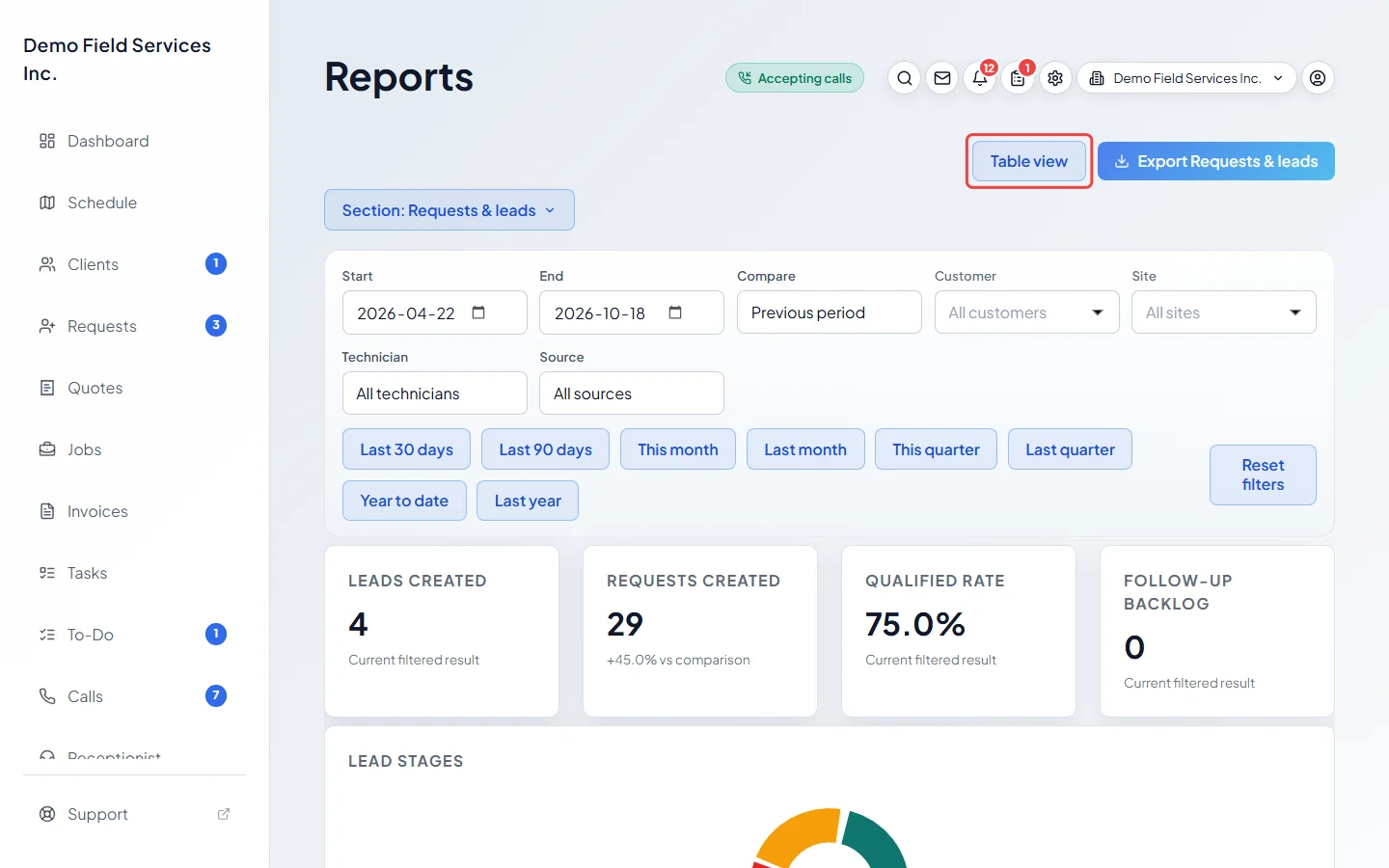
-
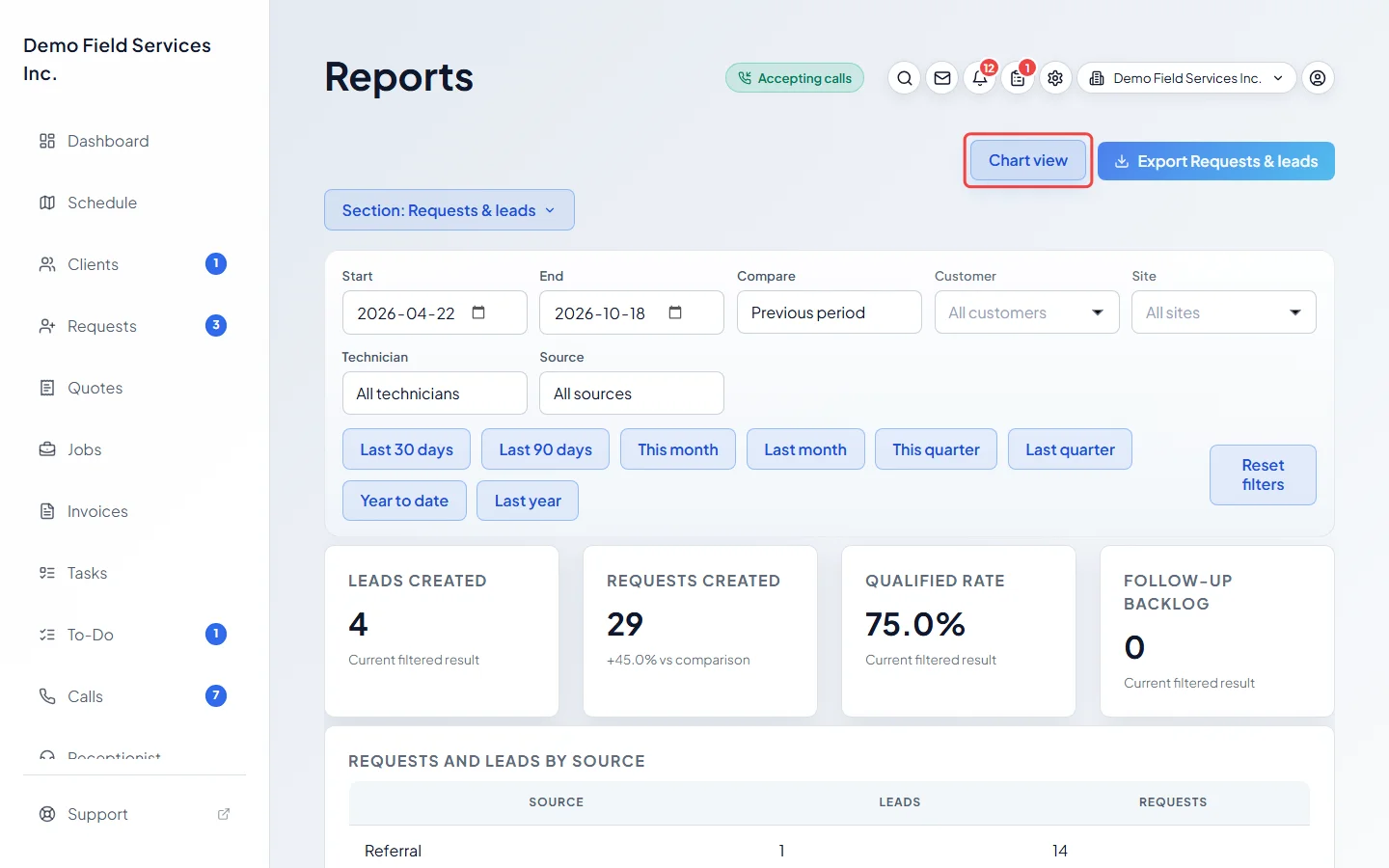
The chart is hidden and the figures and tables move up. Click Chart view to bring the chart back.
-
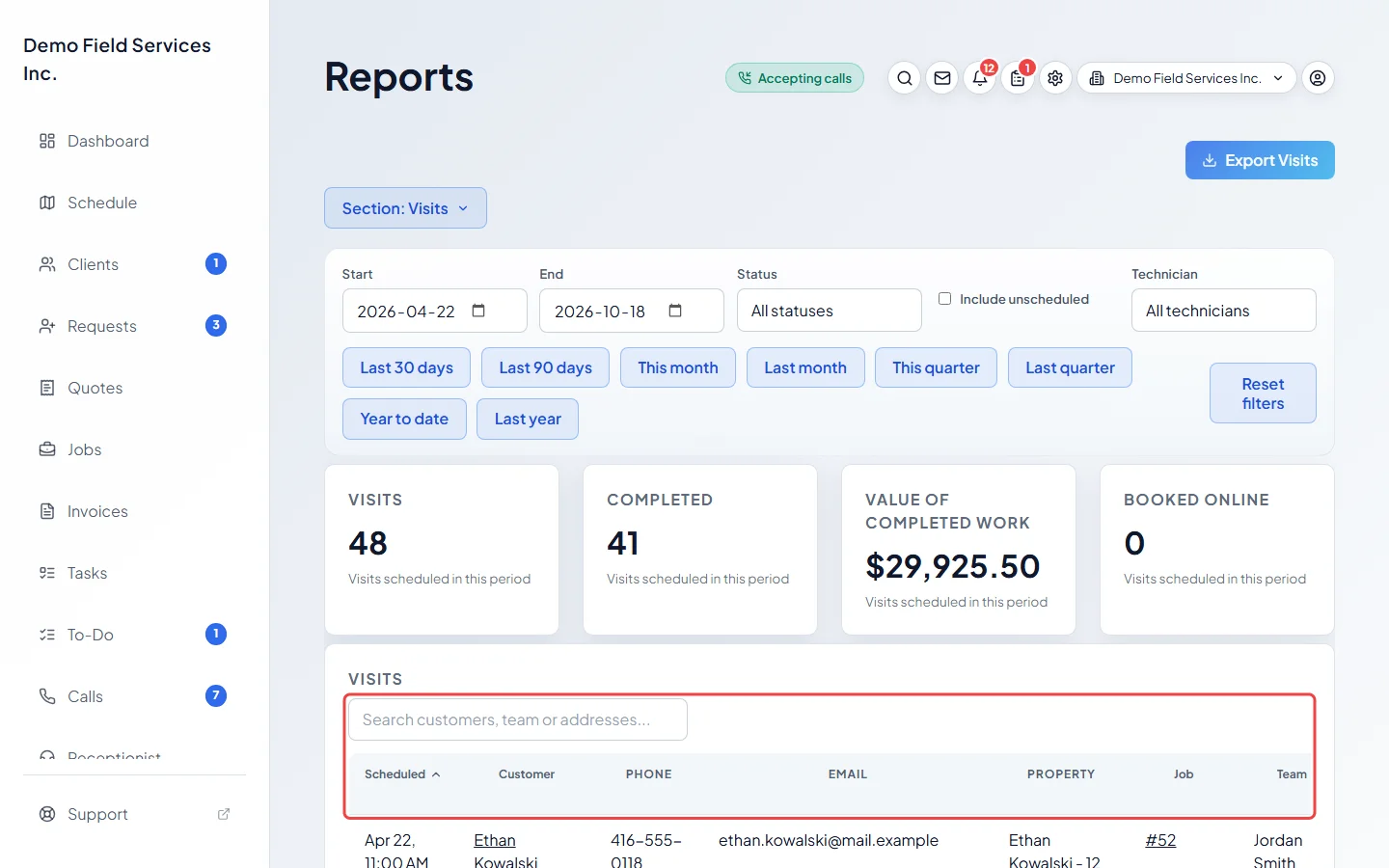
The newer reports (such as Visits, Timesheets, Sales tax and Products & services) are lists. Click a column heading to sort by it; click it again to reverse. Most lists also have a search box above them to narrow the list down.
-
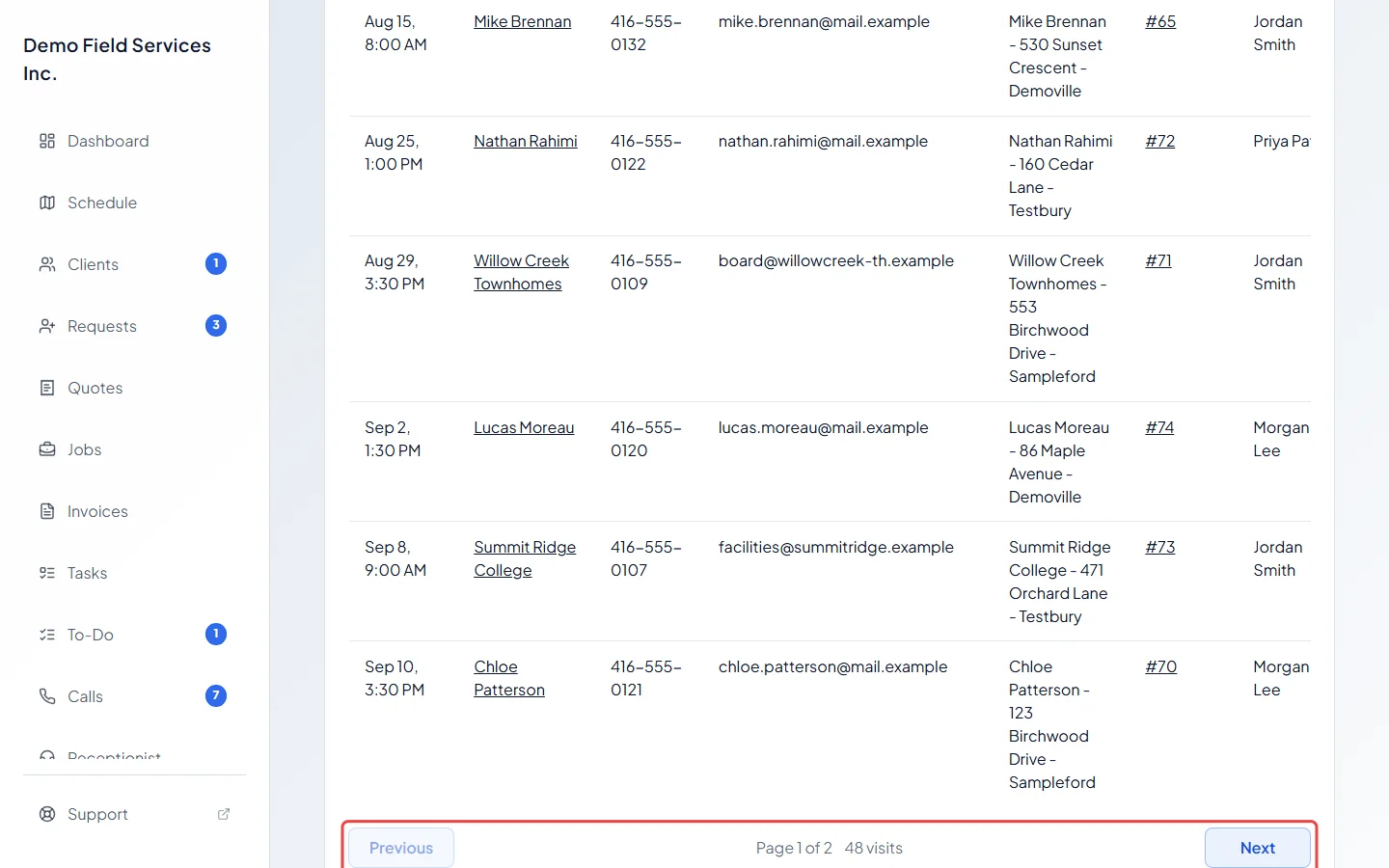
Most long lists show 25 rows at a time. Use Previous and Next under the list to move between pages.
Good to know
Section titled “Good to know”- Table view and Chart view appear on the older reports: Overview, Revenue, Products & services, Accounts receivable, Customer value, Quote to cash and the operations reports. On reports with no chart (such as Customer value, Technician ops, Inventory ops or Workforce ops) the button changes nothing.
- On Overview the charts stay in both views.
- Text columns sort A to Z first; number and date columns sort biggest or newest first. Blank values always go to the bottom.
- Some lists have a ▸ arrow at the start of each row. Click it to open more detail underneath, such as the invoices behind an item in Products & services.
- The chart or table choice is part of the page address, so a bookmark keeps it.
Related articles
Section titled “Related articles”Checked against Astragal on October 17, 2026