

Setting up online booking
Let customers book themselves into your schedule from a link, with times checked against your technicians’ real routes.
Who can do this: Admins and dispatchers.
Also called: self-scheduling, booking widget, “Book now” button.
-
Open Online booking in Settings and switch on Enable online booking. Your booking pages only take bookings while this switch is on.
On a computer: Left menu → Settings → Online booking On a phone: More → Settings → Online booking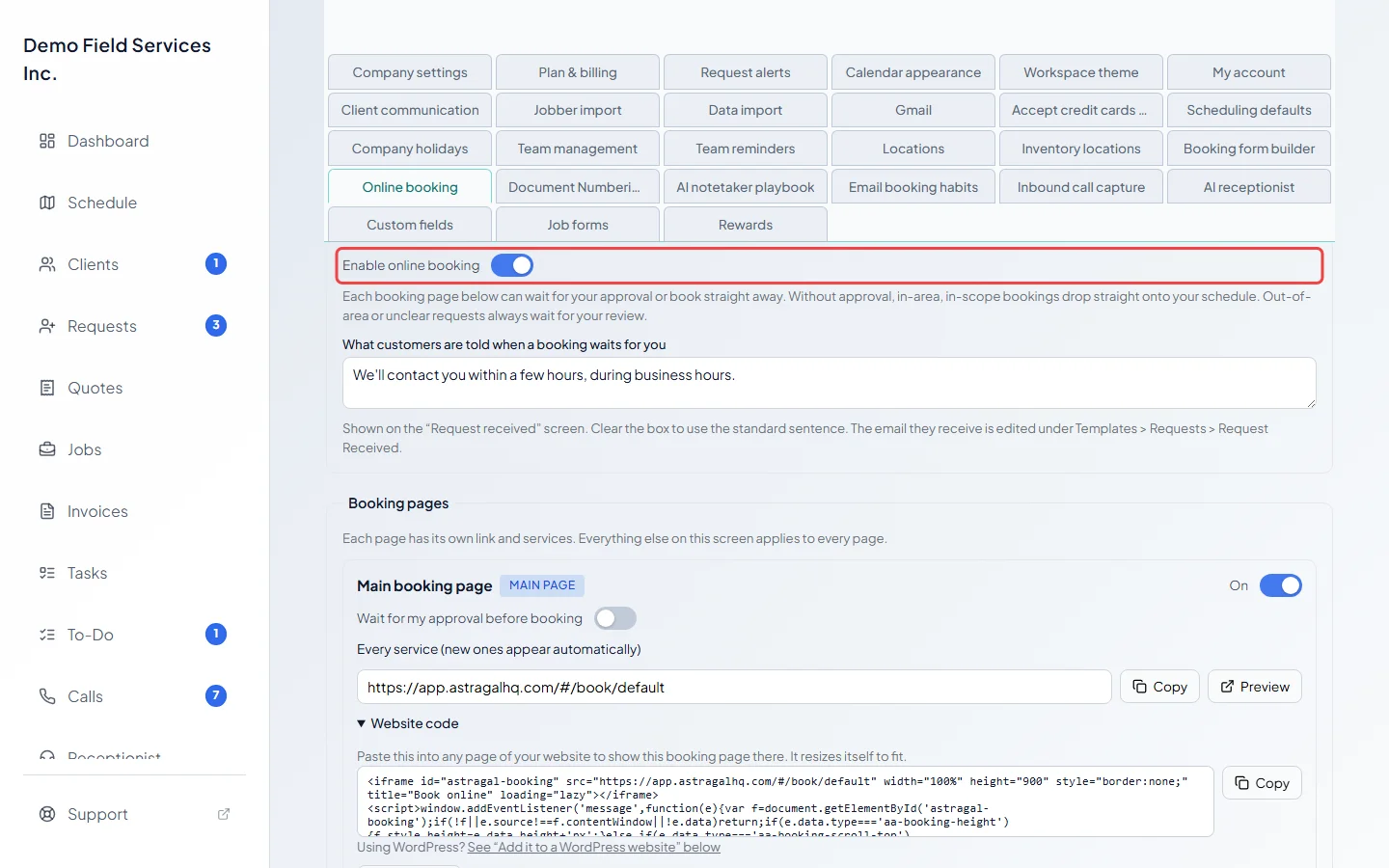
-
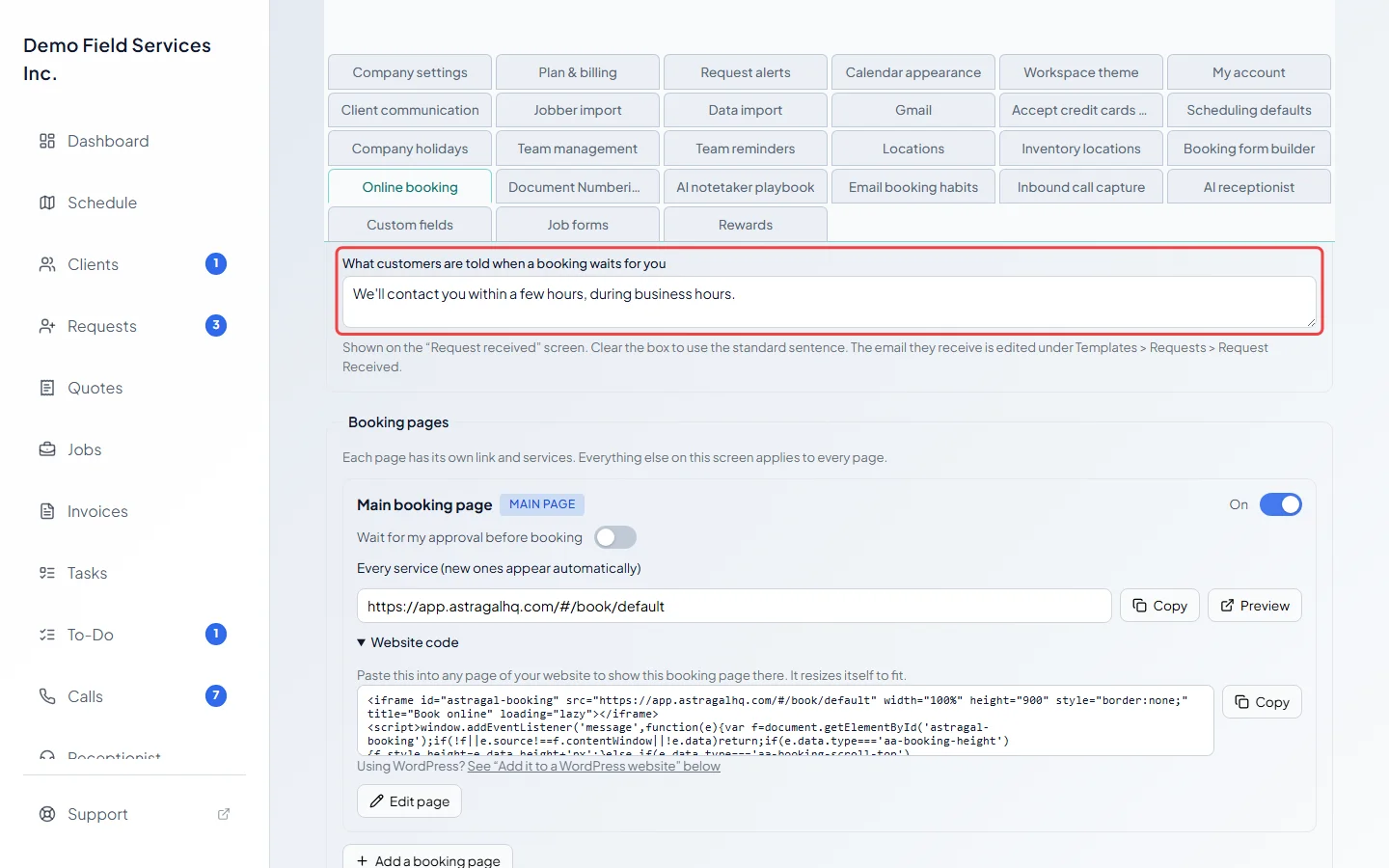
Under What customers are told when a booking waits for you, type the one sentence a customer sees on the “Request received” screen (up to 300 characters). It saves when you click out of the box. Clear the box to go back to the standard sentence, “We’ll contact you within a few hours, during business hours.”
-
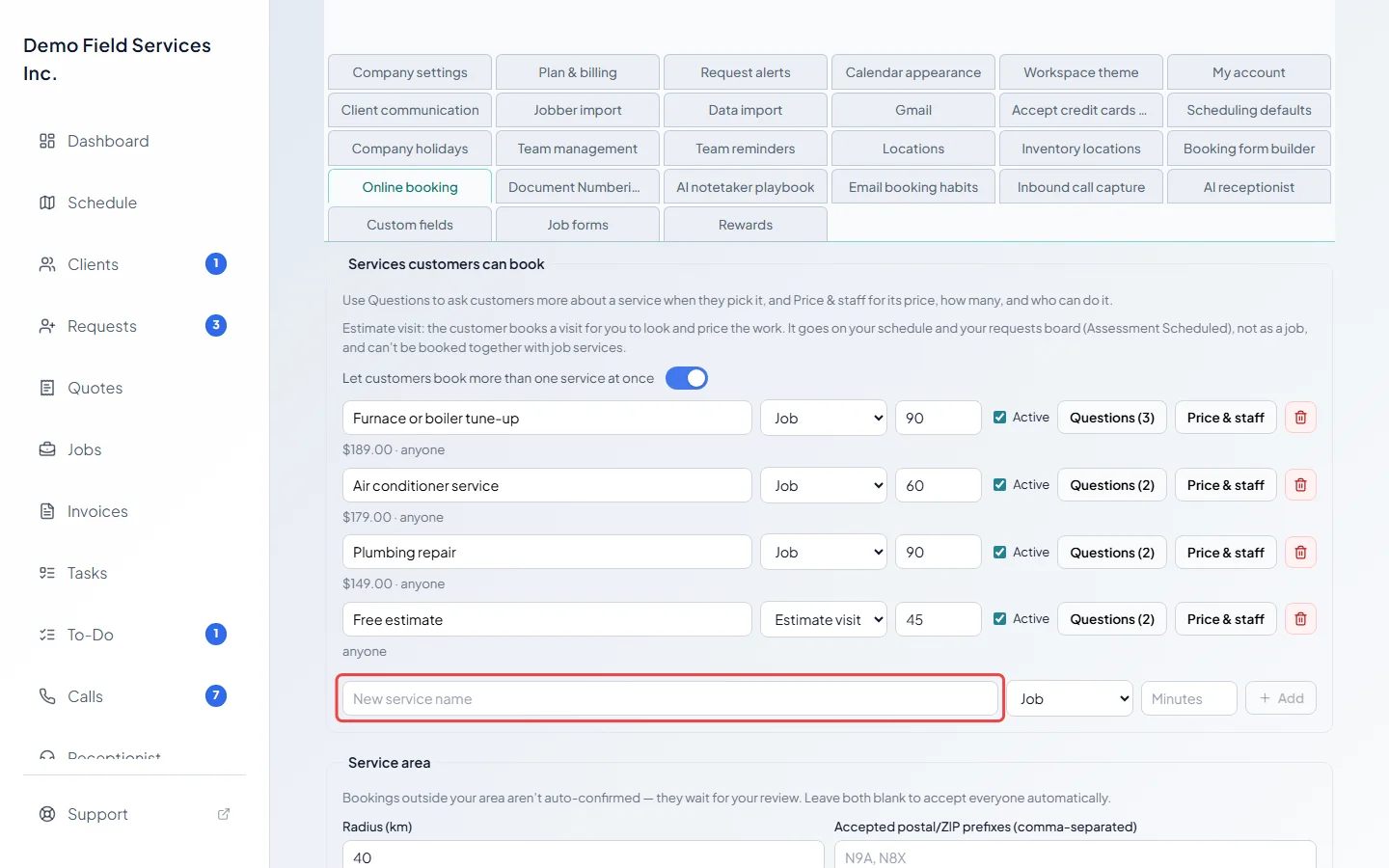
Under Services customers can book, check the list of services. Each one has a name, Job or Estimate visit, a length in minutes and an Active tick. Type a New service name and click Add for anything missing. See Services customers can book for prices, quantities and who can do each one.
-
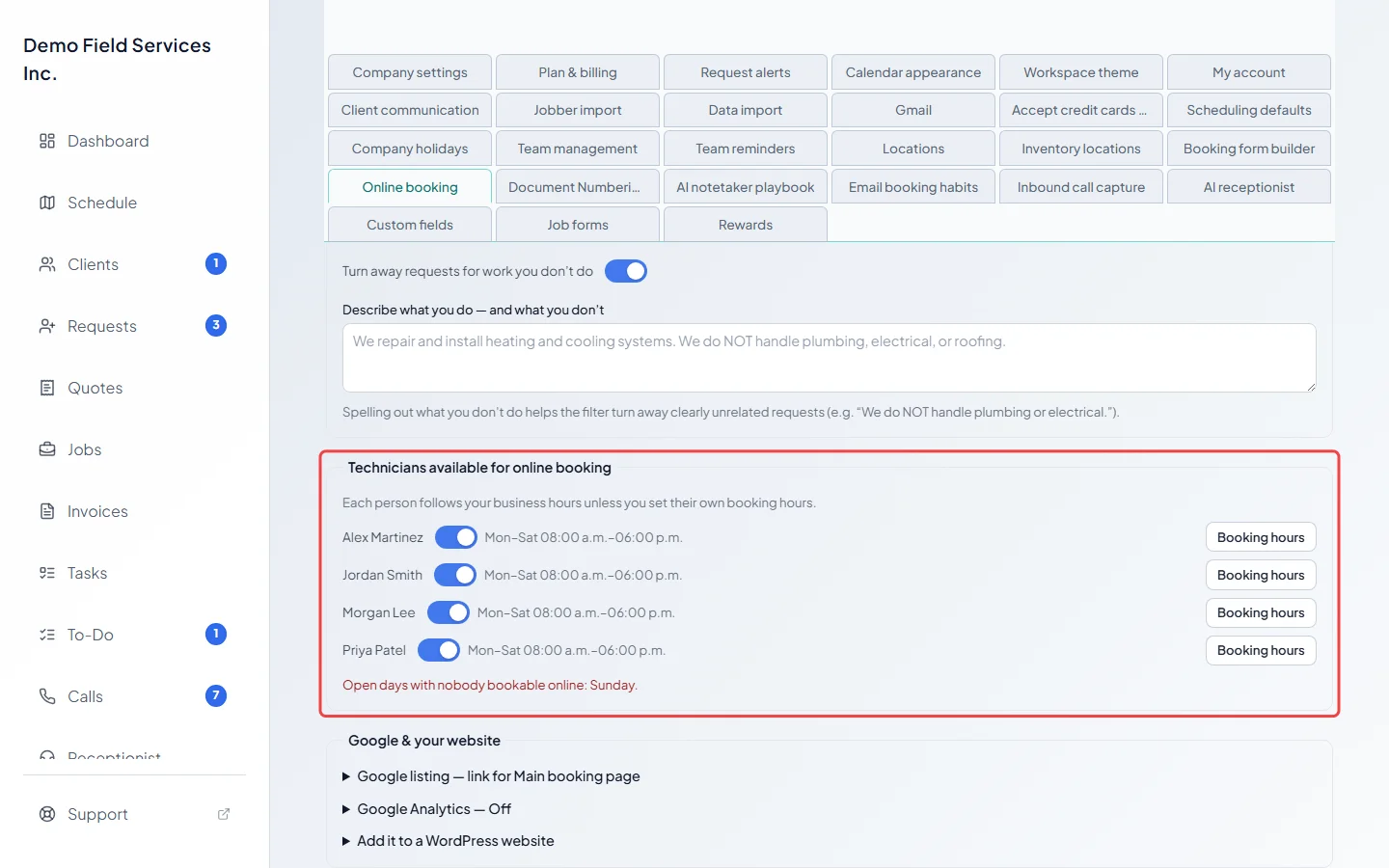
Under Technicians available for online booking, switch on each person whose route customers may book into. Only switch on people who travel to customers on their own: each one’s own route is checked. See Who can be booked and when.
-
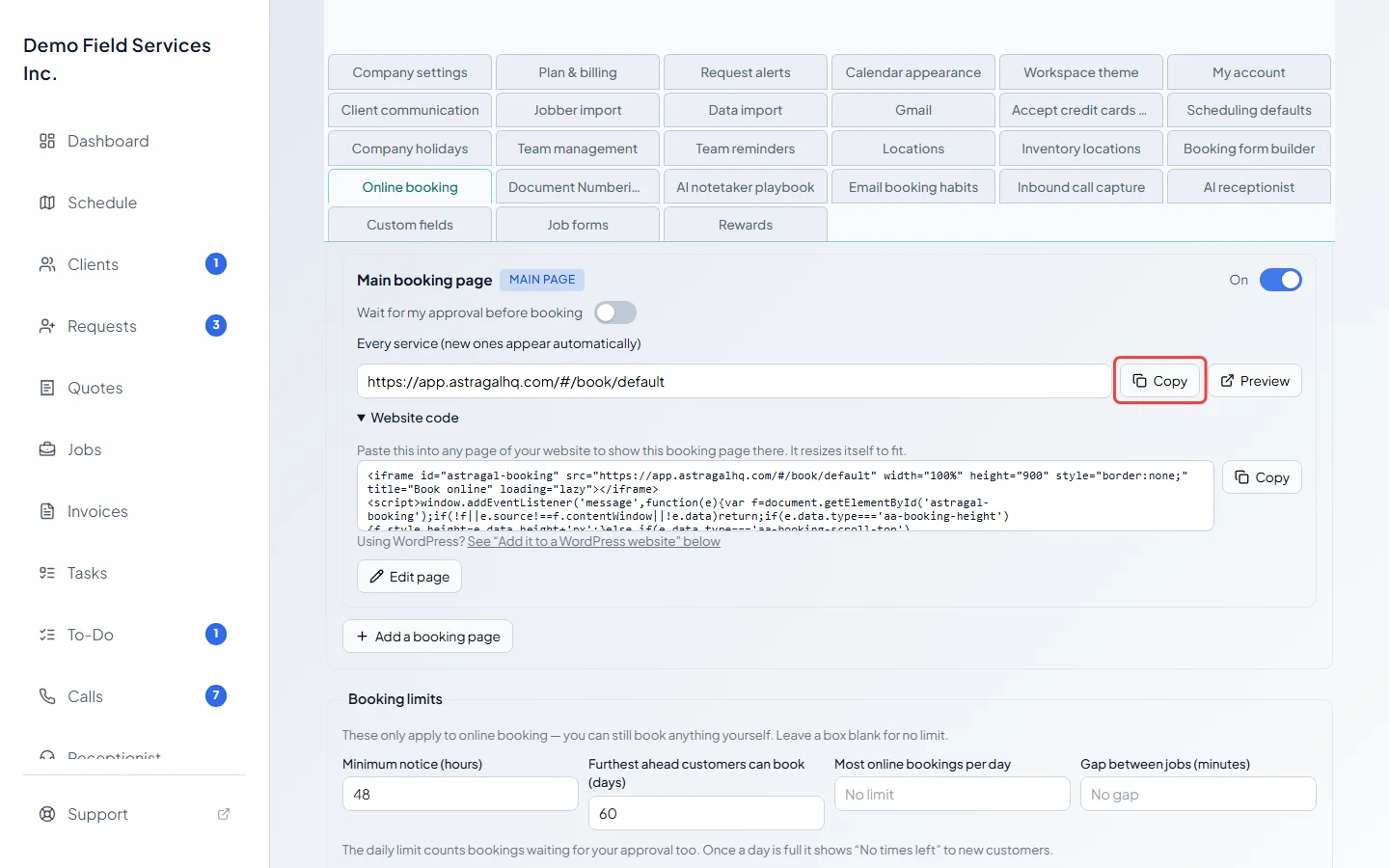
Under Booking pages, find the card marked Main page. Click Copy to copy its link, then put the link on your website, in your emails or on social media. The Website code under it shows the page inside your own website instead. See Booking pages.
-
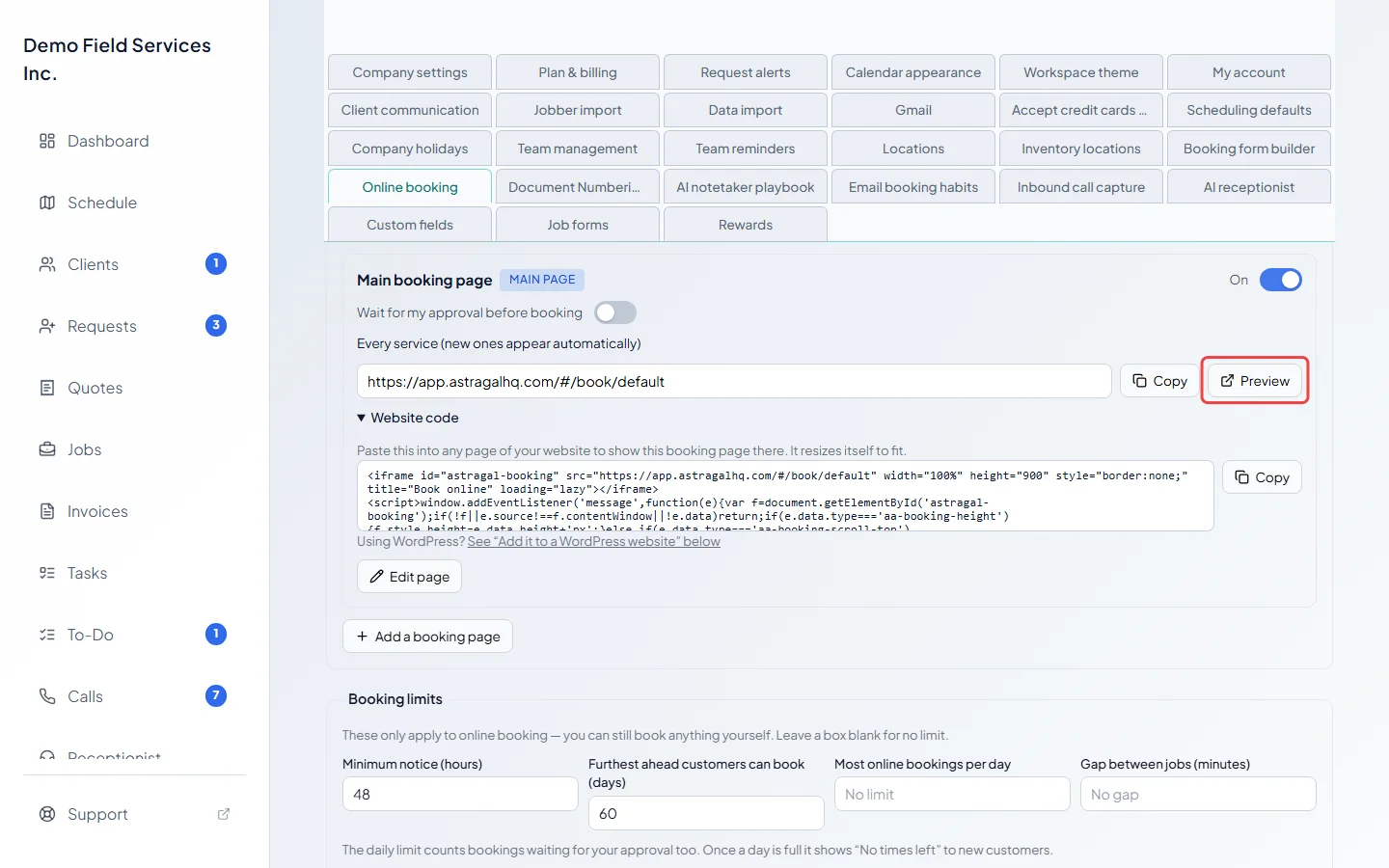
Click Preview on the same card to open the page the way your customers see it. Preview only works while the page can take bookings.
What happens when someone books
Section titled “What happens when someone books”- Booked straight away: when the booking page doesn’t wait for your approval, and the address is inside your service area and the work is something you do, the visit goes straight onto your schedule. The customer sees “You’re booked!” and gets a confirmation with a private link to move or cancel it. The wording of the confirmation is in Booking confirmations and job follow-ups.
- Waiting for you: when the page has Wait for my approval before booking turned on, or the booking needs a look first (outside your area, more extra driving than you allow, or unclear), or the time was taken just as they booked, or falls outside your booking hours, it comes in as a request on your requests board. The customer sees “Request received” with the sentence from step 2. An address the map can’t find is never booked automatically, because its time can’t be checked against the route.
- Turned away: when the Out-of-scope filter decides the work is something you don’t do, nothing is booked and the customer is told so.
- Your office gets an alert email for each new booking or request (if your new-request emails are on, see Request alerts). A waiting customer who gave an email gets a “We received your request” email; one who gave only a phone number gets a short text instead. The email’s wording is under Templates, then Requests, then Request Received.
Extra questions on the booking page
Section titled “Extra questions on the booking page”Under Extra questions in the same screen:
- Ask how they heard about us shows “How did you first hear about us? (optional)” with your lead-source choices. A new customer’s answer replaces “online booking” as their lead source. Click Edit list to change the choices.
- Ask permission to send texts and emails shows an unticked box customers can tick to agree to your texts and emails about services, offers and updates. Appointment confirmations and reminders are sent either way.
These are company-wide. Questions about one service are set up separately, see Extra questions per service.
Good to know
Section titled “Good to know”- Everything on this screen applies to every booking page you have. Only a page’s name, link, heading, intro, services, On switch and approval switch are its own.
- Your business hours and company holidays decide which days are open. See Business hours and Company holidays.
- Online booking only limits what customers can book. You and your office can still book anything yourself.
- For a quick form that sends you a request instead of booking a time, use the request form.
Related articles
Section titled “Related articles”Checked against Astragal on October 18, 2026