

Services and prices
Put your services and their prices into Astragal once, so you can drop them onto quotes, jobs and invoices instead of typing them every time.
Who can do this: Admins, dispatchers and accountants.
Also called: price list, price book, catalogue, rate card.
Step 2 of 6 in setting up Astragal for your company.
Start with the five or six things you sell most, such as a standard service call, an hour of labour and your most common parts. You can add the rest later.
-
Open Products & Services and click New item.
On a computer: Left menu → Inventory → Products & Services On a phone: More → Products & Services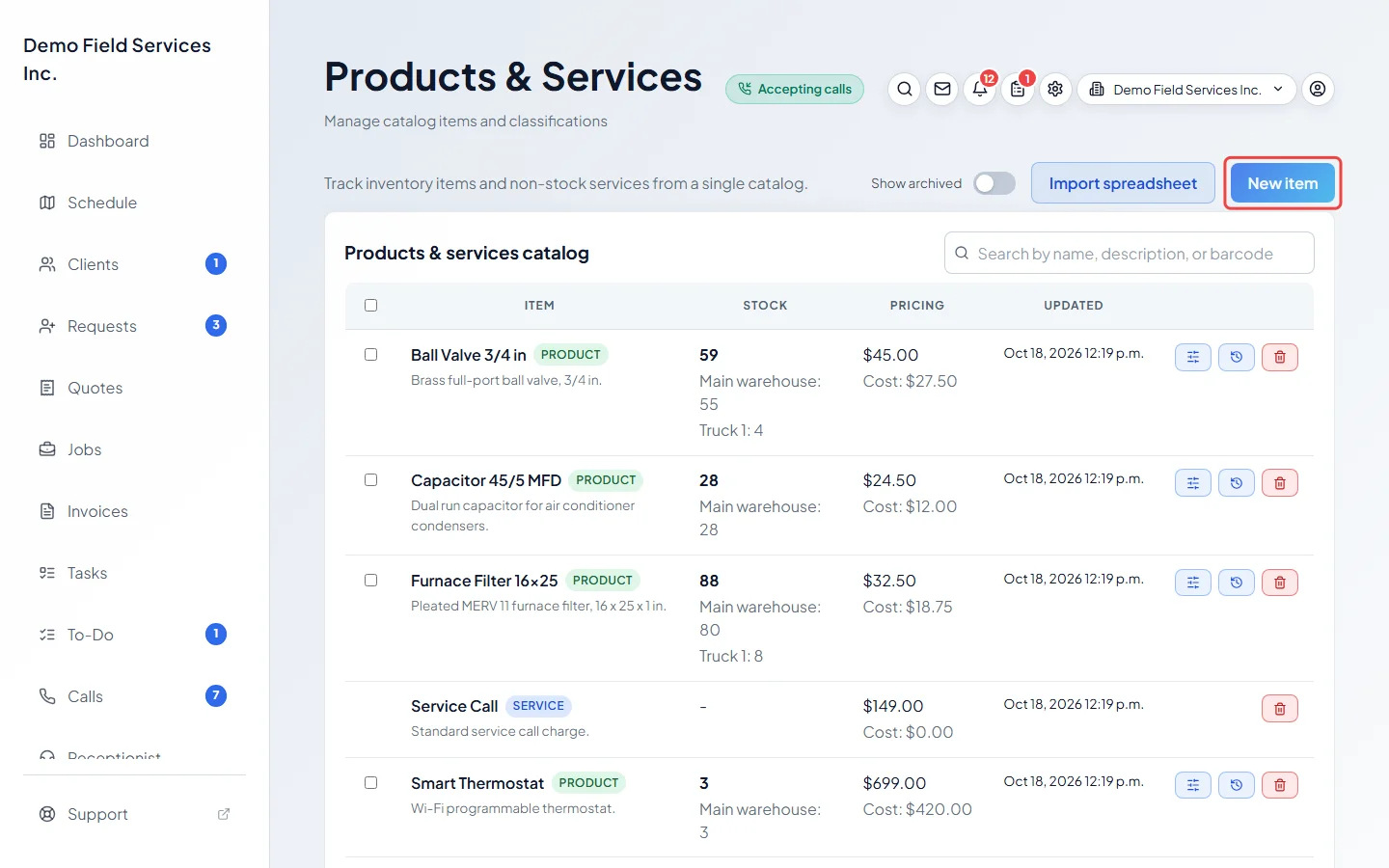
-
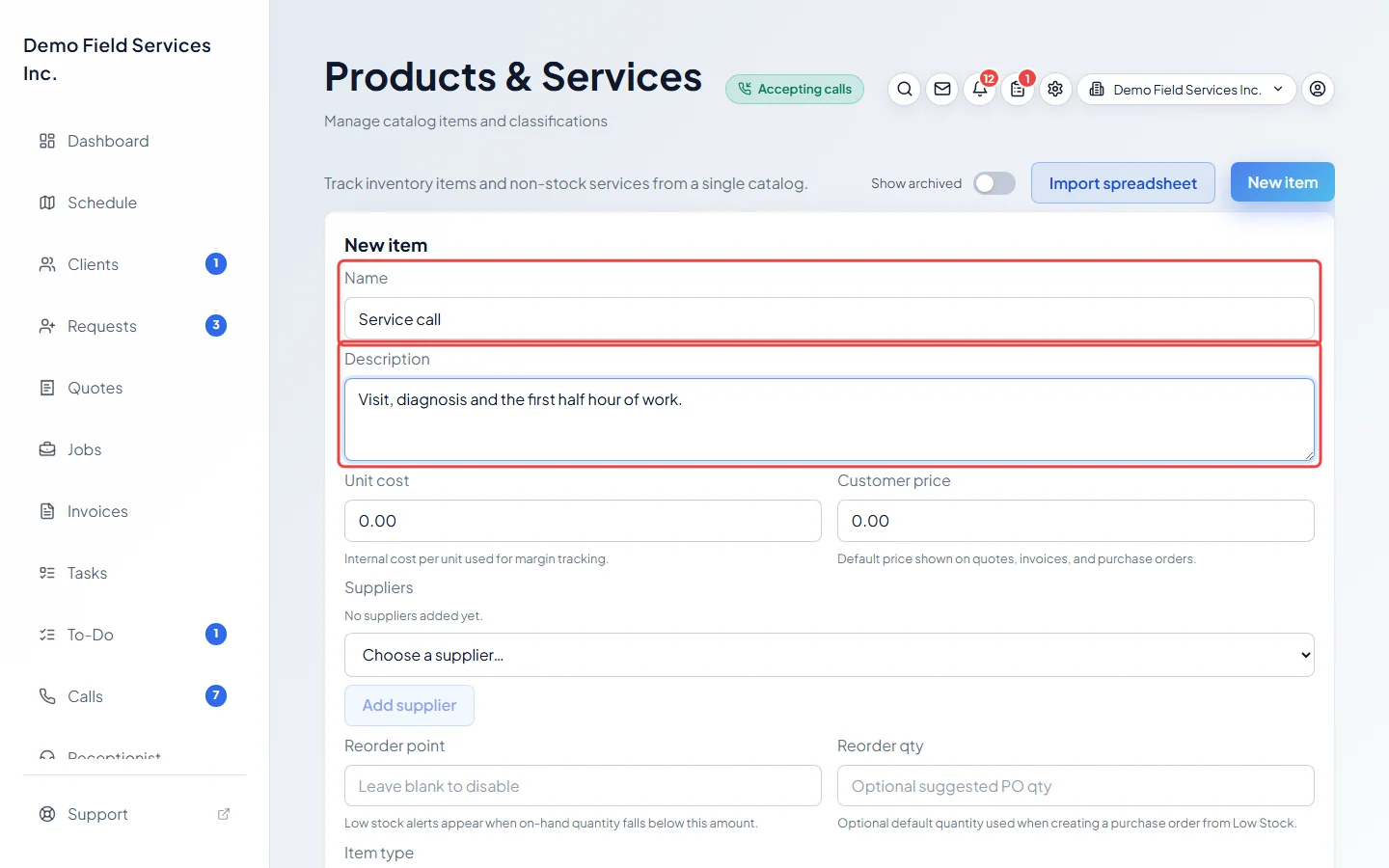
Type a Name your clients will understand, such as “Service call” or “Labour, per hour”. Add a Description if you want more detail to show on the quote.
-
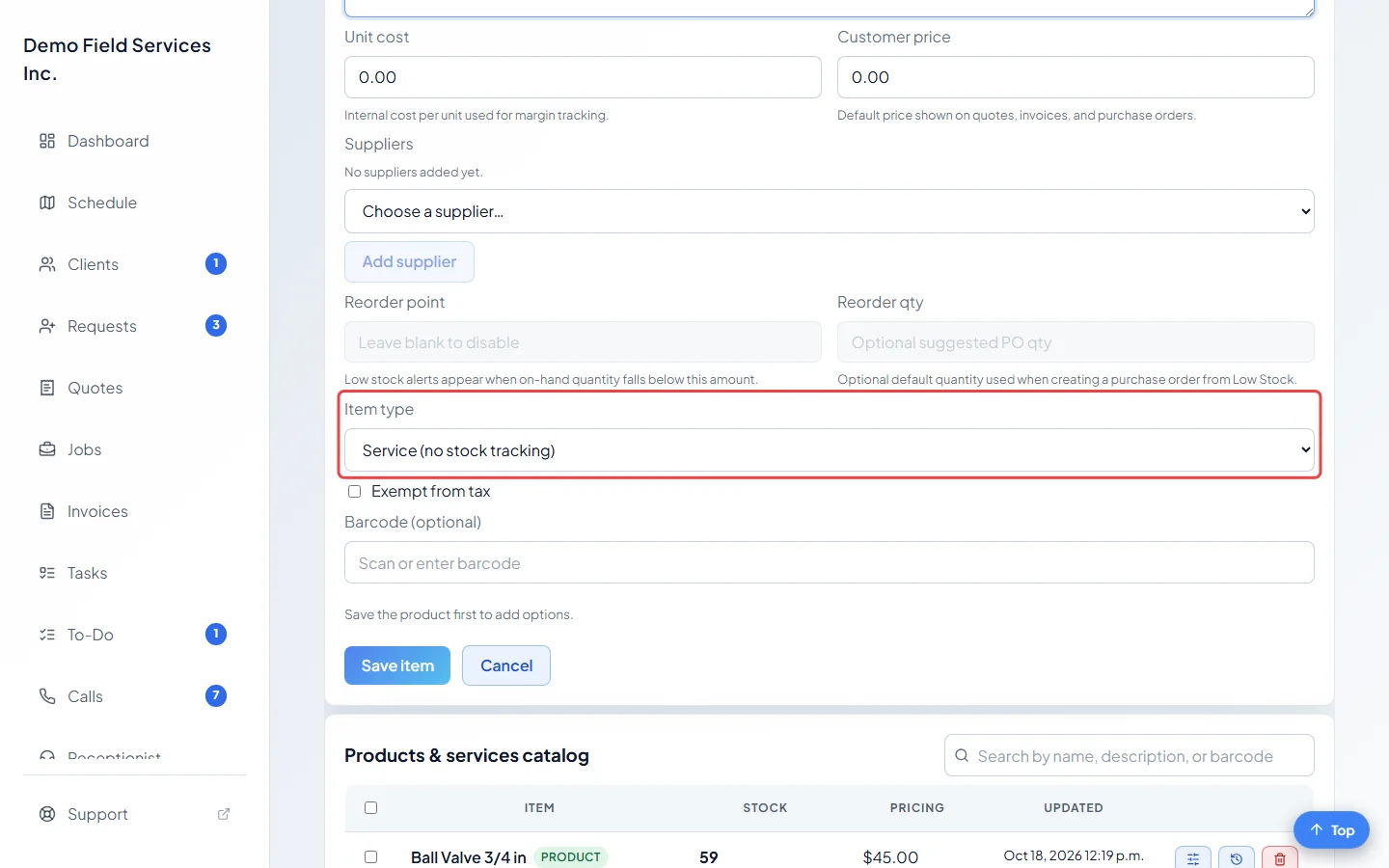
Pick the Item type. Choose Service (no stock tracking) for work and labour. Choose Product for parts and materials you sell. For a product, leave Track this product in inventory ticked if you want Astragal to count your stock, or untick it to skip stock counts.
-
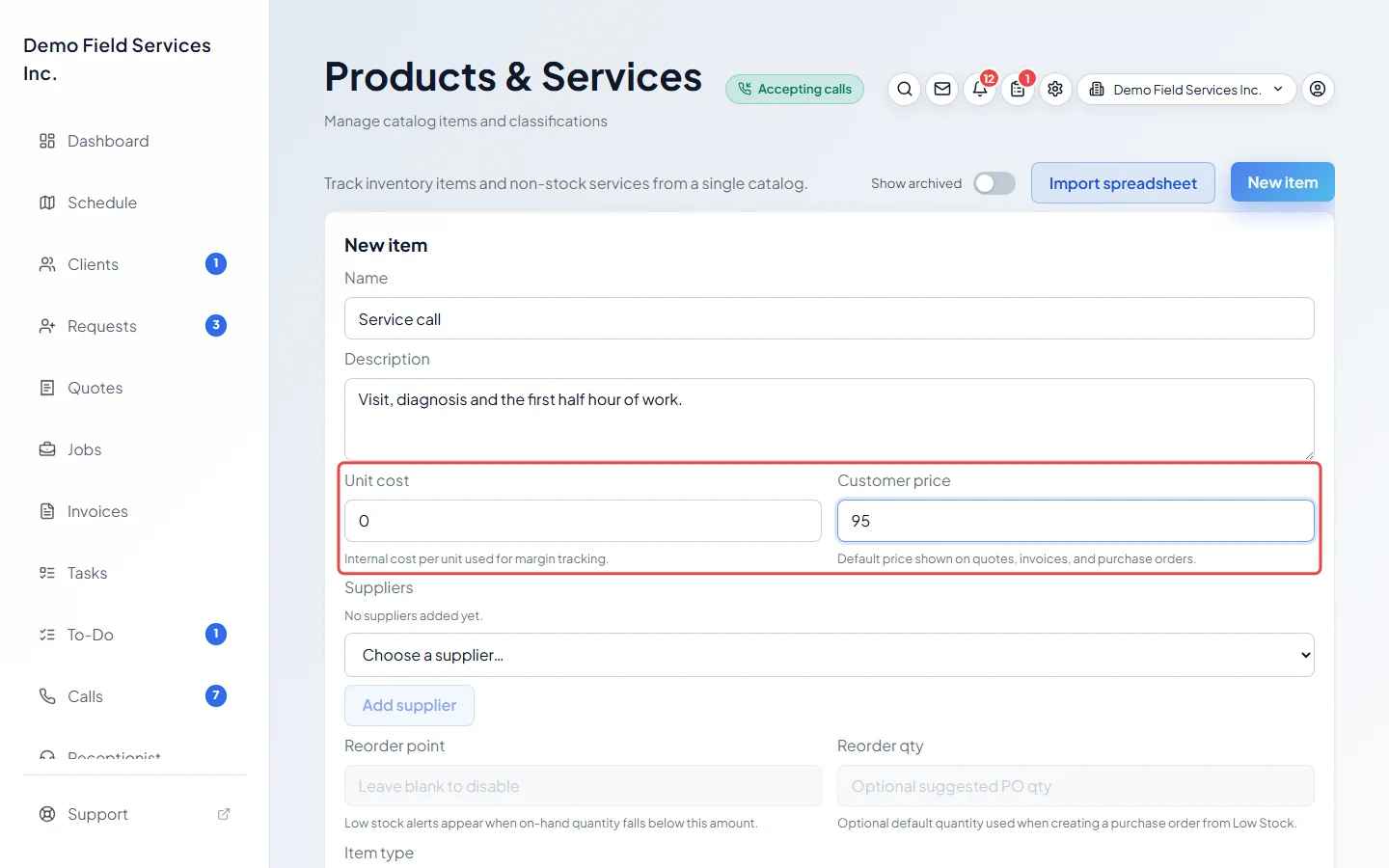
Type the Customer price: what the client pays for one. Type the Unit cost: what one costs you, which only your team sees and Astragal uses to work out your margin. Put 0 if there’s no cost. Tick Exempt from tax if tax never applies to it.
-
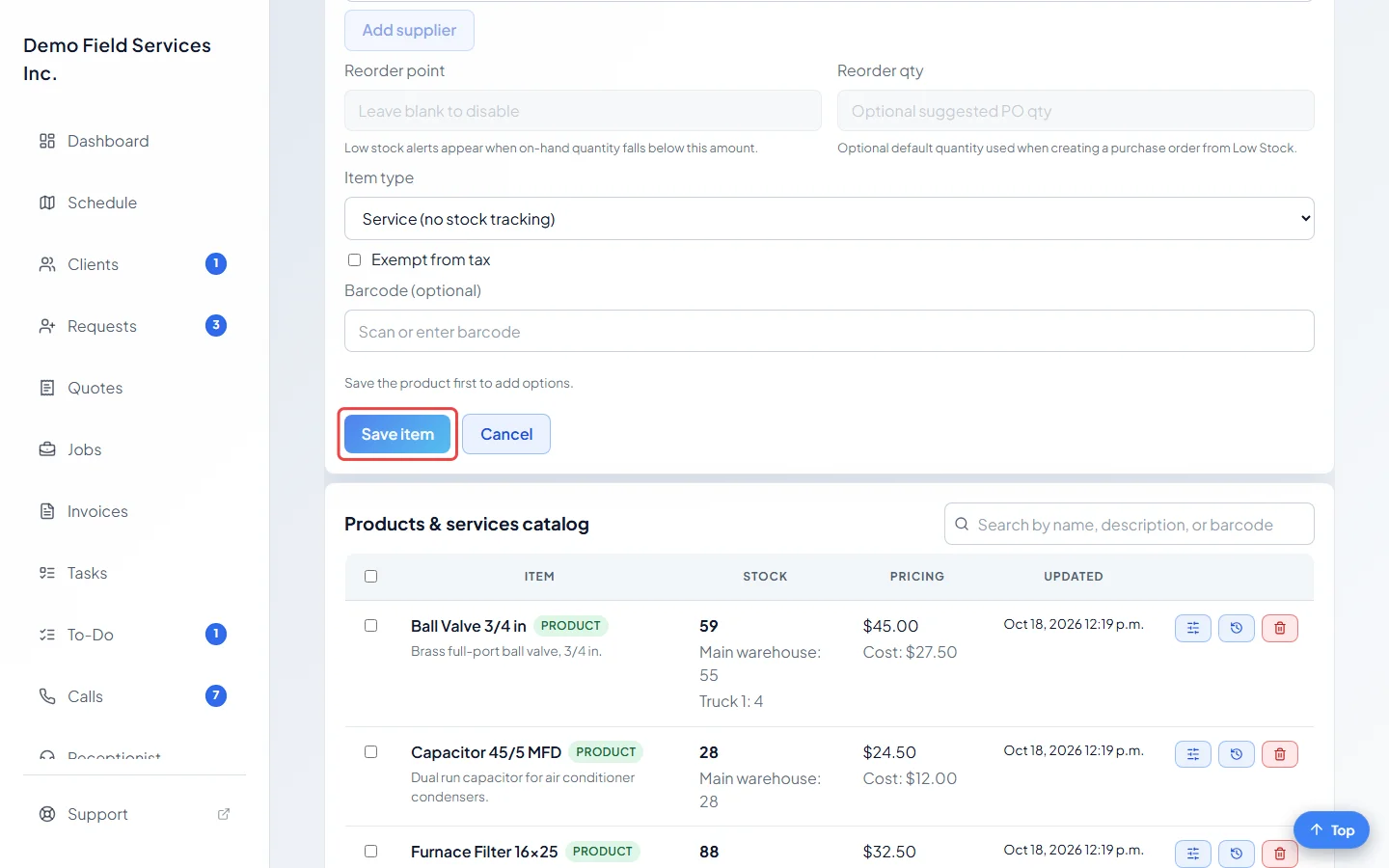
Click Save item. It appears in the catalog, ready to pick on a quote, job or invoice. Click New item again for the next one.
Good to know
Section titled “Good to know”- The price on an item is a starting point. You can change the price, quantity and wording on any single quote or invoice without changing the catalog.
- Have a long price list in a spreadsheet? Click Import spreadsheet to bring it all in at once. See Importing products.
- To change an item later, click its row in the catalog. Once an item is saved you can also give it options, such as sizes or models with their own prices. See Product options and prices.
- The tax rate itself comes from your company settings. See Taxes.
Related articles
Section titled “Related articles”Next step: Add your first client
Checked against Astragal on October 18, 2026