

Work calls on your phone
Get calls to your business number on your phone, even when Astragal is closed and the phone is locked.
Who can do this: Admins, and team members your company has allowed to answer calls and to make calls. See Who rings and what callers hear.
Add-on: Phone lineAlso called: office calls, the business line, ringing.
Only the Android app and the iPhone app can ring a locked phone. A web browser only rings while Astragal is open on screen.
-
Check that calls are turned on for you. Admins and dispatchers who can take calls see Calls in the menu. Technicians don’t, so ask your admin whether you’re on the list of people who ring.
On a computer: Left menu → Calls On a phone: More → Calls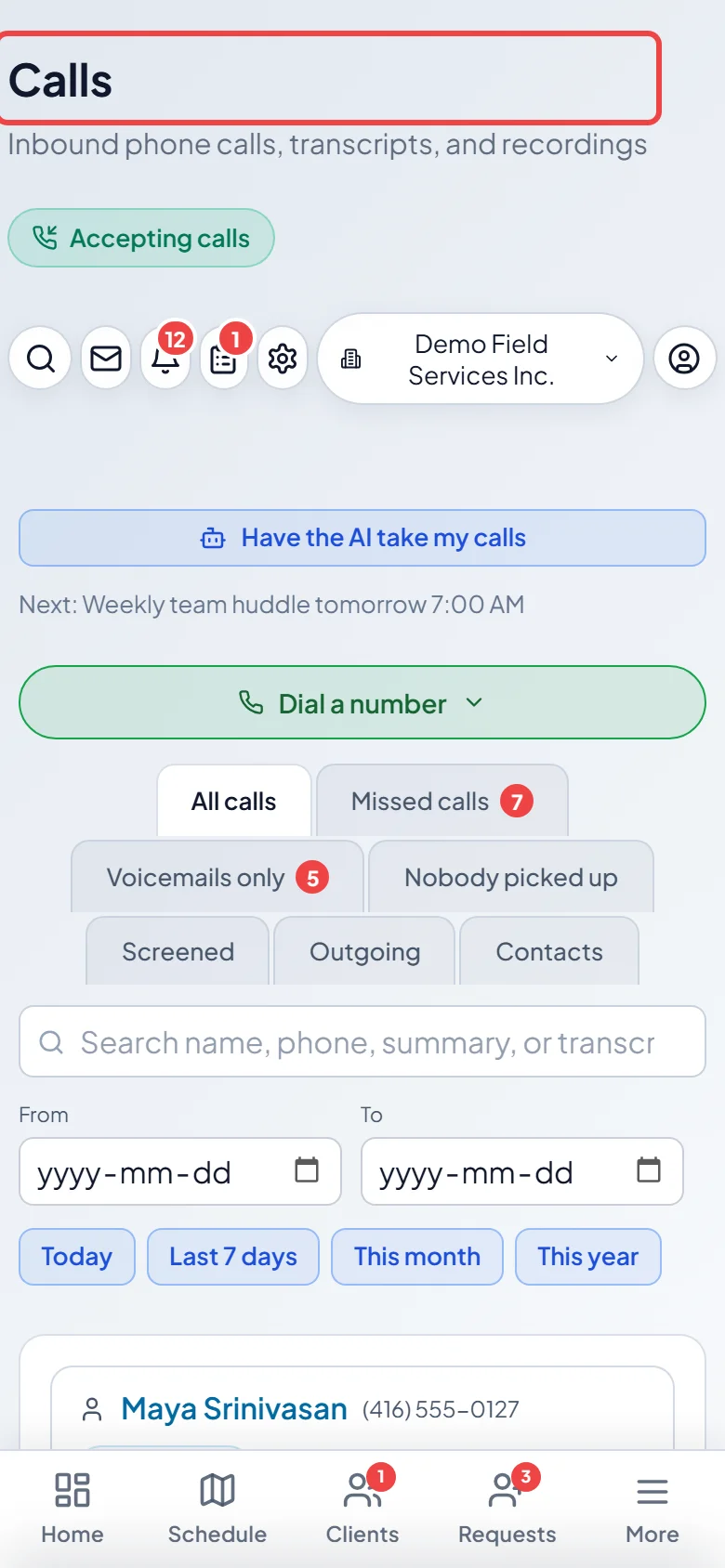
-
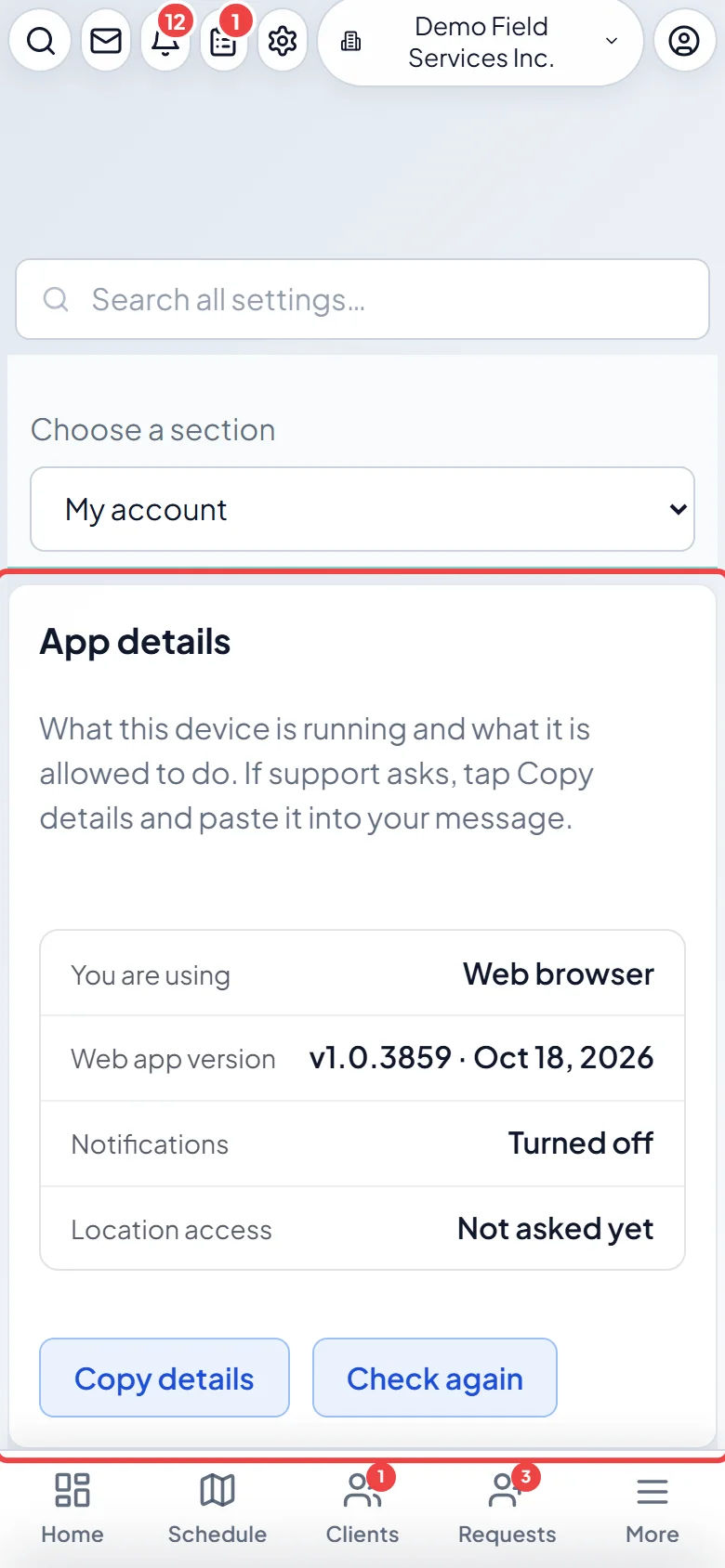
Say yes to what your phone asks. Calls need the microphone (so callers can hear you) and notifications. On an iPhone, a Before you start screen explains each question first. Tap Continue. On Android, if Astragal asks to Let the app run in the background so office calls always ring, tap Allow. To check later, open App details in Settings → My account.
When a call rings
Section titled “When a call rings”On Android, the phone rings and shows an “Incoming call” notification with the caller’s name or number and Answer and Decline buttons. On a locked phone it fills the screen. While you’re signed in, a quiet “Office calls” notification may stay in your notification shade saying “Ready for calls”. That keeps the phone ready to ring and needs nothing from you. If your sign-in runs out, or you haven’t opened the app for a month, it asks you to sign in again so you don’t miss calls.
Sometimes the ring screen says “Open the app to answer”. Tap it and the app opens straight onto the call. If someone else picked up first, you see “Call was already picked up”.
On an iPhone, calls ring with the iPhone’s own call screen, just like a normal phone call, including on the lock screen. Calls you make show in the Phone app’s Recents as Astragal. Tap one of them to call that number again through Astragal.
With the app open, the call window shows the call ringing, with Answer and Decline buttons. Tap Speaker first to start the call on the loudspeaker. On Android you can also tap Silence to stop the ringing.
If the normal ring doesn’t reach an Android phone within a few seconds but the app is open, Astragal shows its own ringing screen. Answer still connects you to the caller.
During the call
Section titled “During the call”The call window shows who’s calling, a live transcript and the details Astragal is picking up. Use Mute, Speaker, Bluetooth (when a headset is connected) and Hang up.
To use the rest of the app during the call, tap the minimise button. The call shrinks to a small pill with the caller’s name. Drag the pill out of the way, and tap it to go back to the call. See During a call.
Astragal never updates itself while a call is ringing or connected. It waits until the call ends.
Good to know
Section titled “Good to know”- On an iPhone, if Astragal says Calling needs a newer version of the app., update it from the App Store. See Updating the app.
- On an iPhone, a Focus or Do Not Disturb mode silences Astragal calls unless you add Astragal to the Focus’s allowed apps.
Related articles
Section titled “Related articles”Checked against Astragal on October 18, 2026