

Finding anything
Find any client, quote, job or invoice in a couple of seconds, and start a new one from anywhere.
Who can do this: Everyone. You only find records you’re allowed to see.
Also called: searching, looking up a client.
-
Click the magnifying glass at the top of the screen.
On a computer: Top of the screen → Search On a phone: Top of the screen → Search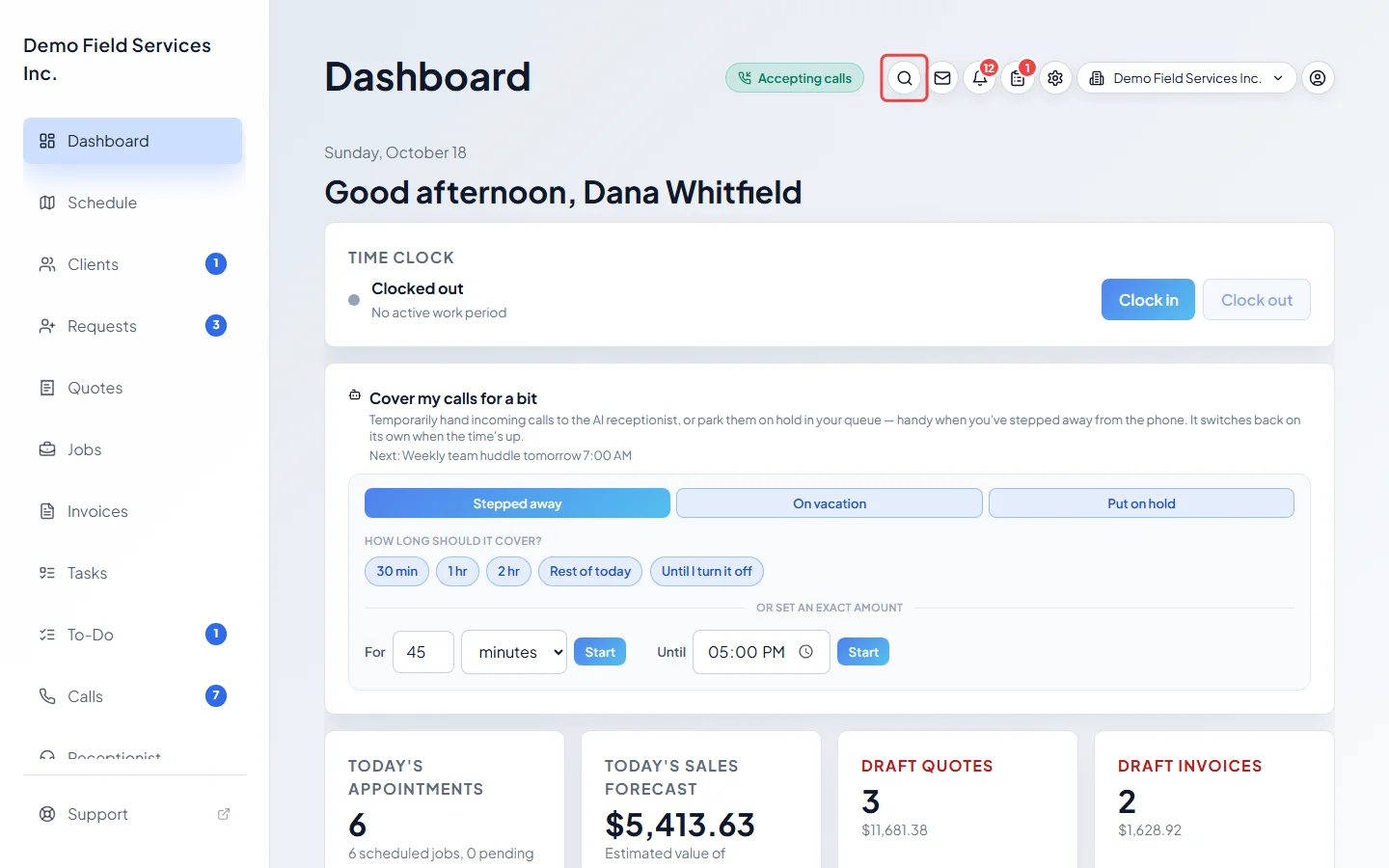
-
Type at least 2 letters of a name, email, phone number, address, title or record number. Results appear as you type, grouped into Clients, Requests, Quotes, Jobs, Invoices and Tasks. Click one to open it. Each group shows up to 10 matches, and archived records are marked Archived. If more clients match, click See all clients matching at the bottom of the clients group.
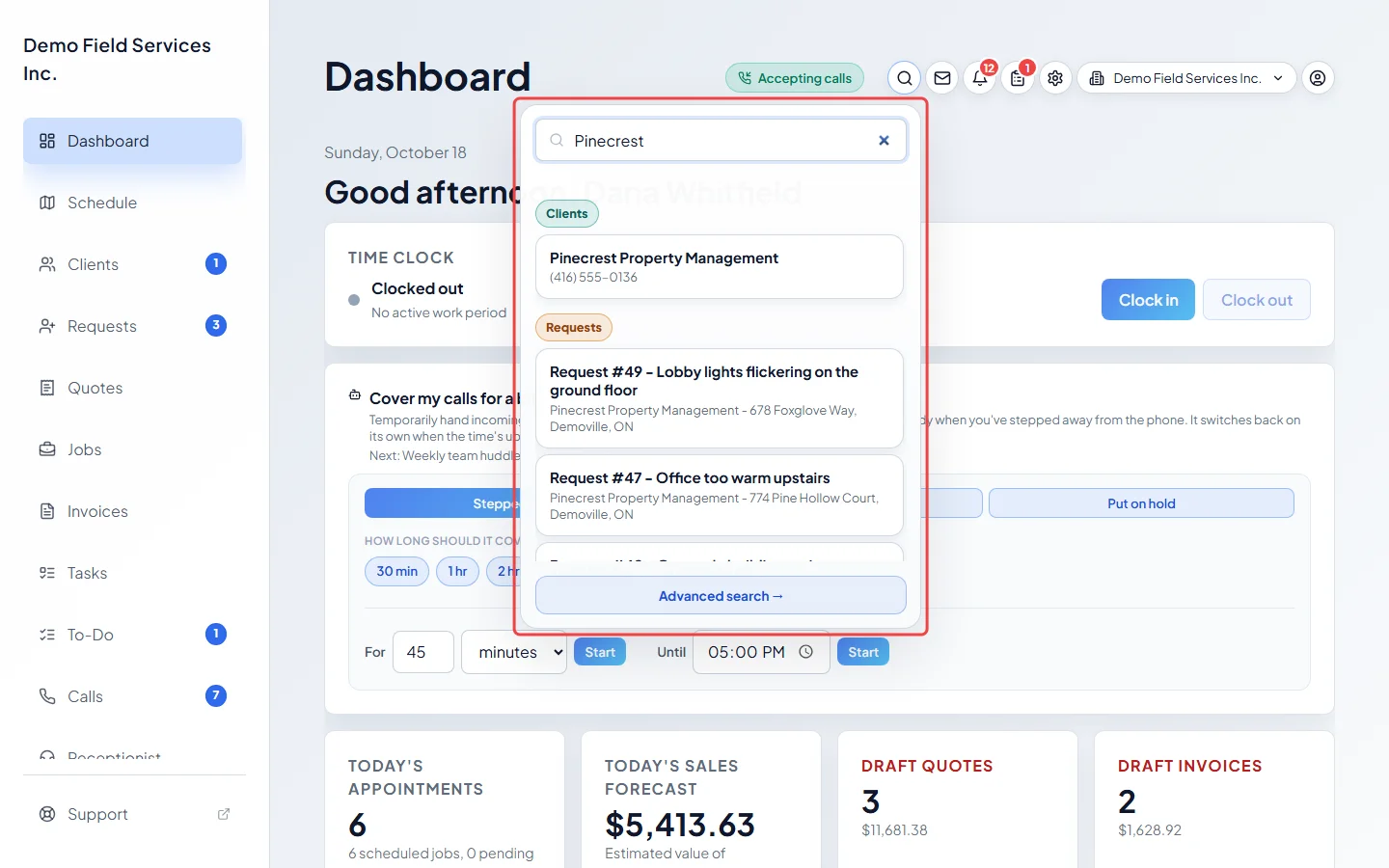
-
Looking for a product or service you once quoted or billed? Click Advanced search → under the results, or open Advanced Search from the menu. It searches the line items on quotes, jobs and invoices. Narrow it with the From and To dates and the Quotes, Jobs and Invoices buttons.
On a computer: Left menu → Advanced Search On a phone: More → Advanced Search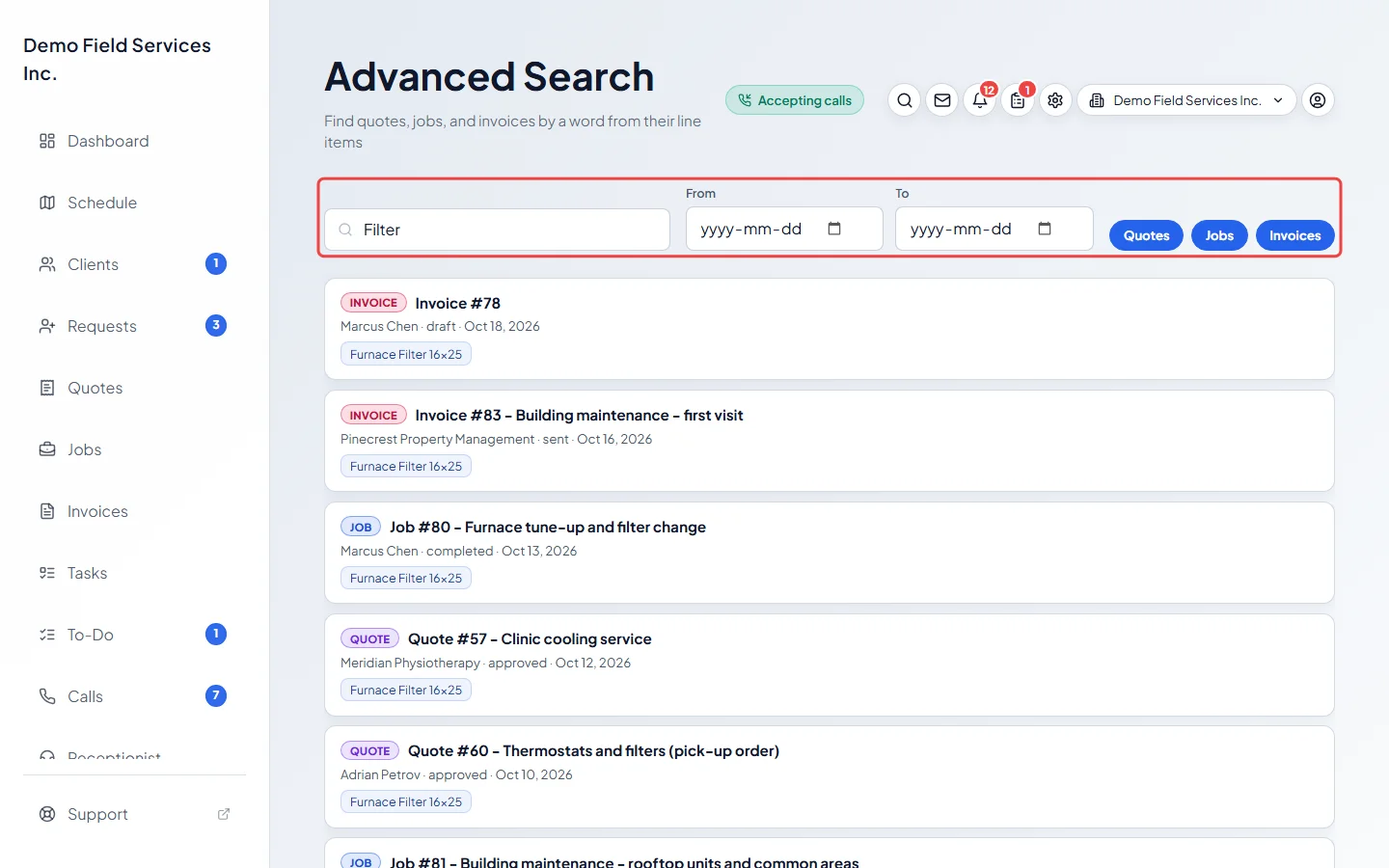
-
To start something new from anywhere, use Create in the left menu (on a phone, More → Create): Client, Request, Quote, Job, Invoice or Tasks. Items you can’t create are greyed out or hidden.
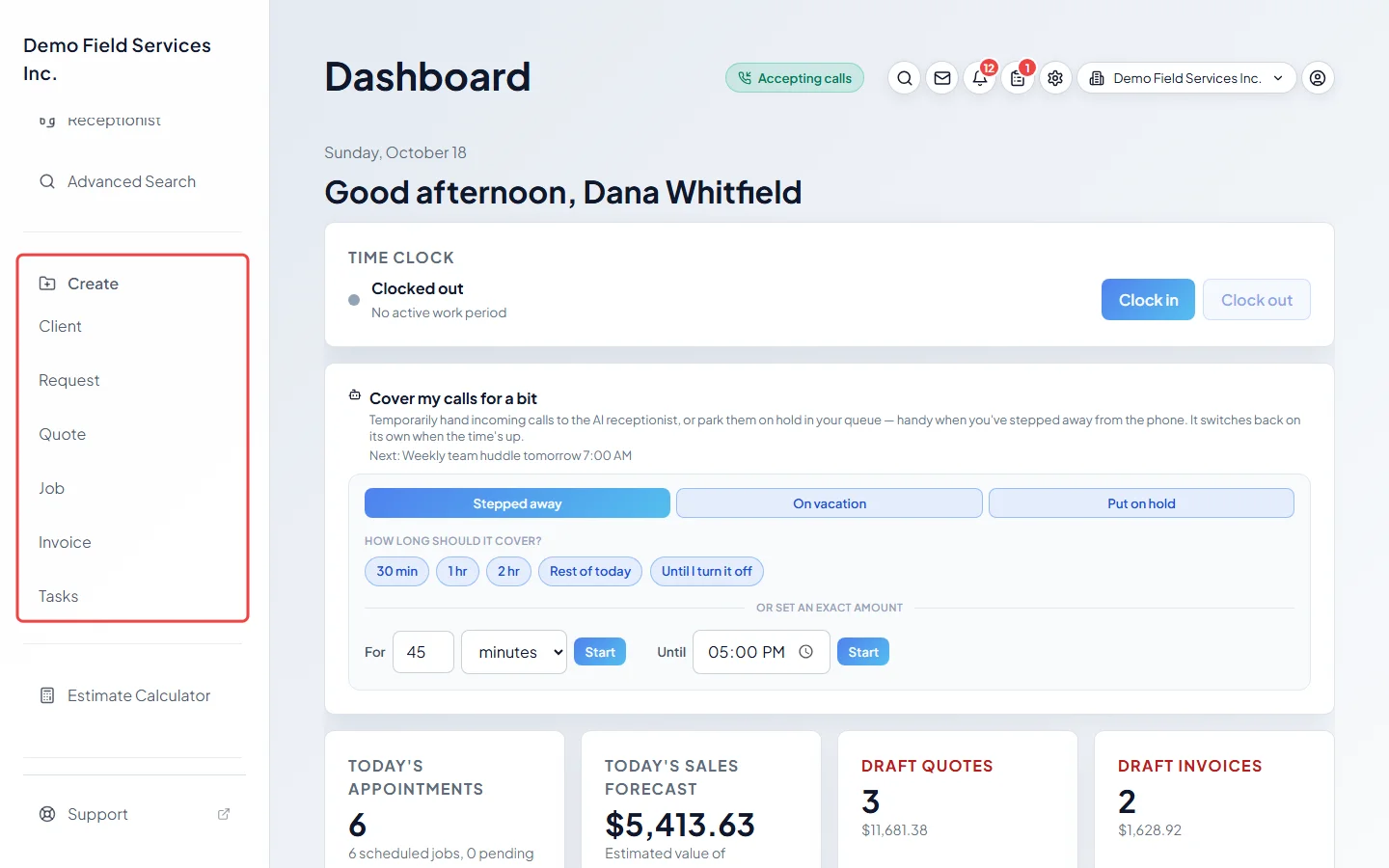
Good to know
Section titled “Good to know”- Press Esc or click outside the search box to close it.
- Advanced Search shows 25 results a page; change it under Results per page.
- The Create menu isn’t on a technician’s menu. Technicians who are allowed to create things use the button on each page instead.
Related articles
Section titled “Related articles”Checked against Astragal on October 18, 2026