

Your first day on the phone
Find your way around Astragal on your phone on your first day in the field.
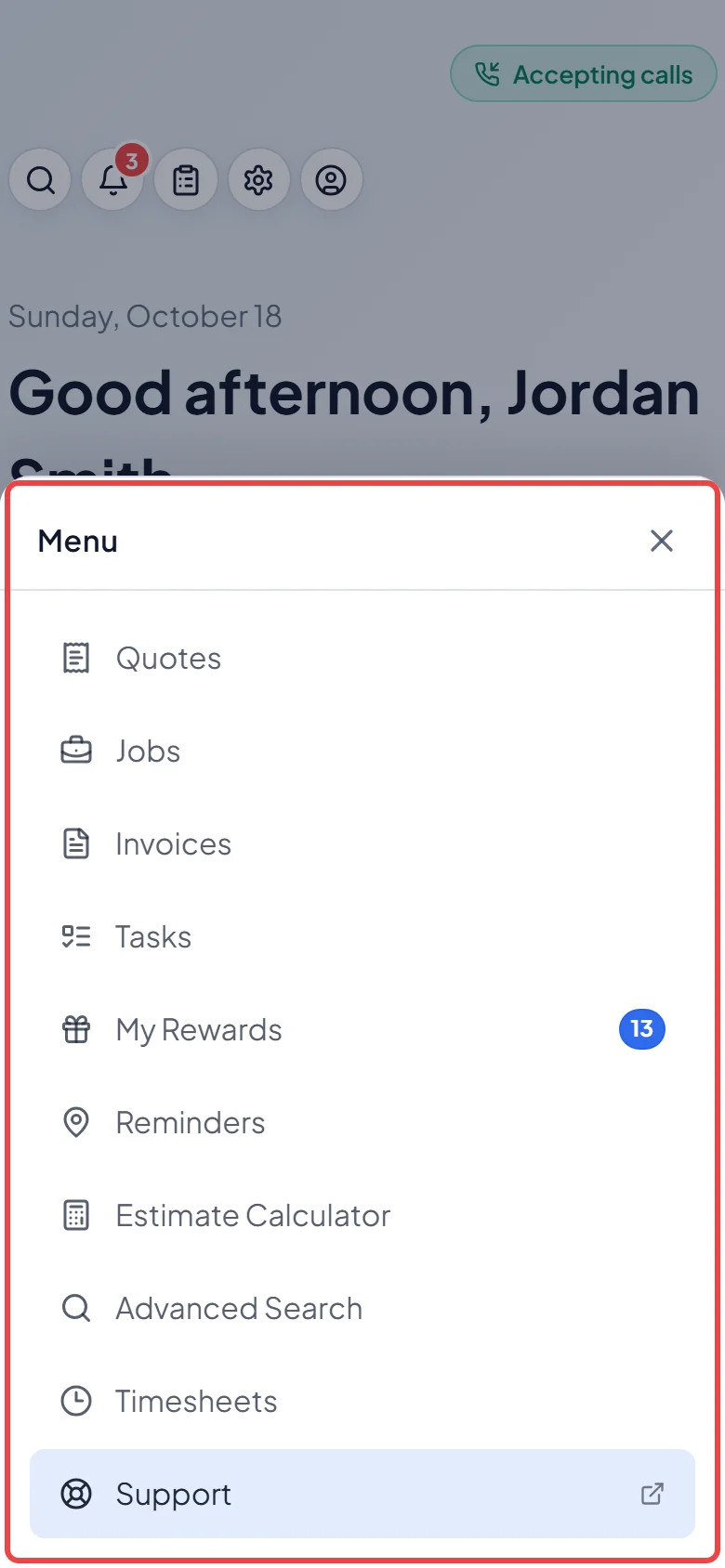
Who can do this: Technicians. Your admin decides exactly which pages you see, so your menu may have more or fewer items than shown here.
Also called: tech, field worker, crew member.
Step 1 of 3 for technicians.
If you haven’t signed in yet, start with Joining your team’s account. The Astragal app is the easiest way to use it on a phone, but the website works too.
-
Open Astragal and sign in. You land on Home, which greets you by name and shows your day.
On a computer: Opens when you sign in On a phone: Bottom bar → Home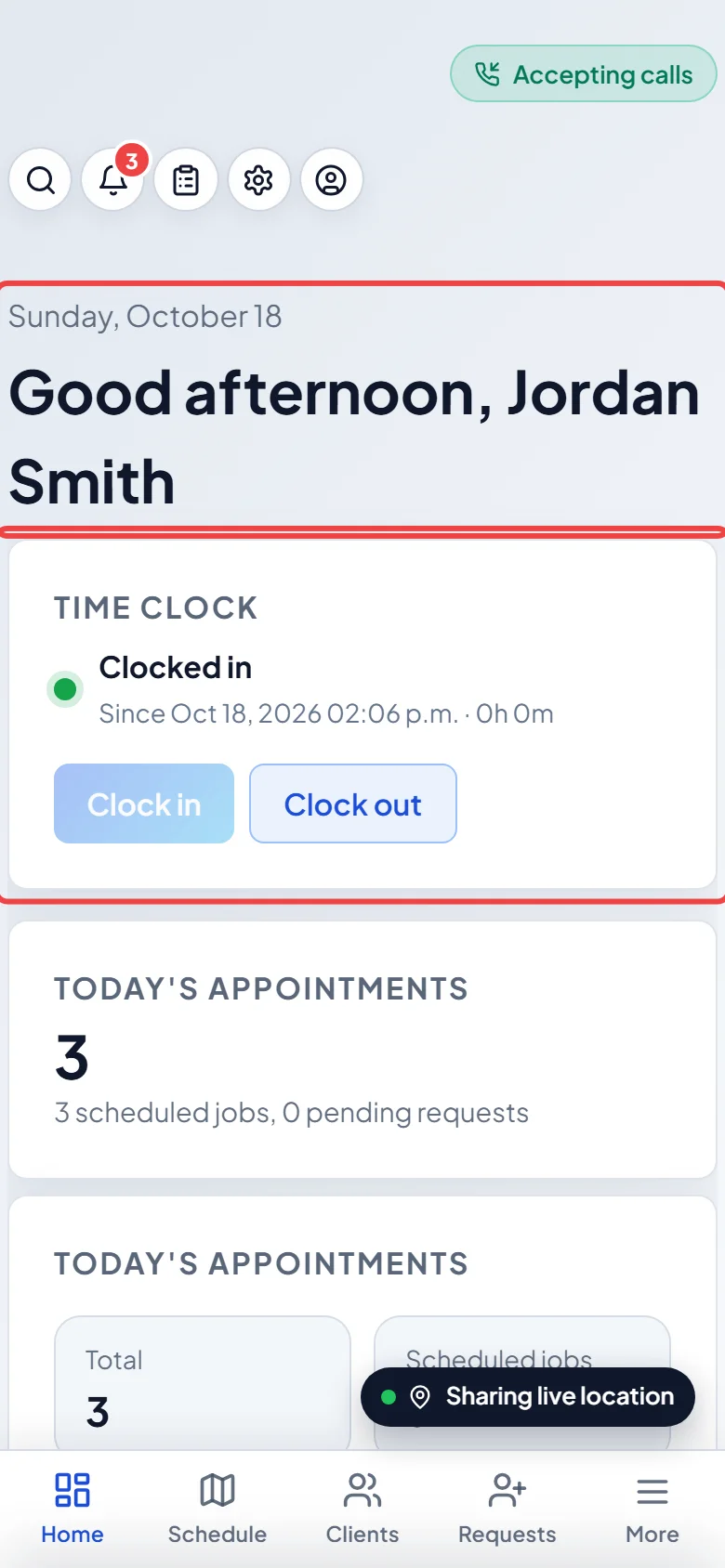
-
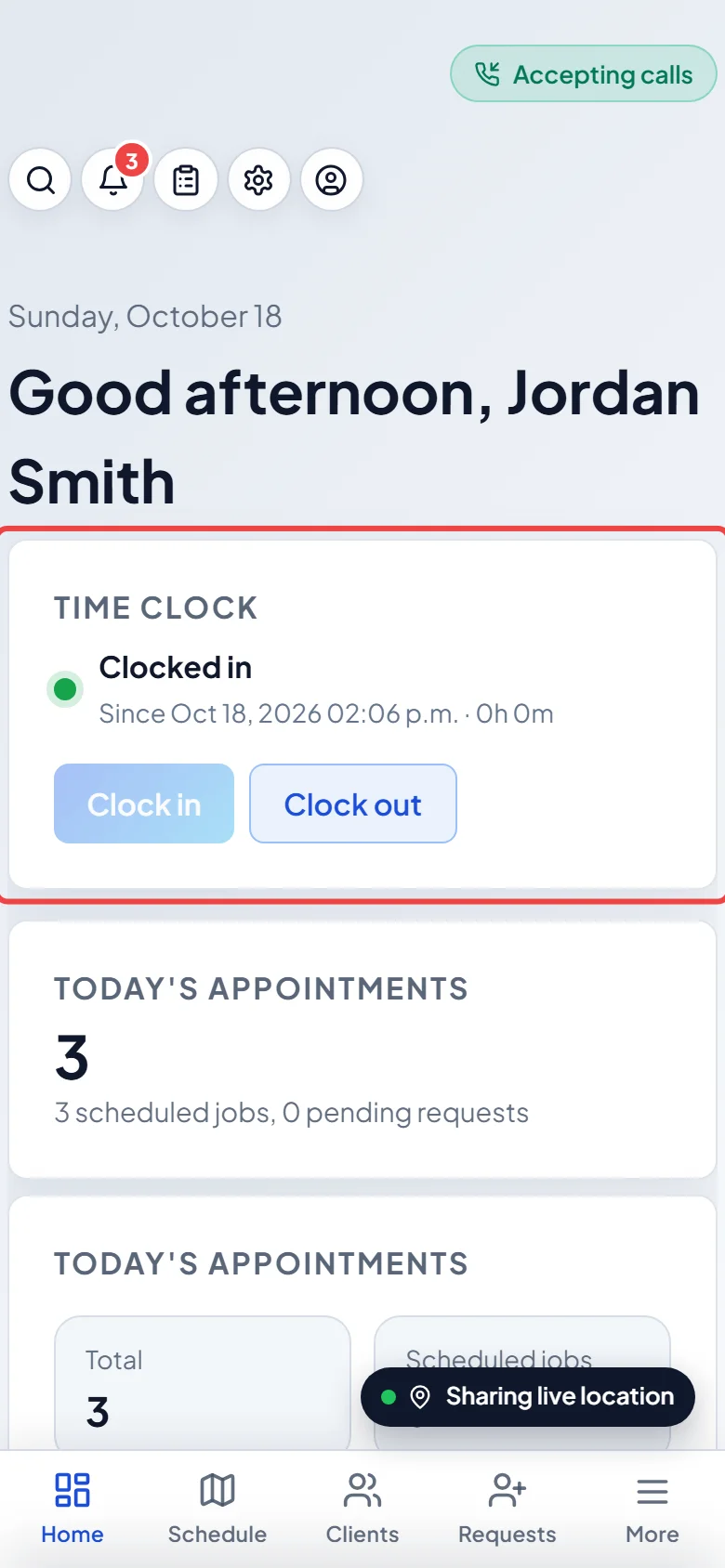
If your company tracks hours, tap Clock in on the Time clock card when you start work. See Clocking in and out.
-
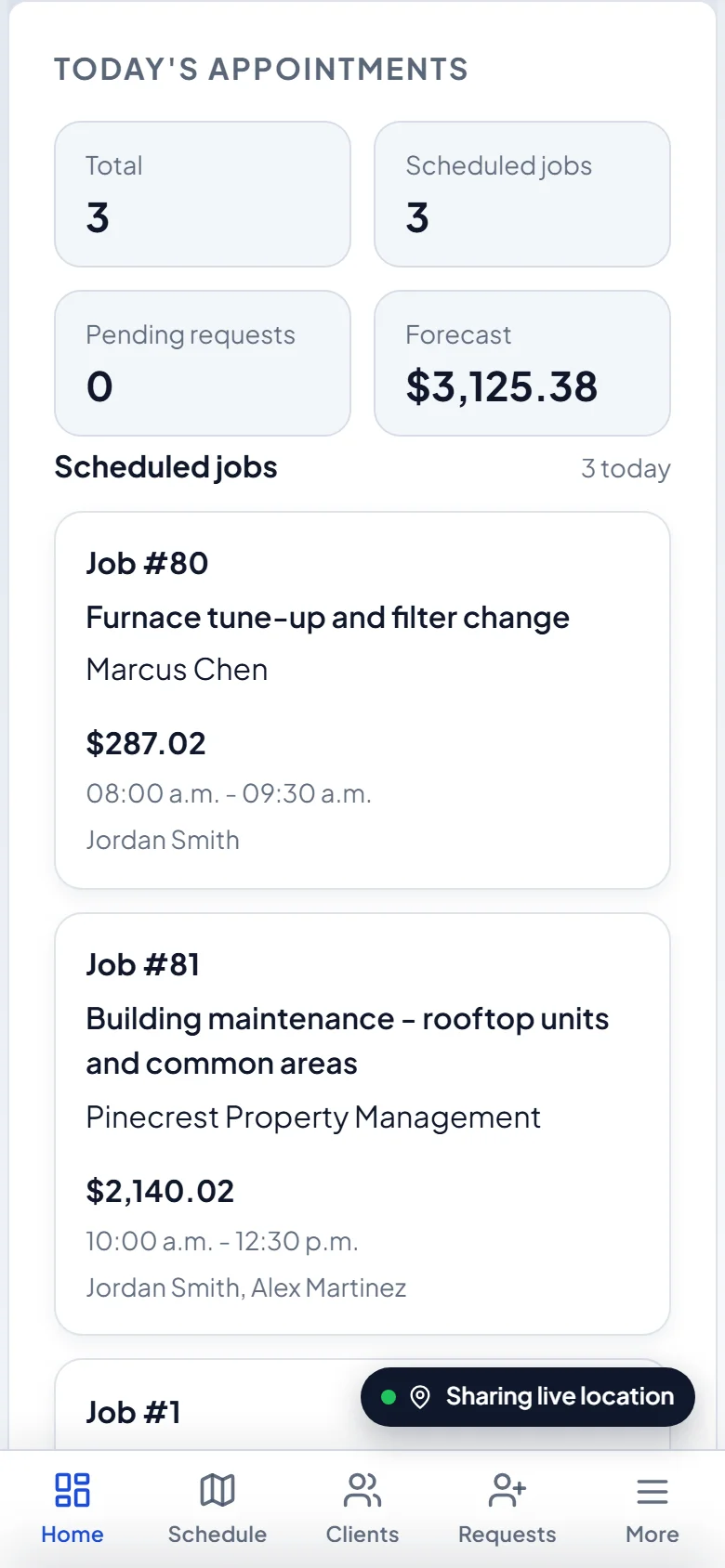
Scroll down to Today’s appointments. Under Scheduled jobs are today’s jobs you’re assigned to, with the job number, the client and the time. Tap one to open the job.
-
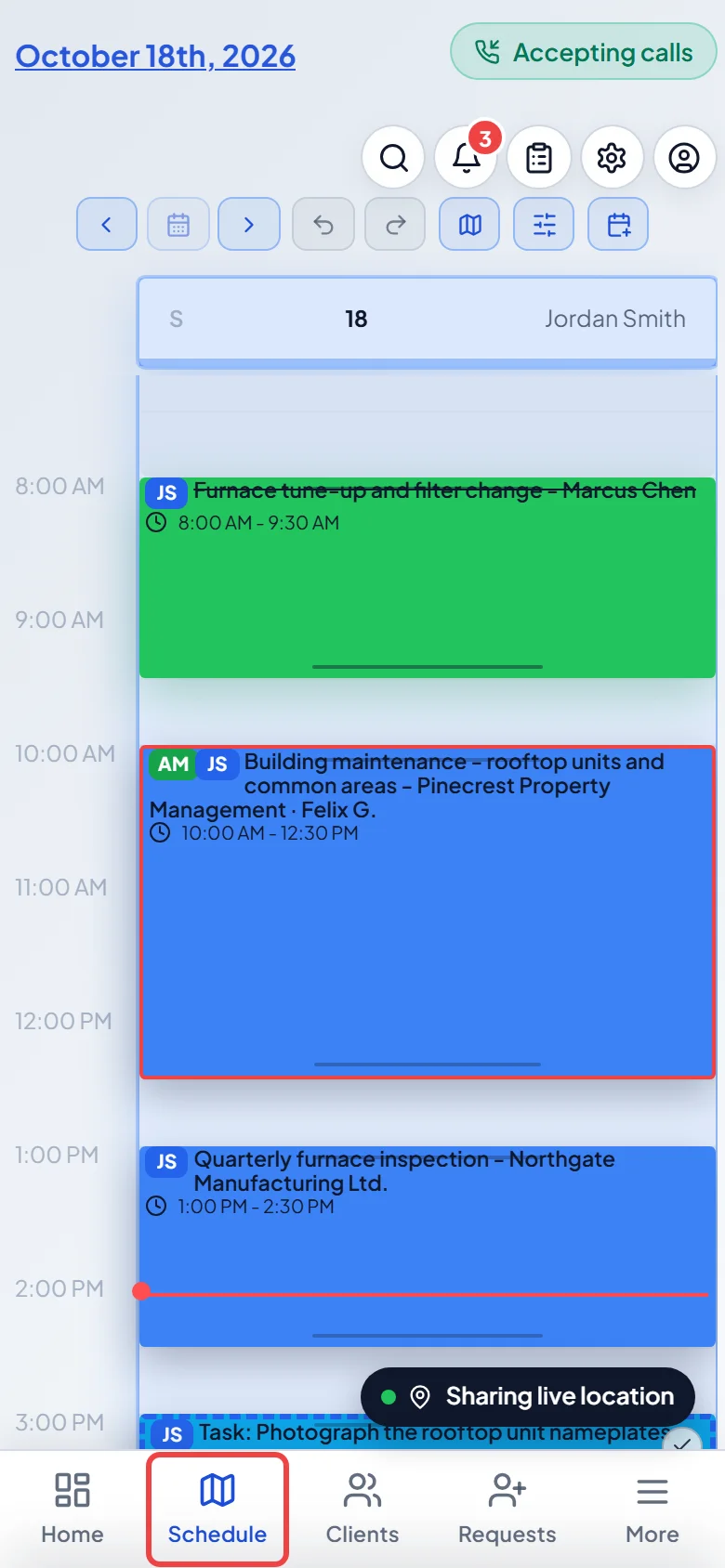
Tap Schedule in the bottom bar to see your visits laid out by day. Tap a visit to see the address, instructions and job forms, and to tell the client you’re on the way.
-
Tap More for everything else your admin has given you, such as Tasks, Reminders, Estimate Calculator and Timesheets.
Good to know
Section titled “Good to know”- Today’s scheduled tasks, lower on the Home page, lists small jobs you’ve been given that aren’t client visits, such as picking up parts. See The tasks list.
- The bell at the top shows recent activity. The gear icon opens your own preferences. The person icon has Change password and Sign out.
- Prices and some client details may be hidden from you on most screens. Your admin sets this; it’s not a fault. See A button or menu item isn’t on my screen.
Related articles
Section titled “Related articles”Next step: Doing a visit
Checked against Astragal on October 18, 2026