

Booking an assessment visit
Book an assessment when someone needs to see the job in person before you can price it.
Who can do this: Admins, dispatchers and accountants, and technicians whose Requests permission is View, edit, and create or higher. Changing who goes also needs the schedule permission Edit everyone’s schedule, and changing Customer calls go to needs Edit and delete everyone’s schedule.
Also called: estimate visit, site visit, consultation.
-
On the requests board, open New or Contacted and click Schedule Assessment on the request.
On a computer: Left menu → Requests On a phone: Bottom bar → Requests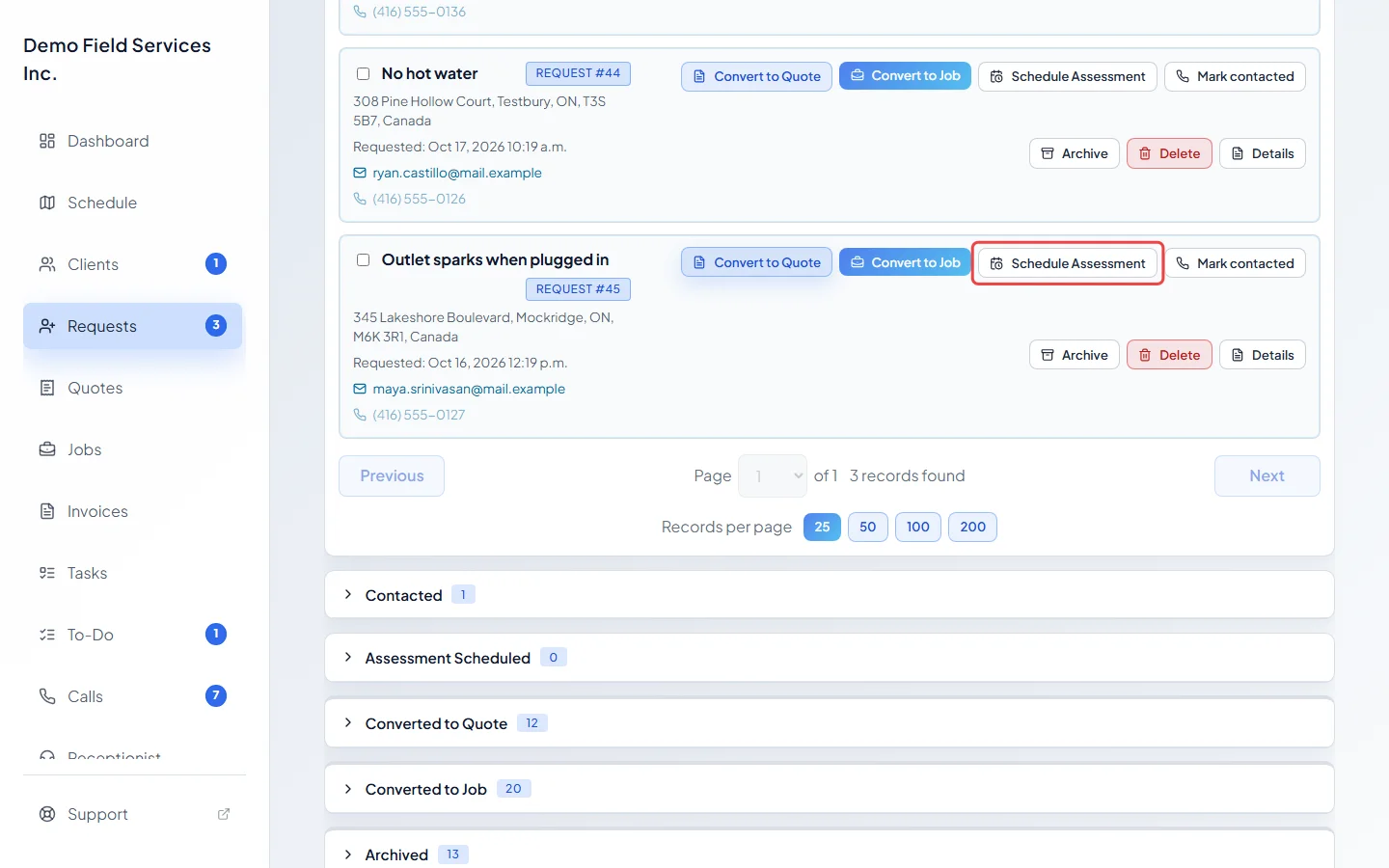
-
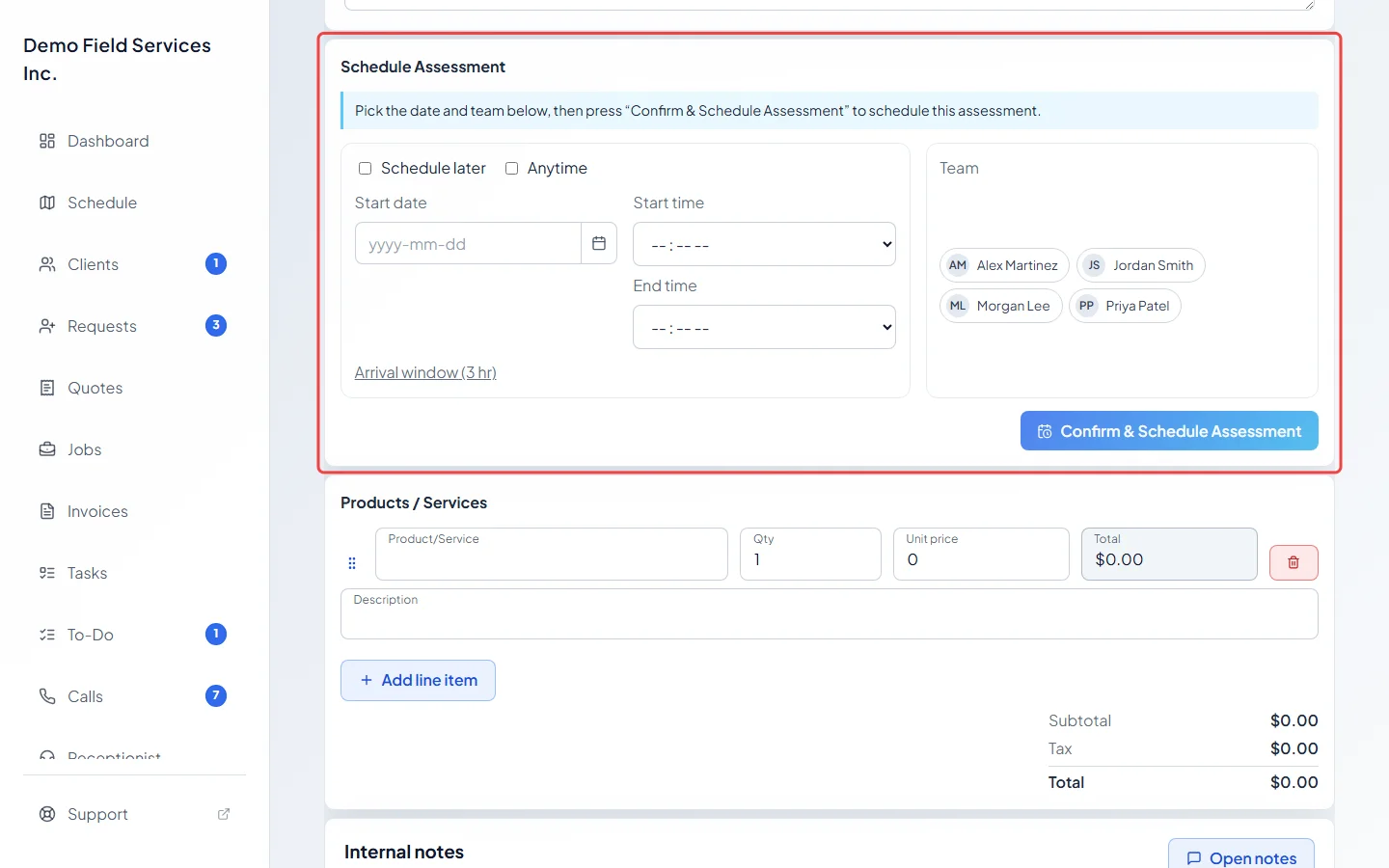
The request opens at its Schedule Assessment section, highlighted, with a note to pick the date and team. If the request already has a time, it’s filled in.
-
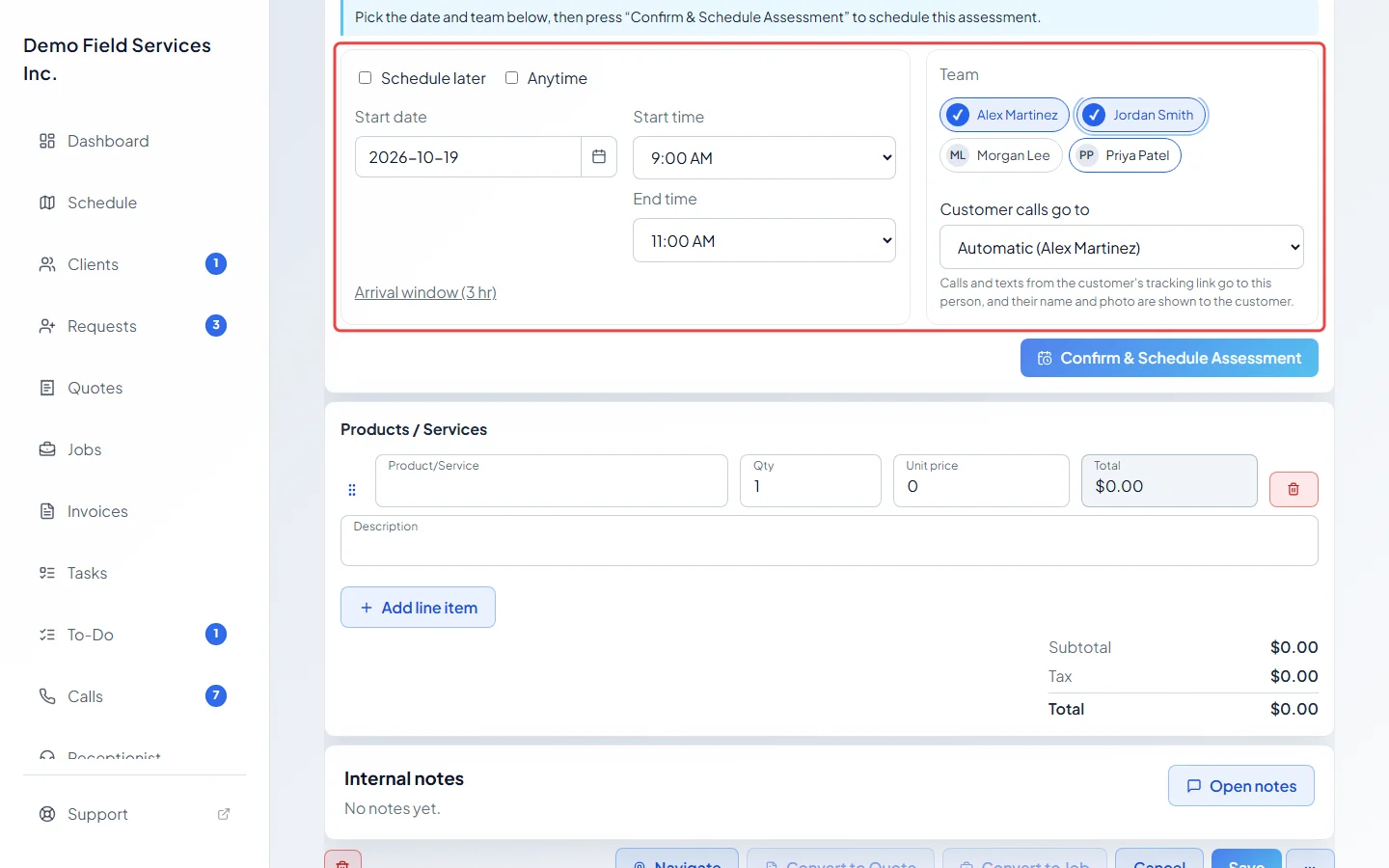
Pick the Start date, Start time and End time, or tick Anytime for any time that day. Click Arrival window (it shows the current choice in brackets) to choose how wide a window the client is promised, from None up to 5 hours. Under Team, tick who is going. With two or more people, choose who the client reaches under Customer calls go to.
-
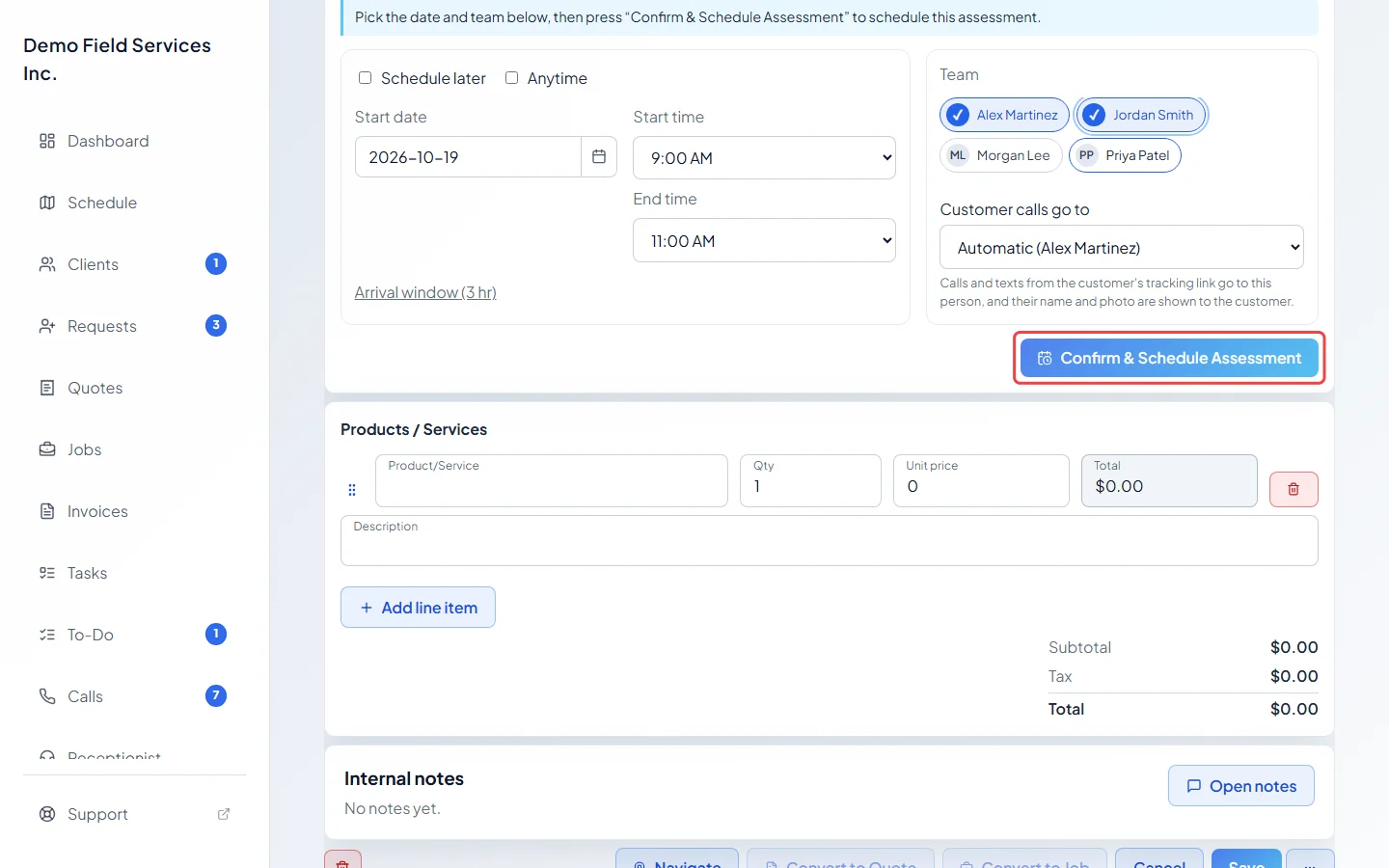
Click Confirm & Schedule Assessment. This saves only the schedule; any other changes on the page still need Save.
-
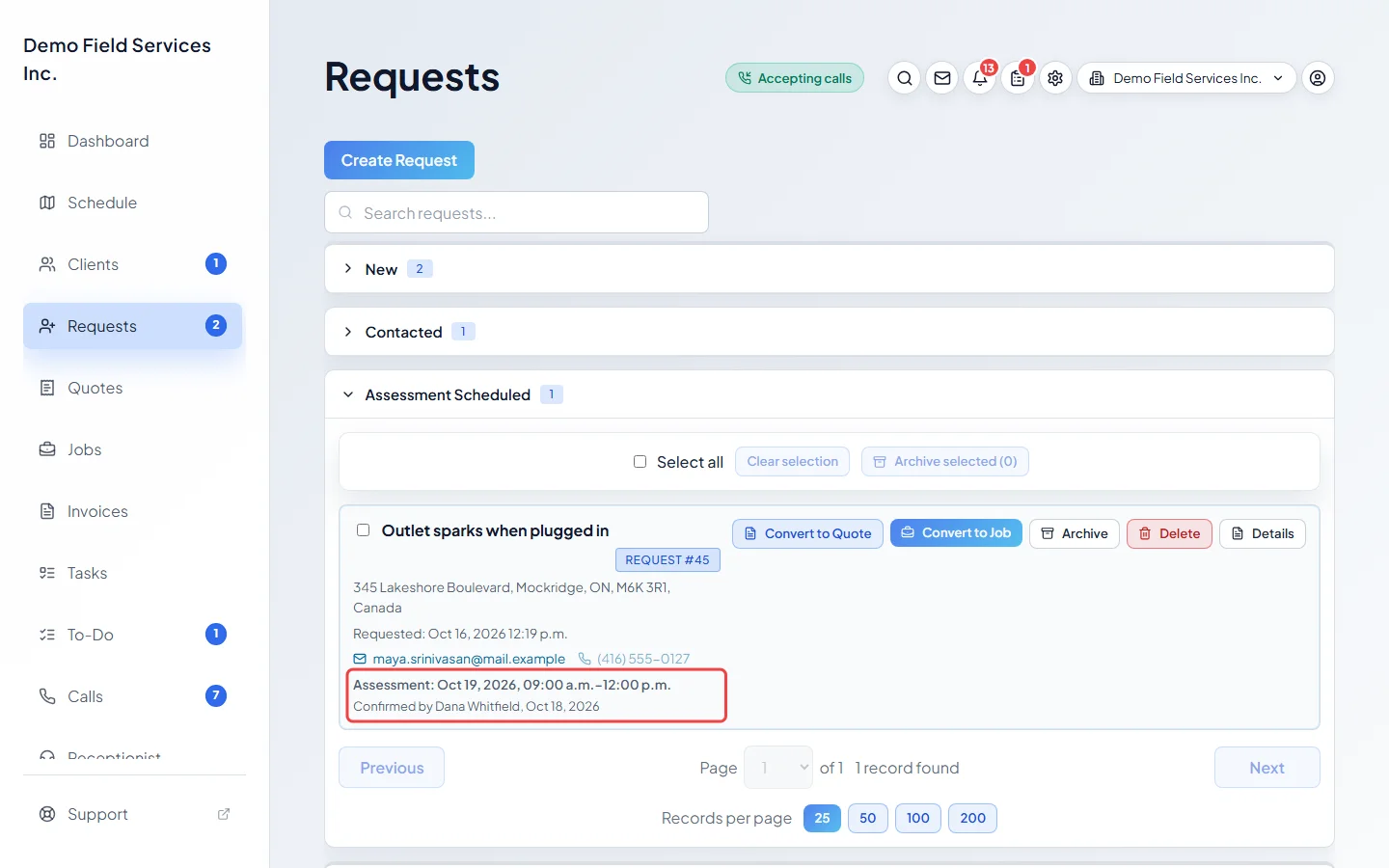
The request moves to Assessment Scheduled on the board. Its card shows the visit time and who confirmed it, and it appears on the schedule at that time.
Good to know
Section titled “Good to know”- Confirming sends the client nothing on its own. To tell them, use Save and Send Booking Confirmation Email or Save and Send Booking Confirmation Text in the request’s … menu. See The request details page.
- Once a visit is booked, the button reads Update Scheduled Assessment. If you move the time, Astragal offers to tell the client, and warns you if a reminder for the old time already went out.
- When the visit time passes and the request still isn’t a quote or job, its card shows Assessment overdue.
- Confirming with Schedule later ticked still moves the request to Assessment Scheduled, showing “Date to be scheduled” instead of a time.
- Requests you typed in yourself don’t have the board button. Open them from All Requests and use the same section on the request page. They stay in All Requests after you confirm.
- Only open requests can have an assessment booked. Once a request becomes a quote or job, or is archived, the confirm button is gone.
Estimate visits booked online
Section titled “Estimate visits booked online”If your online booking lets clients book an estimate visit, the request shows Estimate visit · Online request while it waits for you, or Estimate visit · Booked online if the client picked a time straight onto your schedule.
- A waiting one opens with a note asking you to confirm the time, and a Go to Schedule assessment button.
- For these, the schedule section has Send confirmation with their view/cancel link. It starts ticked the first time you confirm and unticked when you change a booked time; tick it to send the client their confirmation.
- If the client booked the time themselves, archiving, deleting or ticking Schedule later warns you first: they hold a confirmation and won’t be told. Call or message them.
See Setting up online booking.
Related articles
Section titled “Related articles”Next step: Turning a request into a quote or job
Checked against Astragal on October 18, 2026