

Answering calls in the app
Take calls to your business number on your computer or phone, through Astragal, using that device’s microphone and speaker.
Who can do this: Admins, plus anyone on the incoming calls list. Admins, dispatchers and accountants choose who is on that list.
Add-on: Phone lineAlso called: picking up, incoming call.
Callers keep dialling the same business number they always have. Astragal answers it and rings every device where someone on the incoming calls list is signed in. The demo company has no phone service, so the ringing call window can’t be shown here. The steps show the settings and screens around it, and the call window is described below.
-
Make sure the right people ring. Open Who rings, and where and tick the roles, or the individual people, who should ring on incoming calls. Admins always ring. Everyone else, dispatchers and accountants included, only rings once their role or name is ticked.
On a computer: Left menu → Settings → Inbound call capture On a phone: More → Settings → Inbound call capture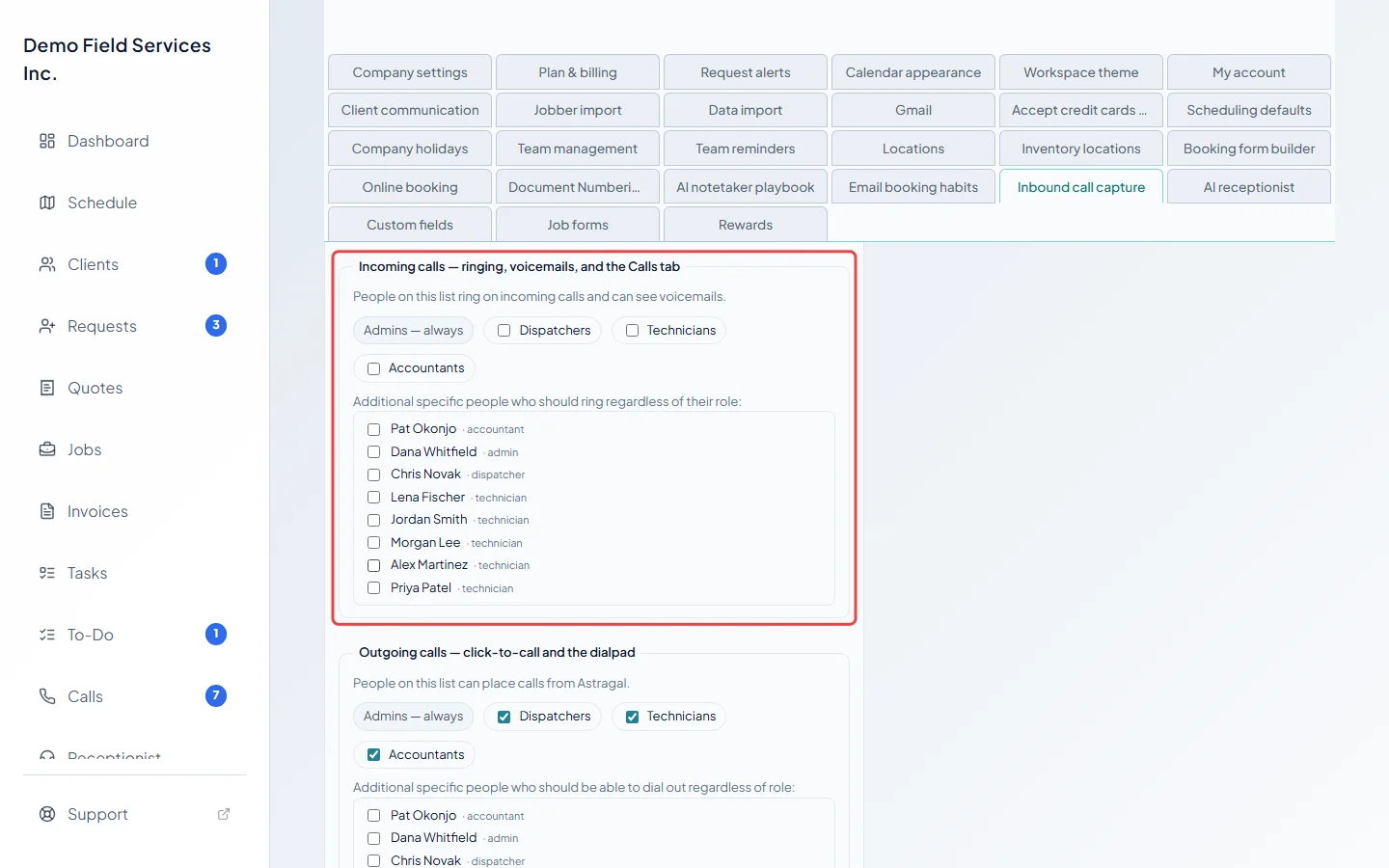
-
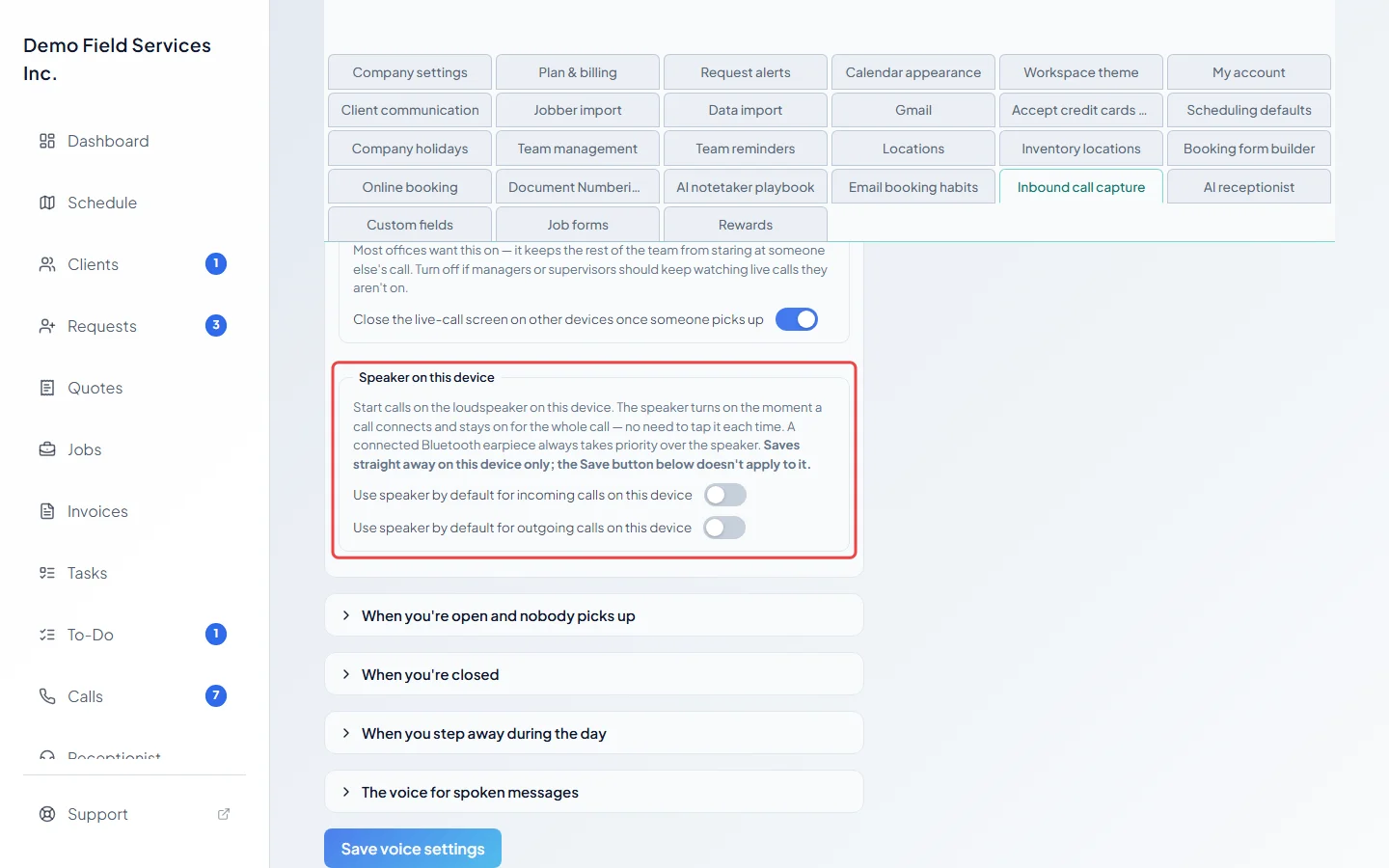
Under Speaker on this device, choose whether calls on this computer or phone start on the loudspeaker. This saves straight away, for this device only.
-
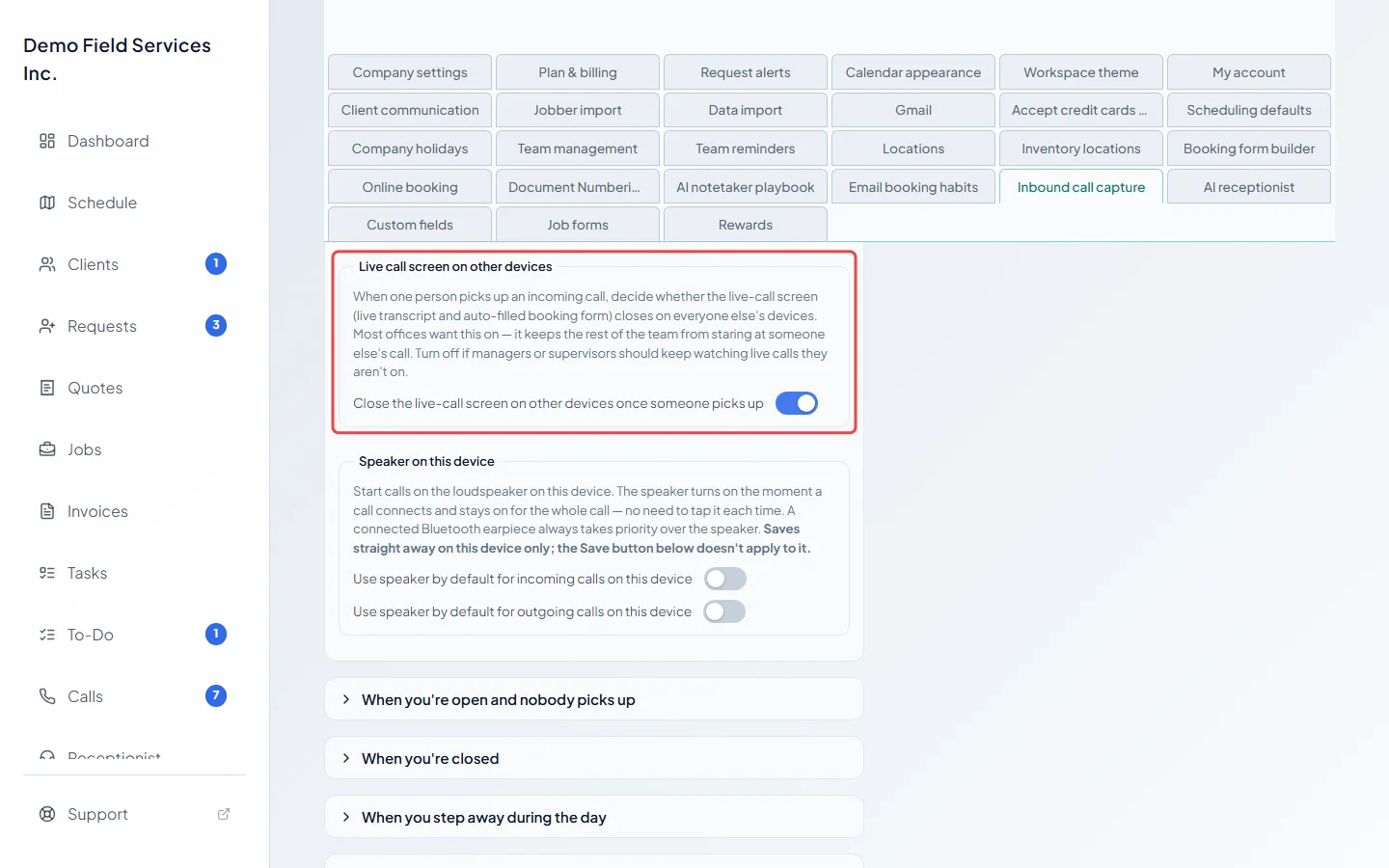
Under Live call screen on other devices, decide whether the call window closes for everyone else once someone picks up. Leave it on unless managers want to watch calls they aren’t on.
-
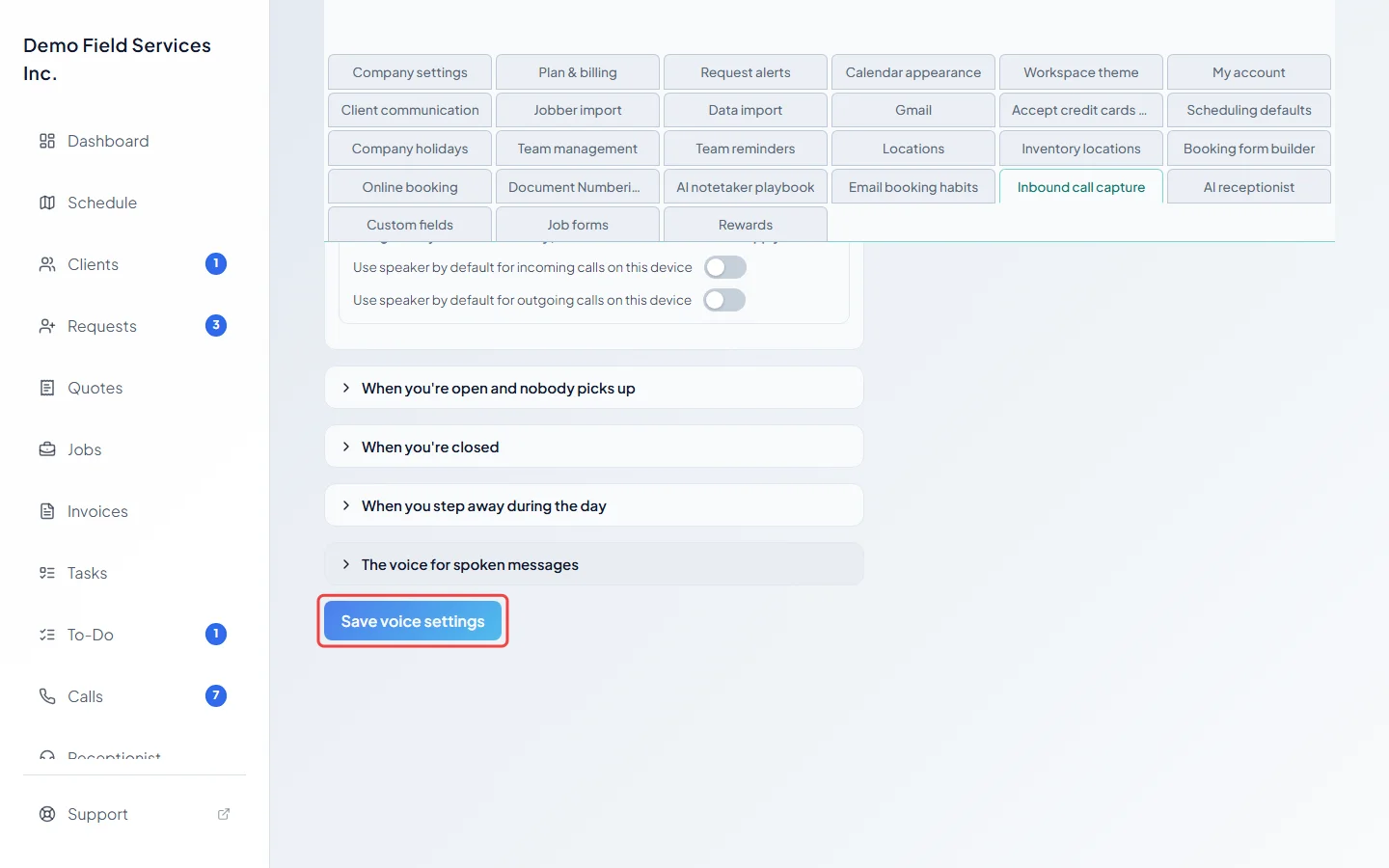
Click Save voice settings.
-
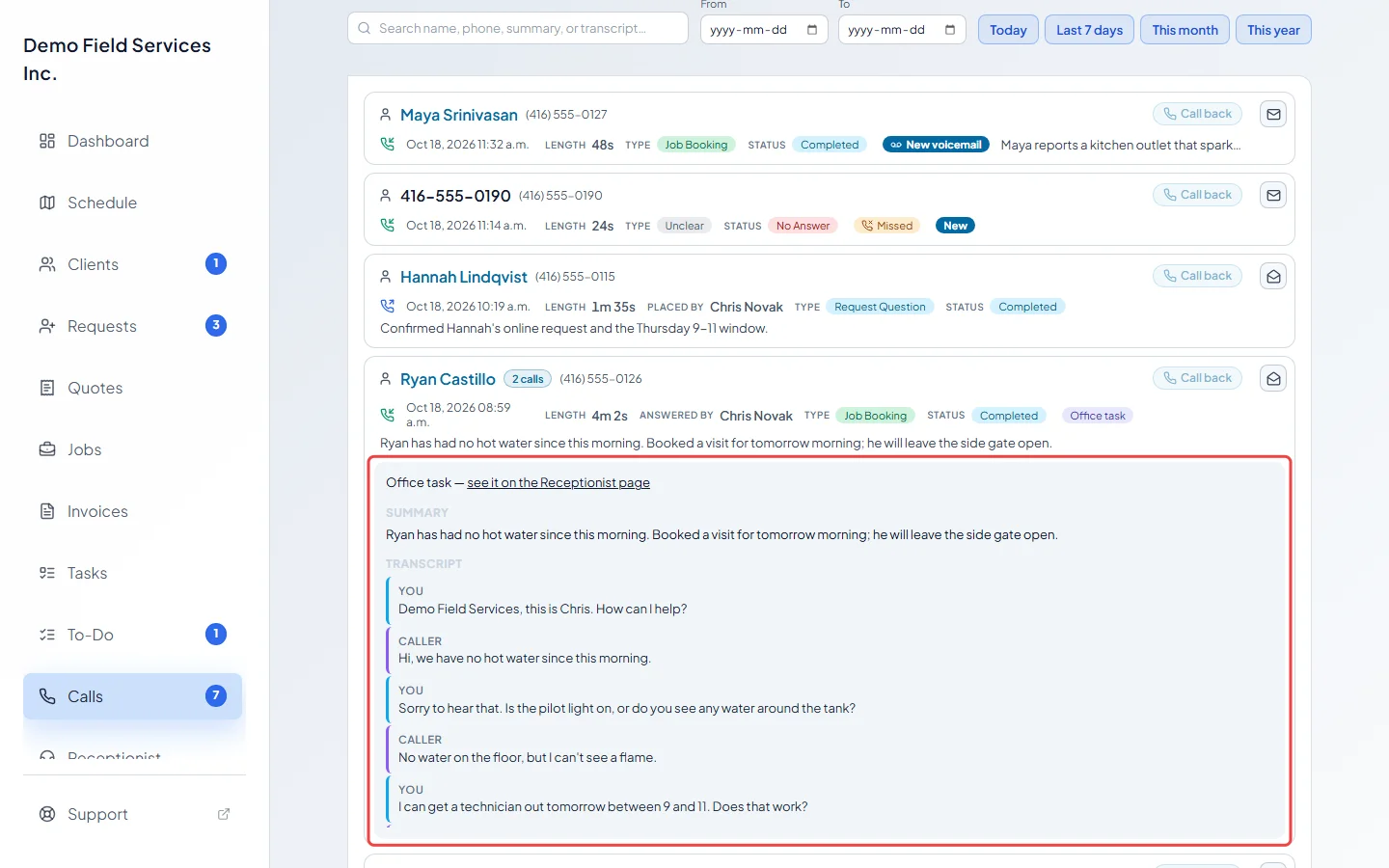
After a call, find it on the Calls page with its summary and transcript (and recording, when it was recorded).
When a call rings
Section titled “When a call rings”Keep Astragal open in your browser, or have the phone app installed and signed in. When a call comes in, a call window opens on every device that rings, showing the caller’s number, and their name and client history if the number belongs to a client.
- Answer picks up on this device. The first person to answer gets the call.
- Silence stops the ringing on this device while you decide (it then says Silenced). The iPhone app doesn’t have it; there the phone’s own call screen rings.
- Speaker turns the loudspeaker on before you pick up.
- Decline stops the ringing for everyone and sends the call on straight away: to your AI receptionist if Let the AI answer when nobody picks up is on, otherwise to your open-hours greeting so the caller can leave a message.
If the AI receptionist has already picked the caller up, the window says so instead of offering Answer. Once you are talking, the buttons change to Mute (Unmute while muted), Speaker (Speaker on), Bluetooth (Bluetooth on, when a headset is connected) and Hang up, and a timer shows how long you’ve been on the call. What the window shows while you talk is in During a call.
If the window says the call isn’t ringing on this device, someone else may have answered it, it may still be ringing elsewhere, or it may have gone to voicemail.
When you’re already on a call
Section titled “When you’re already on a call”New callers wait on hold instead of hearing a busy line. A bar in the call window says how many callers are on hold, and every device with Astragal open plays a soft tone while anyone waits. Click Answer next to a waiting caller to take them, or Mute tone to quiet the tone on your device. When you hang up, the caller who has waited longest rings you automatically. See Putting a caller on hold.
If you take a second call, each call gets its own tab at the top of the call window.
Good to know
Section titled “Good to know”- On a phone, calls ring like normal phone calls. See Work calls on your phone, and My phone didn’t ring if one doesn’t.
- When a caller hides their number, the call window asks you to type the number they give you and click Capture, so you can call them back and the call is filed under the right client.
- After you hang up, the window shows Call ended. Click Close. If anything was captured and not saved, Astragal asks first.
Related articles
Section titled “Related articles”Checked against Astragal on October 17, 2026