

Job forms
Job forms are the checklists a technician fills in on a visit, ending with the client’s signature.
Who can do this: Technicians assigned to the visit fill in its forms, as long as they can complete their own visits. Admins, dispatchers, accountants and technicians who can edit jobs can fill in any visit’s forms and choose which forms go on a job.
Also called: checklist, service report, sign-off sheet.
-
Open the visit from your schedule. Its forms are listed above the buttons, each with Not started, Started or Done. When every form is finished they fold into All forms done ✓; tap it to see them again. Tap a form to open it.
On a computer: Left menu → Schedule On a phone: Bottom bar → Schedule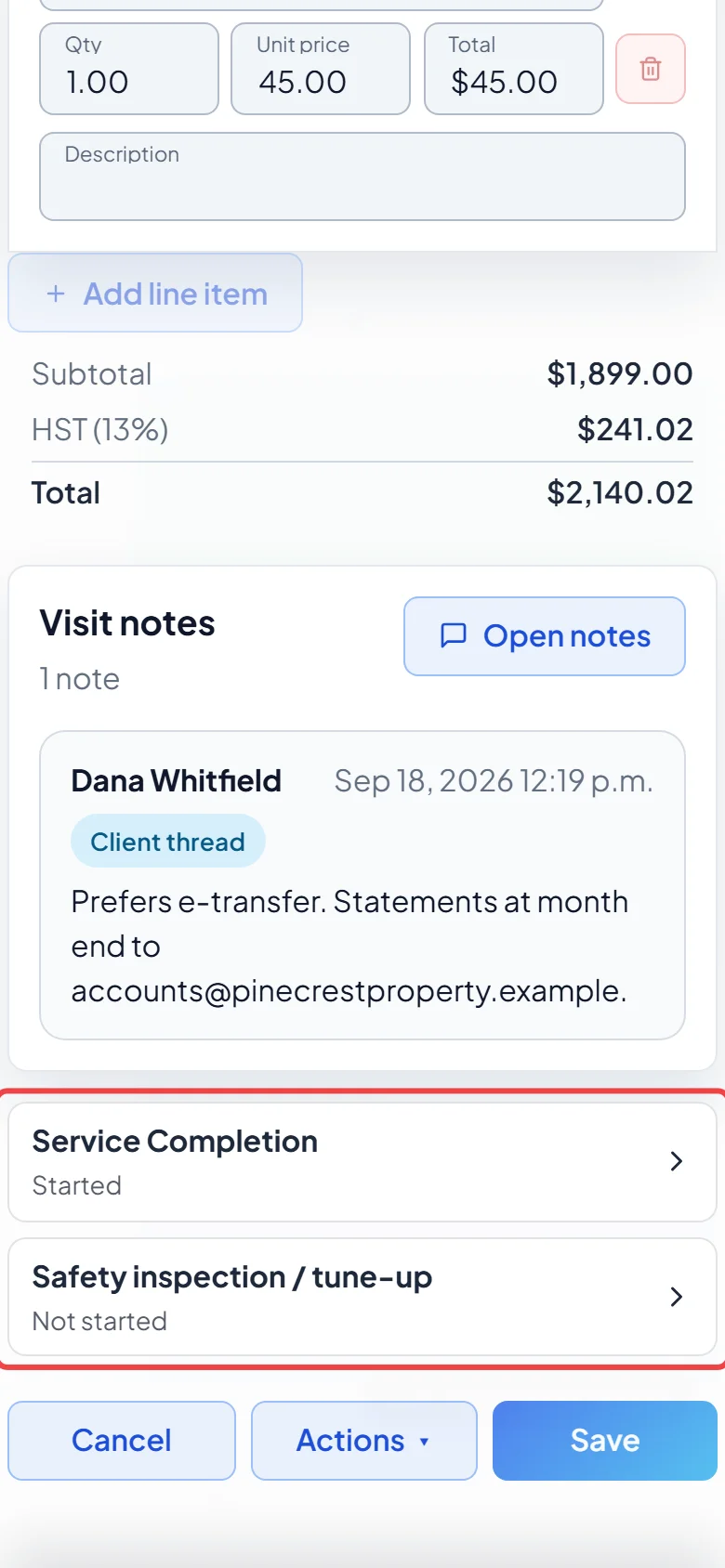
-
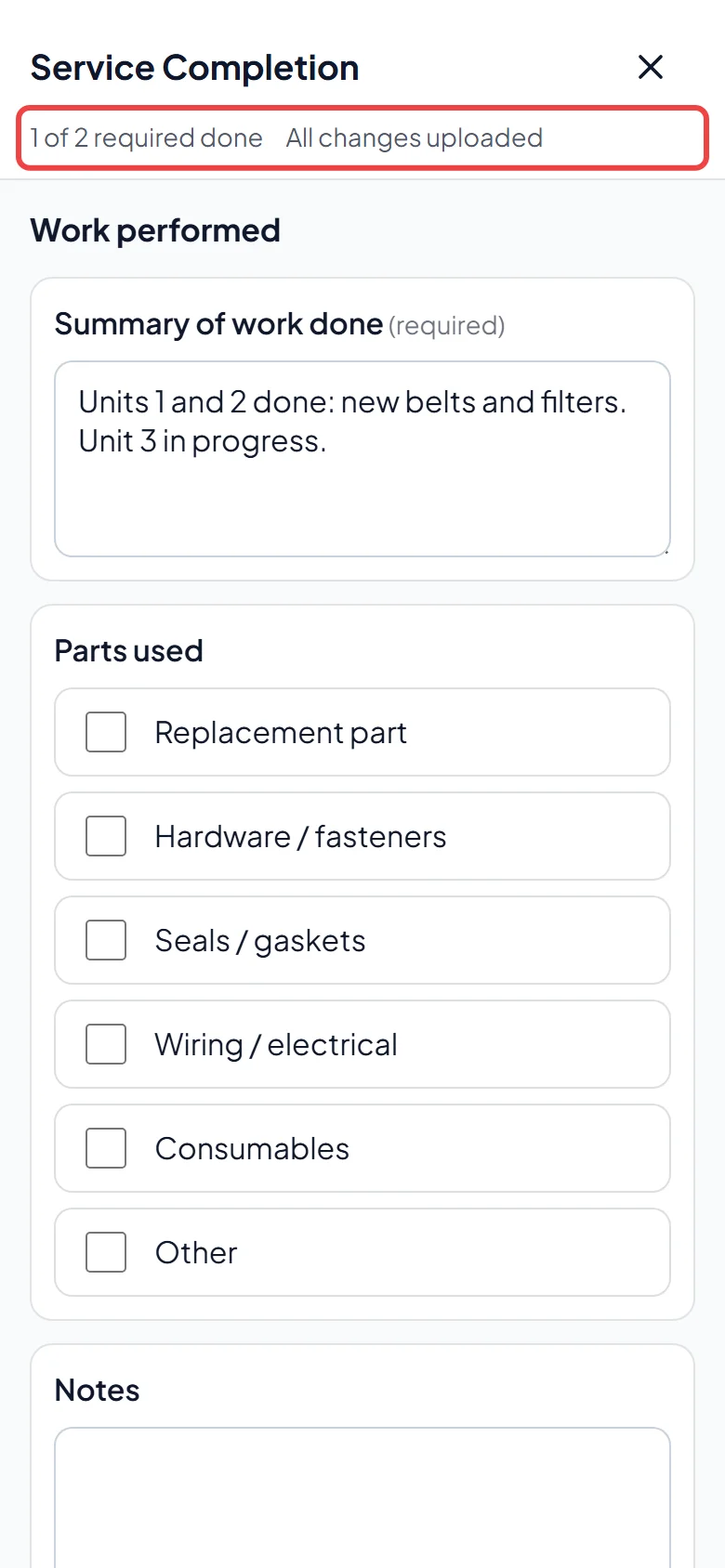
The form opens full screen. The top shows how many required questions are done (for example “2 of 5 required done”) and either All changes uploaded or Saved on phone — waiting to upload. There is no Save button: every answer is kept on your phone straight away and uploads by itself.
-
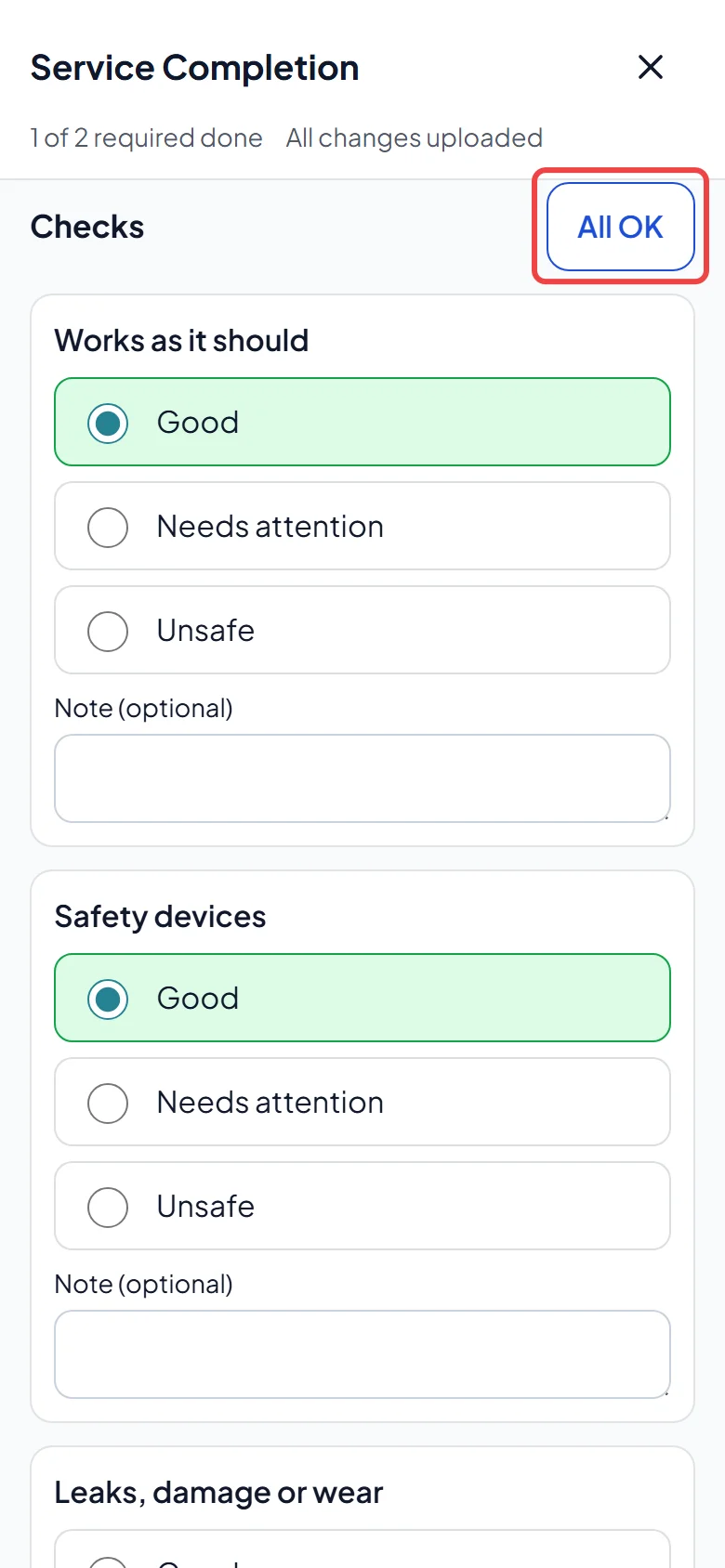
Answer each question. Tick boxes are ticked with a tap; condition questions have Good, Needs attention and Unsafe. Both have a Note (optional) box. Date questions have a Today button. On a section made only of tick boxes and condition questions, All OK ticks every box and sets every unanswered condition to Good. Questions marked (required) must be answered before the form can be done.
-
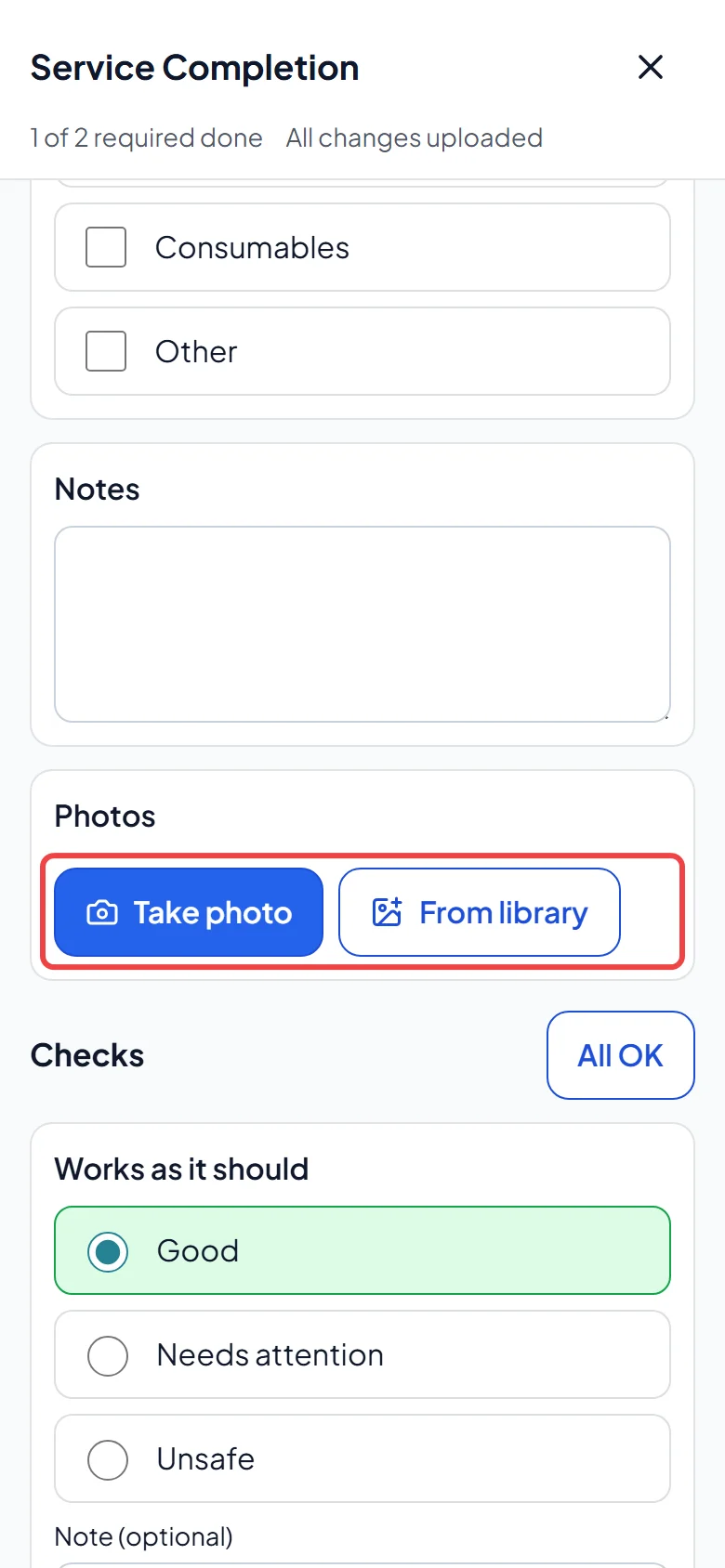
For a photo question, tap Take photo to use the camera or From library to pick saved pictures. A question holds up to 10 photos, each under 15 MB. After each camera photo you can choose Take another. Each photo shows Uploaded or Waiting to upload, and Remove takes it off after you confirm.
-
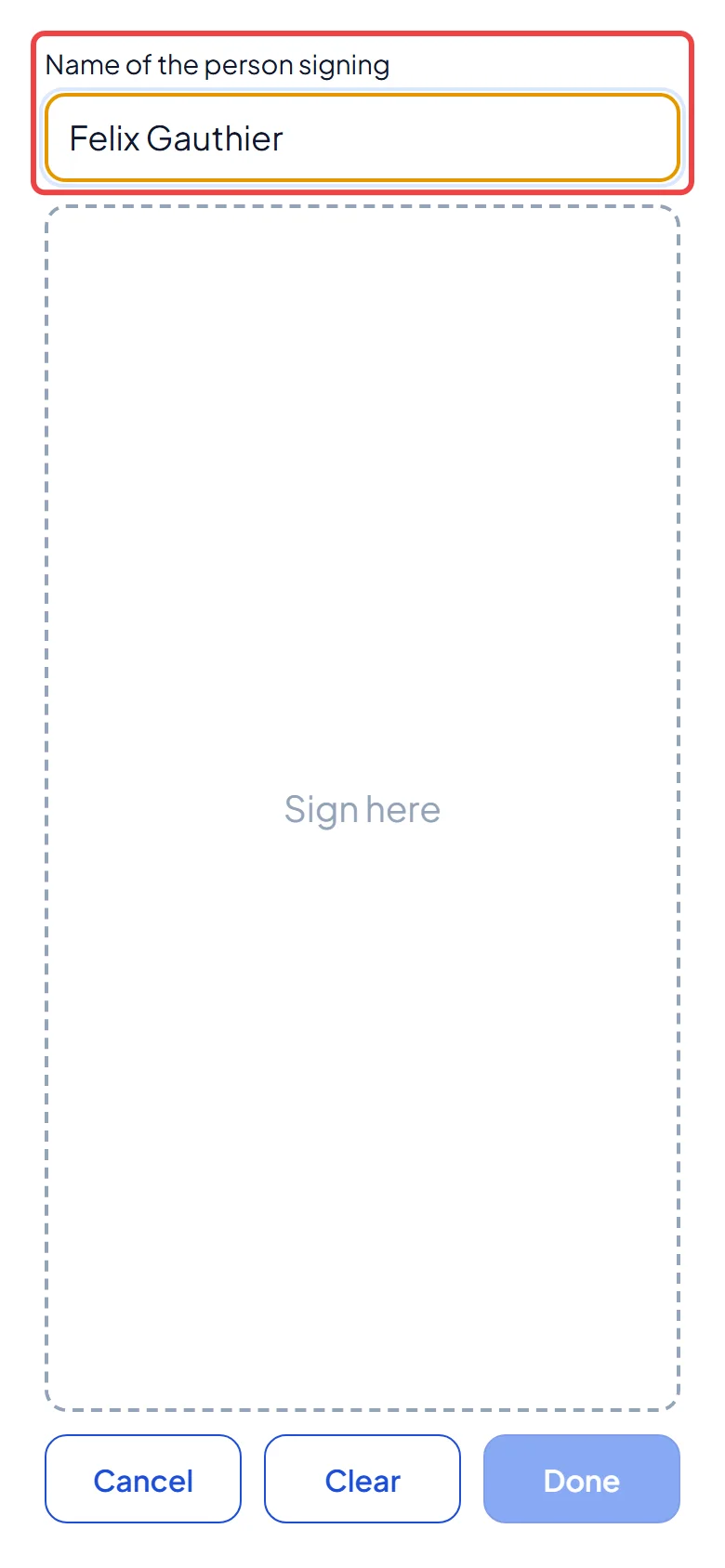
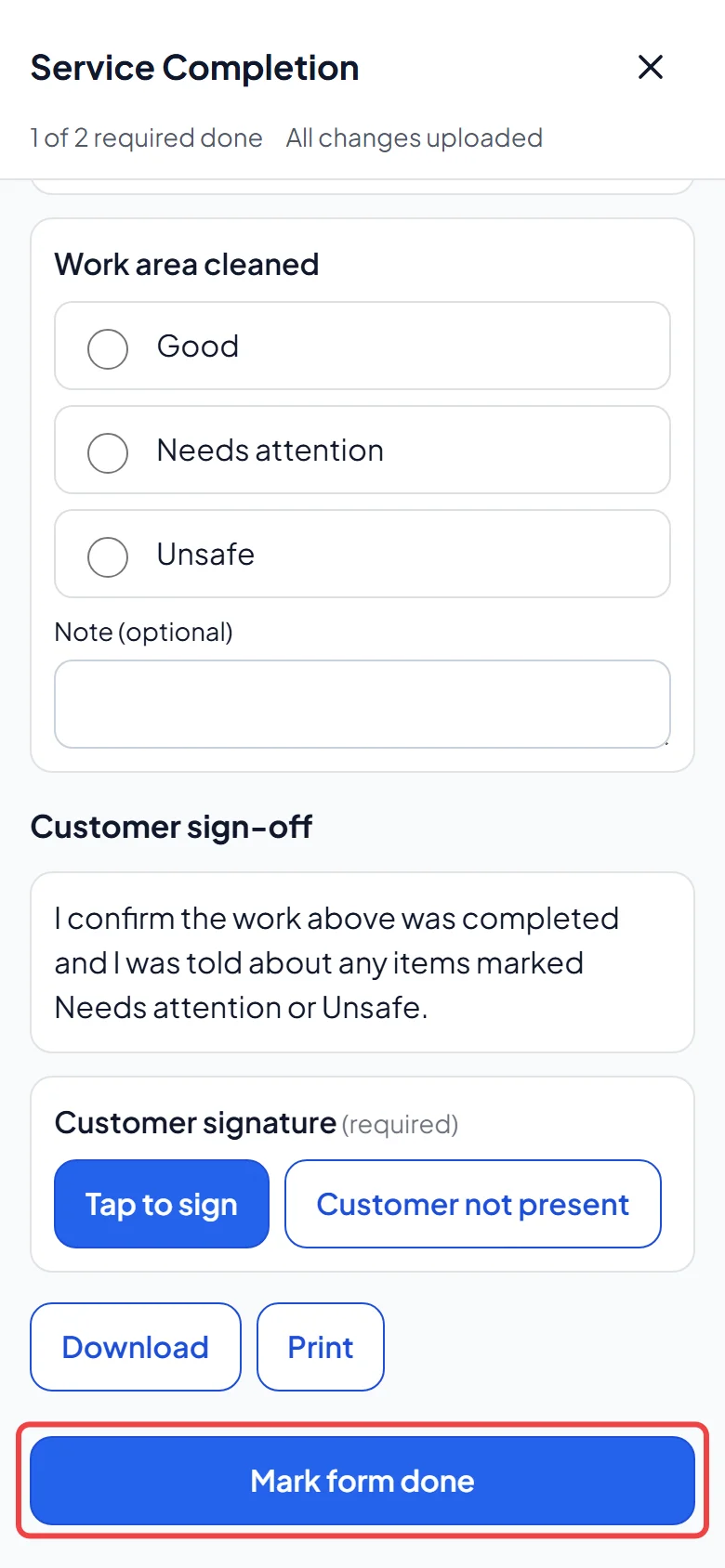
For the signature, tap Tap to sign and hand the phone to the client. They type their name under Name of the person signing (it must be filled in) and sign with a finger. Clear starts again and Done saves it. If the client isn’t there, tap Customer not present and pick Not home, Business closed, Refused to sign or Other; this is recorded with your name and the time.
-
Tap Mark form done. If something required is missing, the form lists what’s left; tap an item to jump to it. Until the visit is complete you can tap Edit again to change a done form.
Good to know
Section titled “Good to know”- On a repeat visit, a form with nothing entered yet offers Copy answers from last visit; check each answer afterwards. Last visit’s form shows last time’s answers on their own page.
- Once a form has uploaded, Download saves it as a PDF, and Print prints it where the device supports printing.
- With no signal, forms keep working. They show Saved on phone — waiting to upload and upload when you’re back online. See Offline behaviour.
- If you can’t fill in this visit’s forms (for example, you’re not on the visit), the form opens read-only.
- Completing a visit checks its forms first. If answers are missing it offers Complete anyway or Open form. If your company has Customer must sign to complete a visit turned on, the visit can’t be completed until the client signs or you tap Customer not present. See Visits and completing them.
- After a visit is complete, admins, dispatchers and accountants can click Edit on a done form, then Finish editing. A signed form then shows when and by whom it was edited after signing.
For the office
Section titled “For the office”- On a new job: tick the forms under Forms in the Initial Visit section. Forms set to be added to new jobs automatically are already ticked.
- On an existing job: click Forms above the visit list and tick or untick forms; they save straight away. Taking a form off hides unfinished copies (they come back if you add it again); finished copies stay with their visit and still go to the client. Once any form is filled in, Download all forms (PDF) saves them all.
- Visits dated today or earlier show a forms chip (such as “Forms 1/2” or “Signed”). Click it to open a form, or mark an unfinished one Not needed on this visit (undo with Needed after all).
- While client signatures are required, only the office can take a form off a job or mark a form that needs the client’s signature as not needed.
- Build and change forms in Settings. See Job forms (settings).
Related articles
Section titled “Related articles”Checked against Astragal on October 18, 2026