

Giving the receptionist tasks
Your AI receptionist can make calls for you, not just answer them: tell it who to call and what to say, and it reports back.
Who can do this: Admins, plus anyone on both the incoming and the outgoing calls lists under Who rings, and where. People on only the incoming list can read the page, reorder and cancel waiting calls, but not send new tasks.
Add-on: AI receptionistAlso called: AI call queue.
-
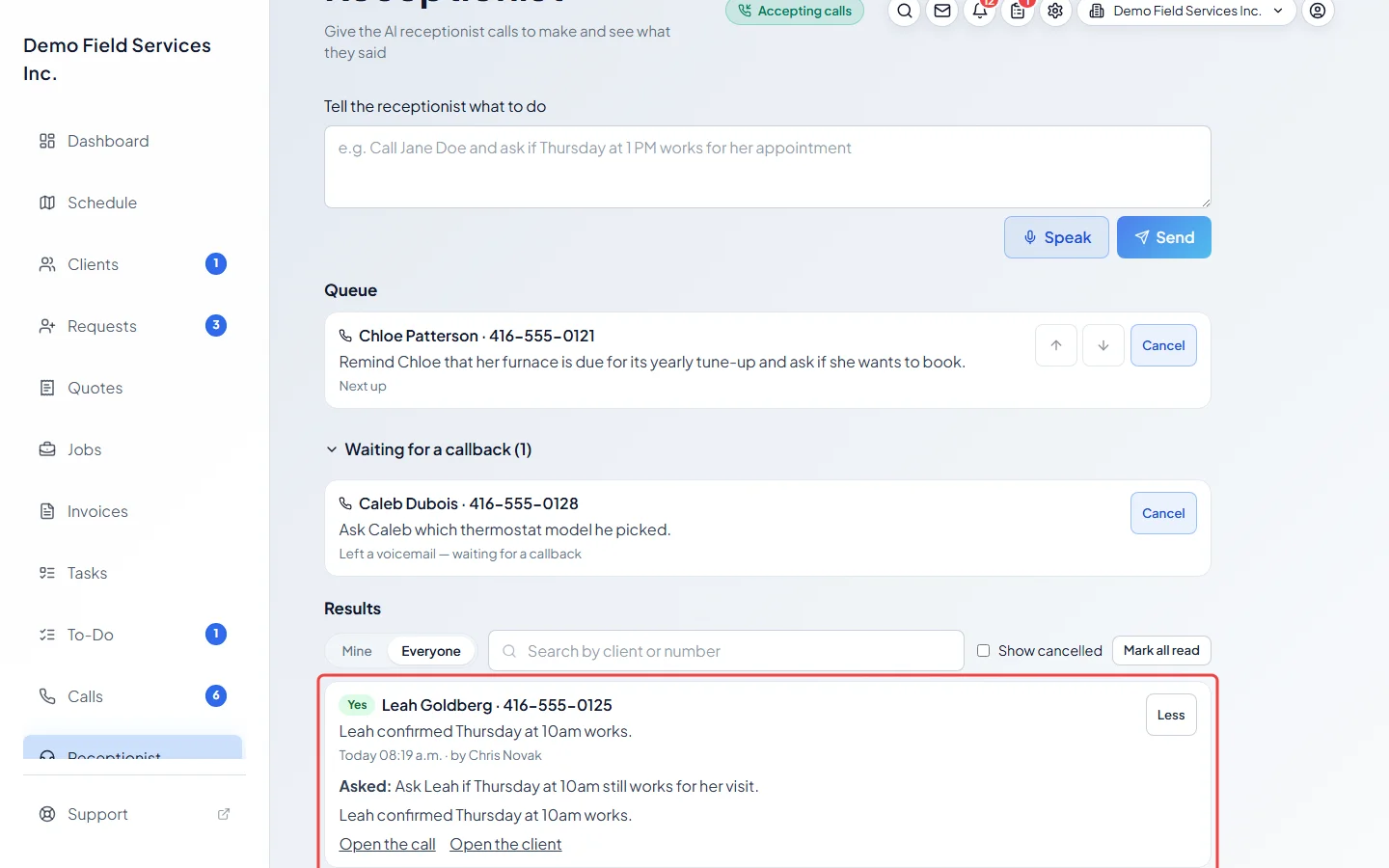
Open the Receptionist page. In Tell the receptionist what to do, write what you want the way you’d say it to a person, for example “Call Jane Doe and ask if Thursday at 1 PM works for her appointment”. Rather talk? Click Speak, say it, and click Stop: your words appear in the box for you to check. The recording isn’t kept.
On a computer: Left menu → Receptionist On a phone: More → Receptionist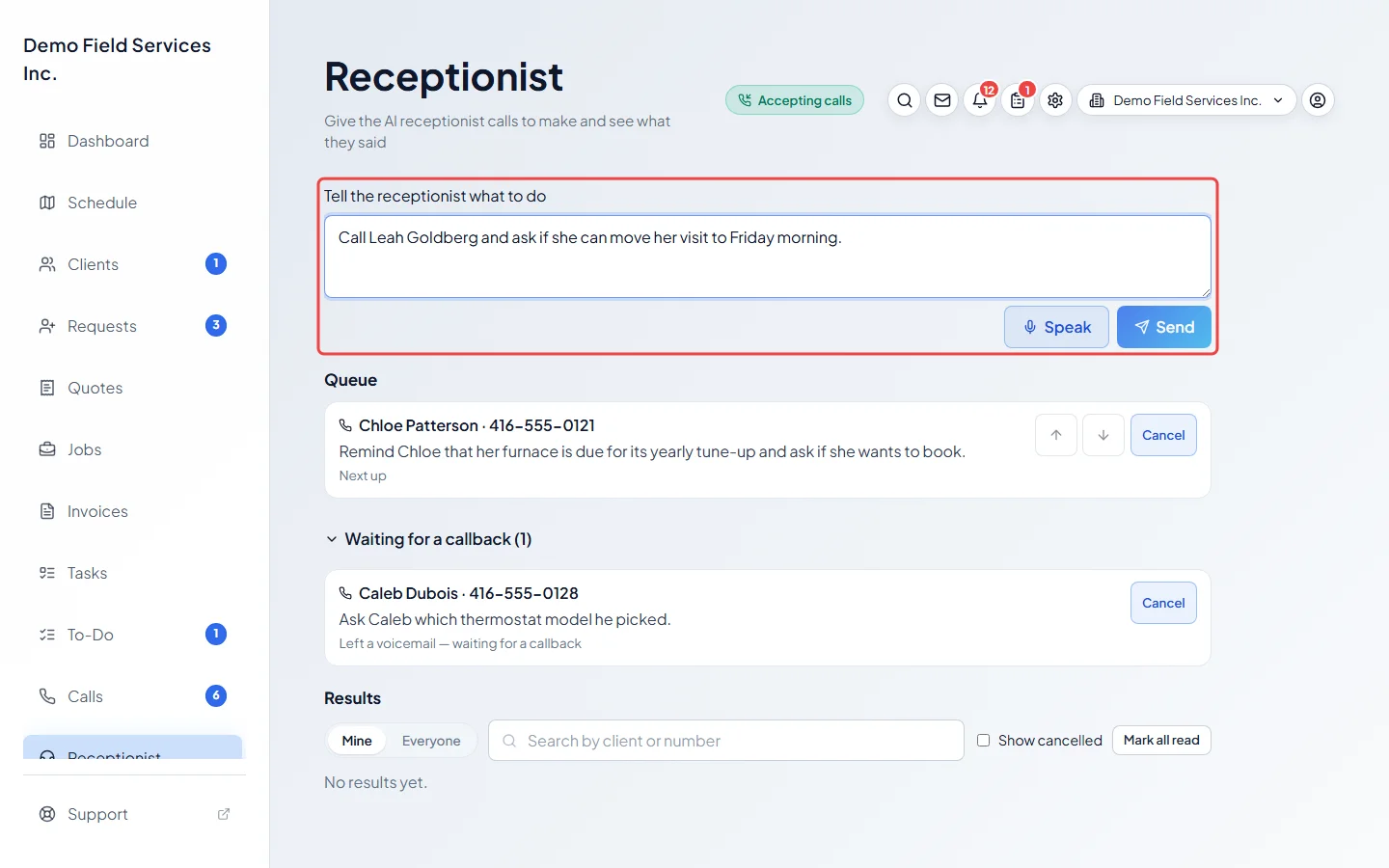
-
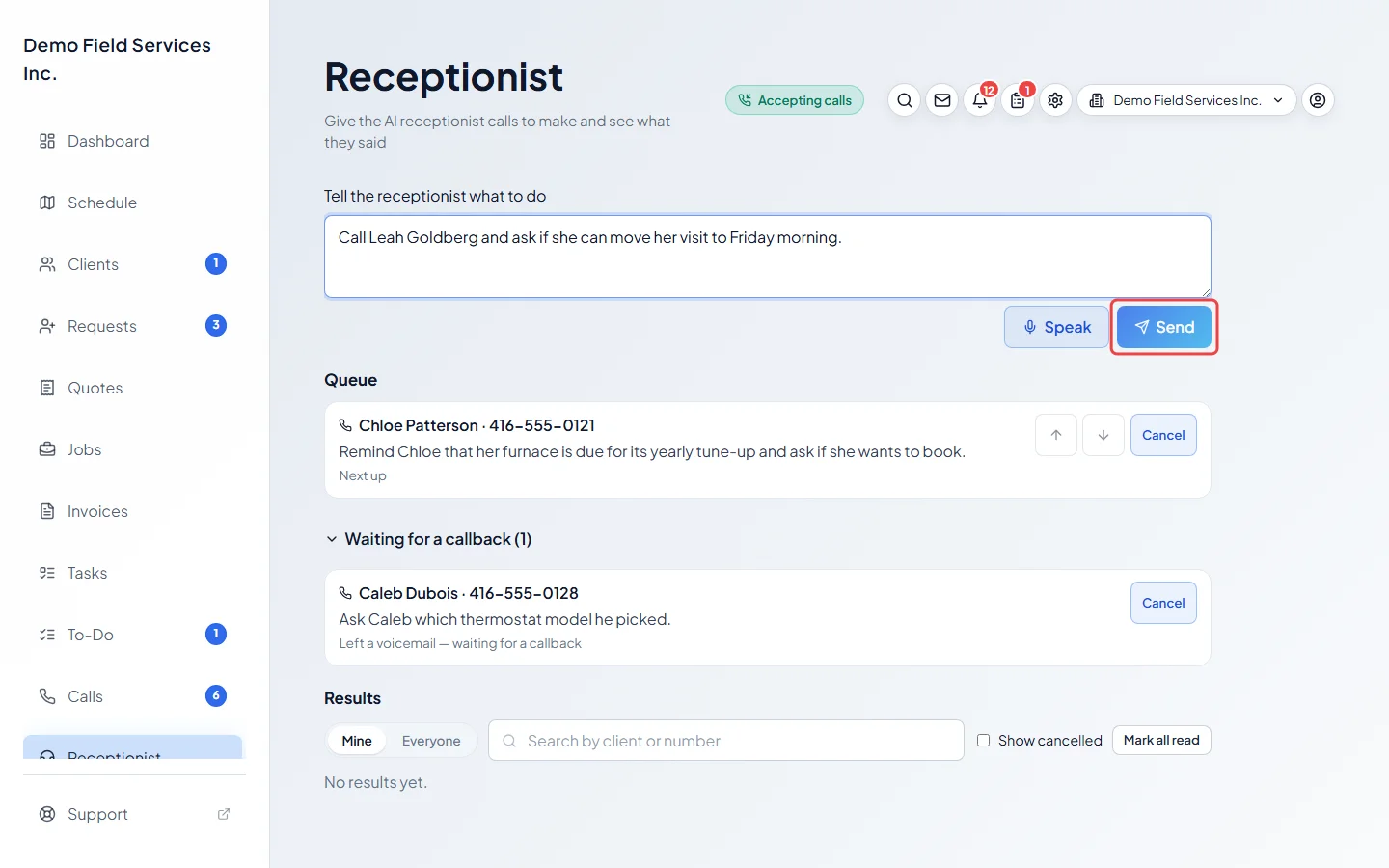
Click Send. A Check before sending card shows what the receptionist understood: who it will call, the Number to call, what it will say, and If it goes to voicemail: the message it will leave. Fix anything that’s wrong (see below), then click Send to receptionist. The demo can’t read instructions, so the card isn’t pictured.
-
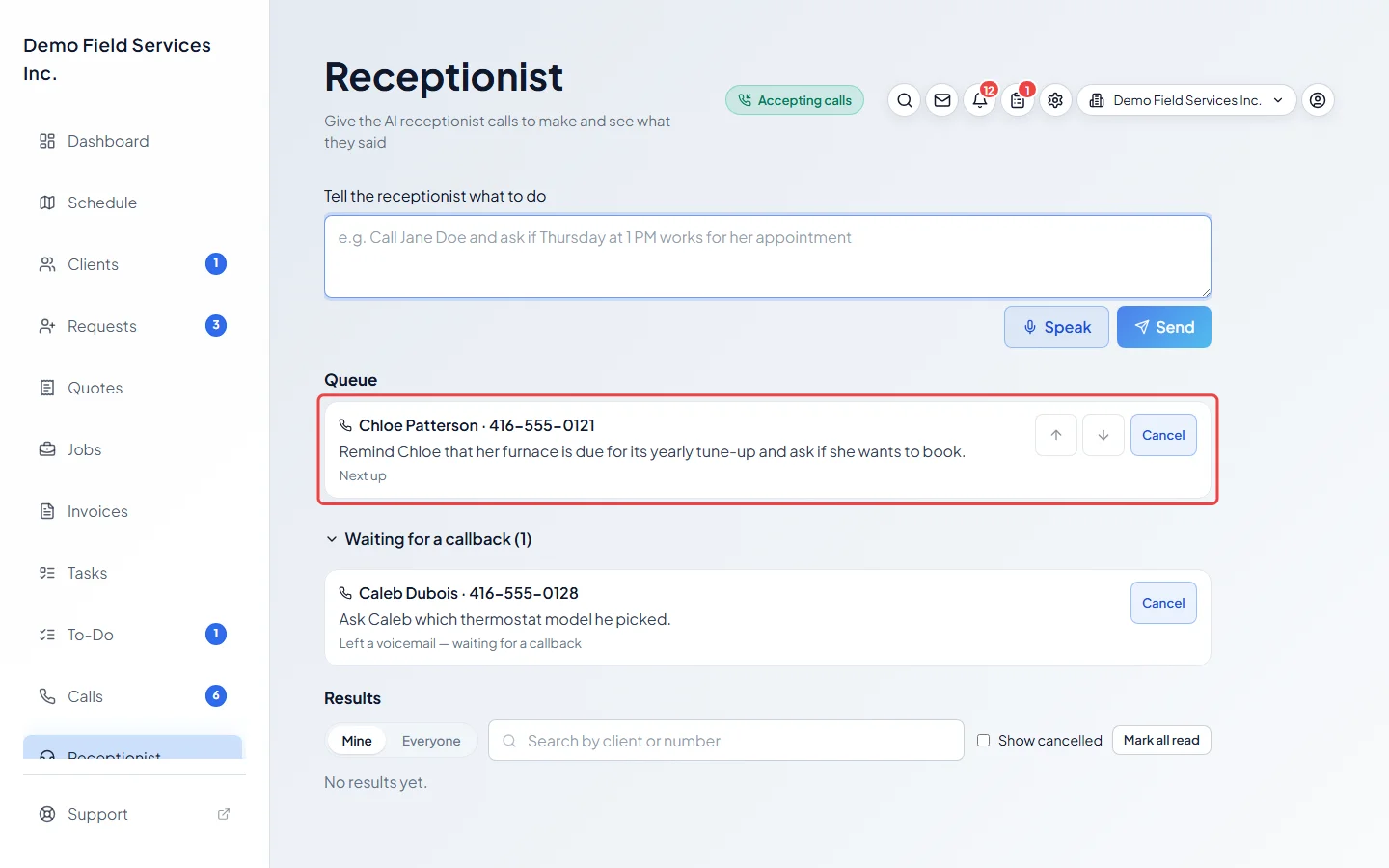
The call joins the Queue, which shows when it will be made. Calls go out one at a time, in order. Use the arrows to change the order, or Cancel to remove a call that hasn’t started.
-
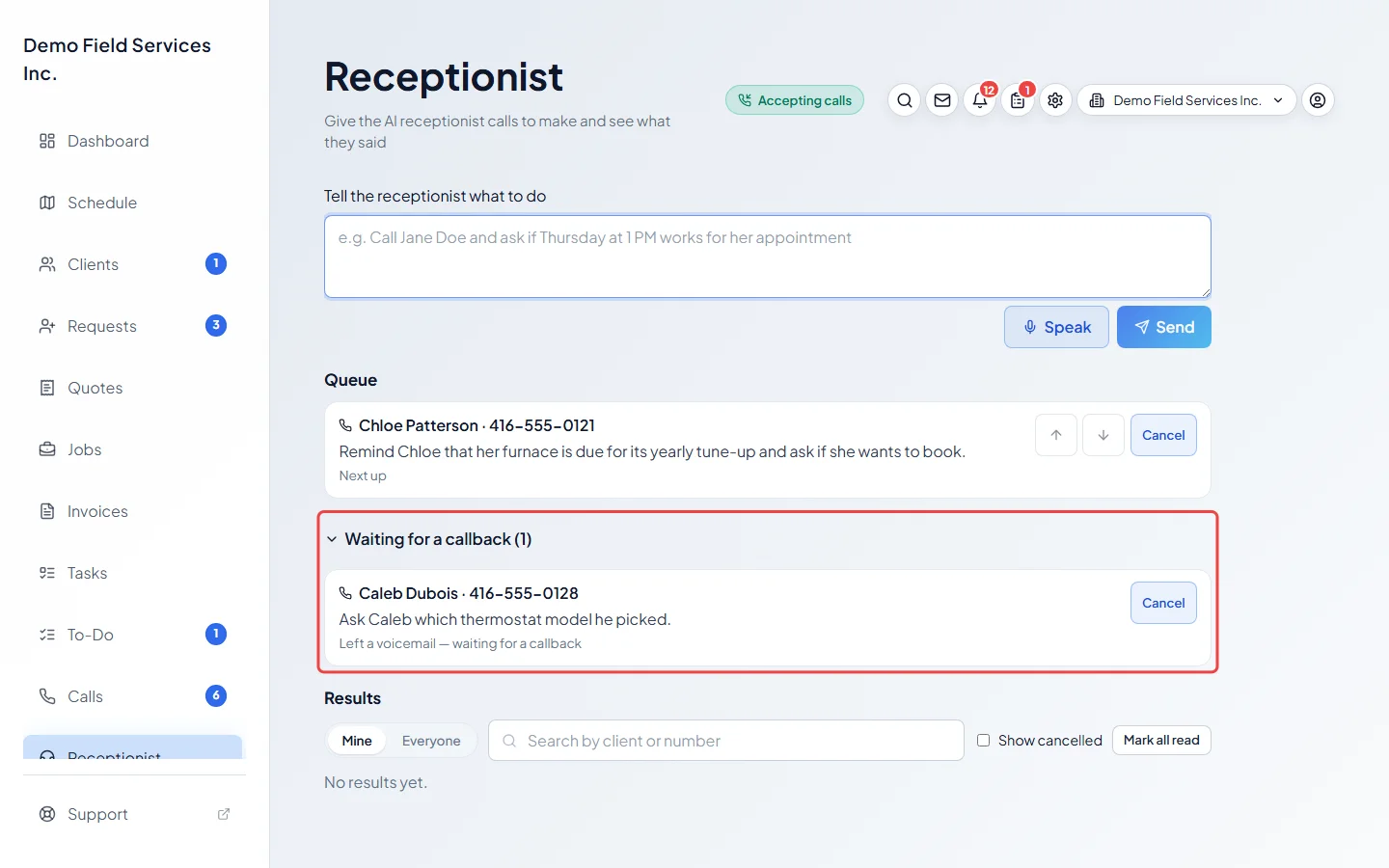
If the call reaches voicemail, the receptionist leaves a short message asking them to call back, and the task moves to Waiting for a callback. If it just rings out, it tries once more about two hours later, then the result says Couldn’t reach. If they call back within 14 days, the receptionist recognises the number, picks up where it left off and asks the question then.
-
Read the answer under Results: Yes, No, Unclear, Delivered (a message was passed on) or Couldn’t reach, with a one-line summary. A result can also say Failed, Cancelled or Not booked. Click More for the full story, Open the call to hear it and Open the client to go to their record. When the answer was no, unclear or nobody was reached, or the task failed, click Try again to send it again with the same details.
Checking the card
Section titled “Checking the card”- Who should she call? appears when more than one client matches the name. Pick the right one, or search under Find a client.
- Pick another number from the list, or type one in Other number and click Use.
- When you offered a new time, Visit to move if they say yes shows which visit will move.
- For a booking, pick the Service (or Let the client choose on the call) and the Property.
- She can’t do this part: lists anything she won’t do on a call, such as promising an exact arrival time. The rest still goes ahead.
- If that client already has a call waiting, choose Add to that call to cover both in one call, or Queue separately.
- Edit takes you back to your words. Cancel throws the card away.
When it calls
Section titled “When it calls”The receptionist only calls during reasonable hours, in your company’s time zone: 9 AM to 8 PM on weekdays and 10 AM to 6 PM at weekends. A task sent outside those hours waits for the next calling time, and the card says when. Up to 20 calls can wait at once.
To let it call at any time, turn on Call at any hour under Calls it makes for you in the AI receptionist settings. Reminder calls keep their usual hours. While it’s on, the card warns you when a call would ring late, for example “This will ring them at Thu Oct 16, 11:30 PM.”
What the client hears
Section titled “What the client hears”The receptionist introduces itself as your company’s virtual assistant, says the call is recorded, and checks it’s speaking to the right person before saying anything about their account. Its voicemails never include account details.
When it offers a new time, it offers an arrival window, never an exact time. If the client says yes, the visit is moved for you, just as if you’d moved it on the schedule. Afterwards, Send reschedule notice on the result sends your usual written confirmation if you want one.
It can also book a visit (“Call Jane Doe and book her a tune-up next week”). This uses your online booking setup: it asks that service’s questions, offers up to three arrival windows that fit your route, and books only after a clear yes. The client gets your usual booking confirmation, and the result shows Open the job. If a booking the client was told about couldn’t be made, the result says Not booked and you’re asked to call them.
Calls it won’t make
Section titled “Calls it won’t make”It refuses sales or promotional calls, numbers that texted STOP to you, and emergency or other special service numbers.
Good to know
Section titled “Good to know”- Mine shows the results of tasks you sent; Everyone shows the whole team’s. Search by client or number, tick Show cancelled to include cancelled tasks, and Mark all read clears the count on the Receptionist menu item.
- You get a notification on your phone when a call finishes.
- Calls the receptionist makes show on the Calls page with an Office task tag.
Related articles
Section titled “Related articles”Checked against Astragal on October 17, 2026