

Stock tracking and locations
Astragal counts how many of each product you have, at each place you keep stock, such as a shop, a storage unit or each van.
Who can do this: Admins, dispatchers and accountants.
Also called: inventory count, stock levels.
-
Set up your stock locations first. Type a name under Location name and click Add location. The first location becomes the Default: stock for booked jobs is held there. Click Set as default on another location to change that, Edit to rename one, or Remove to delete one that has never held stock. Remove is greyed out on the default location, so make another one the default first.
On a computer: Left menu → Settings → Inventory locations On a phone: More → Settings → Inventory locations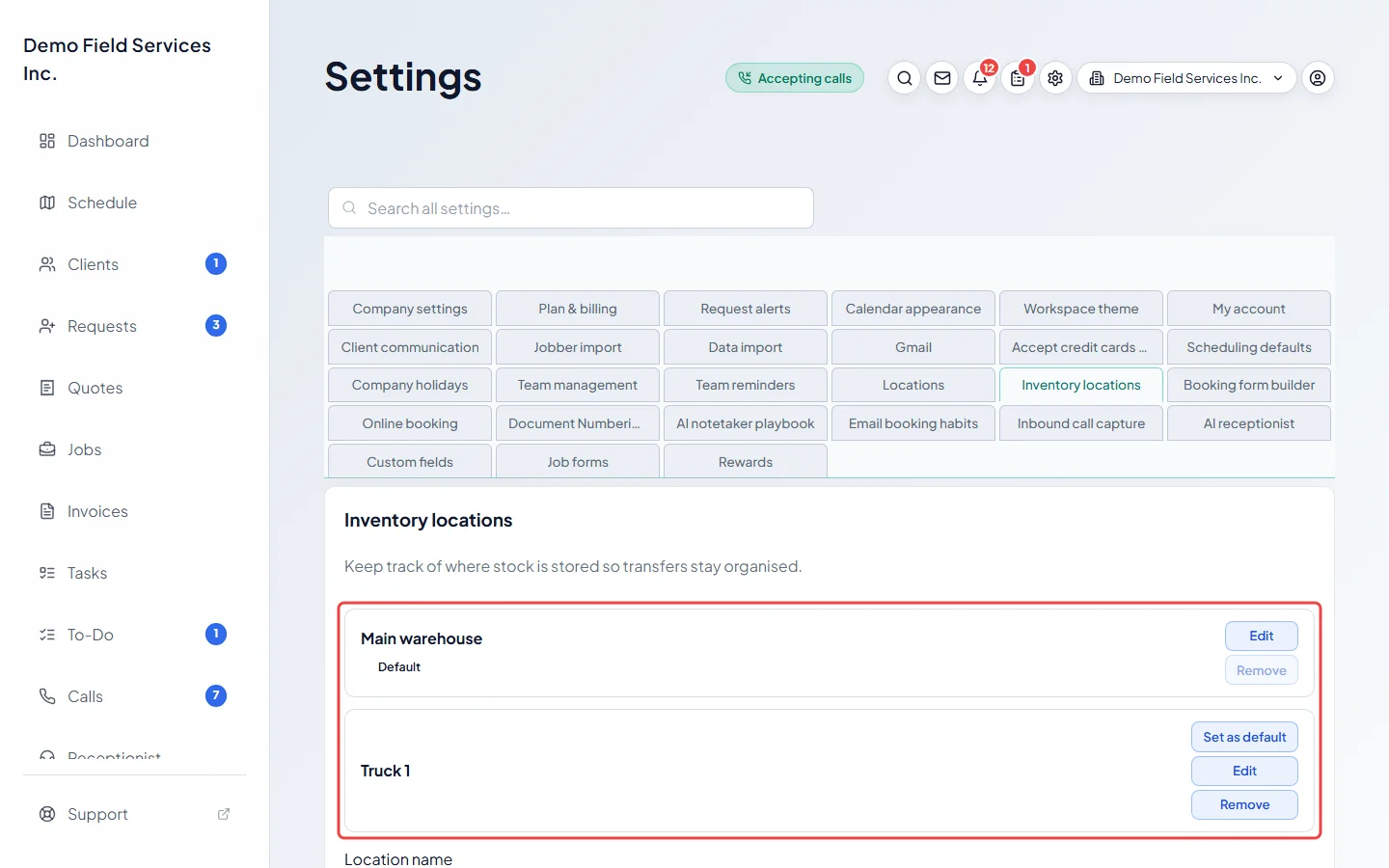
-
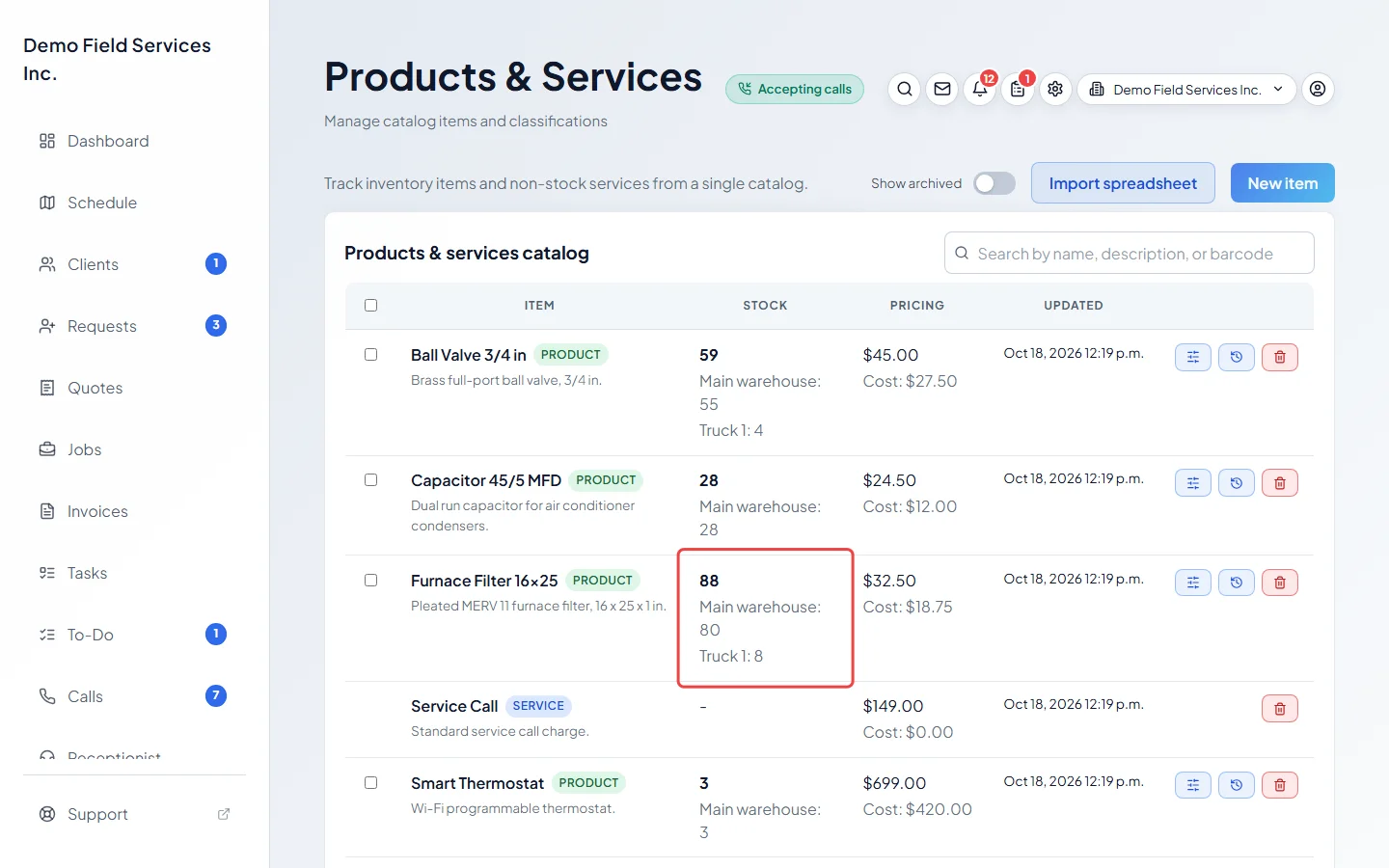
Open the catalog. The Stock column shows the total on hand and, under it, the count at each location.
-
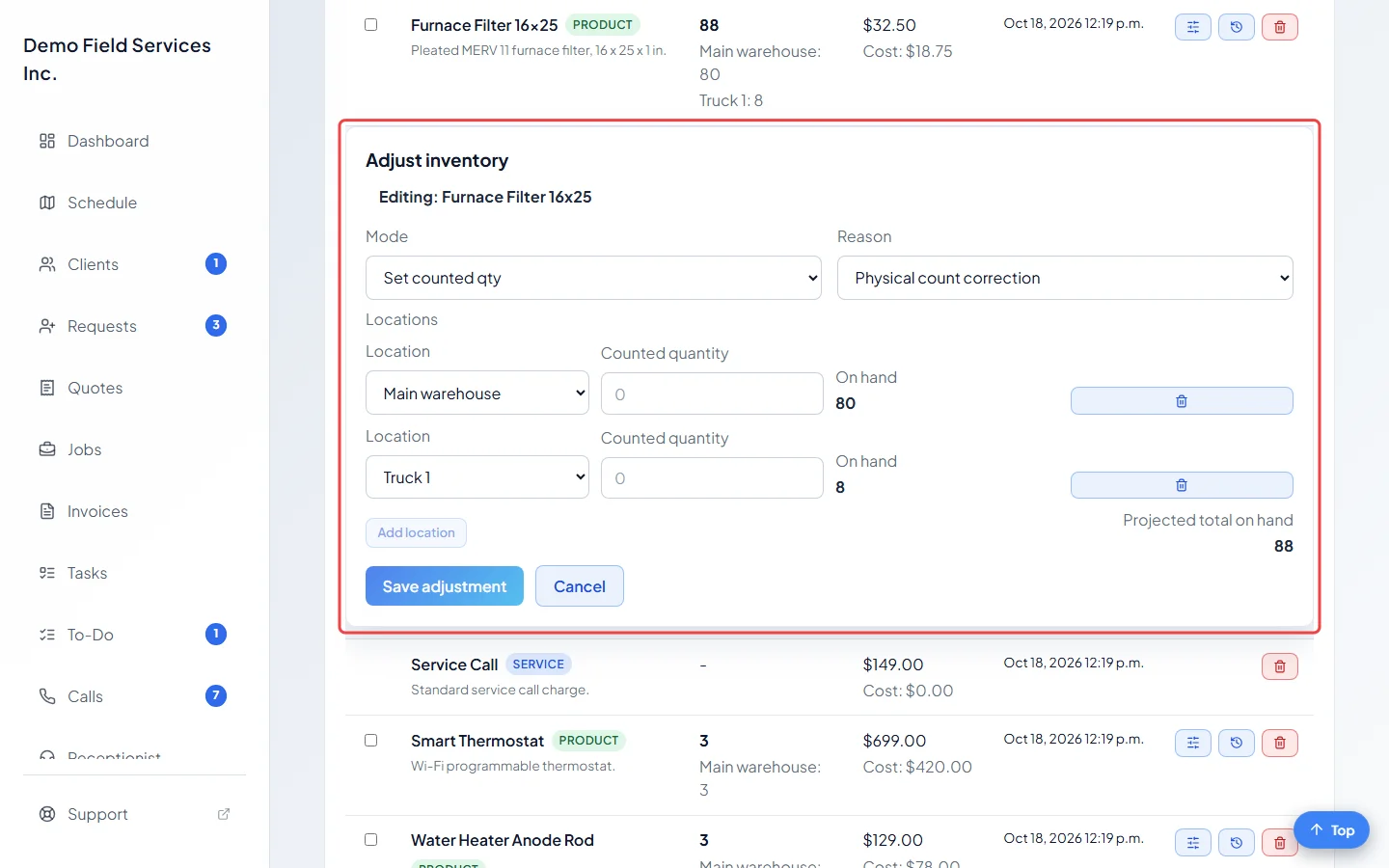
To correct a count, click the sliders button on the product’s row (or Adjust inventory in its details). The Adjust inventory panel opens under the row with a line for each location that holds it.
-
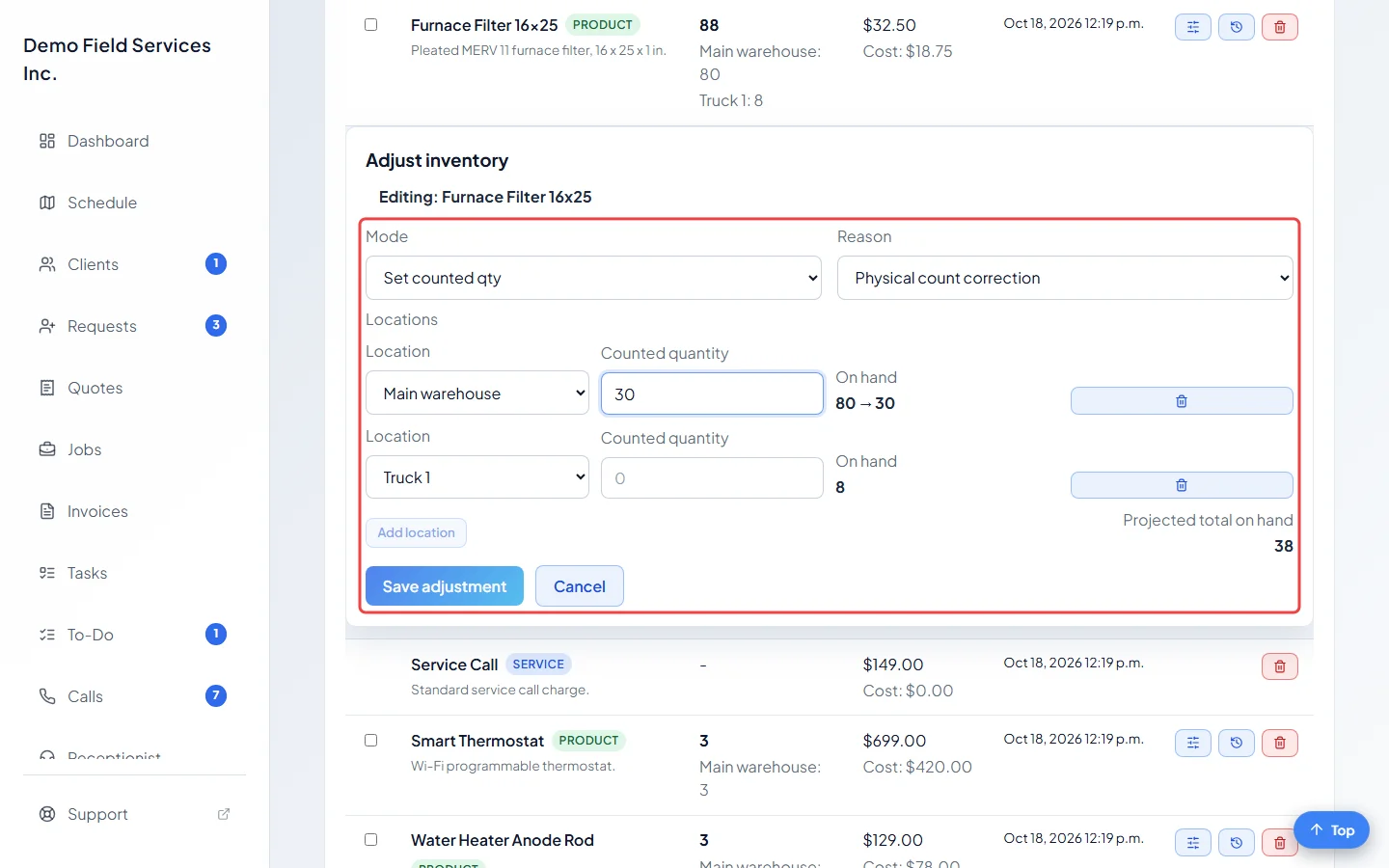
Pick a Mode. Set counted qty means “this is how many I counted”, and Enter +/- delta means “add or take away this many” (type a minus sign to take away). Pick a Reason. If you pick Other, explain it under Reason note. Type a number for each location, or click Add location for another place. The On hand figure shows the count before and after, and Projected total on hand shows the new total. Click Save adjustment.
-
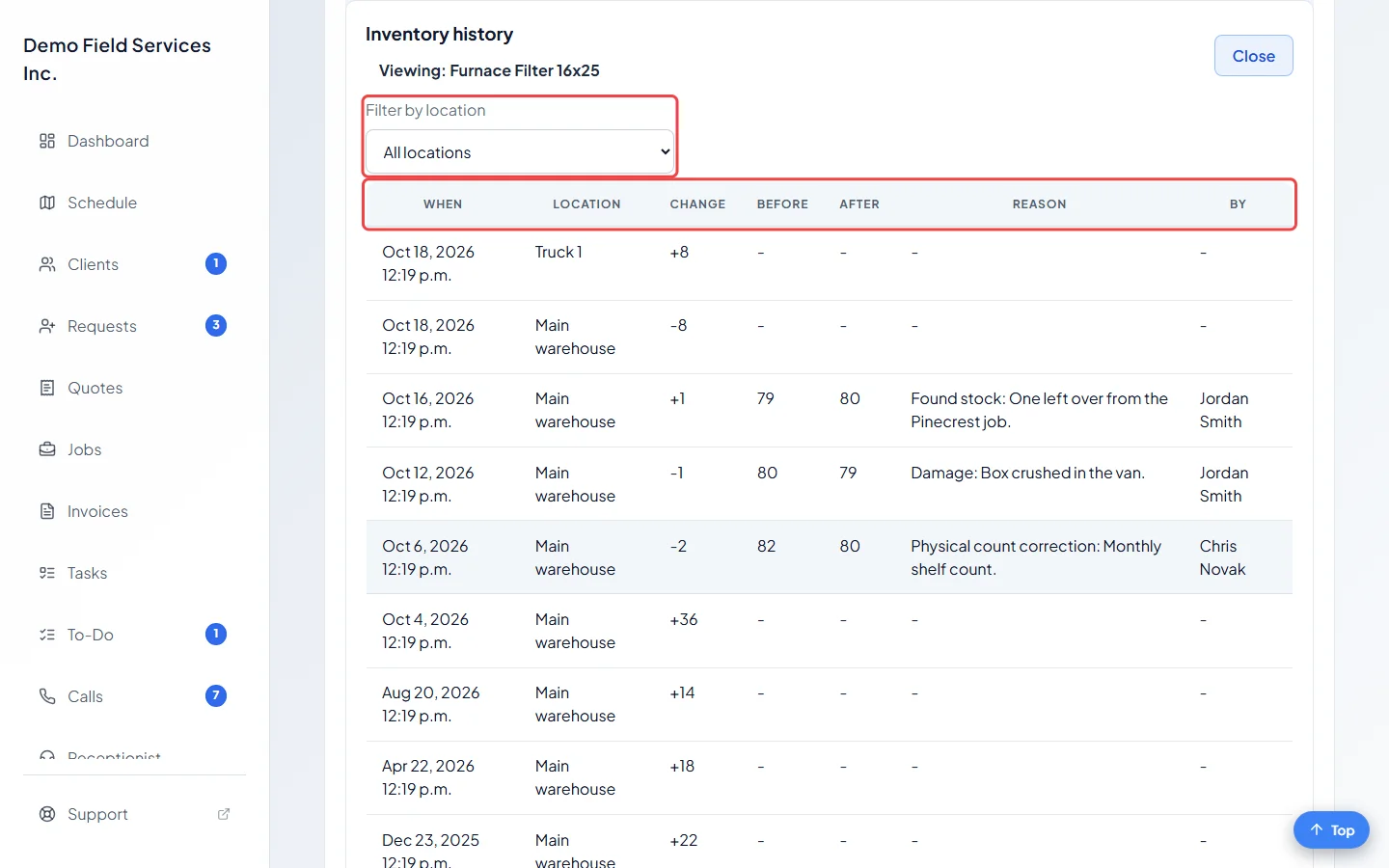
To see every change to a product’s stock, click the clock button on its row (or View history). Each line shows when it happened, the location, the change, the count before and after, the reason and who did it. Only counts you adjusted fill in every column; deliveries and transfers show a dash under before, after, reason and who. Use Filter by location to see one place only.
How counts change on their own
Section titled “How counts change on their own”- Quotes and jobs: When a quote with stocked products is approved, or a job with them is booked, those products are held out of stock at your default location so you don’t promise the same item twice. If the quote stops being approved, the job’s lines change, or the job is deleted, they go back. Completing or reopening a visit is recorded too. The history shows each one, such as “Quote #1042 approved” or “Job #388 booked”.
- Purchase orders: Receiving stock adds it at the location you choose. See Receiving stock.
- Transfers and scans: Moving stock between locations and scanning barcodes change the counts too. See Stock transfers and Barcode scanning.
Good to know
Section titled “Good to know”- Only products with Track this product in inventory ticked are counted. Services never are.
- Only whole numbers are counted. A product line with a part quantity, such as 1.5, doesn’t change the stock.
- Each unit keeps what you paid for it, and the oldest units are used first. That is how the cost of parts on a job is worked out.
- If you have no stock locations yet, jobs can’t take stock out. Add at least one location.
Related articles
Section titled “Related articles”Checked against Astragal on October 17, 2026