

Following up on outstanding quotes
Send clients an automatic reminder about a quote they haven’t approved or declined yet.
Who can do this: Admins, dispatchers and accountants.
Also called: quote reminders, chasing quotes.
-
Open the client communication settings and scroll to Quotes & Invoices. Find the card called “Outstanding quote follow-ups”. It shows Active or Inactive and how many days it waits.
On a computer: Left menu → Settings → Client communication On a phone: More → Settings → Client communication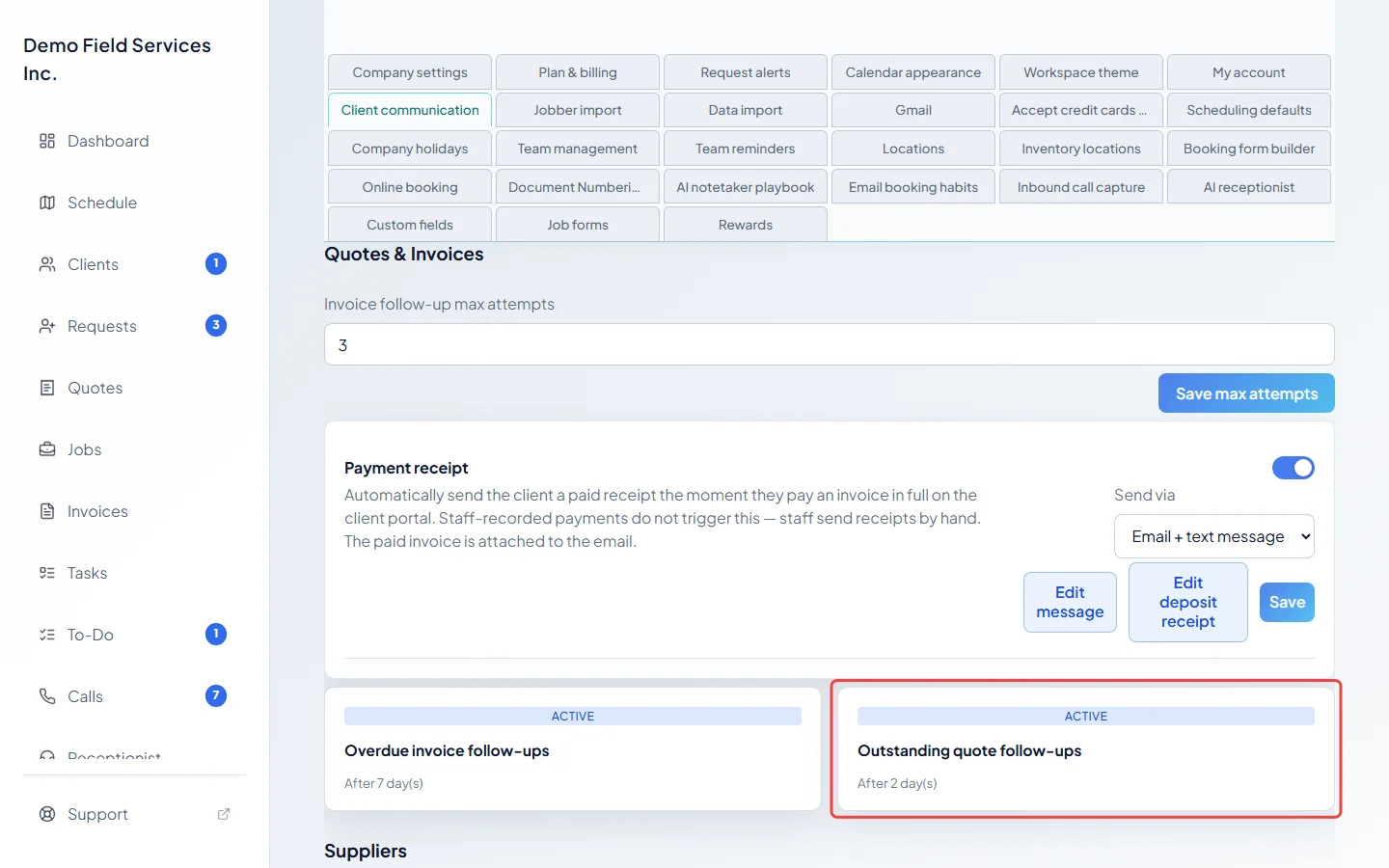
-
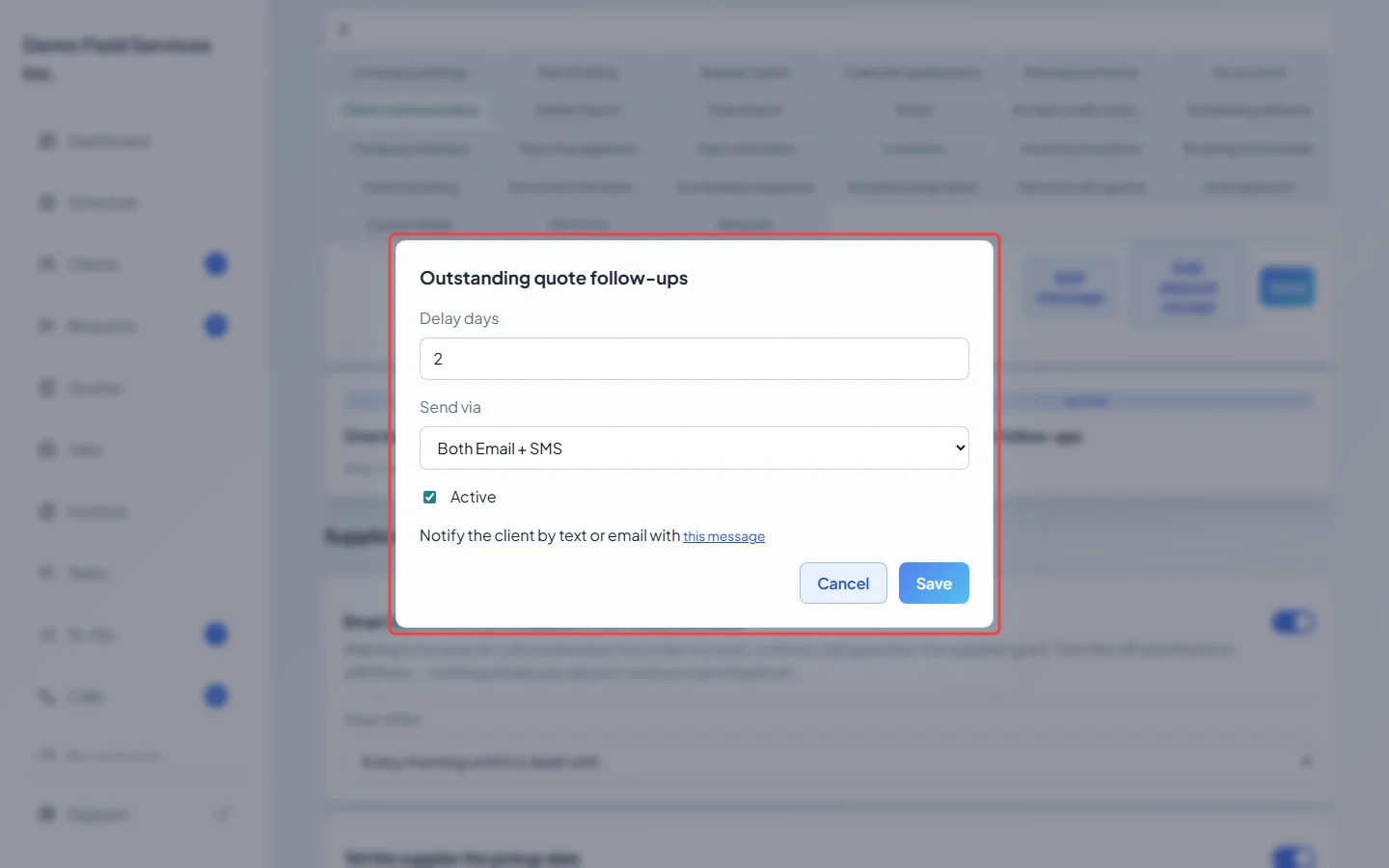
Click the card. Set Delay days, choose how it goes out in Send via (Both Email + SMS, Email only, SMS only or Neither (disabled)), and tick Active to switch it on. Picking Neither (disabled) unticks Active for you.
-
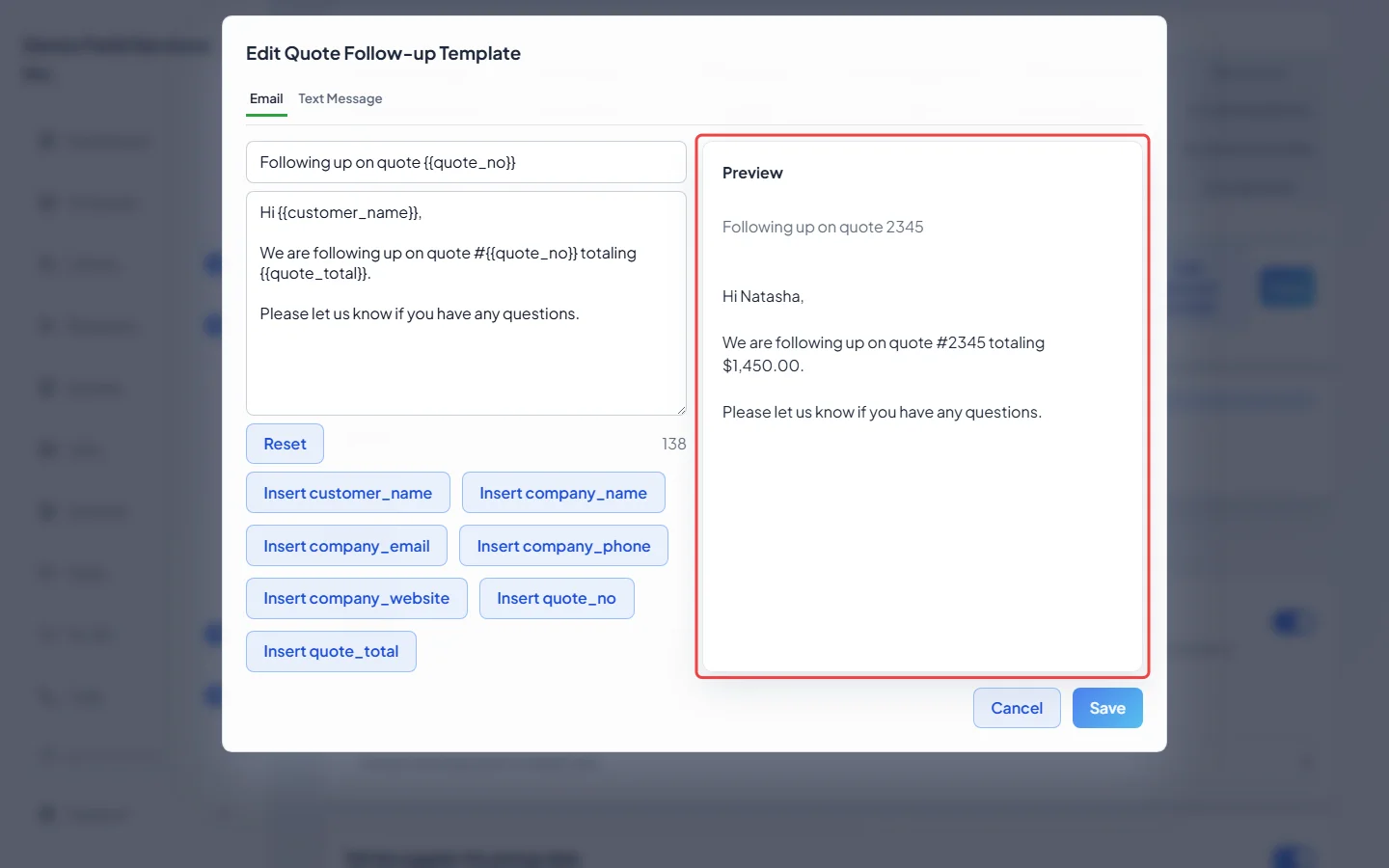
To change the wording, click this message. Edit Quote Follow-up Template opens with an Email tab and a Text Message tab. Click an Insert button to add the client’s name, your company’s details, the quote number or the quote total. Preview shows the message with sample details. Click Save.
-
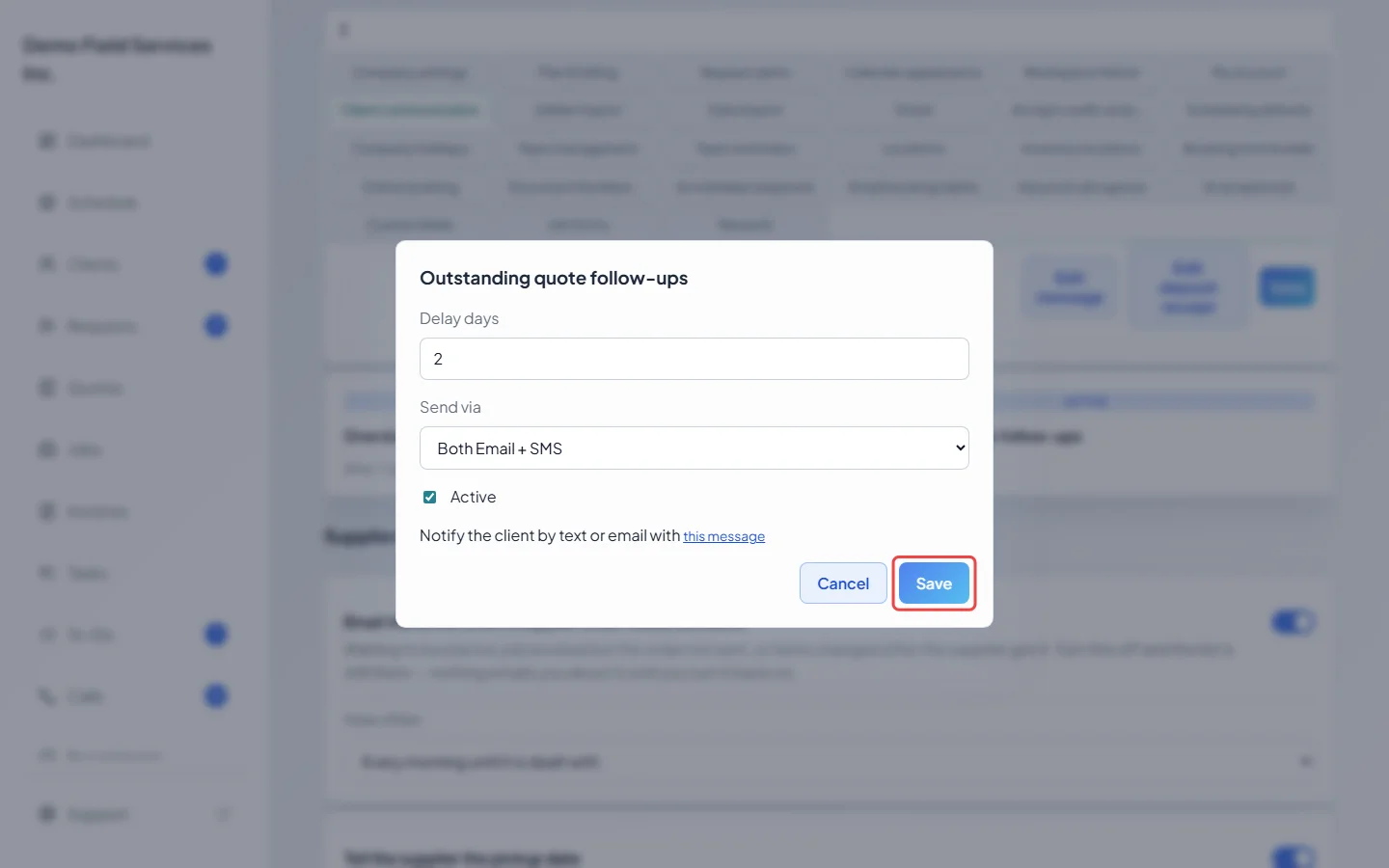
Click Save on the follow-up settings.
Which quotes get a reminder
Section titled “Which quotes get a reminder”- Quotes that were sent and not yet approved, declined or archived, including ones that have expired.
- The first reminder goes out once the quote is as many days old as Delay days (counted from the day the quote was made). Another follows every Delay days days (never more than once a day), until a week after the first one. After that, Astragal stops chasing it.
- Each reminder includes a “View Quote” button that opens the quote in the client’s portal, ready to approve or decline.
- Reminders go to the same people as the quote itself, including its contact person.
Stopping reminders
Section titled “Stopping reminders”- For one quote: approve it for the client, or archive it. Either one stops its reminders. See Archiving quotes.
- For one client: switch this message off in their Communication settings. See Editing a client.
- For everyone: set Send via to Neither (disabled), or untick Active.
Good to know
Section titled “Good to know”- New companies start with this follow-up switched on, sent by email and text, two days after the quote is made.
- If your company has AI calls switched on, Quote follow-up calls under AI calls for clients without a mobile or email can phone clients who can’t get texts or emails about a quote they haven’t answered.
- A follow-up after a technician gave a price on site, with no written quote, is a different message. See Booking and job follow-ups.
Related articles
Section titled “Related articles”Checked against Astragal on October 17, 2026