

Connecting Gmail
Connect your company’s Gmail account so you can see the emails you’ve swapped with each client without leaving Astragal.
Who can do this: Admins.
Also called: email connection, Google email.
The connection is read-only: Astragal never sends, changes or deletes anything in your Gmail.
-
Open Gmail. The note at the top says what the connection does. Until an account is connected, the card below it says “No Gmail account connected yet.”
On a computer: Left menu → Settings → Gmail On a phone: More → Settings → Gmail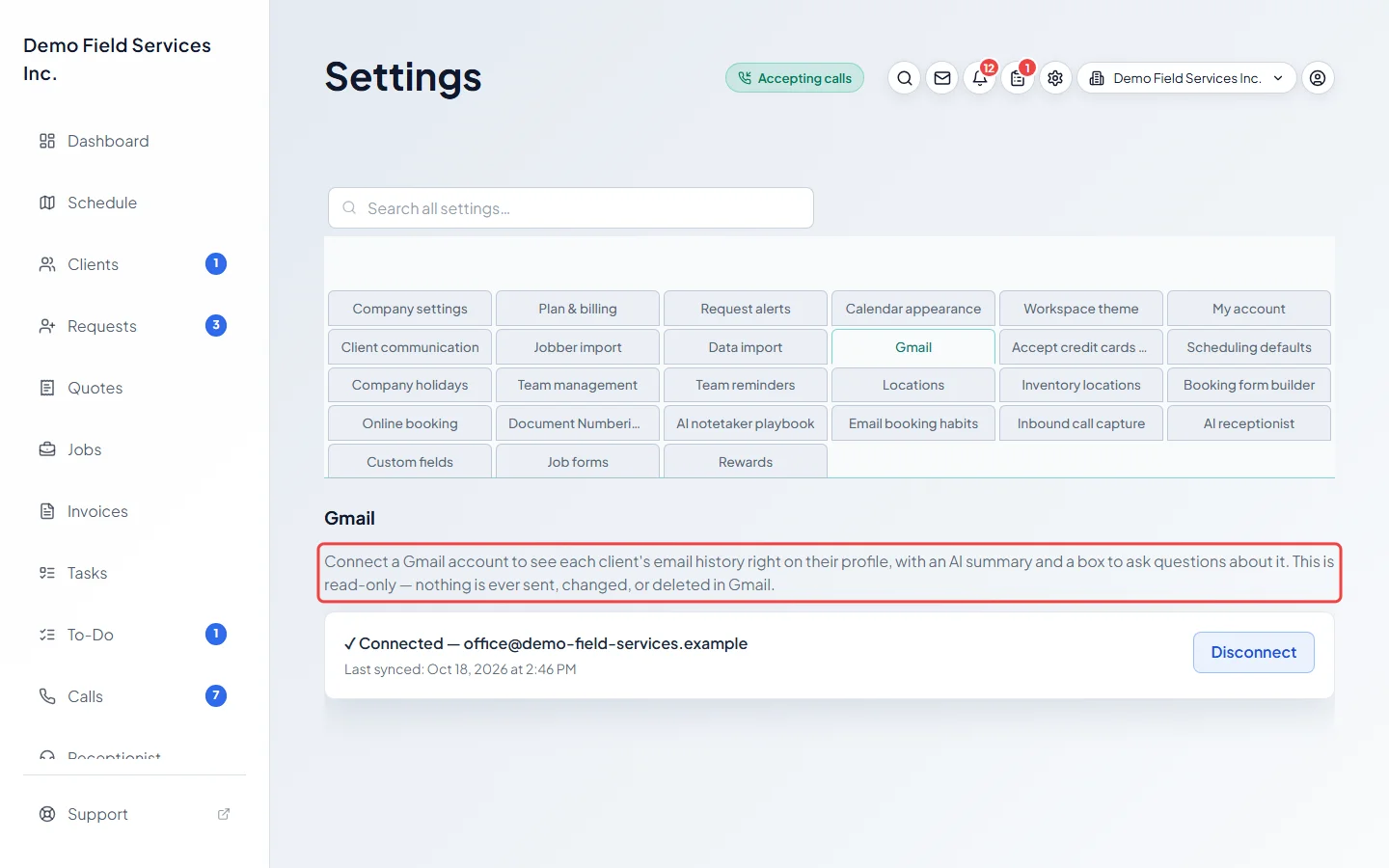
-
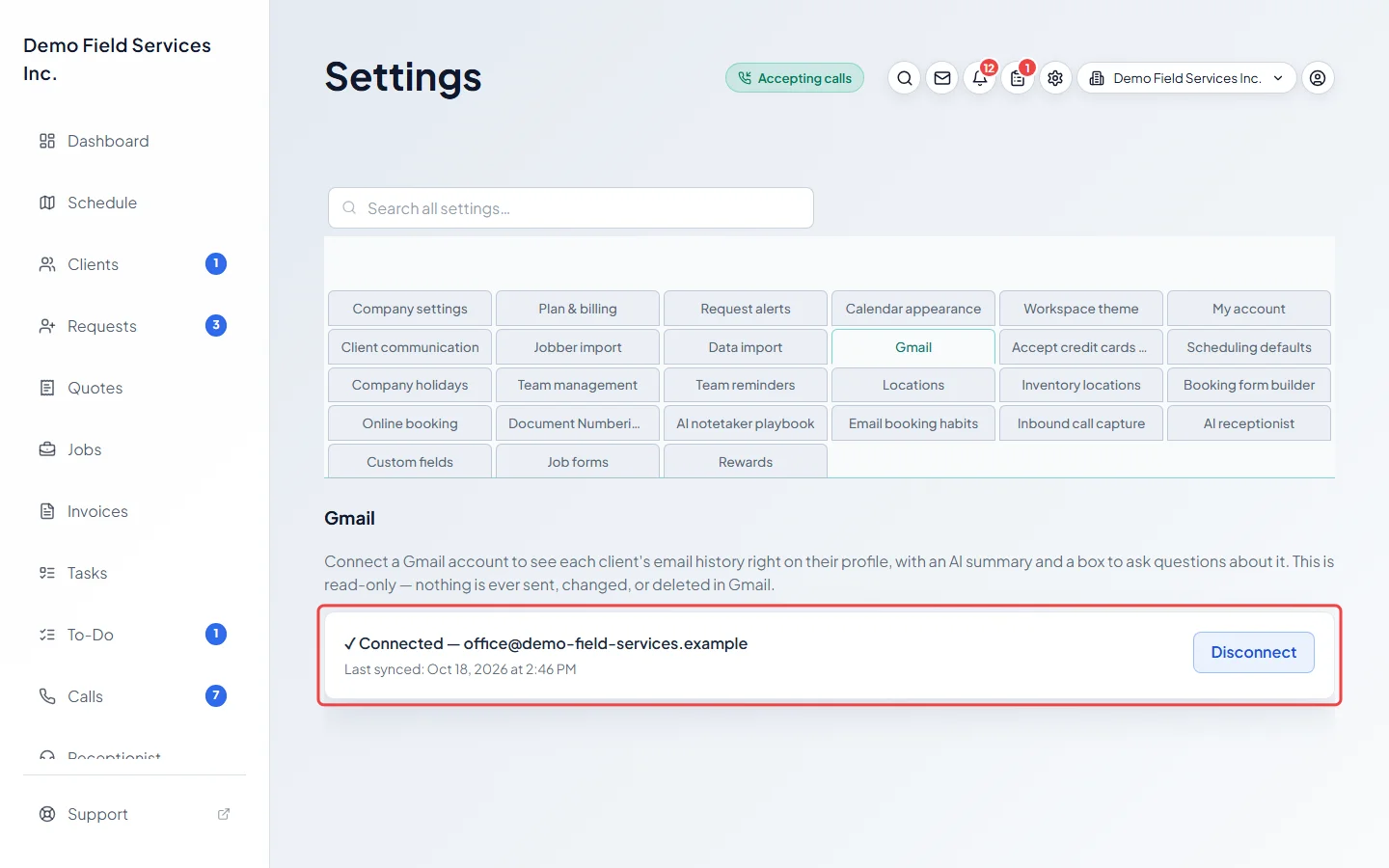
Click Connect Gmail. A Google window opens: choose the account your business email comes into and allow Astragal to read it. The button reads Waiting for Google… until you finish. When the window closes, the card shows ✓ Connected with the account’s address.
-
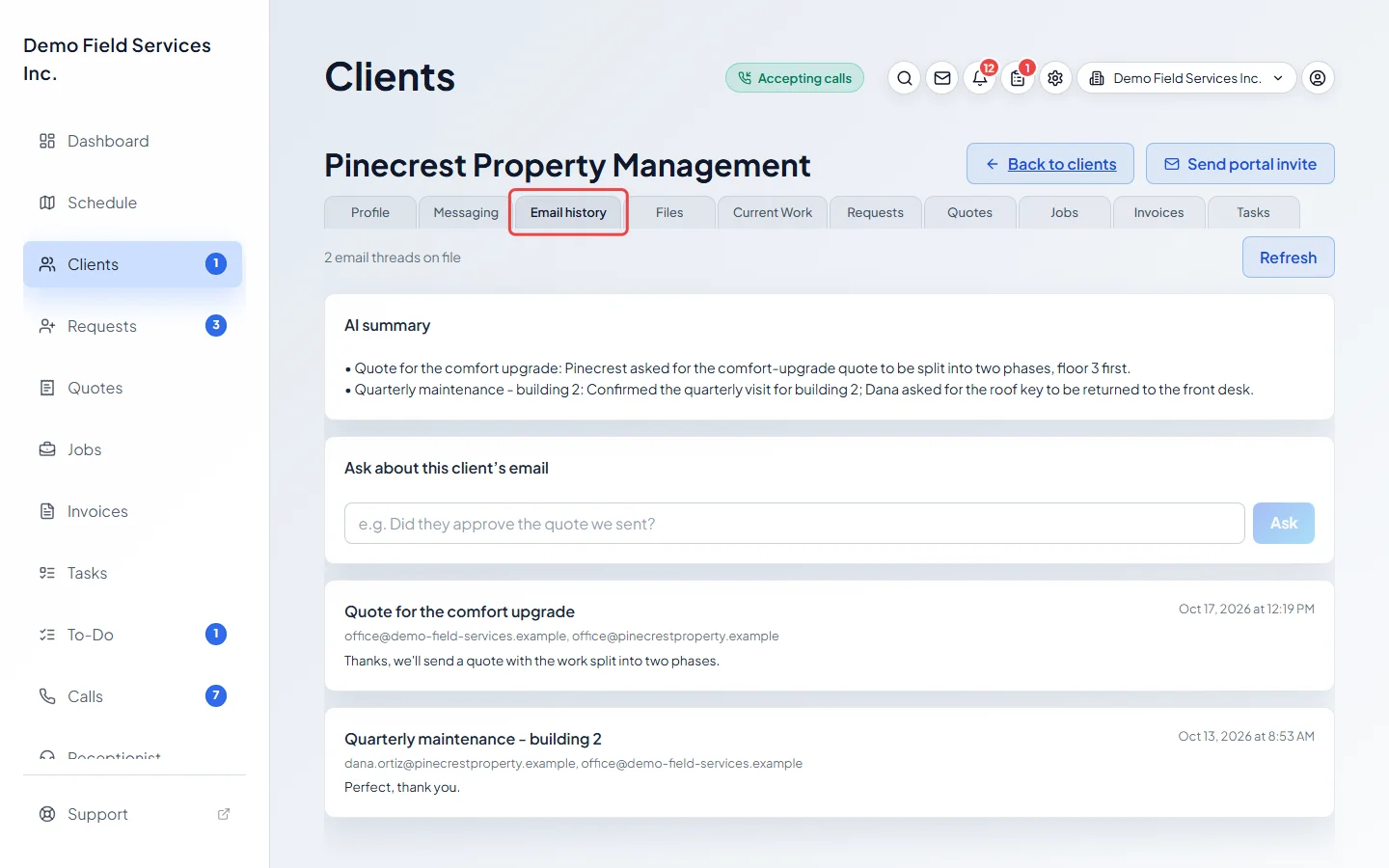
Open a client and click their Email history tab. Their emails with you show there, with a short summary and a box to ask questions about them. The first time you open a client’s history, Astragal fetches their emails. See Email history.
Good to know
Section titled “Good to know”- Gmail also lets you book a job straight from an email in your inbox. See Booking from an email.
- If Google stops accepting the connection (for example, the password changed or access was removed in Google), the card turns amber and says Reconnect needed. Click Reconnect and sign in again.
- Disconnect removes the connection and all the email history Astragal fetched. Your Gmail itself isn’t touched.
- Connecting has to be done in a web browser on a computer. In the phone apps it won’t open Google’s window; once connected on a computer, it works in the apps too.
- If the Google window doesn’t open, allow pop-ups for Astragal in your browser and try again.
- Gmail is part of some plans only. If Connect Gmail shows an error, check that your plan includes Gmail. See Your plan and price.
Related articles
Section titled “Related articles”Checked against Astragal on October 18, 2026