

Recording payments
Record money a client paid you outside Astragal, so the invoice shows what is still owed.
Who can do this: Admins, dispatchers, accountants, and team members whose invoices permission is View, edit, and create or View, edit, create, and delete.
Also called: marking an invoice paid, logging a payment.
-
Open the invoice, click the ••• button at the top right and choose Record payment. (It is also at the bottom of the invoice.) Any changes you made to the invoice are saved first.
On a computer: Left menu → Invoices On a phone: More → Invoices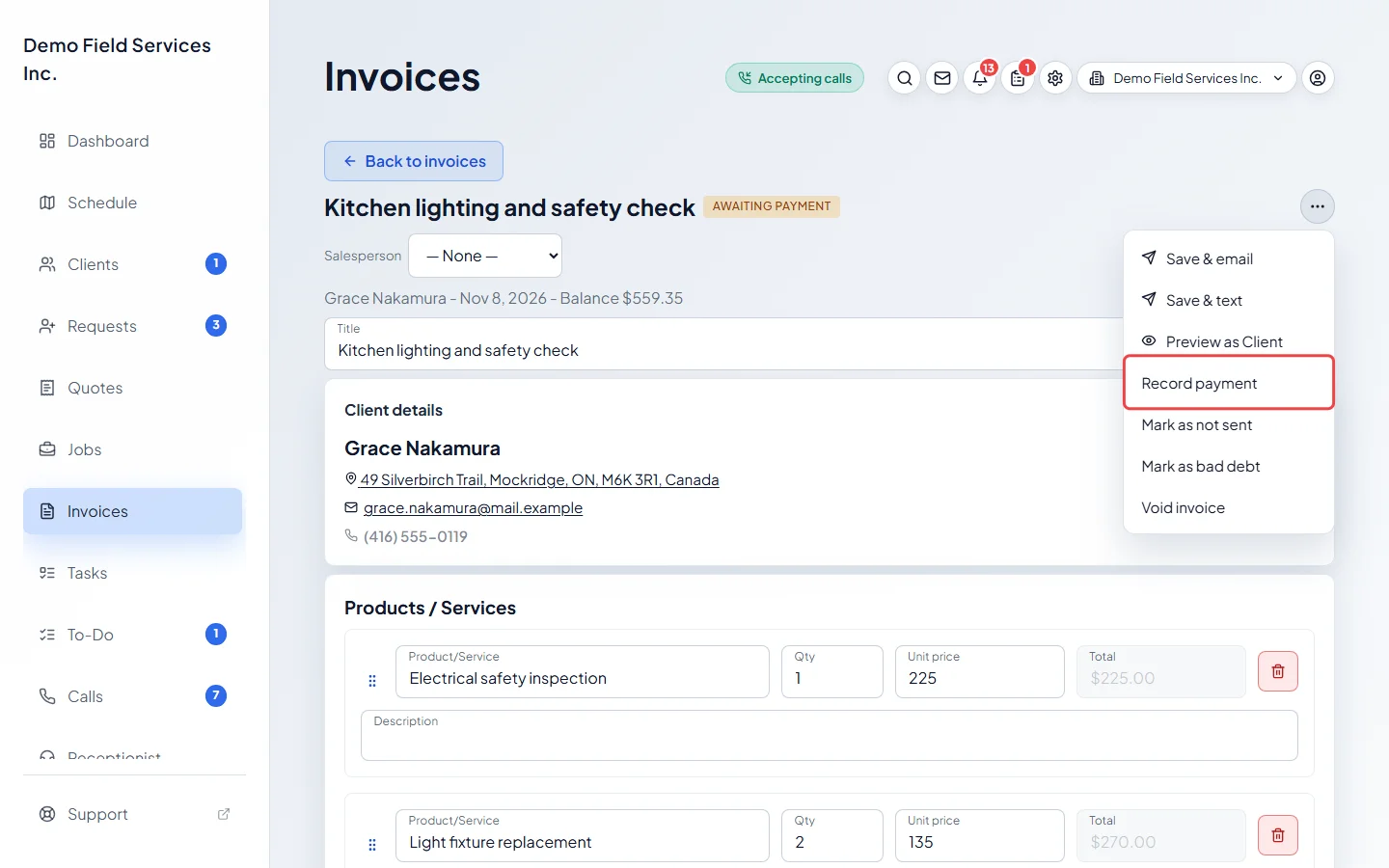
-
In the Record payment window, Amount is filled in with everything still owed. Change it to record a part payment. Pick how they paid in Method: Cash, Credit Card (offline), Debit, Cheque, E-transfer or Other. Add a cheque number or transfer ID in Reference if you have one, and set Received at to when the money arrived.
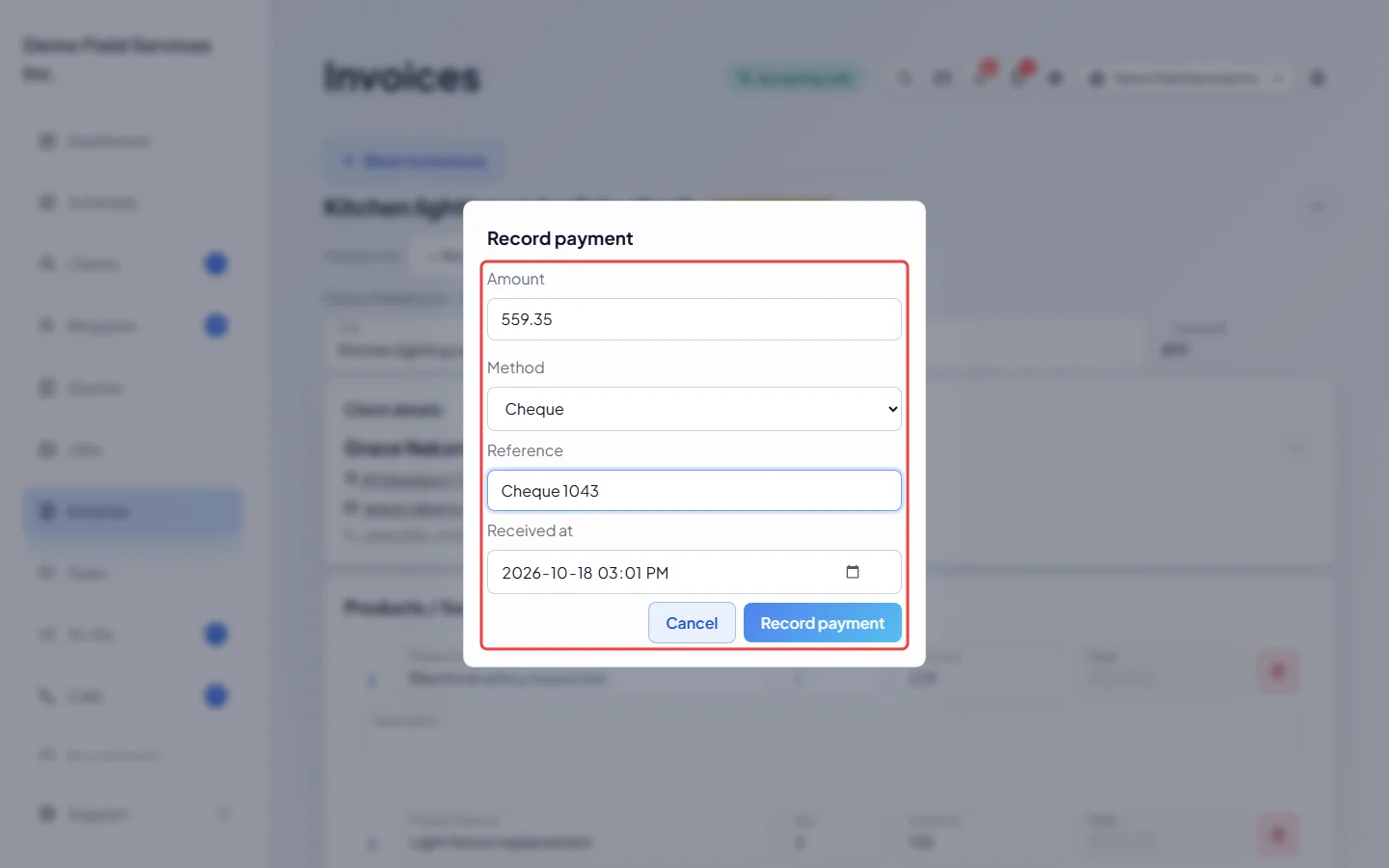
-
Click Record payment.
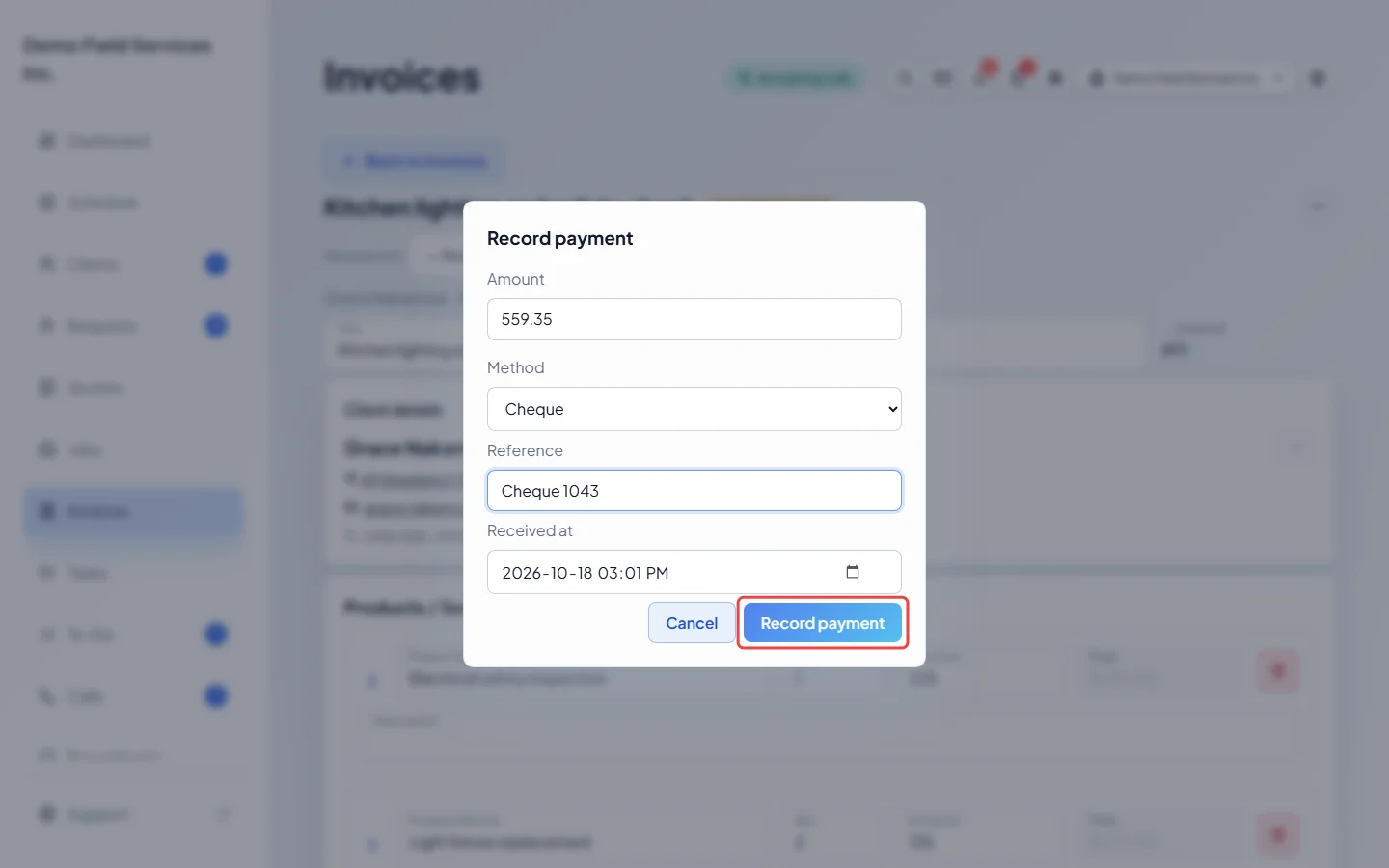
-
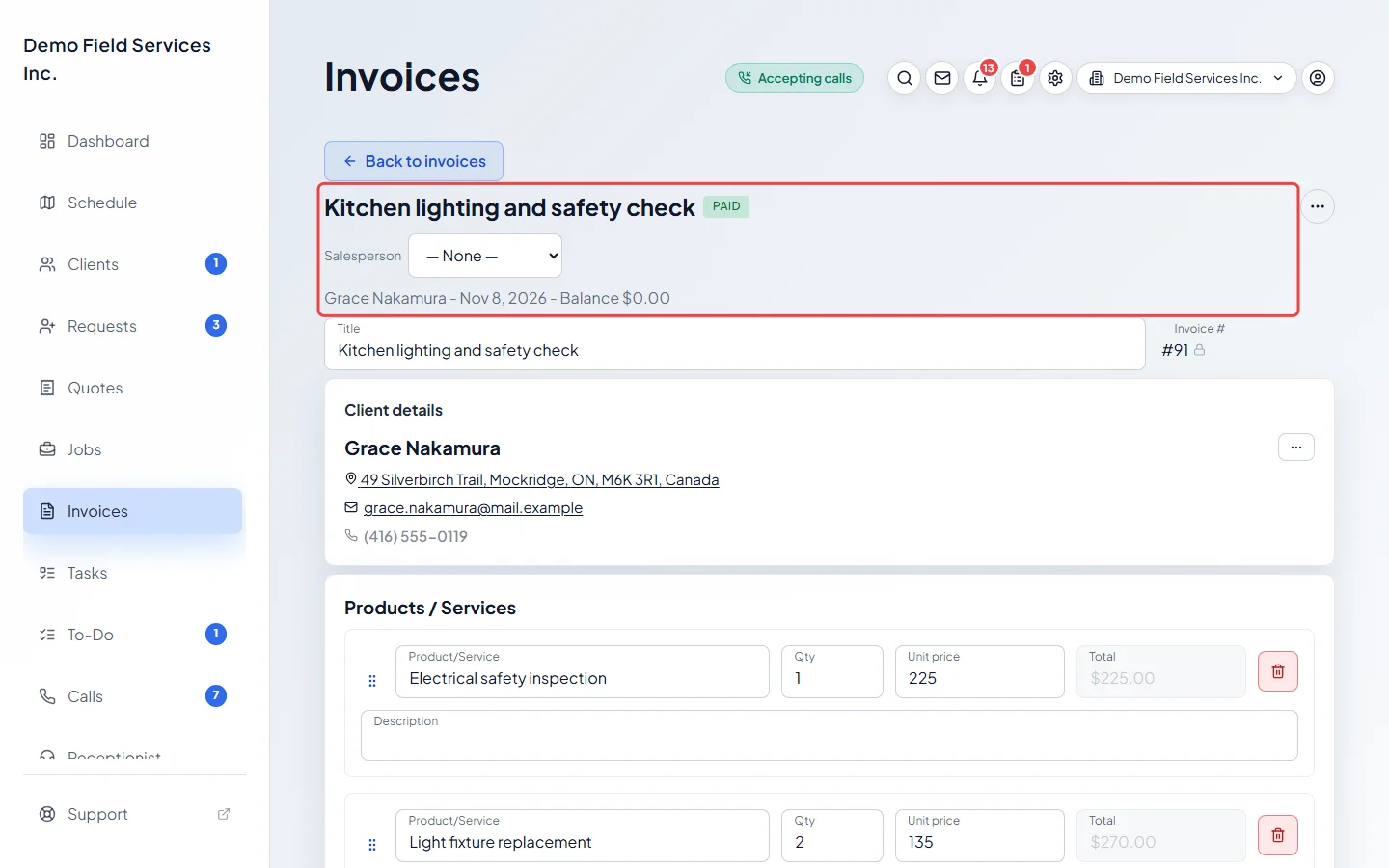
The payment is listed under Payments, and Balance due drops by that amount. When nothing is left owing, the invoice shows Paid.
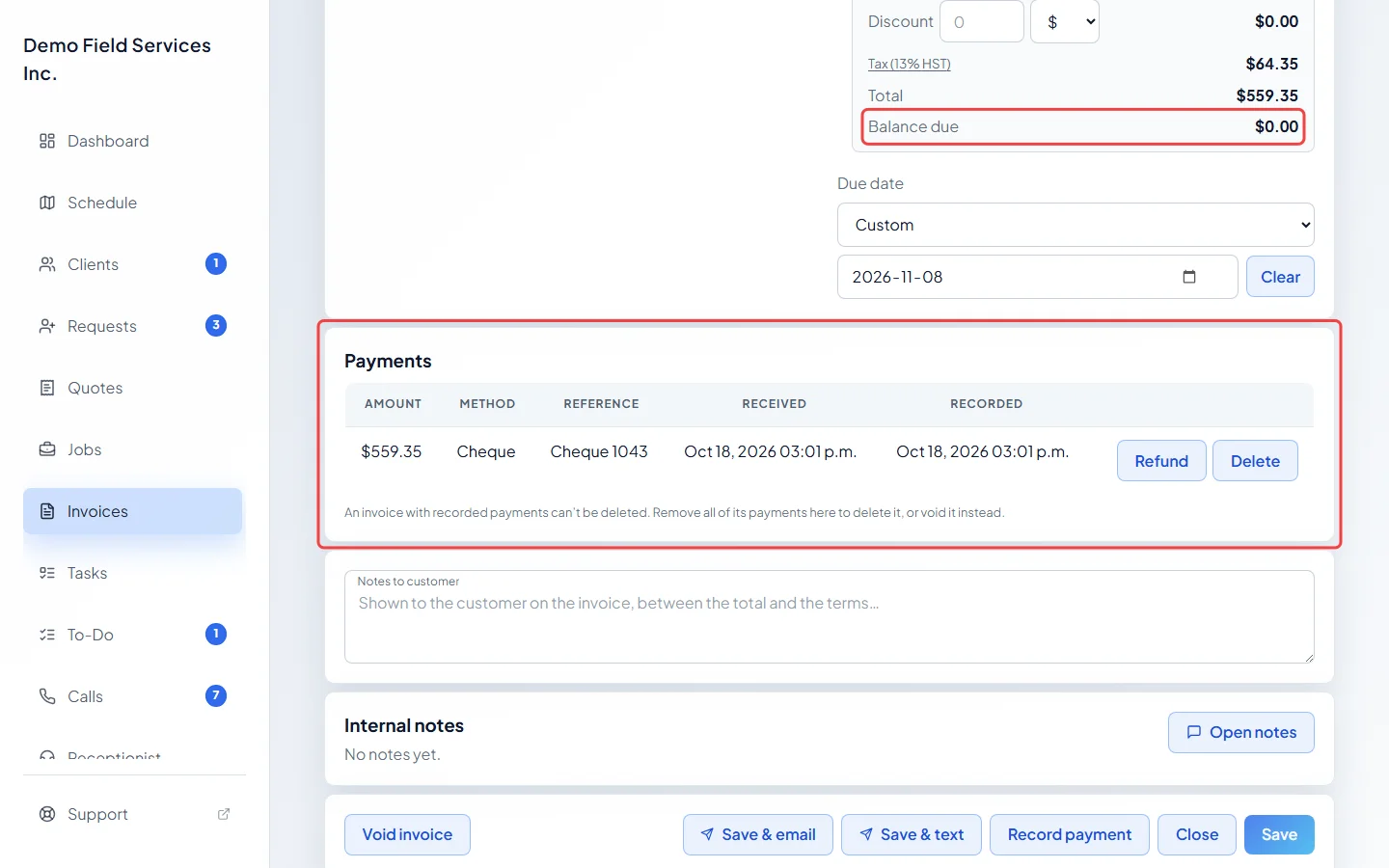
Good to know
Section titled “Good to know”- Recording a payment doesn’t send the client a receipt. To send one, click Save & email or Save & text: Astragal picks the receipt wording by itself. See Sending an invoice to a client.
- Credit Card (offline) is for a card you ran on your own terminal. To charge a card through Astragal, see Taking a card payment.
- You can’t record more than the balance due.
- Recording a payment on a draft takes it out of draft, even if it was never sent: the client can then see it online and automatic overdue reminders can go out for it. So send it, or choose Mark as sent. The yellow Not sent tag stays until you do.
- Recorded the wrong payment? Click Delete next to it under Payments. This happens straight away and can’t be undone. It needs the invoices permission View, edit, create, and delete (admins, dispatchers and accountants have it). Card payments, refunded payments and a deposit already taken off a job’s invoice can’t be deleted.
- If the money actually went back to the client, use Refund instead of Delete. See Refunding a payment.
- Once an invoice has a payment, its invoice number is locked.
- When a client pays online from their invoice link, the payment is recorded for you. See How clients view invoices.
Related articles
Section titled “Related articles”Checked against Astragal on October 17, 2026