

Clocking in and out
Clock in when your work day starts and clock out when it ends, so your hours land on your timesheet.
Who can do this: Everyone whose Time tracking & timesheets access is switched on. Admins, dispatchers, accountants and technicians with View/record/edit everyone’s time can also clock other people out from Live clock-ins.
Also called: punching in, the time clock, starting a shift.
-
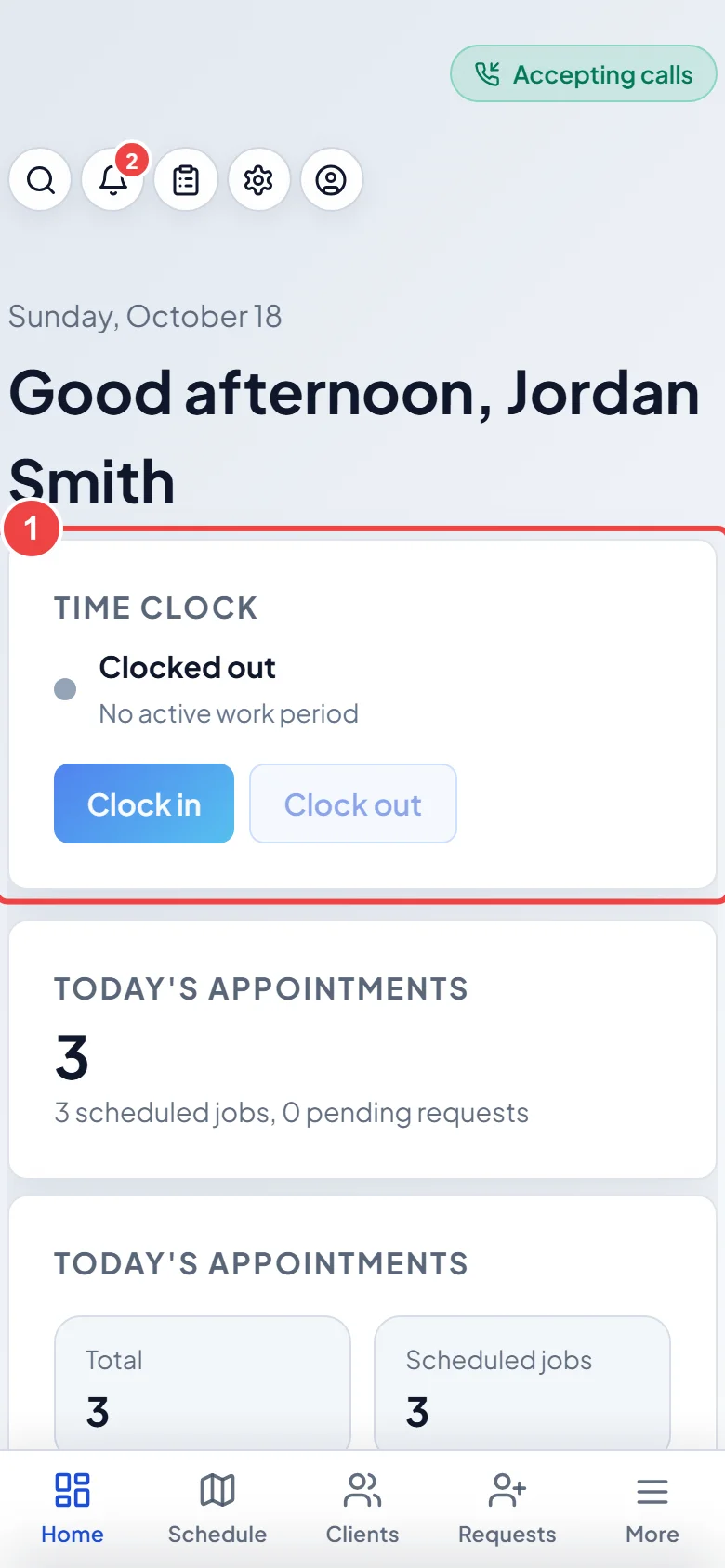
Open the dashboard (Home on a phone). The Time clock card at the top shows whether you are clocked in.
On a computer: Left menu → Dashboard On a phone: Bottom bar → HomeOn a computer, technicians clock in from Left menu → Timesheets.
-
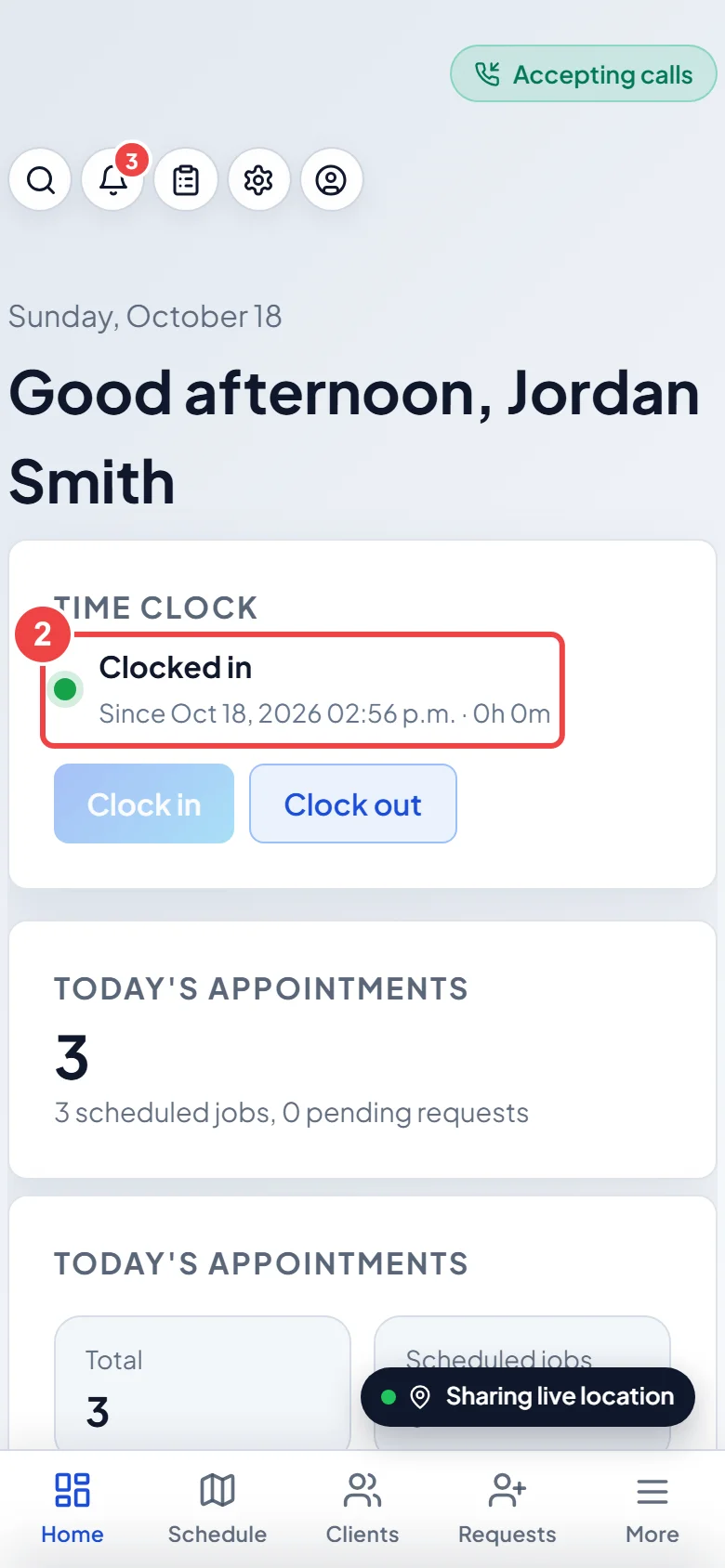
Tap Clock in. You see “Clocked in.” and the card turns to Clocked in, with the time you started and how long you have been working. It keeps counting while you work.
-
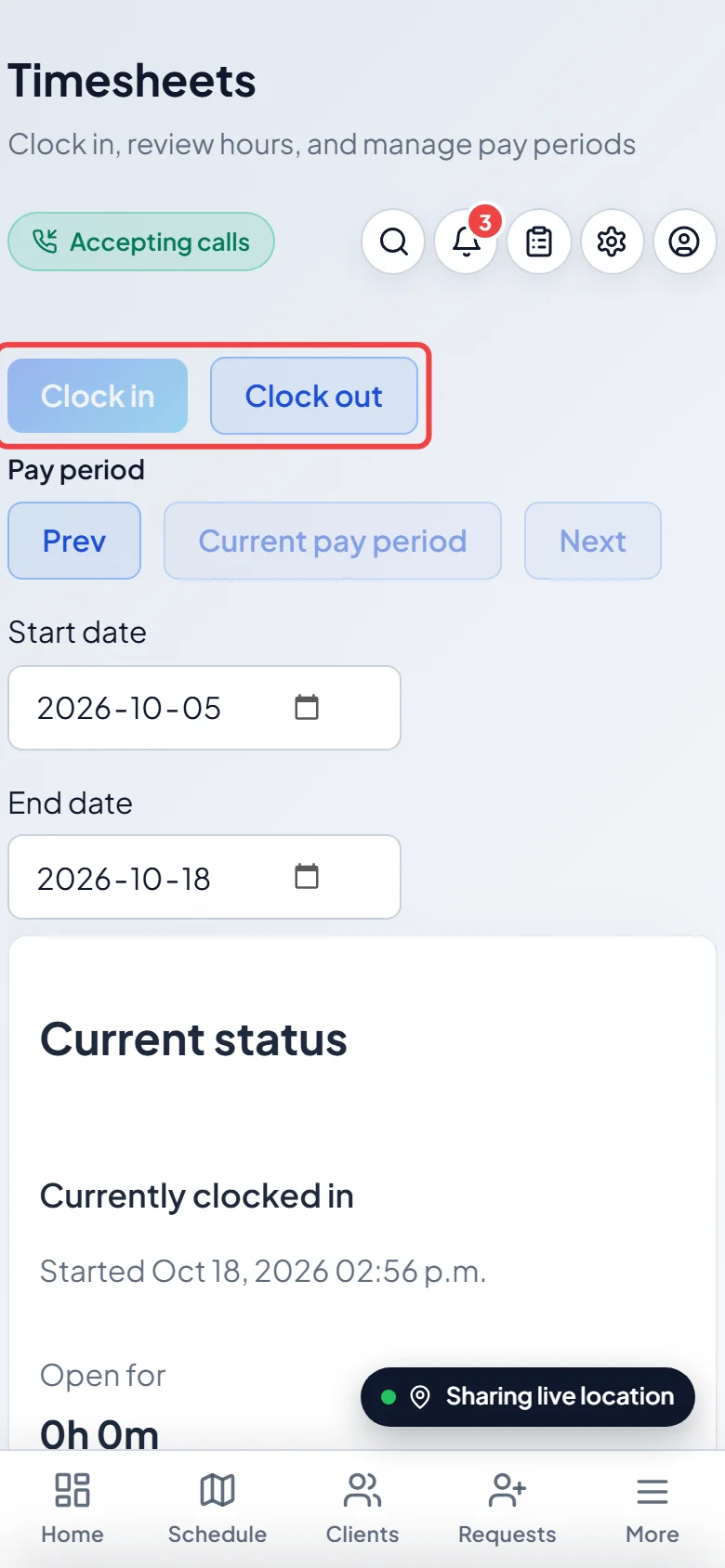
At the end of the day, tap Clock out on the same card. You can also clock in and out from the Timesheets page, which shows Currently clocked in or Currently clocked out and how long the shift has been open. Office staff see Live clock-ins here instead whenever someone is clocked in.
-
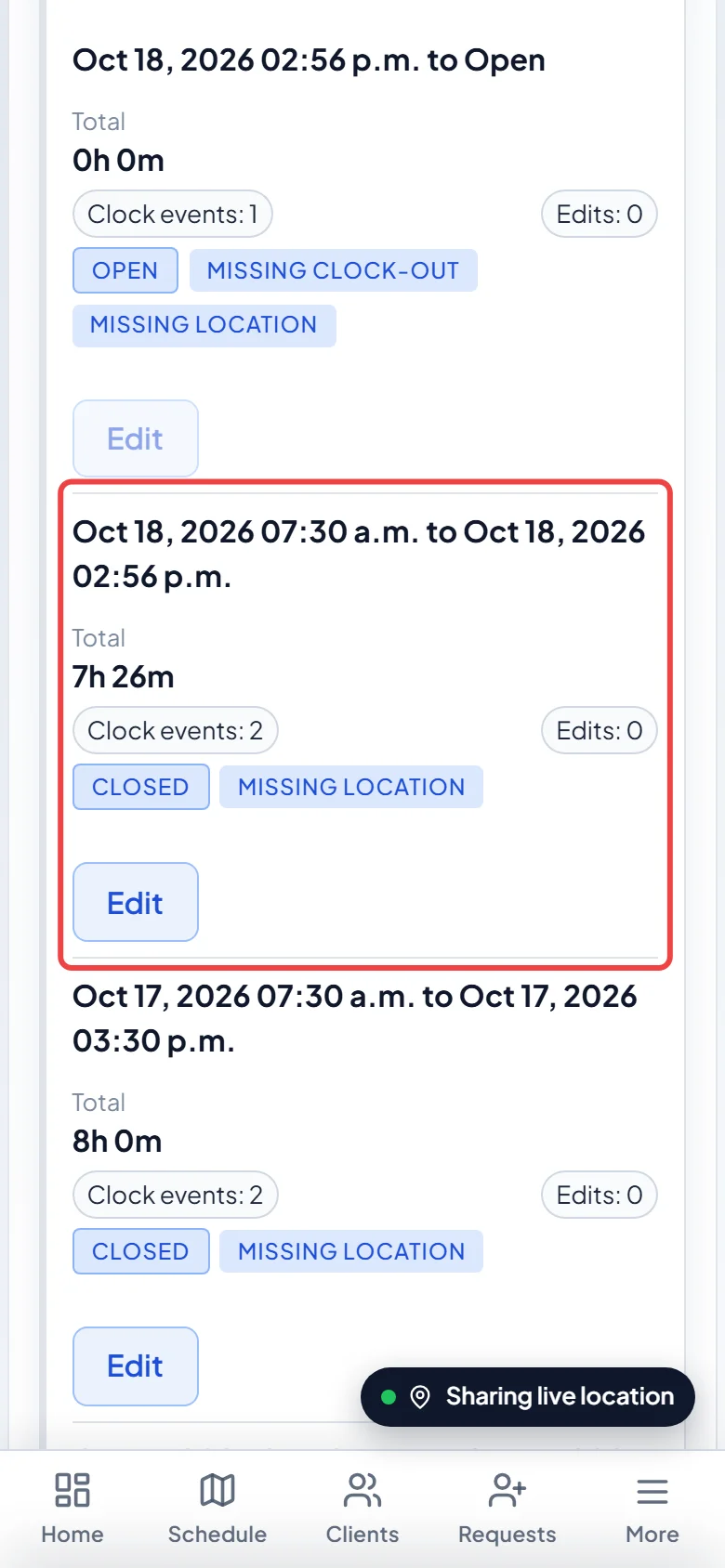
To check your hours, tap your name under the pay period on the Timesheets page. Each work period shows its start and end, its Total, and its status.
Good to know
Section titled “Good to know”- When you clock in or out, Astragal saves where you were if your phone or browser lets it. If it can’t, the work period gets a Missing location flag for the office. The time is still saved.
- If your company shows the team on the office map, clocking in also starts sharing your location while you work, and clocking out stops it. See Sharing your location.
- You can only have one shift open at a time. Clock in is greyed out while you are clocked in, and Clock out is greyed out while you are clocked out.
- A shift that is still open shows Missing clock-out. After 12 hours it also shows Long open shift. An open shift can’t be edited or deleted until it is clocked out.
- Forgot to clock in? Ask the office. They can use Clock in a team member to start your shift at the right time. See Adding or editing time.
- Your company can send reminders about shifts left open. An admin sets this under Timekeeping reminders in Settings → Company settings: turn the Employee reminder and Office alert on or off, choose Email and/or Text message, set after how many minutes each is sent, then click Save reminder settings.
- What you can do with your own time depends on your Time tracking & timesheets permission: View/record own time, View/record/edit own time (you can fix your own mistakes with Edit) or View/record/edit everyone’s time. See Roles and permissions.
Related articles
Section titled “Related articles”Checked against Astragal on October 17, 2026