

Editing a client
Keep a client’s contact details and billing address up to date so messages and invoices reach the right place.
Who can do this: Admins and team members set to View and edit full client and property info or View, edit, and delete full client and property info.
Also called: updating a customer, changing an account.
On the client’s page
Section titled “On the client’s page”-
Open the client. The Client details card is at the top of the Profile tab.
On a computer: Left menu → Clients On a phone: Bottom bar → Clients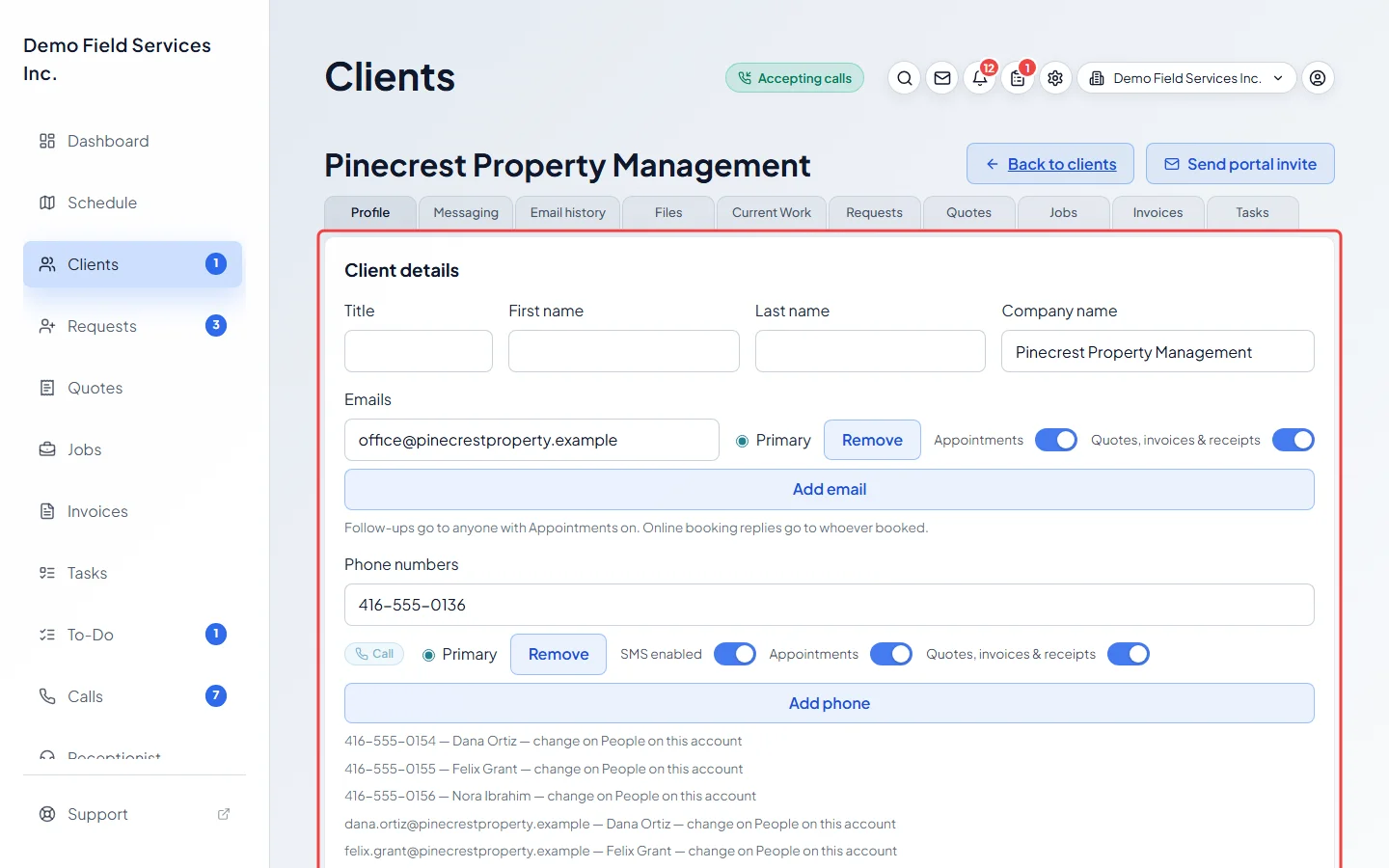
-
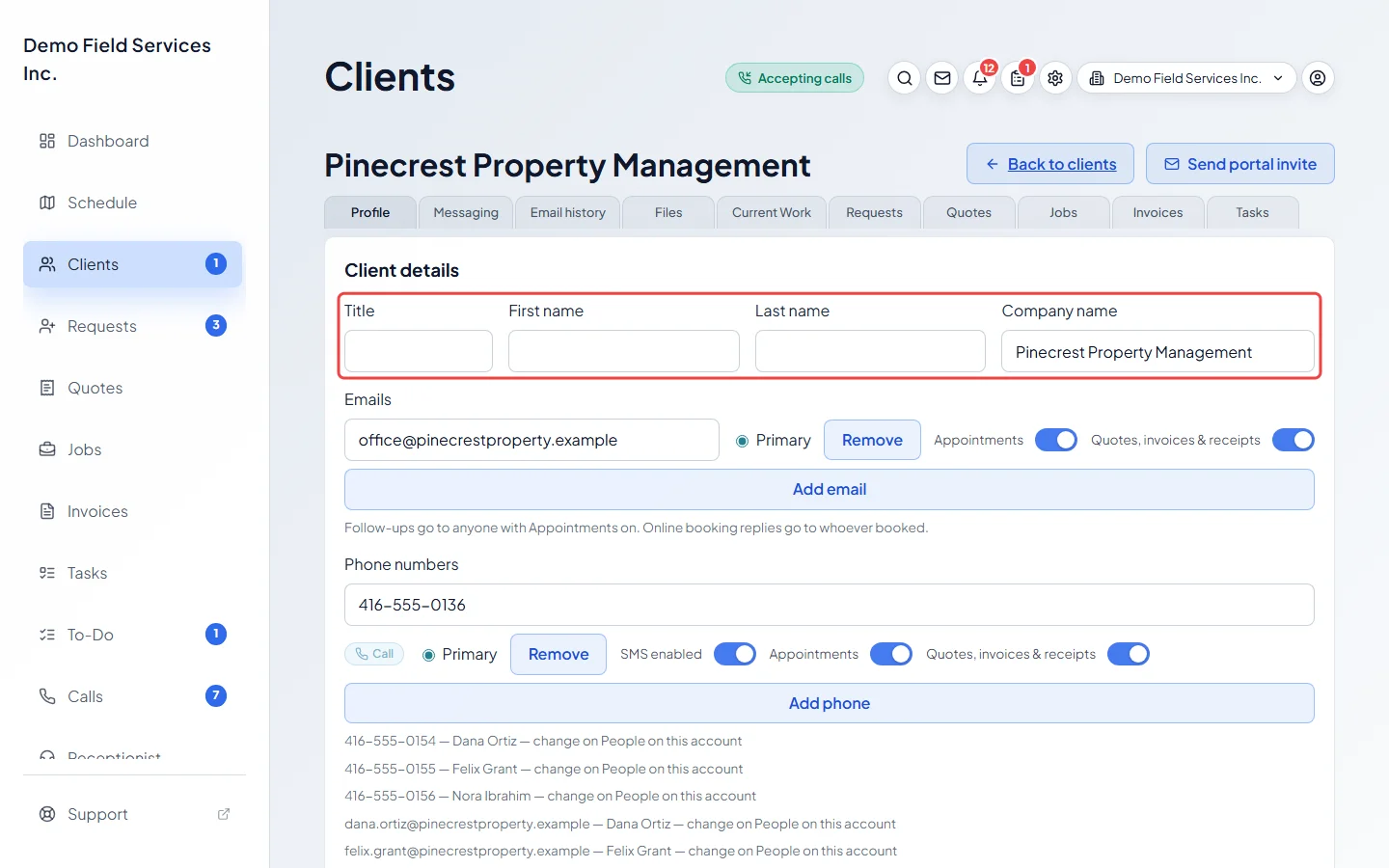
Change the Title, First name, Last name or Company name. When a client has both a person’s name and a company name, tick Company name is the primary name to show the company everywhere.
-
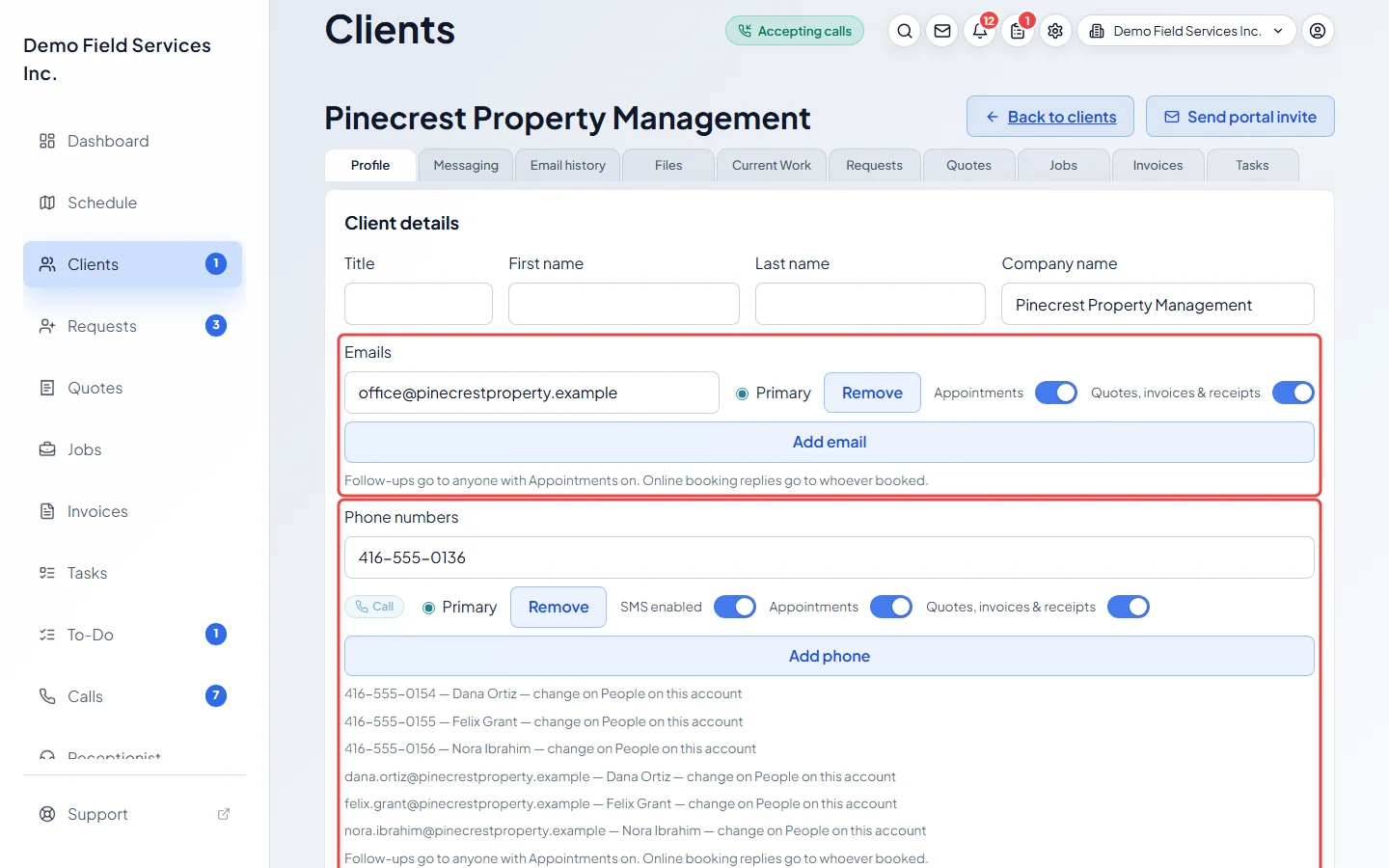
Under Emails and Phone numbers, change any address or number. Click Add email or Add phone for another, Remove to take one off, and pick the Primary one. Turn SMS enabled off for a number that can’t get texts.
Each email and phone also has two switches:
- Appointments: booking confirmations, reminders and other visit messages.
- Quotes, invoices & receipts: anything to do with money.
Turn a switch off to stop that kind of message going to that address, for example a work email that should only get invoices. If every contact has a switch off, those messages still go to all of them, so nothing is lost.
-
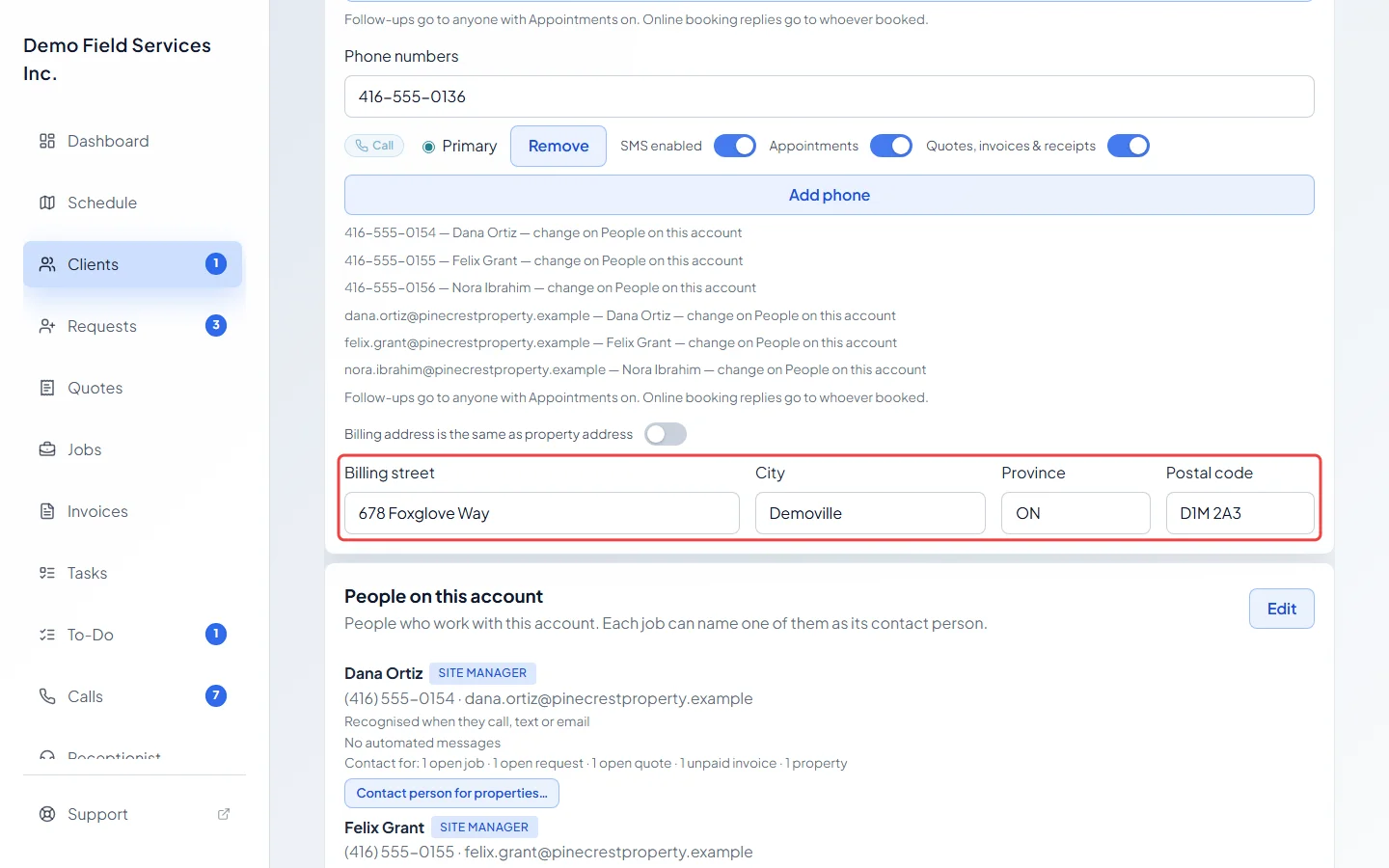
Leave Billing address is the same as property address on to bill the client’s first property address, or turn it off and type the Billing street, City, Province and Postal code. If the client has no property address yet, leaving the switch on stops the save with “A property address is required before using billing same as property.”
-
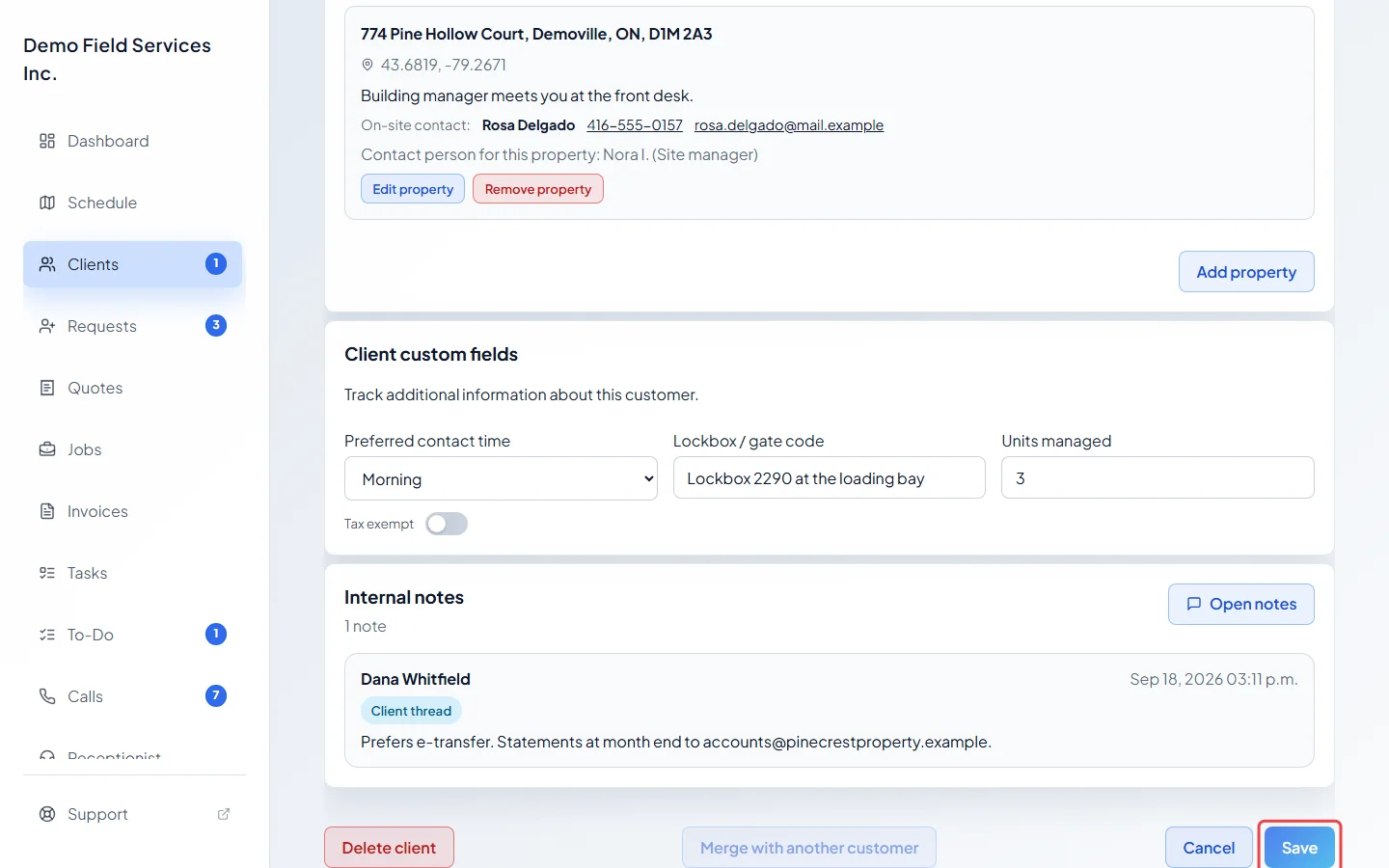
Scroll to the bottom of the page and click Save. It only lights up once you’ve changed something. Next to it, Cancel asks, throws your changes away and takes you back to the clients list (or closes the pop-up); with no changes it reads Close.
Communication settings
Section titled “Communication settings”The lead source and the client’s communication settings are changed from a request, quote, job, invoice or task for the client, in the Edit client details window. That window also edits the client’s properties. You need permission to edit that record as well: the ⋯ button is greyed out on an archived quote or an invoice that can no longer be changed.
-
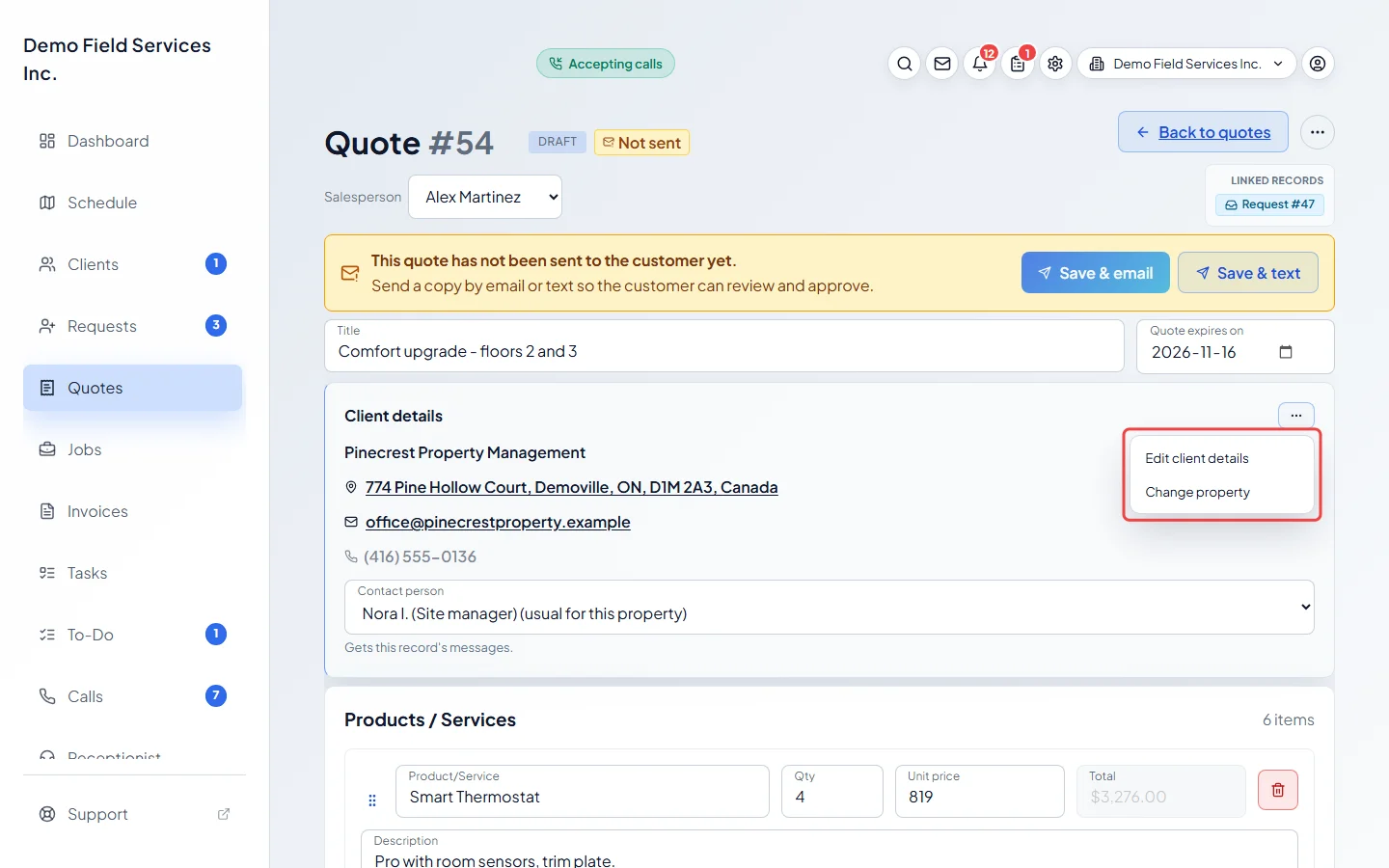
Open a quote for the client, click the ⋯ button on the client card, and click Edit client details. On a job, request, invoice or task, Edit client details is in the same place on the client card.
-
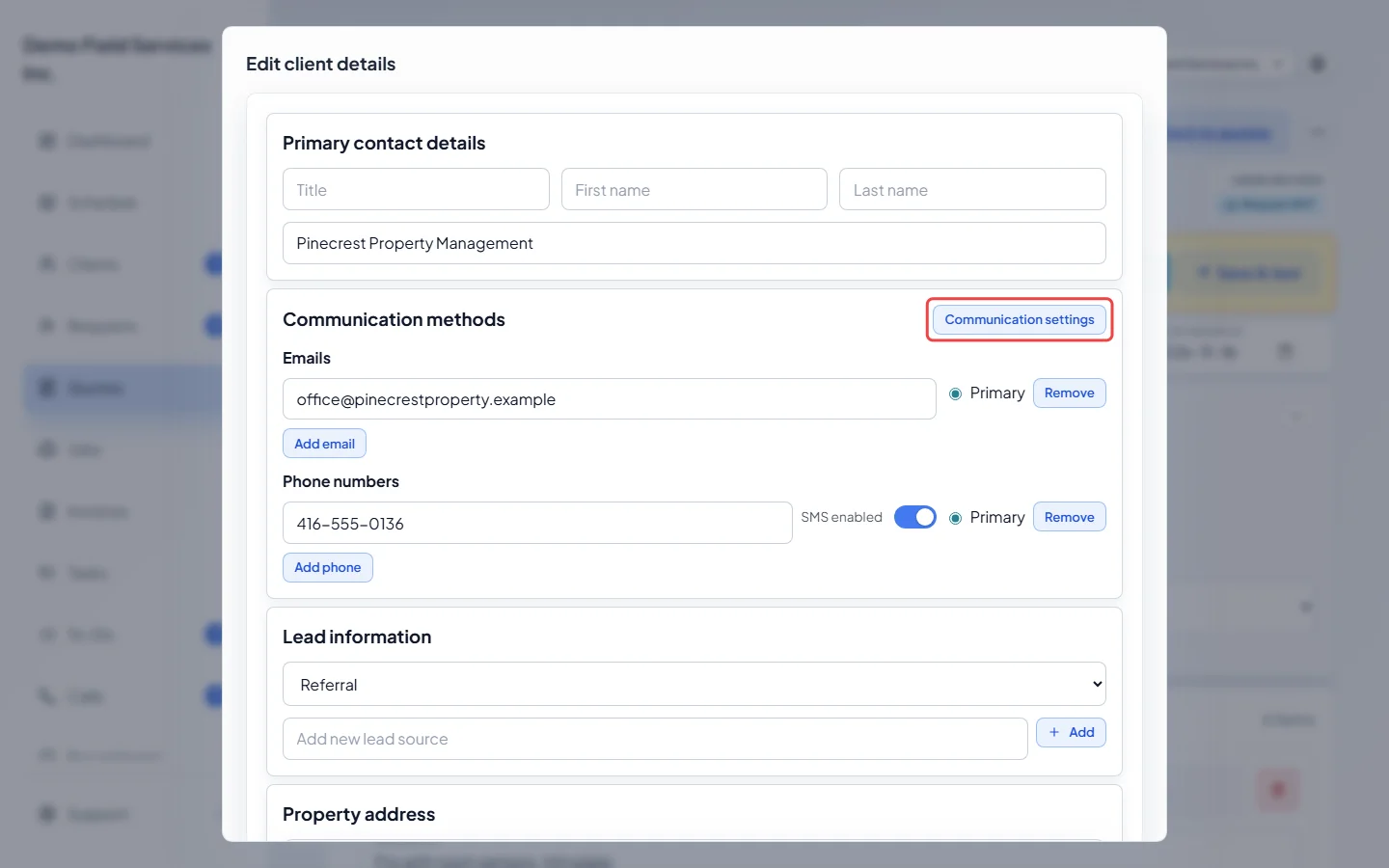
The window shows the same boxes as adding a client, including Lead information. Next to Communication methods, click Communication settings.
-
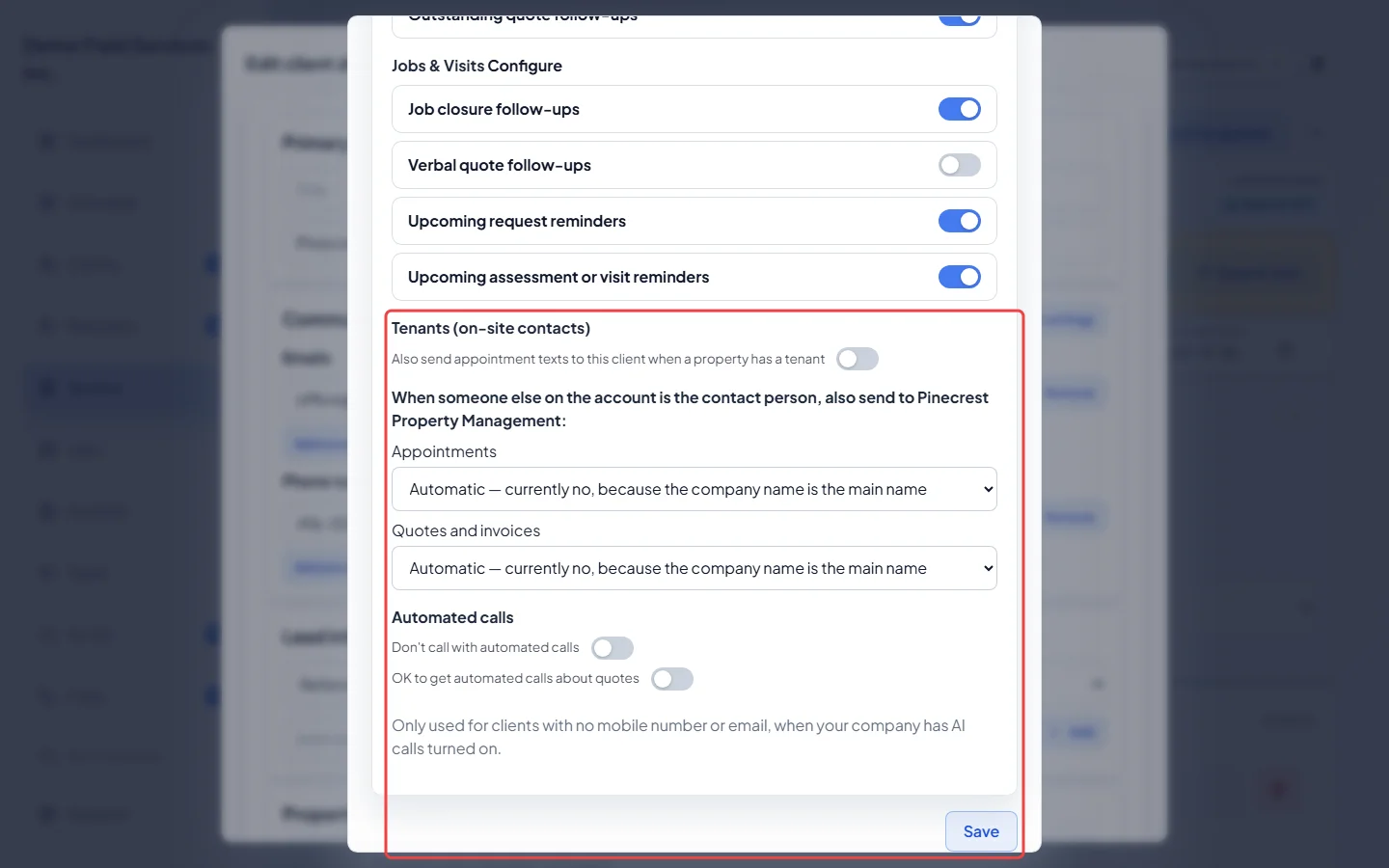
Change the settings that apply to this client:
- Also send appointment texts to this client when a property has a tenant: copy the client on a tenant’s visit texts.
- When the client has people on the account, choose whether the account holder gets a copy of Appointments and Quotes and invoices sent to someone else.
- Don’t call with automated calls and OK to get automated calls about quotes: used only for clients with no mobile number or email, when your company has AI calls turned on.
Click Save in this window, then Save at the bottom of Edit client details.
The individual message switches at the top, under Quotes & Invoices and Jobs & Visits, only take effect when you’re adding a new client. Changing them here, on an existing client, isn’t saved. Configure opens your company-wide settings.
Good to know
Section titled “Good to know”- You need a first name, last name or company name; Astragal won’t save a client with none of them.
- If the new primary email belongs to another client, you’re asked first. Click Save anyway or Go back.
- Phone numbers and emails of people on the account are listed under the client’s own with “change on People on this account”. Edit them on that card.
- Removing a property in Edit client details moves its work to another property. See Removing a property.
Related articles
Section titled “Related articles”Checked against Astragal on October 17, 2026