

Automatic invoice reminders
Set Astragal to chase overdue invoices and to thank clients who pay online, so you don’t have to remember to.
Who can do this: Admins, dispatchers and accountants.
Also called: payment reminders, overdue notices, dunning.
-
Open the automations page and scroll to Quotes & Invoices.
On a computer: Left menu → Settings → Client communication On a phone: More → Settings → Client communication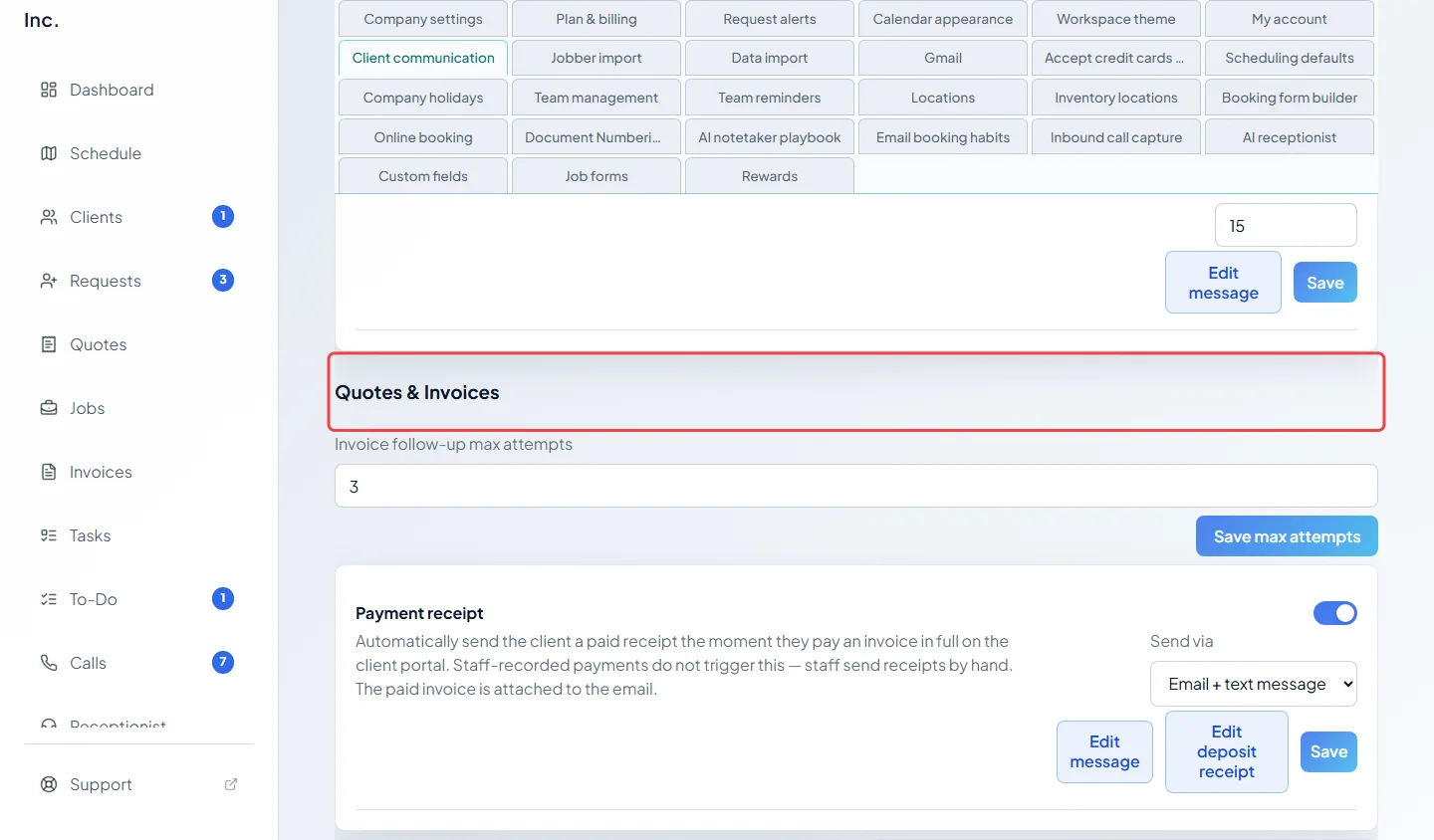
-
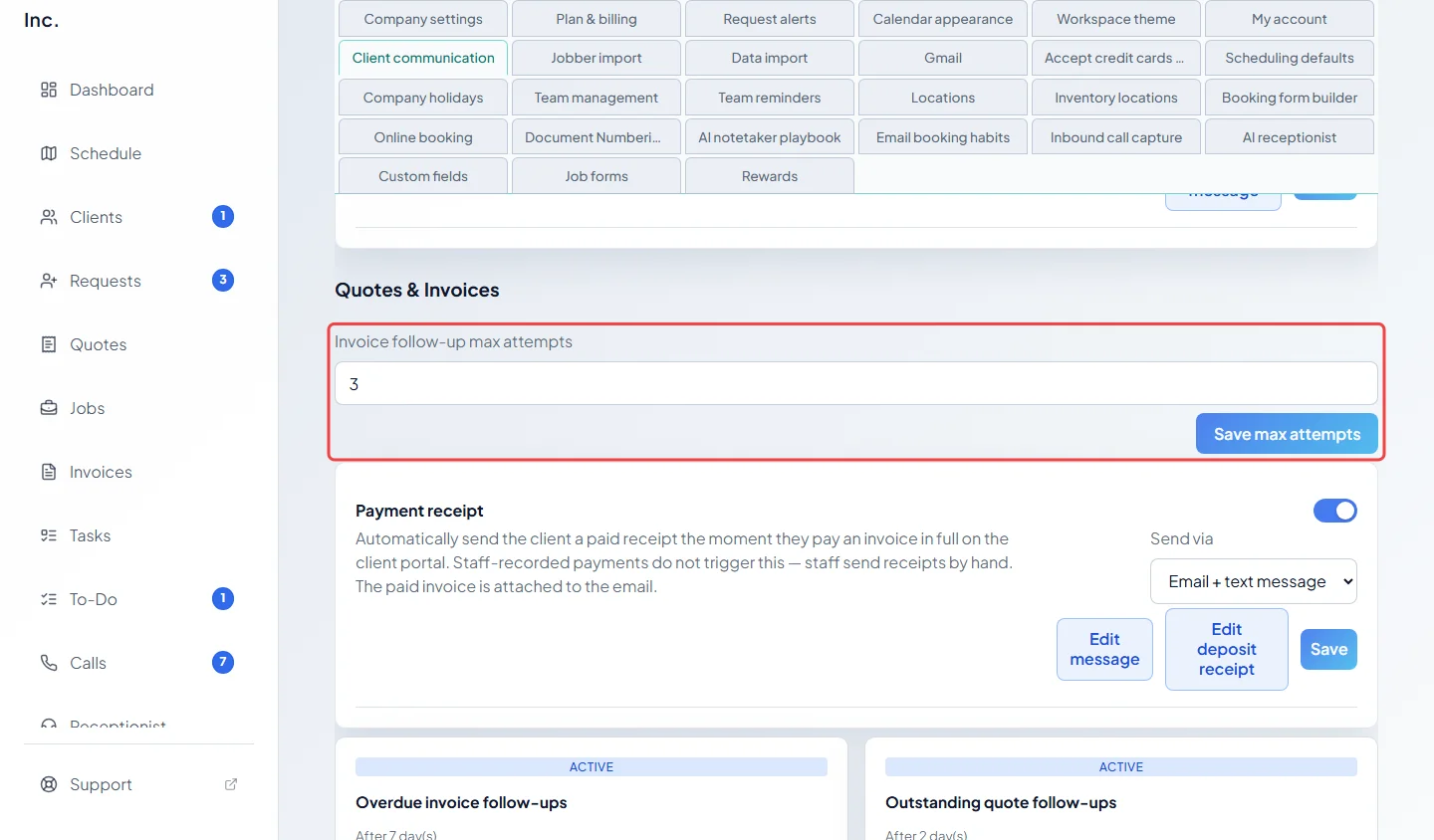
Set Invoice follow-up max attempts to the most reminders one invoice should get (1 to 20), then click Save max attempts.
-
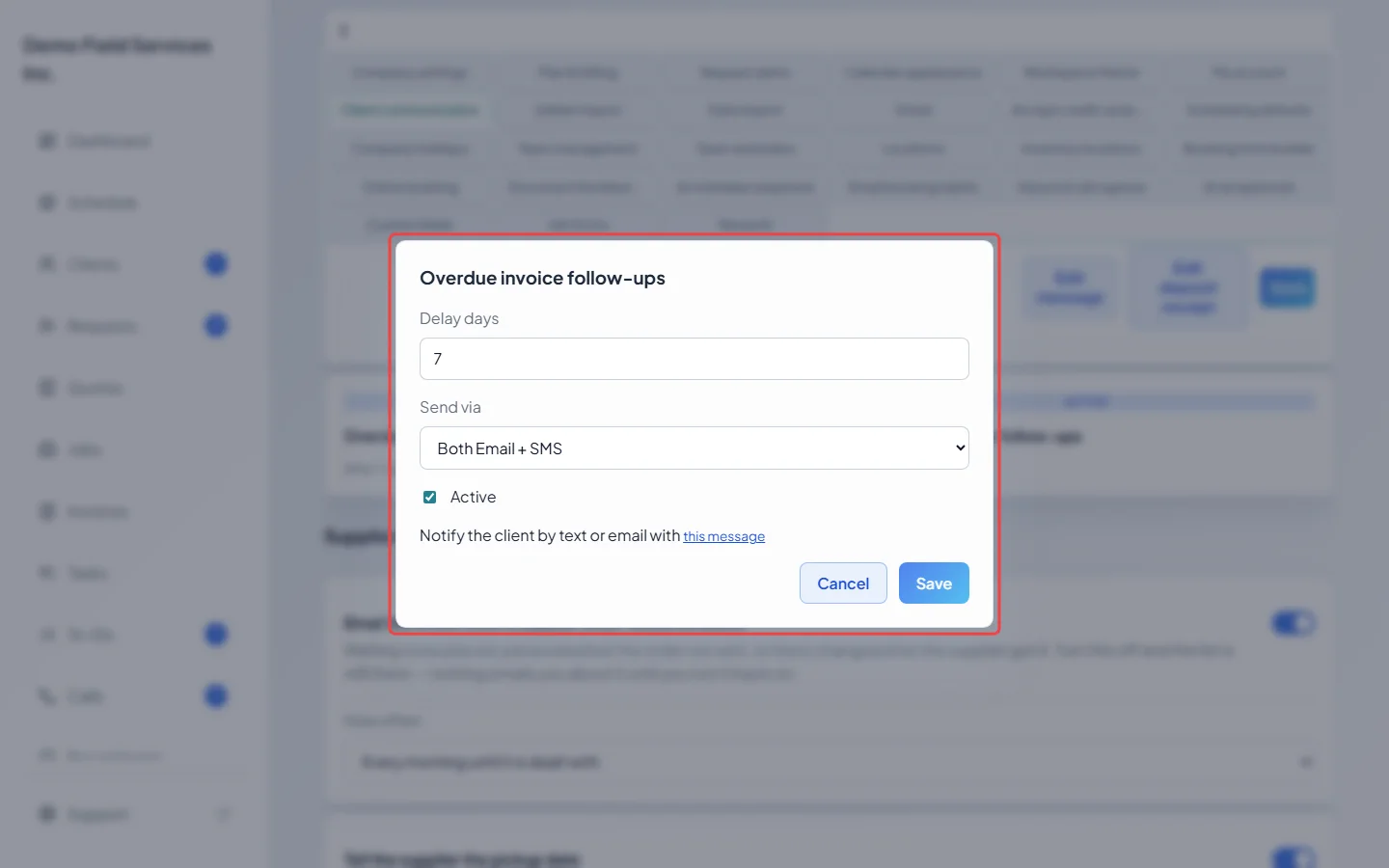
Click the card called “Overdue invoice follow-ups”. In the window, Delay days is how many days after the due date the first reminder goes out; later reminders go out the same number of days apart. Choose Both Email + SMS, Email only or SMS only in Send via, tick Active, and click Save. Neither (disabled) switches the reminders off and unticks Active.
-
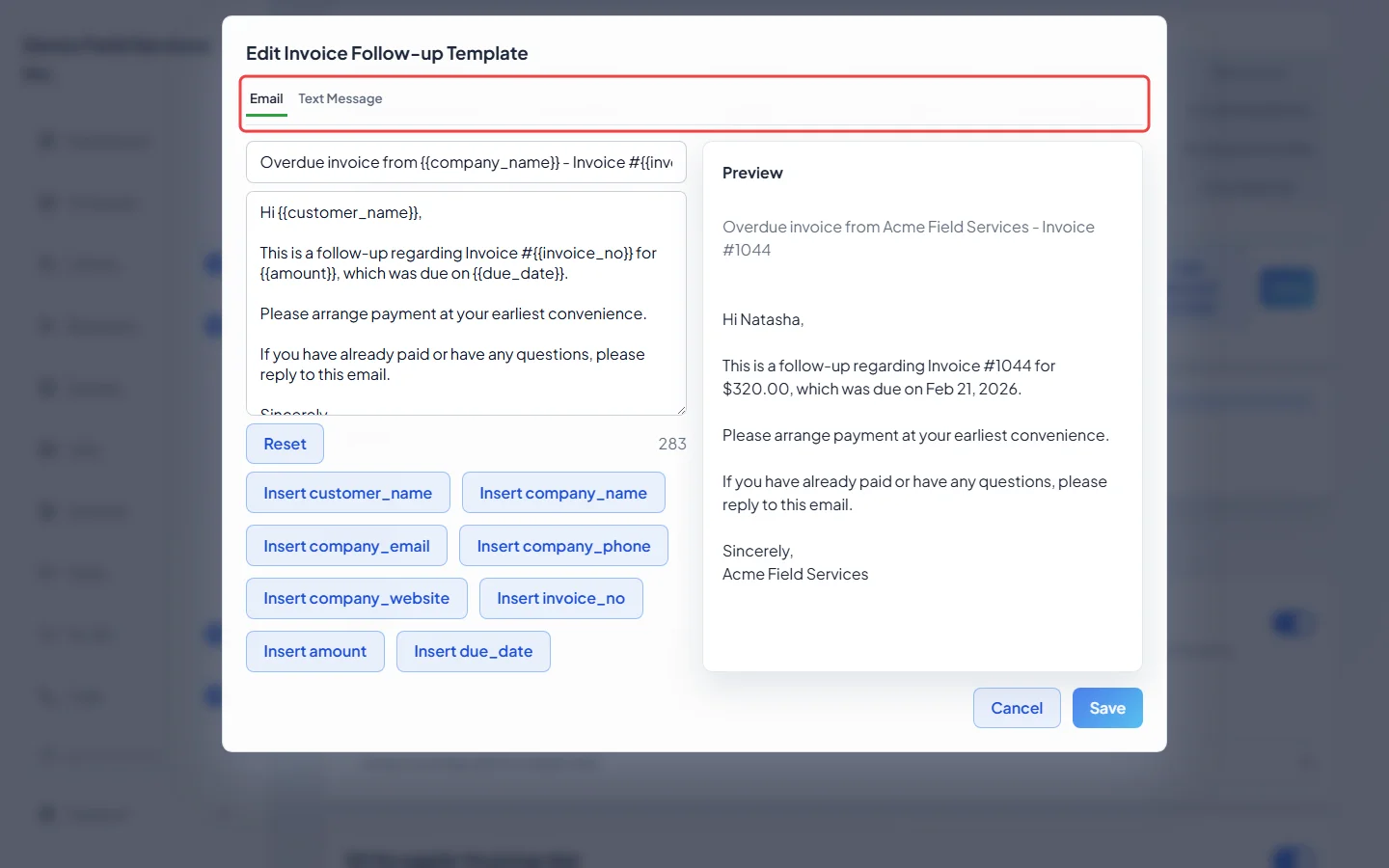
To change the wording, click this message in that window. Switch between Email and Text Message at the top, edit the subject and message, and save. The message can fill in the client’s name, the invoice number, the amount still owed and the due date for you.
-
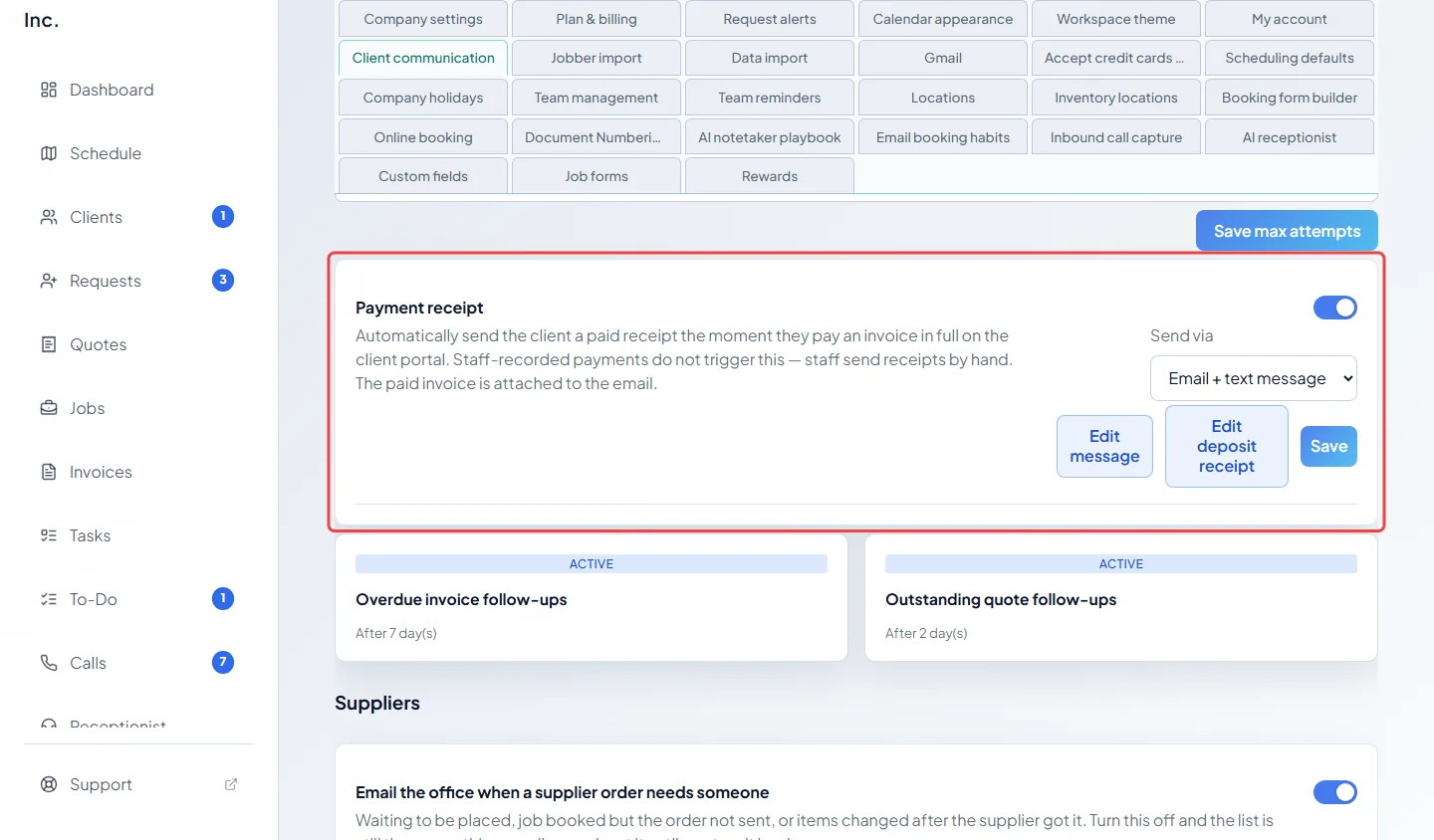
Under Payment receipt, turn the switch on to send a paid receipt the moment a client pays an invoice in full online. Choose how in Send via, click Edit message (or Edit deposit receipt for a quote’s deposit) to change the wording, and click Save.
Which invoices get reminders
Section titled “Which invoices get reminders”A reminder only goes out for an invoice that:
- has been sent (or has had a payment recorded on it) and still has money owed,
- has a due date, and the delay has passed since it,
- isn’t a draft, voided, or written off as bad debt.
Reminders stop when the invoice is paid, when it reaches the most attempts you set, or 30 days after the first reminder was due, whichever comes first. So a long delay can mean fewer reminders. An email and a text sent together count as one reminder. If a refund on the invoice is waiting for you to say whether the client still owes the money, no reminders go out until you decide.
Good to know
Section titled “Good to know”- For a new company, overdue reminders and paid receipts are already on: the first reminder goes 7 days after the due date, at most 3 reminders, and receipts go by email and text.
- To change the timing or switch reminders off for one client, open their Communication settings. See Editing a client.
- Automation status at the top of the page shows when the invoice reminders last ran. An admin can click Run now to send any reminders that are due right away; these are real messages.
- Payments your team records by hand never send a receipt automatically. Send one from the invoice with Save & email or Save & text. See Sending an invoice to a client.
- Jobs billed on a payment schedule can also send each invoice on its due date. Tick Auto send invoices on due date in the job’s Billing section and choose email, text or both. If an invoice’s due date is moved to today or earlier before it goes out, it isn’t sent automatically; send it yourself. See Payment schedules.
Related articles
Section titled “Related articles”Checked against Astragal on October 17, 2026