

Client portal overview
The client portal is a private page where each client sees their own quotes, invoices, jobs, requests and files, and books new work.
Who can do this: Your clients, using a link you send them. You don’t need to set anything up; every client can use it.
Also called: client hub, customer portal.
-
The client opens a portal link. Every quote and invoice you send has one, and you can send a link on its own with Send portal invite. The portal opens with your company name at the top of the menu and the client’s name under it.
On a computer: The link in a quote, invoice or invite email On a phone: The same link, opened on the client's phone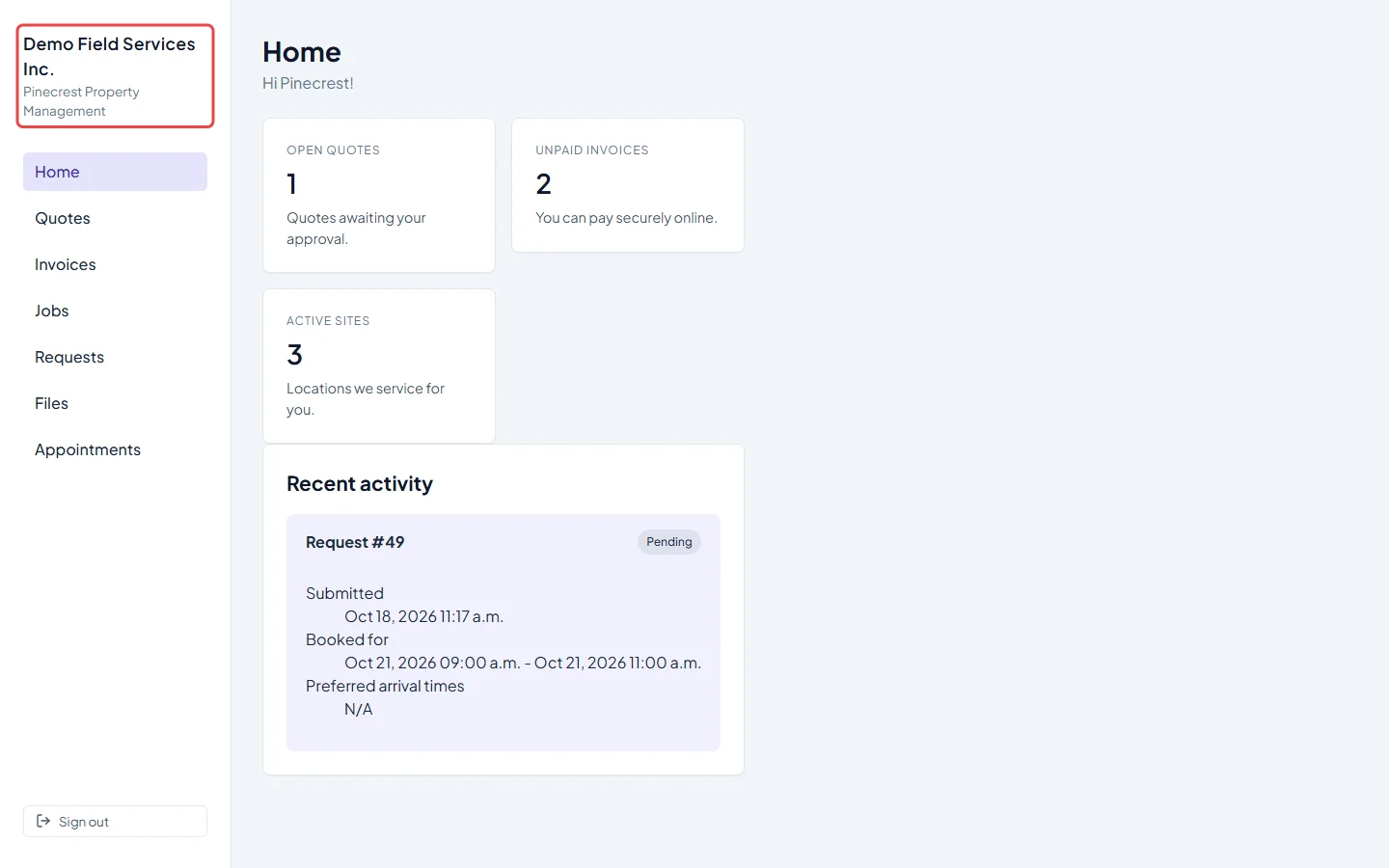
-
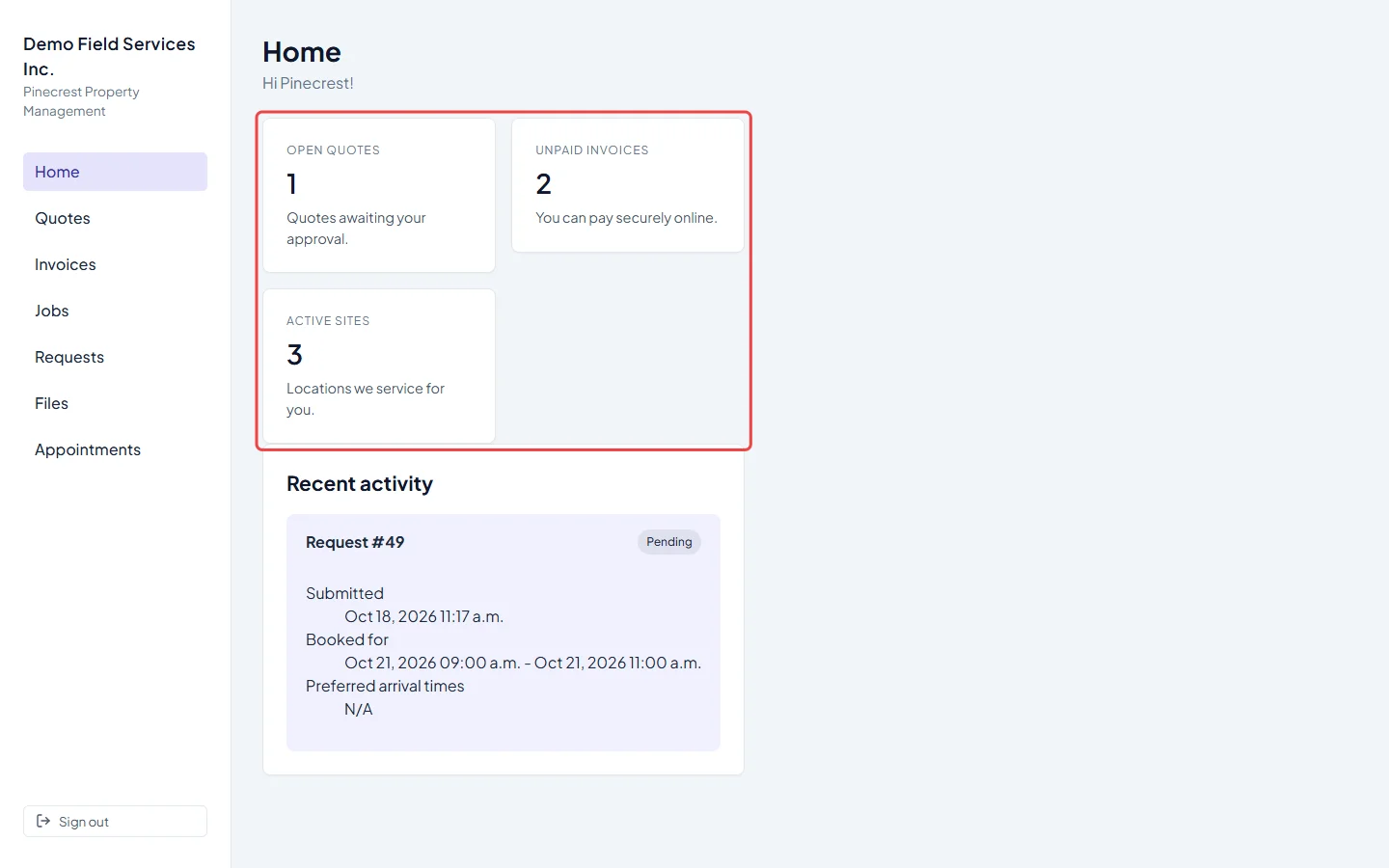
Home shows three counts: Open quotes (the client’s quotes that aren’t approved yet), Unpaid invoices and Active sites (the properties you look after for them). Below that, Recent activity shows their newest job (status, when it’s scheduled and where) or newest request (status, when it was sent and the times they asked for). If you turned on Show on portal for your business hours, a Business hours card lists your opening times too.
-
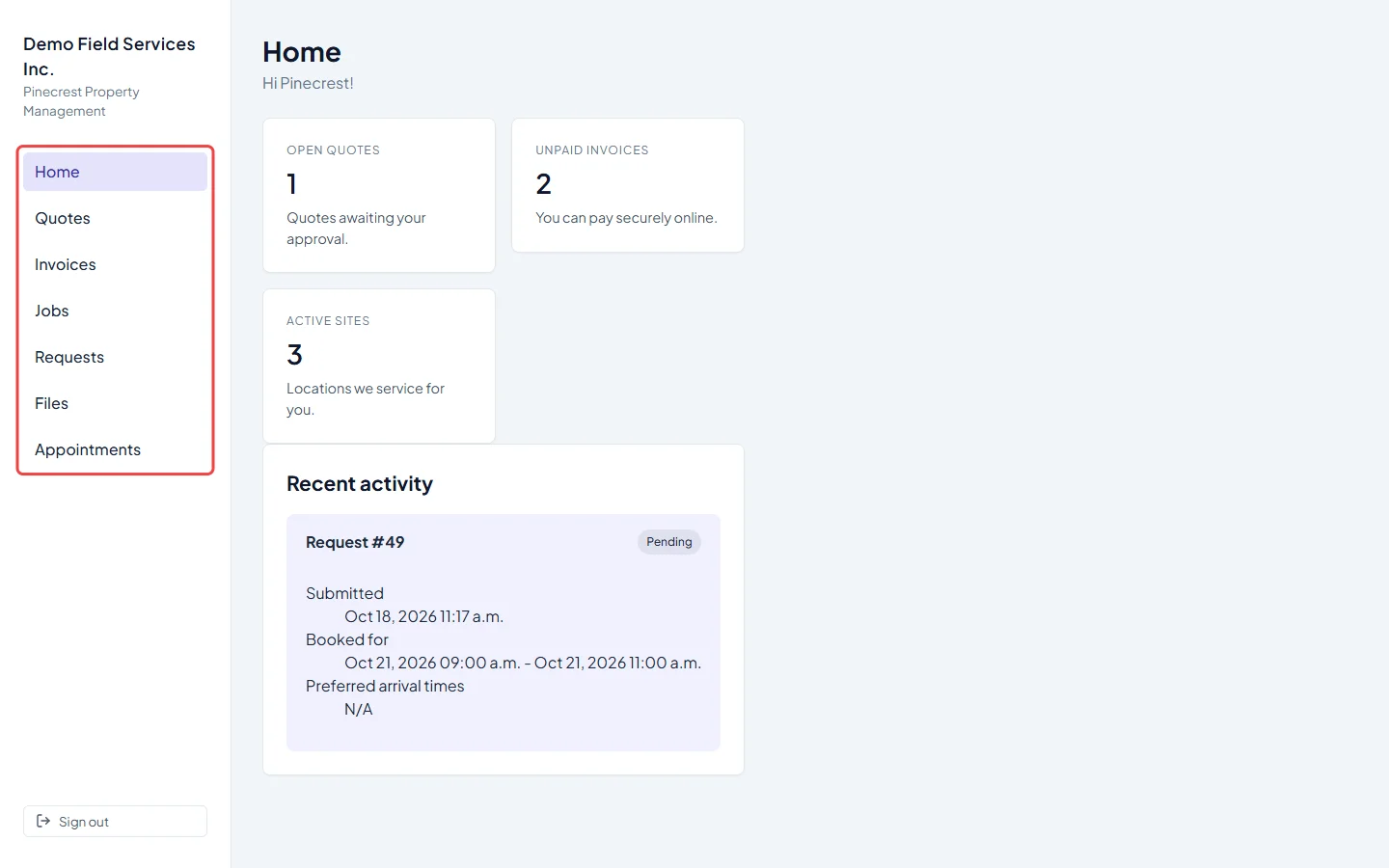
The menu on the left takes the client to each area: Home, Quotes, Invoices, Jobs, Requests, Files and Appointments. The page heading always says which area they’re in, and greets them by first name.
-
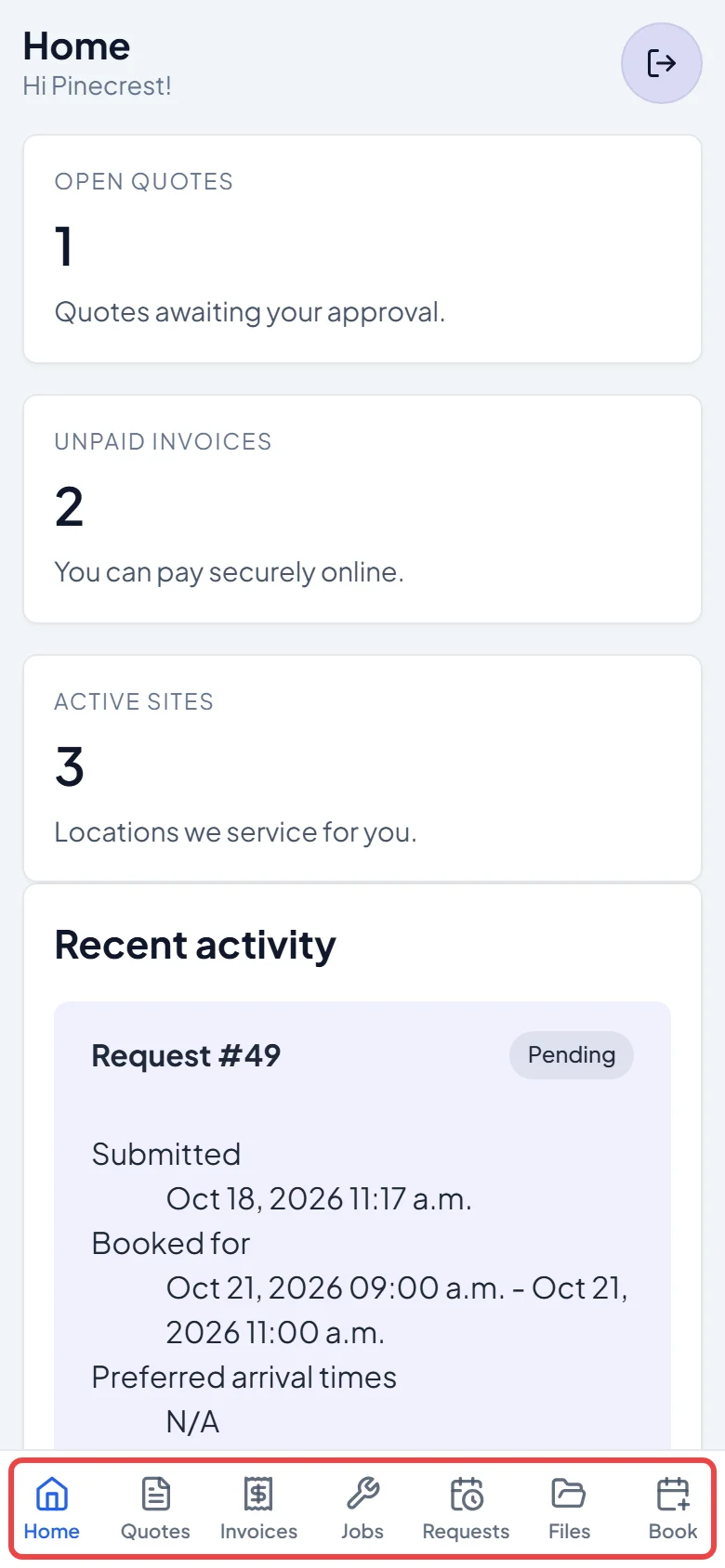
On a phone, the same areas sit in a bar along the bottom of the screen. Appointments is shortened to Book there. The sign-out button is the icon at the top right.
Good to know
Section titled “Good to know”- The portal always shows in light colours, whatever theme your own team uses.
- Clients see only their own records. They can’t see your internal notes, other clients or your schedule. Files your team uploads stay internal; the Files area shows only what the client sent you.
- Only quotes you have sent appear, including ones you later pulled back to draft. Quotes never sent, archived quotes, draft invoices and void invoices stay hidden. Invoices appear once sent or paid.
- If someone else on the client’s account opens a link sent to them, they see everything on the account, and the portal still greets them with the account holder’s name. They can approve or decline only the quotes that name them as the contact person. See People on an account.
- Sign out ends the client’s session on that device. A portal visit stays signed in until 12 hours pass without the client using it. If a link has stopped working, the client sees Portal link expired and is asked to get a new invite from you. See Sending a portal invite.
- Your logo, address, phone, email, quote terms and invoice terms come from your company settings. See Company info and branding.
Related articles
Section titled “Related articles”Checked against Astragal on October 17, 2026