

My Rewards
See the points you’ve earned for good work and swap them for rewards.
Who can do this: Technicians, when your company has rewards turned on.
Company switch: RewardsAlso called: my points, points balance.
-
Open My Rewards. A number on it shows how many new awards you’ve had since you last opened the page; it clears when you open it.
On a computer: Left menu → My Rewards On a phone: More → My Rewards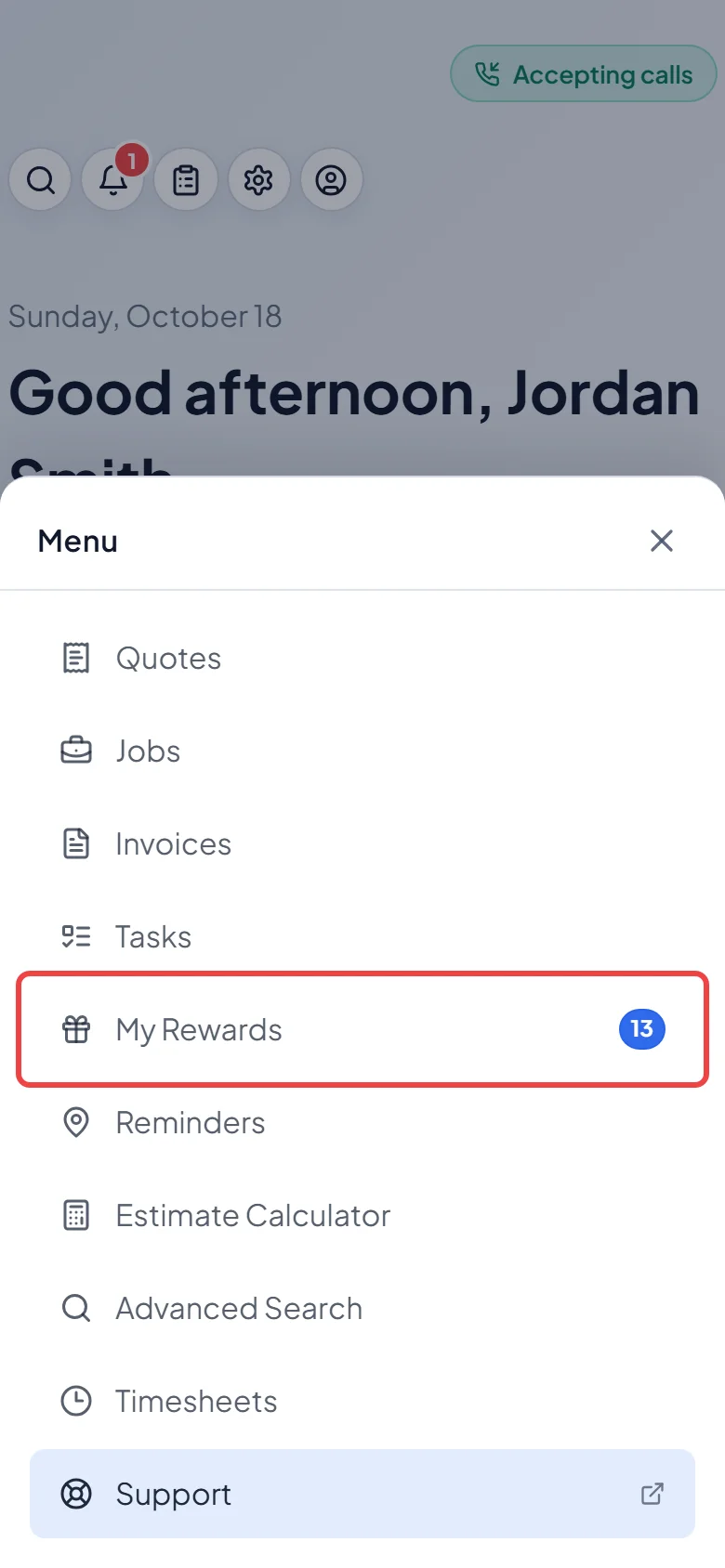
-
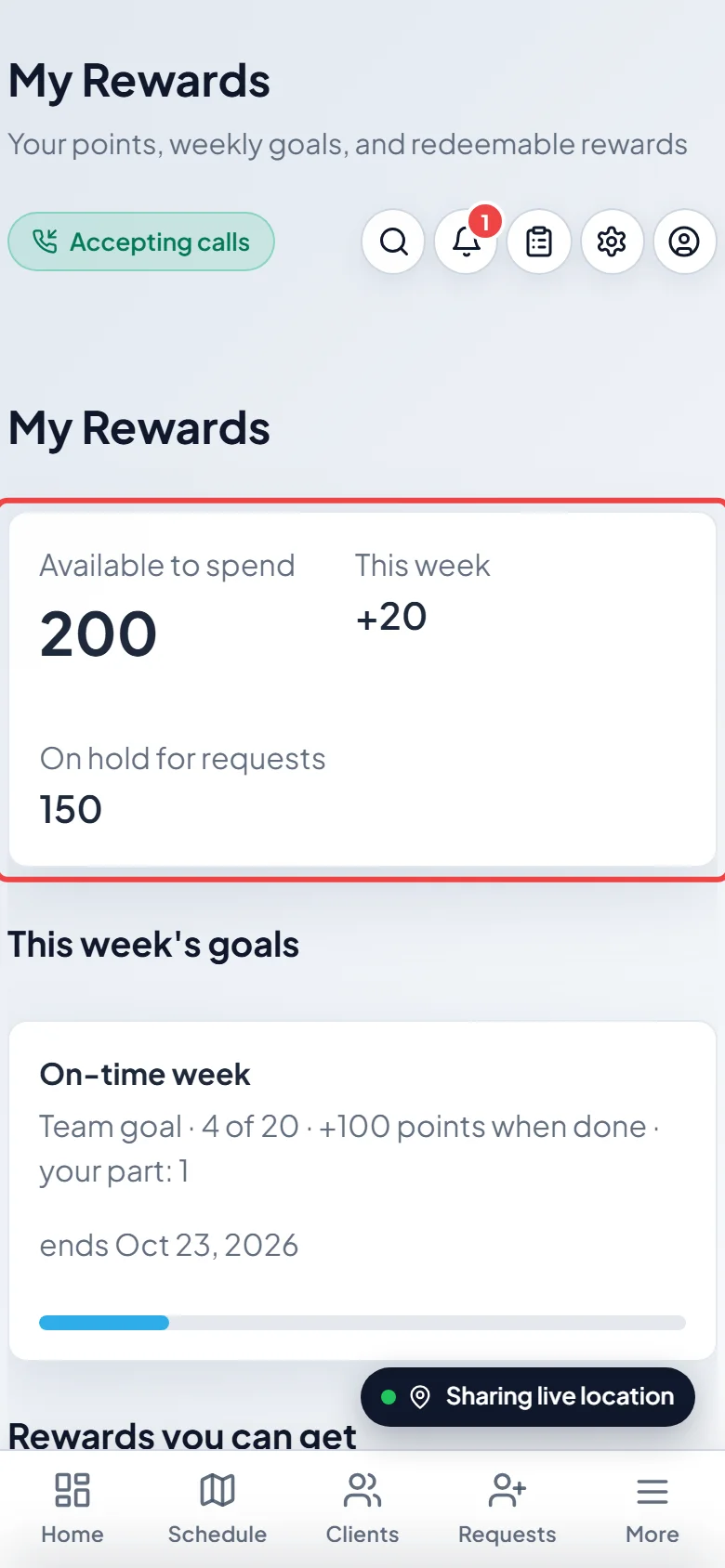
The top card shows the points Available to spend, what you’ve earned This week, and any points On hold for requests.
-
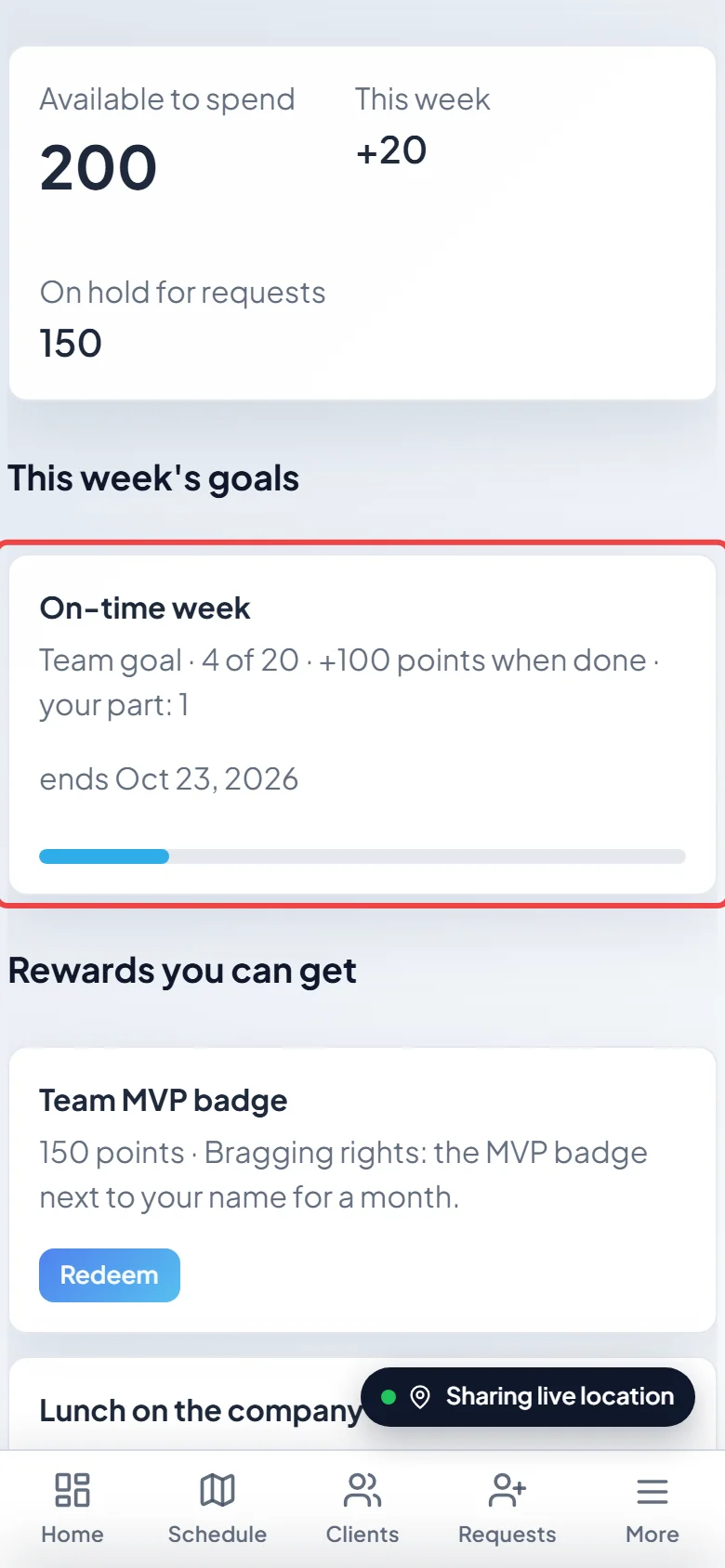
Under “This week’s goals”, follow any challenge your company is running. A bar shows progress, and team goals also show your part.
-
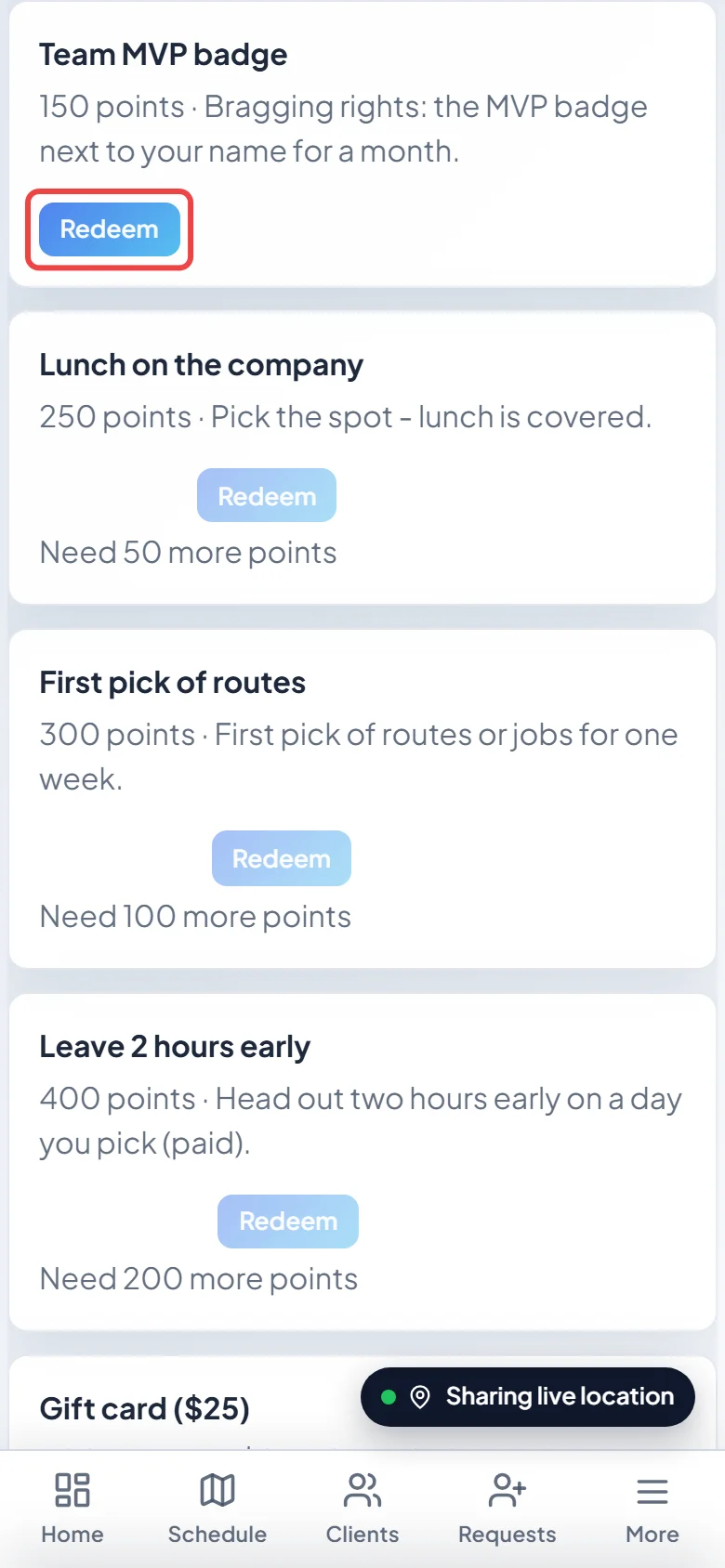
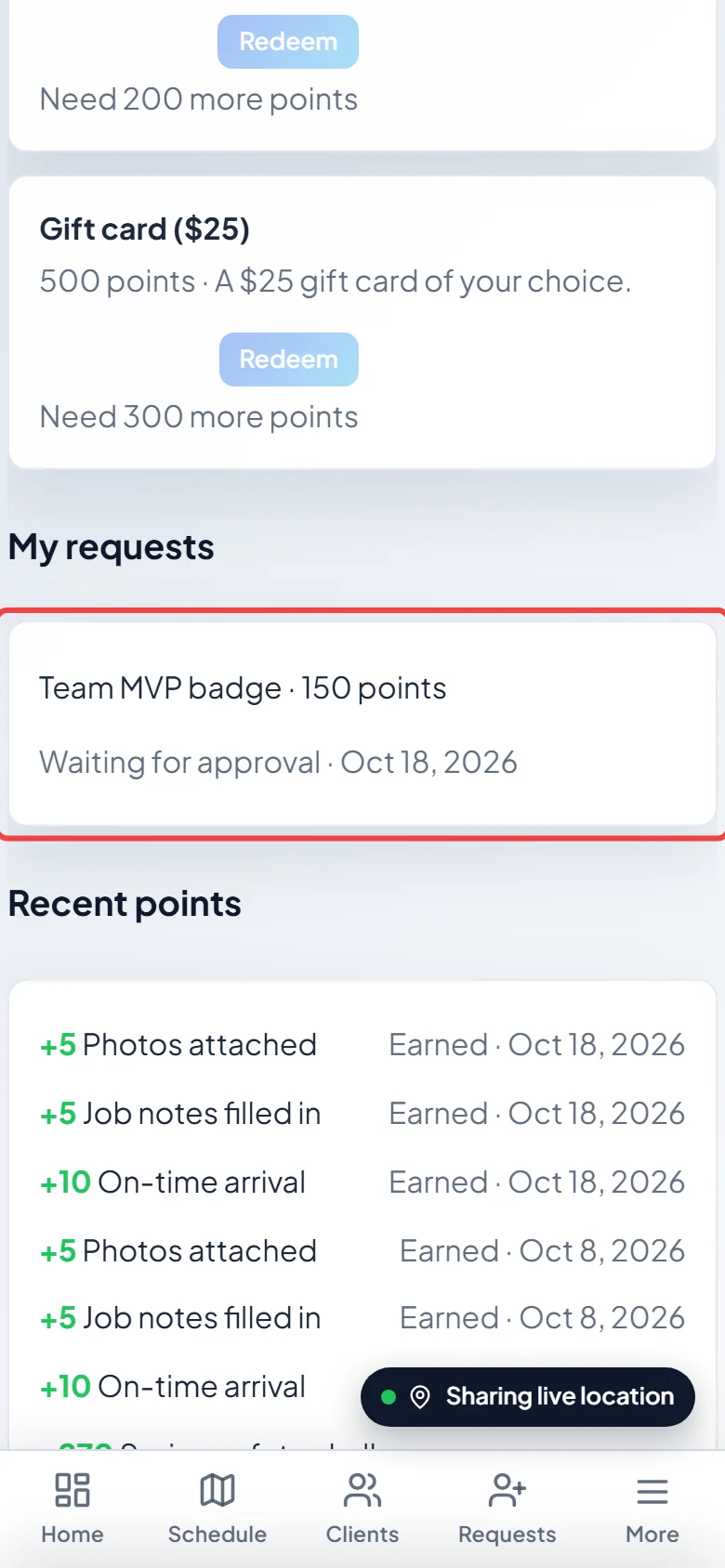
Under Rewards you can get, tap Redeem on a reward you have enough points for and confirm. If you’re short, it says how many more points you need. The points go on hold until your admin decides.
-
Under My requests, follow each request: “Waiting for approval”, “Approved — being arranged”, “Done — enjoy!” or “Declined (points returned)”. You also get a notification when it changes. It appears once you’ve made a request.
-
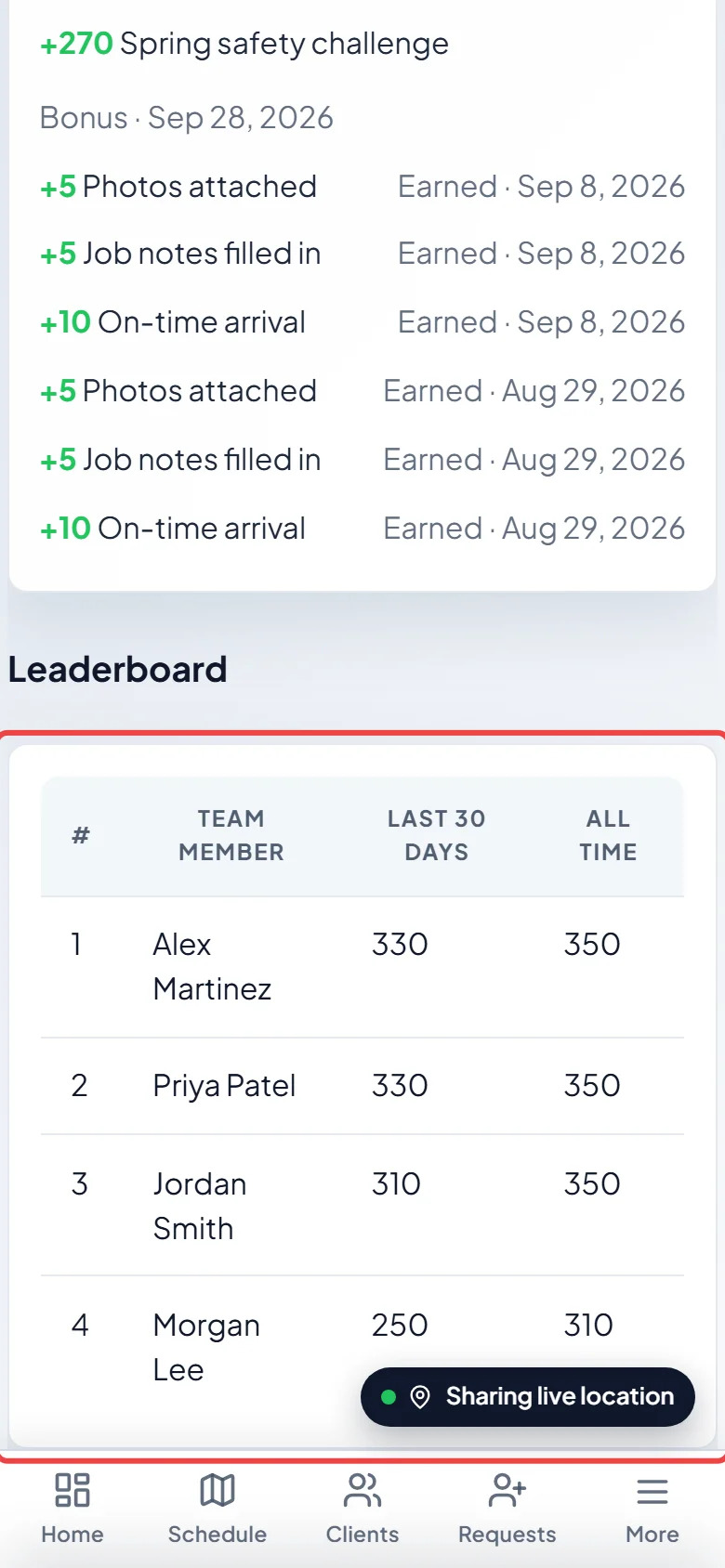
Scroll down for Recent points (your latest 25, each with its reason and date), the Leaderboard if your company shows one, and How to earn, which lists every rule that’s switched on and its points.
Good to know
Section titled “Good to know”- You get one notification each evening summing up what you earned that day, not one for every point, plus one when you complete a challenge.
- Some points are taken back if the work is undone, for example if a job you closed is reopened. They show as “Taken back” in Recent points.
- Points for on-time arrival need your location turned on; see Sharing your location.
Related articles
Section titled “Related articles”Checked against Astragal on October 17, 2026