

Creating a quote
Write up a priced quote for a client so they can review it and approve the work.
Who can do this: Admins, dispatchers and accountants, and technicians set to View, edit, and create quotes or View, edit, create, and delete quotes.
Also called: estimate, proposal, bid.
-
Open the quotes list and click New quote. Admins, dispatchers and accountants can also click Create, then Quote, in the left menu.
On a computer: Left menu → Quotes On a phone: More → Quotes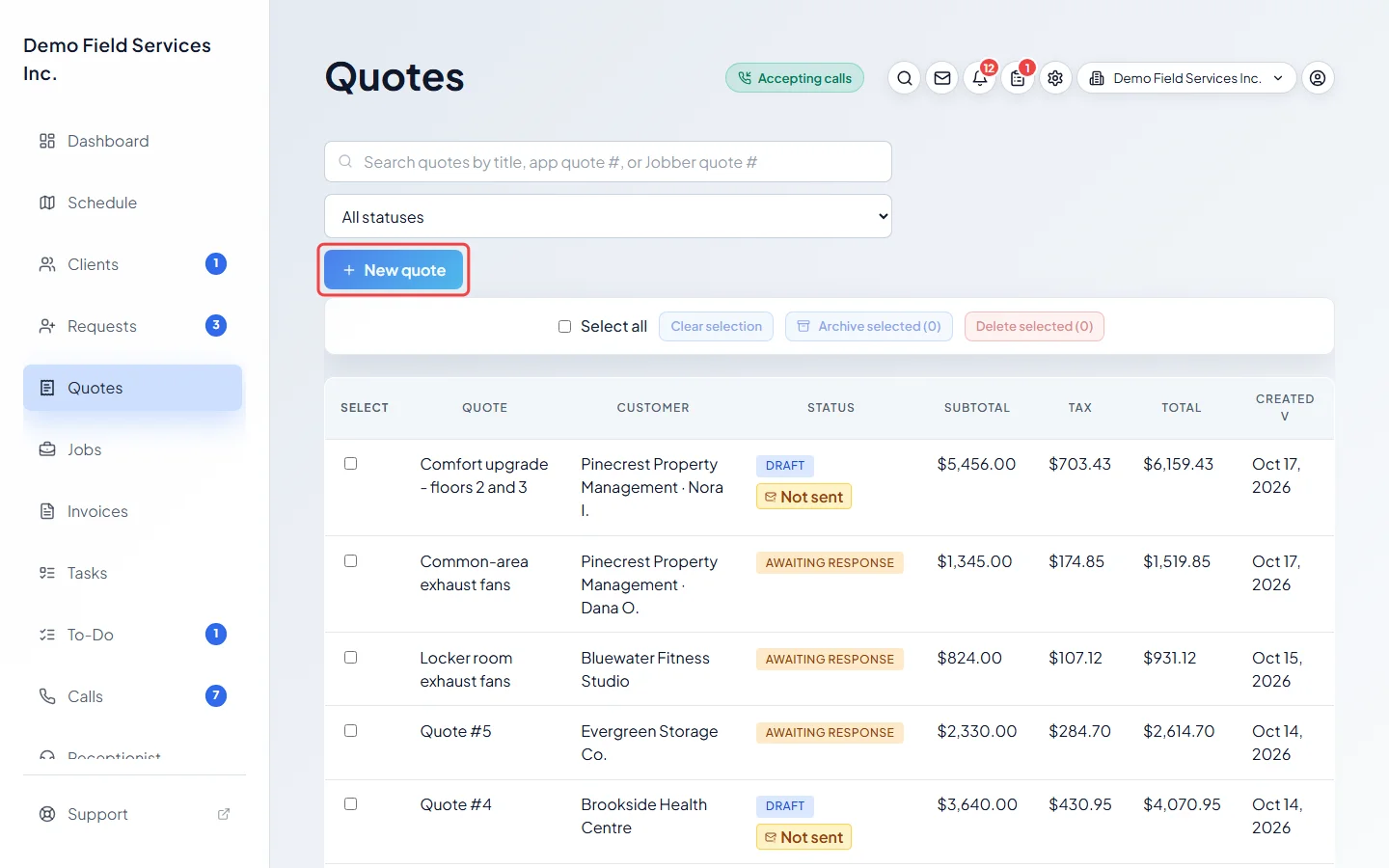
-
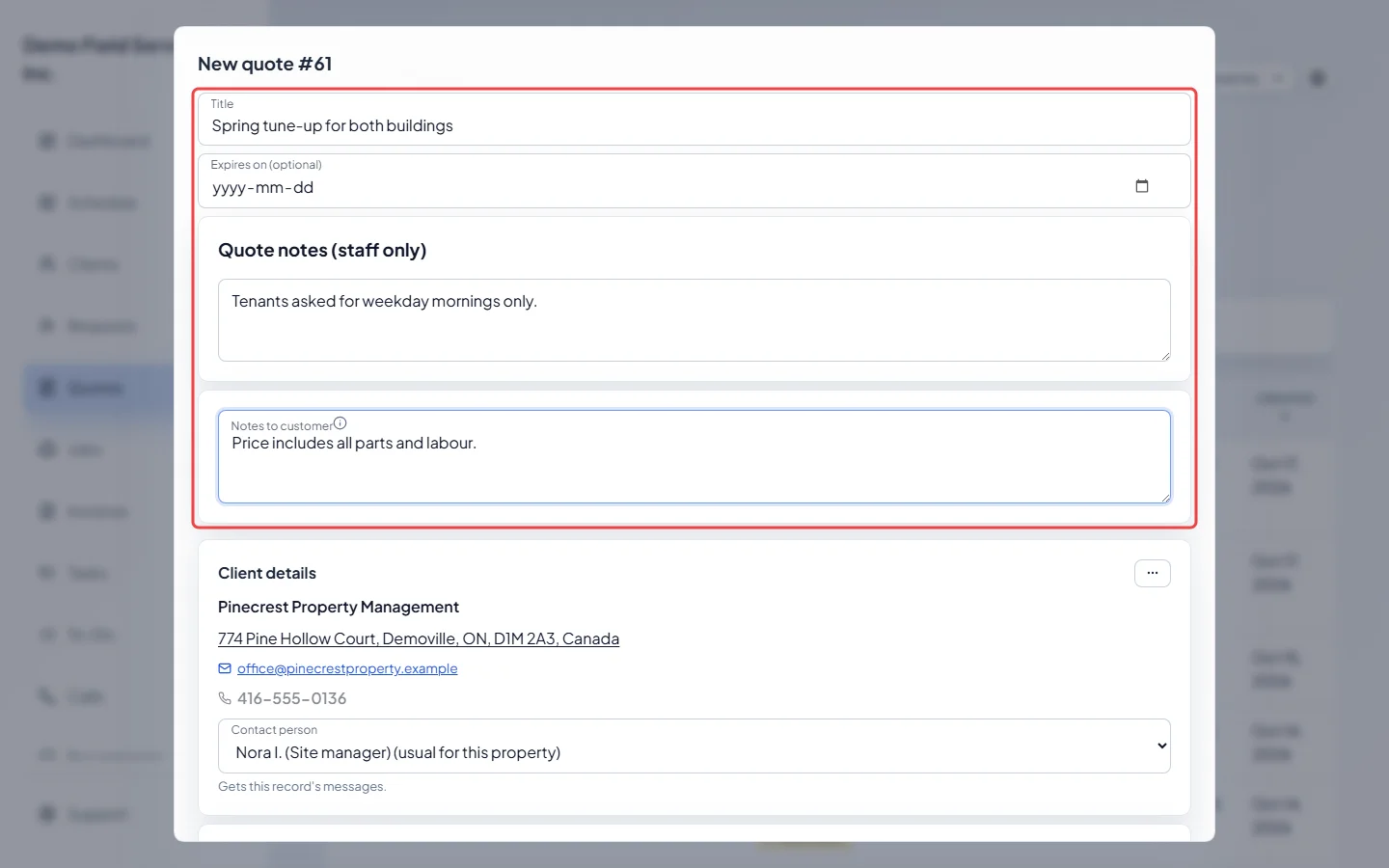
At the top, give the quote a Title your team will recognise. Expires on (optional) sets the last day the client can approve it. Leave it blank to use your company’s default expiry, which starts counting when you send the quote. Quote notes (staff only) are for your team. Notes to customer prints on the quote, between the total and your terms.
-
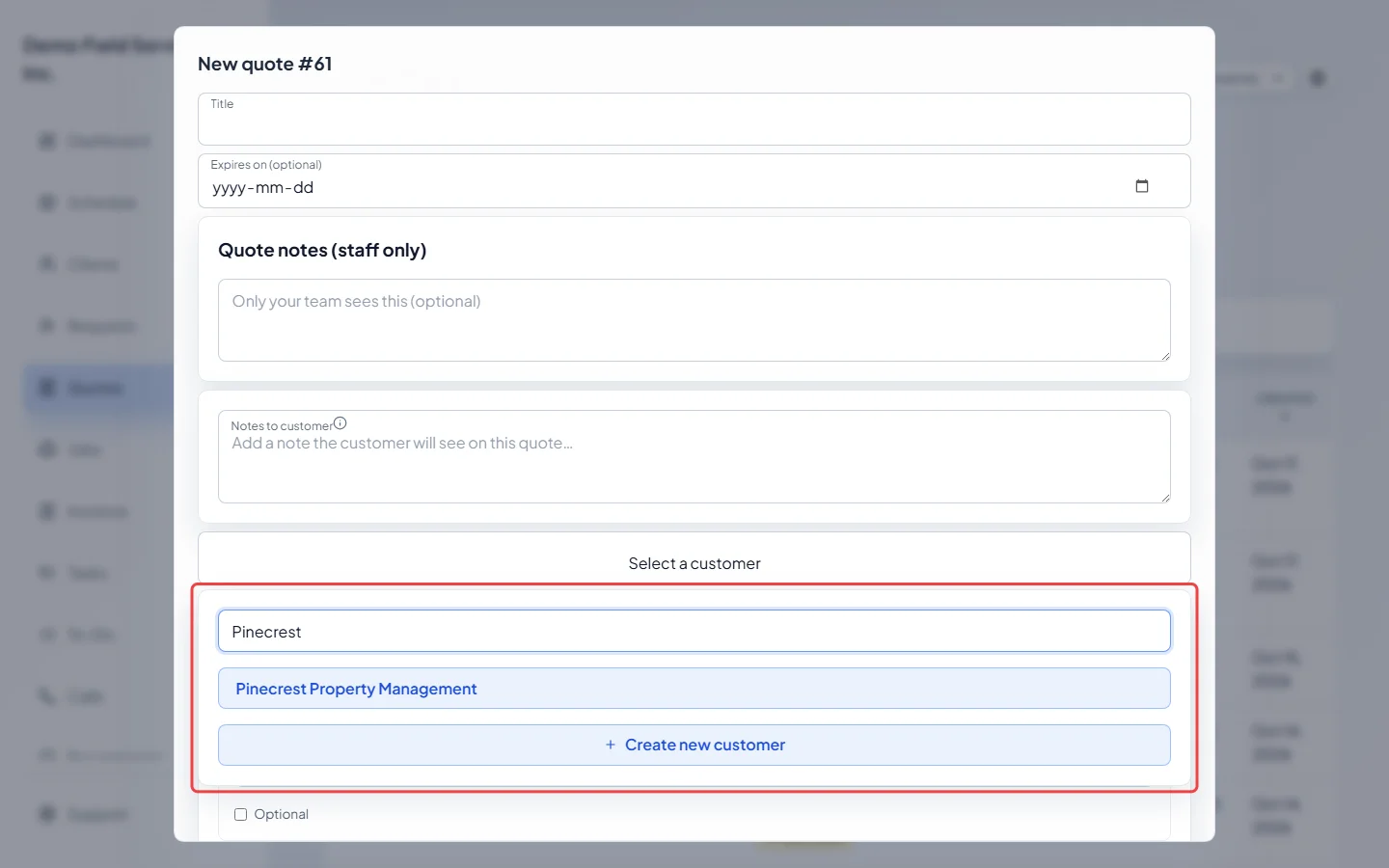
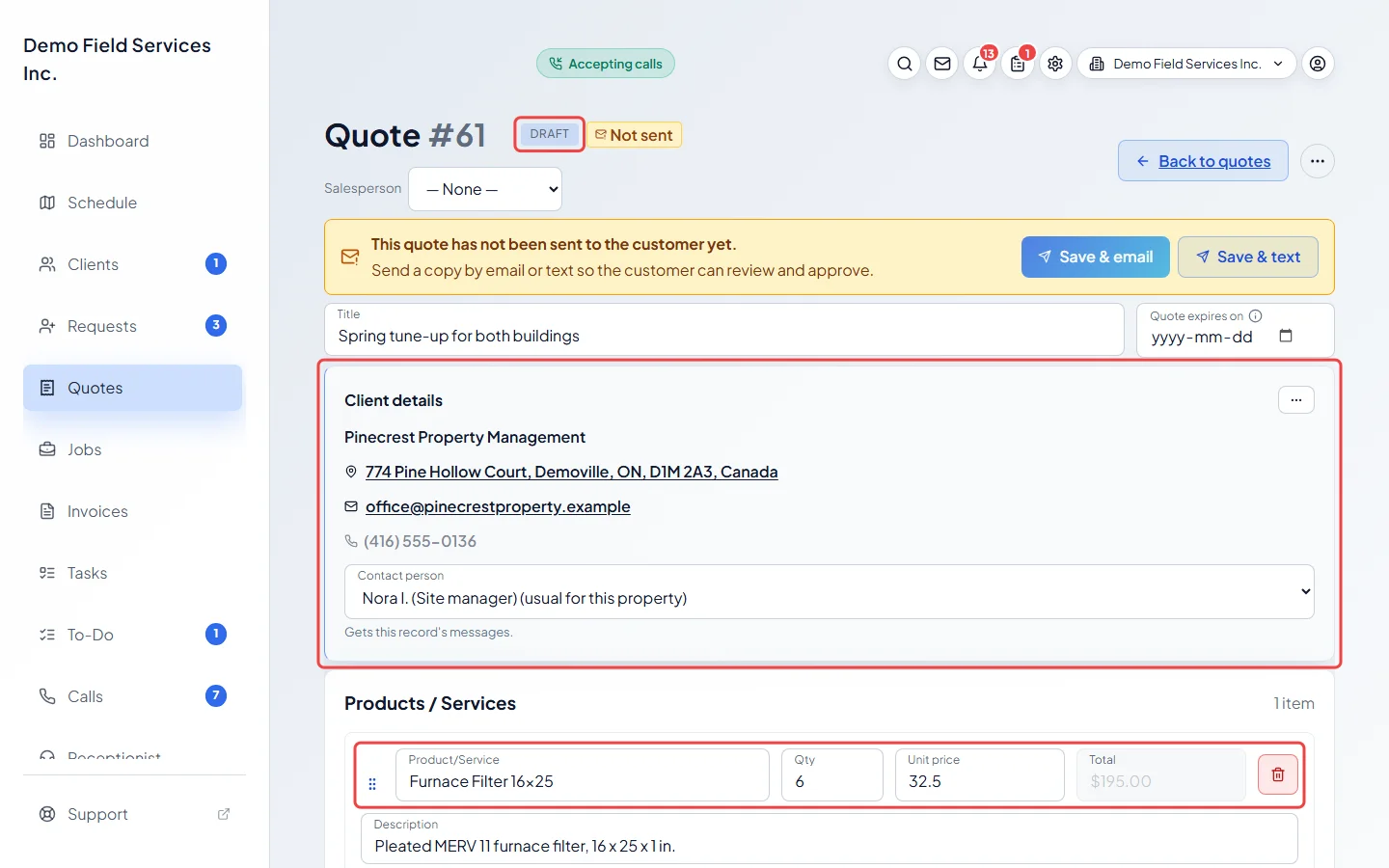
Below that, click Select a customer, type part of the client’s name in Search customer and pick them. If they’re not in Astragal yet and you’re allowed to add clients, click Create new customer to add them without leaving the form. Their property, email and phone fill in under Client details.
-
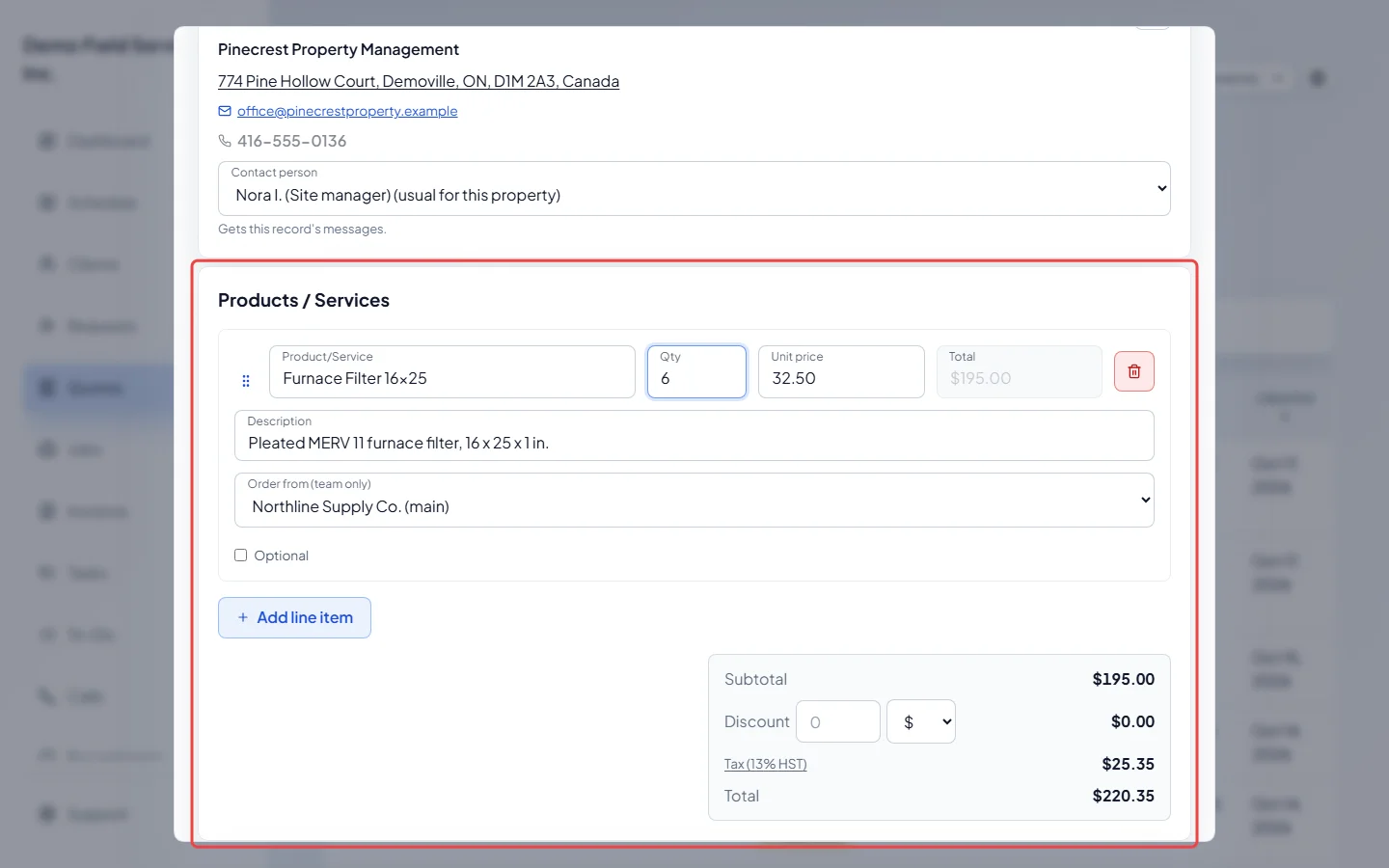
Under Products / Services, pick an item from your catalog in Product/Service or type your own, then set Qty and Unit price. Click Add line item for each extra line. See Line items, taxes and totals.
-
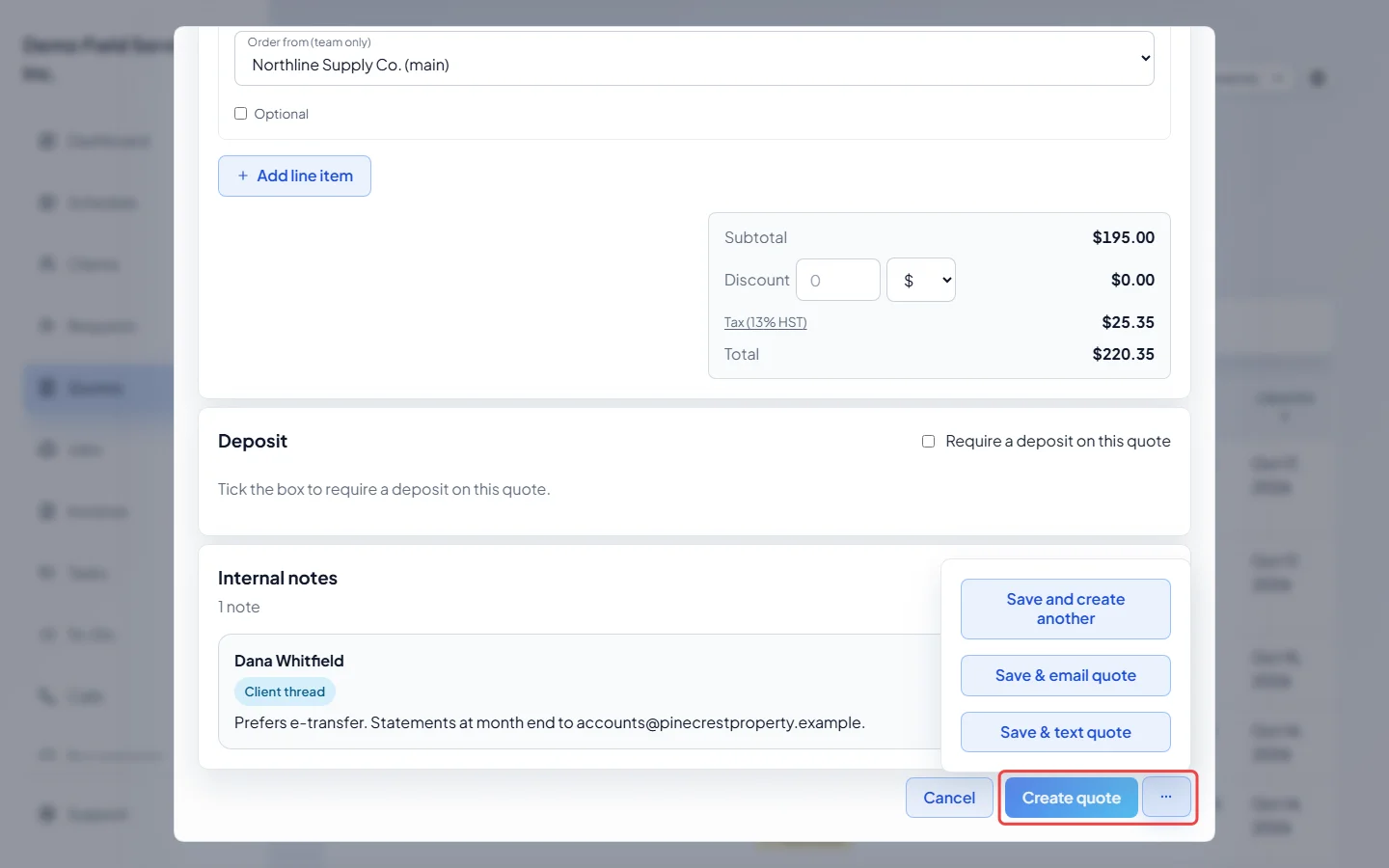
Click Create quote. The ••• button next to it also offers Save and create another, Save & email quote and Save & text quote.
-
The new quote opens on its own page as a Draft. Nothing reaches the client until you send it. See Sending a quote to a client.
Changing the client or property
Section titled “Changing the client or property”In the New quote form, the ••• button in Client details offers Change client, Edit client details and Change property. Change property shows a list of the client’s properties. Pick one, or click Create new site to add an address, then click Done.
On a saved quote, the same button offers Edit client details and Change property. In both places, Contact person under Client details picks who on the account the quote is for. See People on an account.
Around the quote page
Section titled “Around the quote page”- Quote and its number sit at the top. Click the number to change it.
- The badge next to it shows where the quote stands. See The quotes list for what each one means.
- Salesperson records who sold the work. It saves as soon as you pick someone and carries onto the job.
- Under Salesperson at the top you’ll see “Viewed in portal” with the date and time, and “Email opened” or “Email not yet opened”.
- Quote expires on is the last day the client can approve it.
- Links under Back to quotes open the request it came from, the job it became and any invoices.
- While the client has the quote open in their portal, a “Customer is viewing this quote right now.” line shows.
- Deposit sets what the client pays up front, and you can set it while making the quote. Payment plan appears once the quote is saved. See Asking for a deposit and Payment schedules.
- Supplier orders lists the orders for parts on this quote. See Ordering parts for a quote or job.
- Internal notes are for your team only. Custom fields shows any quote fields your company has added.
- Edit anything, then click Save. Cancel throws away unsaved changes.
Good to know
Section titled “Good to know”- You need at least one line with a name and a quantity above zero, or Astragal asks you to “Add at least one valid line item”. Lines missing either are left off when you save.
- Making a quote from a request fills in the client and property for you. See Turning a request into a quote or job.
- Your company’s default expiry is Quote validity (days) in Company settings.
- For a quick price without saving anything, use the estimate calculator.
Related articles
Section titled “Related articles”- Line items, taxes and totals
- Sending a quote to a client
- Duplicating a quote
- Writing a quote from a job
Next step: Sending a quote to a client
Checked against Astragal on October 17, 2026