

Email history
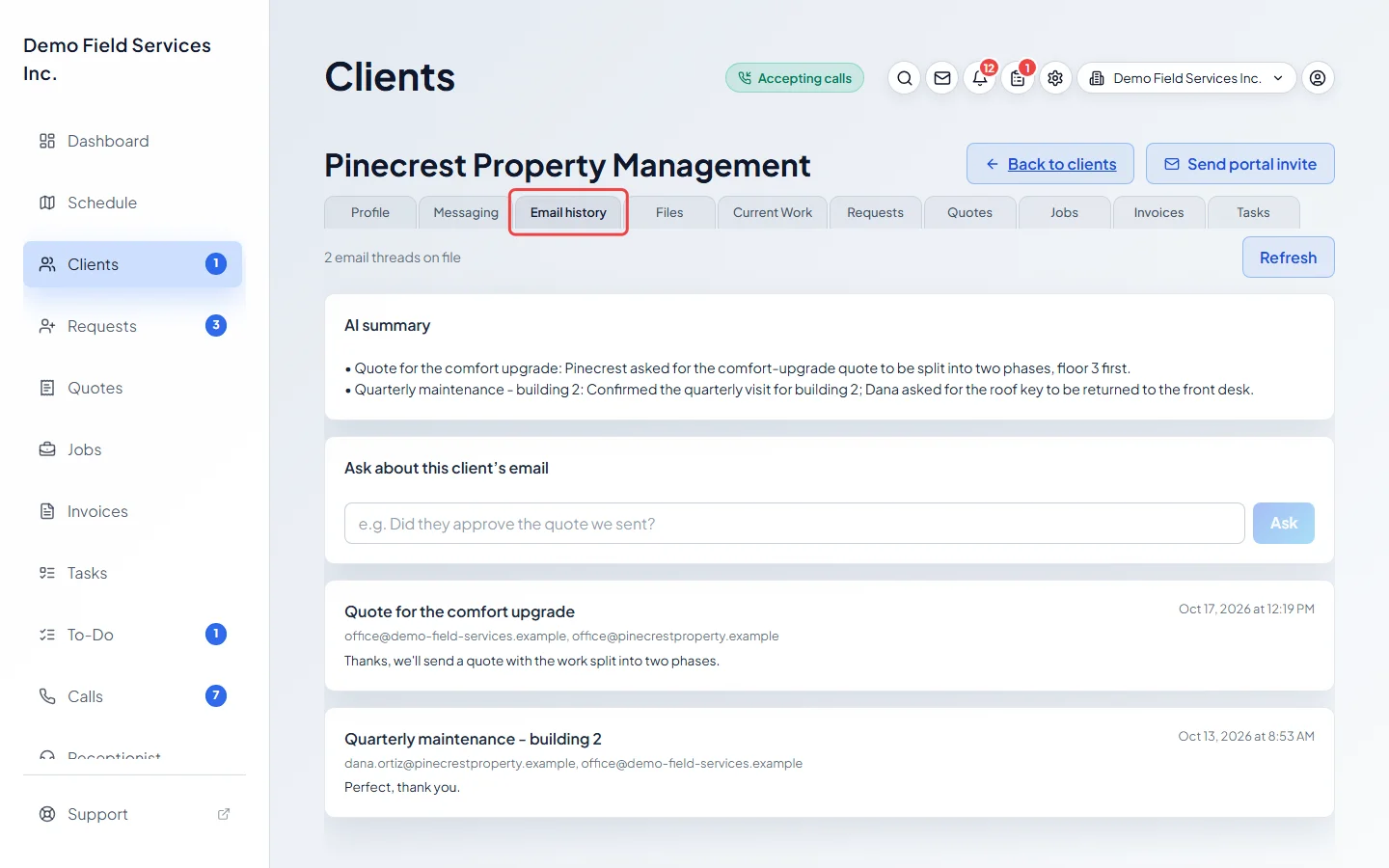
The Email history tab shows the email threads between your connected Gmail account and a client, without leaving Astragal.
Who can do this: Team members set to View full client and property info or higher, with the Client communications switch on in their permissions. Your company needs a Gmail account connected first.
Also called: Gmail, email threads.
-
Open the client and click the Email history tab.
On a computer: Left menu → Clients On a phone: Bottom bar → ClientsThe tab shows how many email threads are on file. If Gmail isn’t connected, it says “Gmail isn’t connected yet” instead. See Connecting Gmail.
-
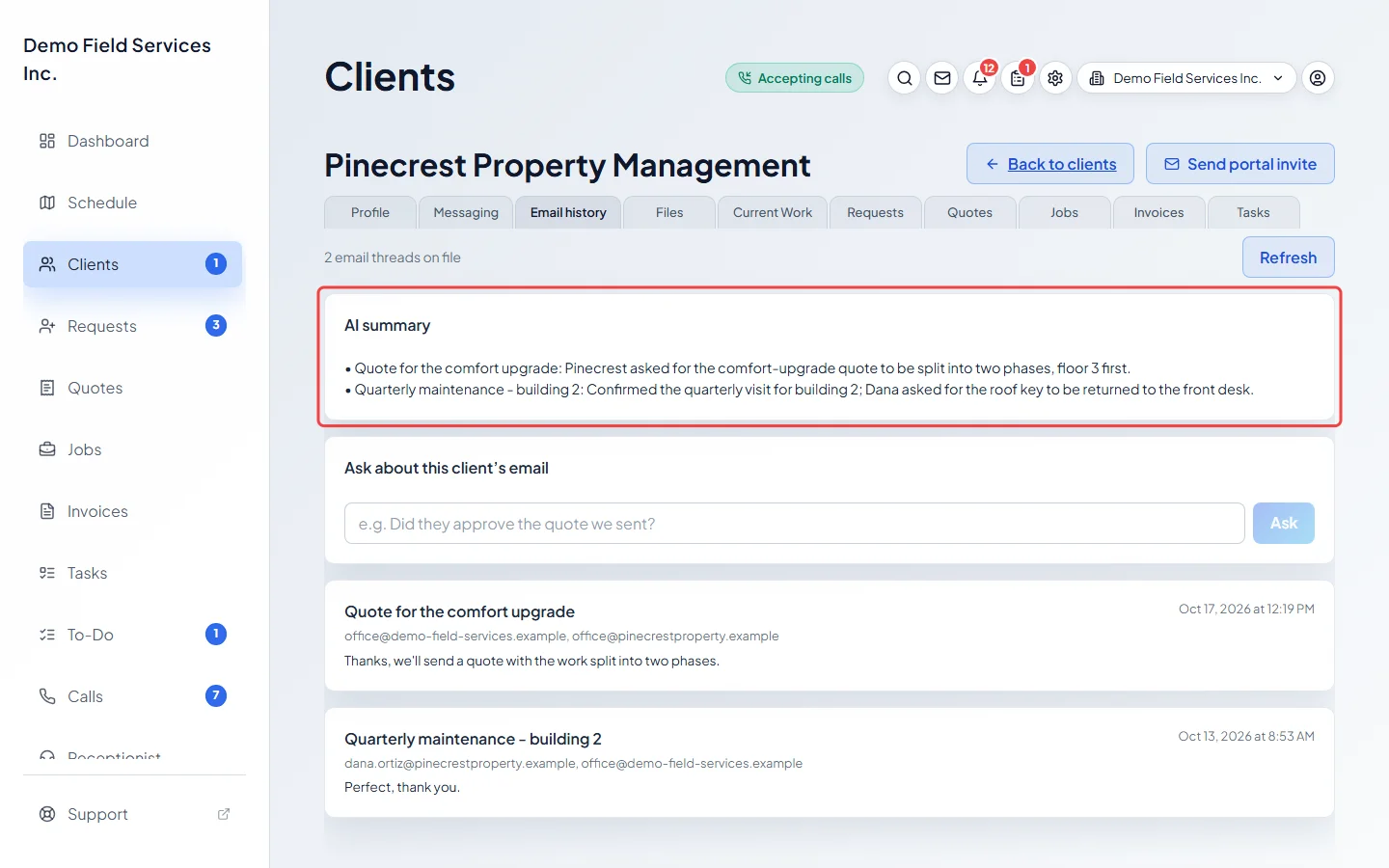
Read the AI summary at the top for a quick picture of what you and the client have been emailing about. It appears once the threads have been summarised, with one line per thread.
-
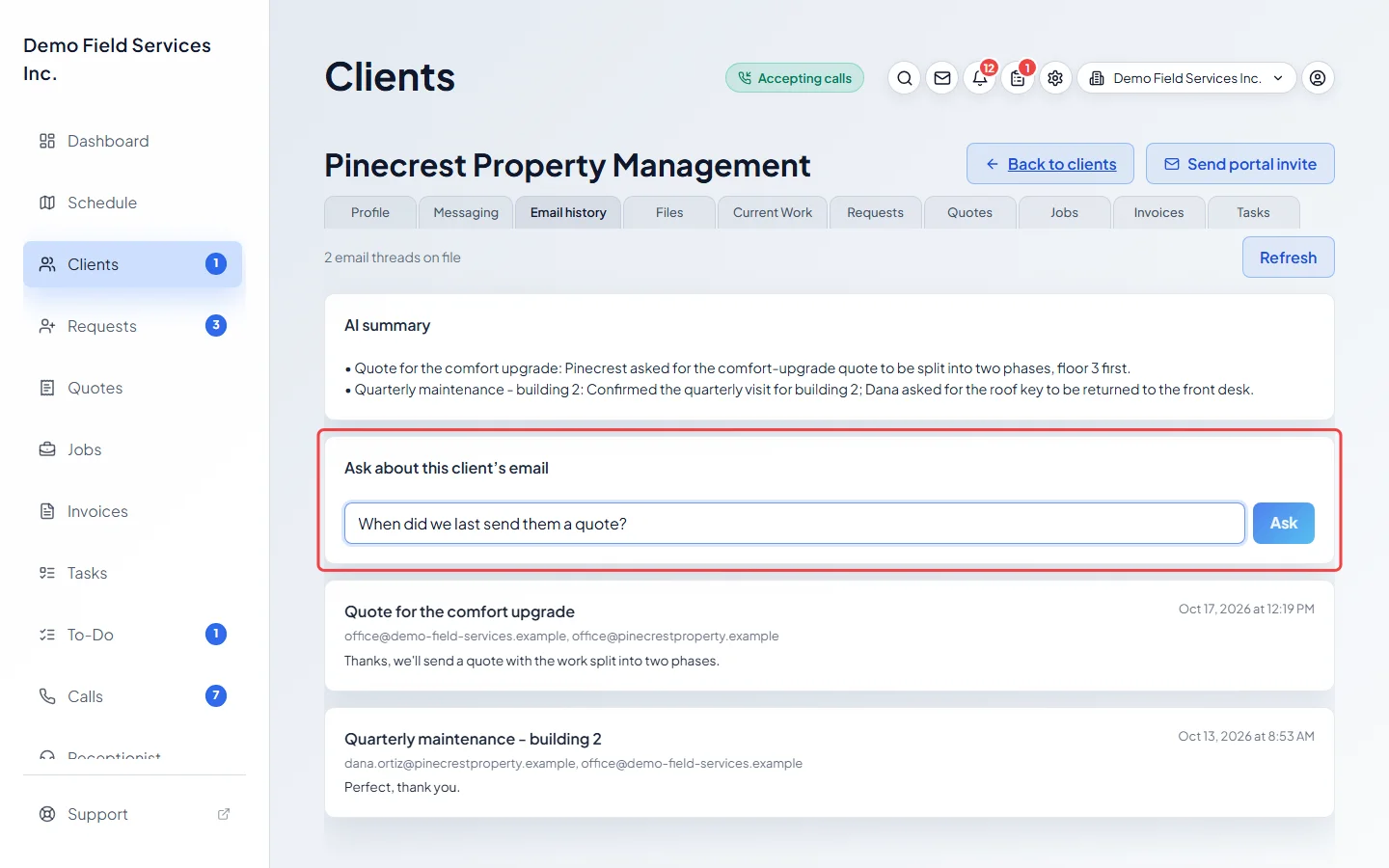
Under Ask about this client’s email, just below the summary, type a question such as “Did they approve the quote we sent?” and click Ask. The answer comes only from this client’s emails.
-
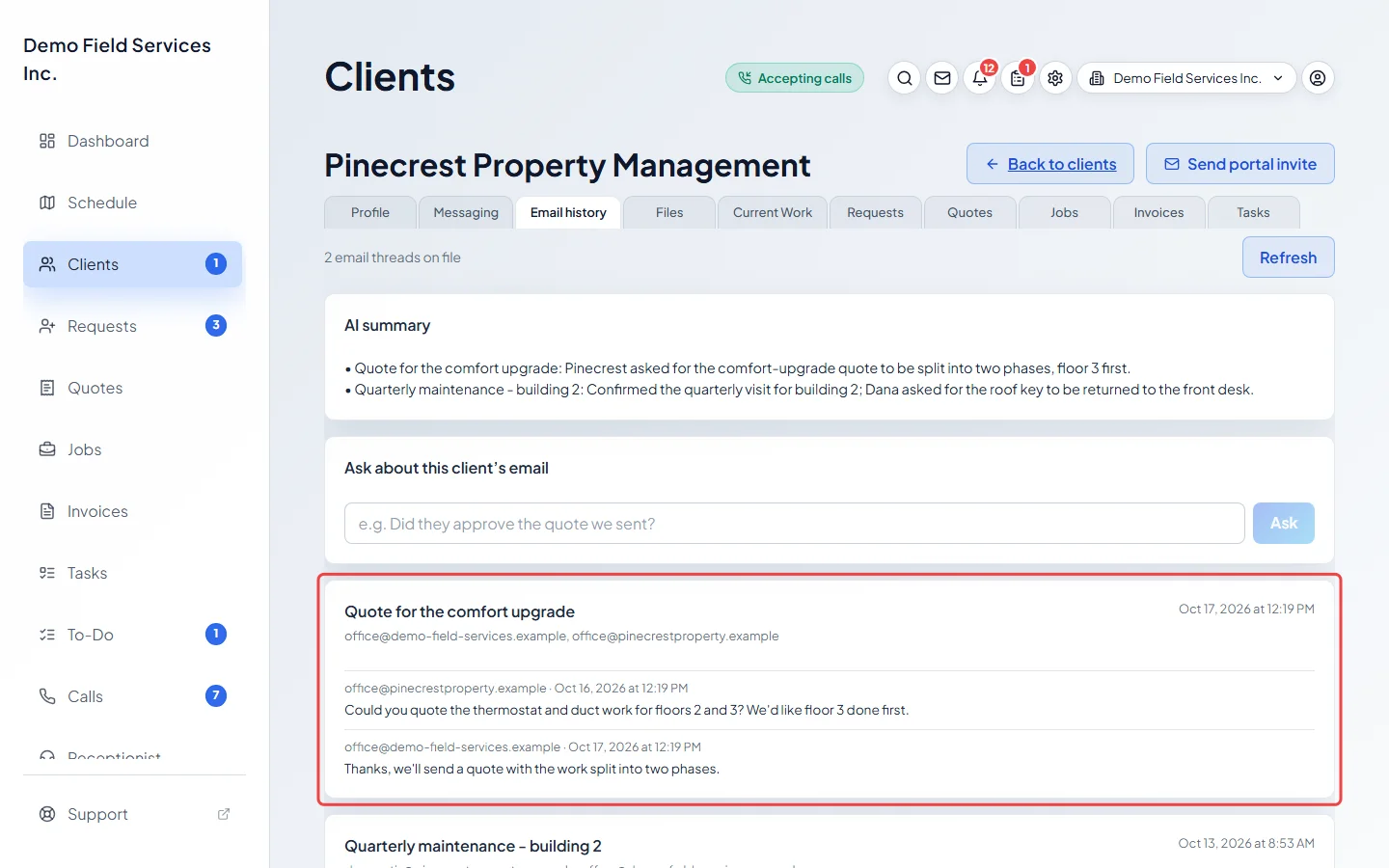
Below that, click a thread to open it and read every message in it, oldest first. Click it again to fold it away.
Good to know
Section titled “Good to know”- When you open the tab, Astragal checks for new email if the last check was more than 30 minutes ago. Click Refresh to check now; new threads can take a moment to appear.
- If the tab says “Gmail needs to be reconnected”, the Gmail account stopped sharing email. Reconnect it in Settings.
- Texts and emails sent from Astragal itself are on the Messaging tab.
Related articles
Section titled “Related articles”Checked against Astragal on October 17, 2026