

Importing products and option prices
Import a spreadsheet to add or update many catalog items at once instead of typing them in one by one.
Who can do this: Admins, dispatchers and accountants.
Also called: price list upload, CSV import.
Importing your catalog
Section titled “Importing your catalog”-
Open the catalog and click Import spreadsheet.
On a computer: Left menu → Inventory → Products & Services On a phone: More → Products & Services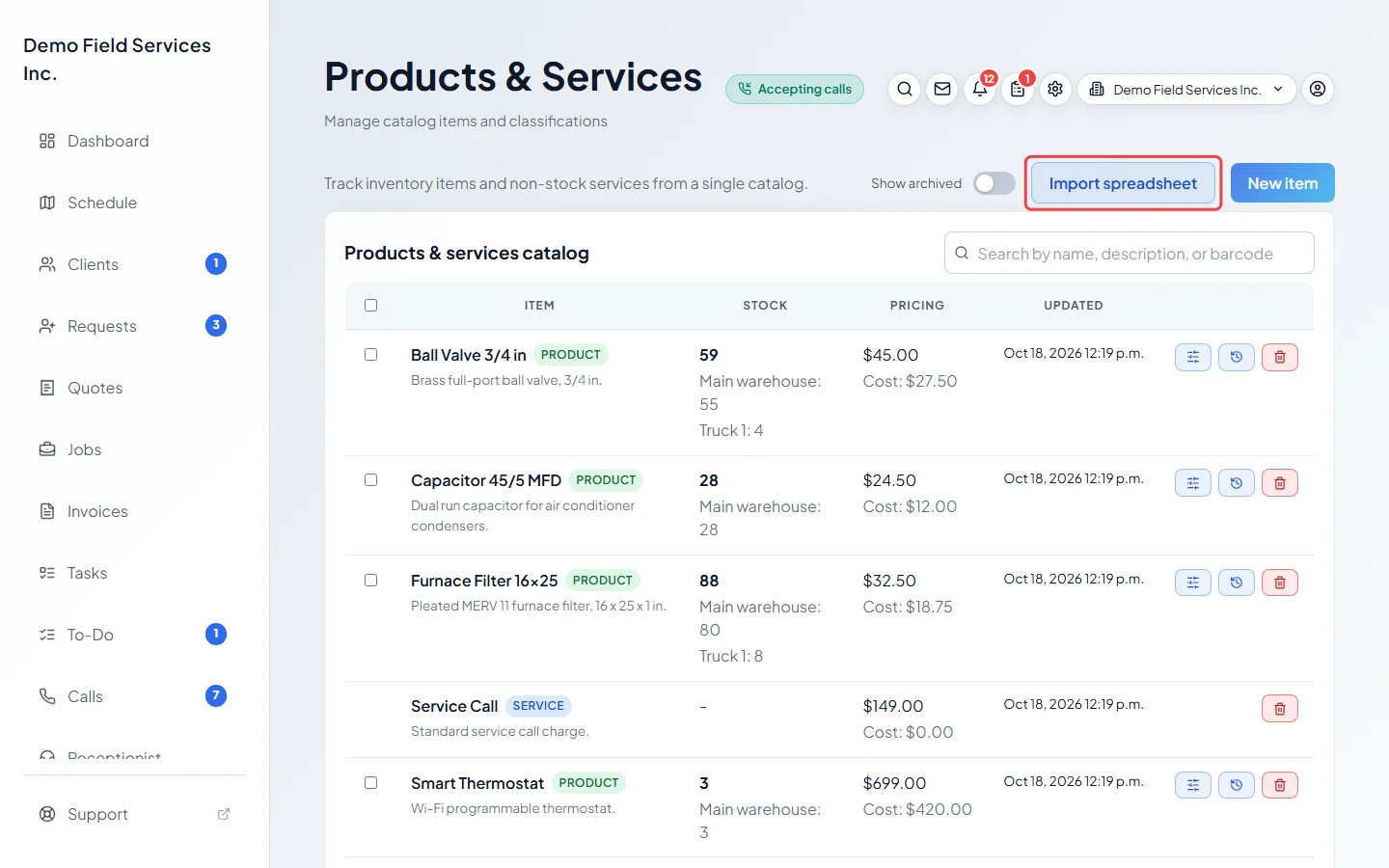
-
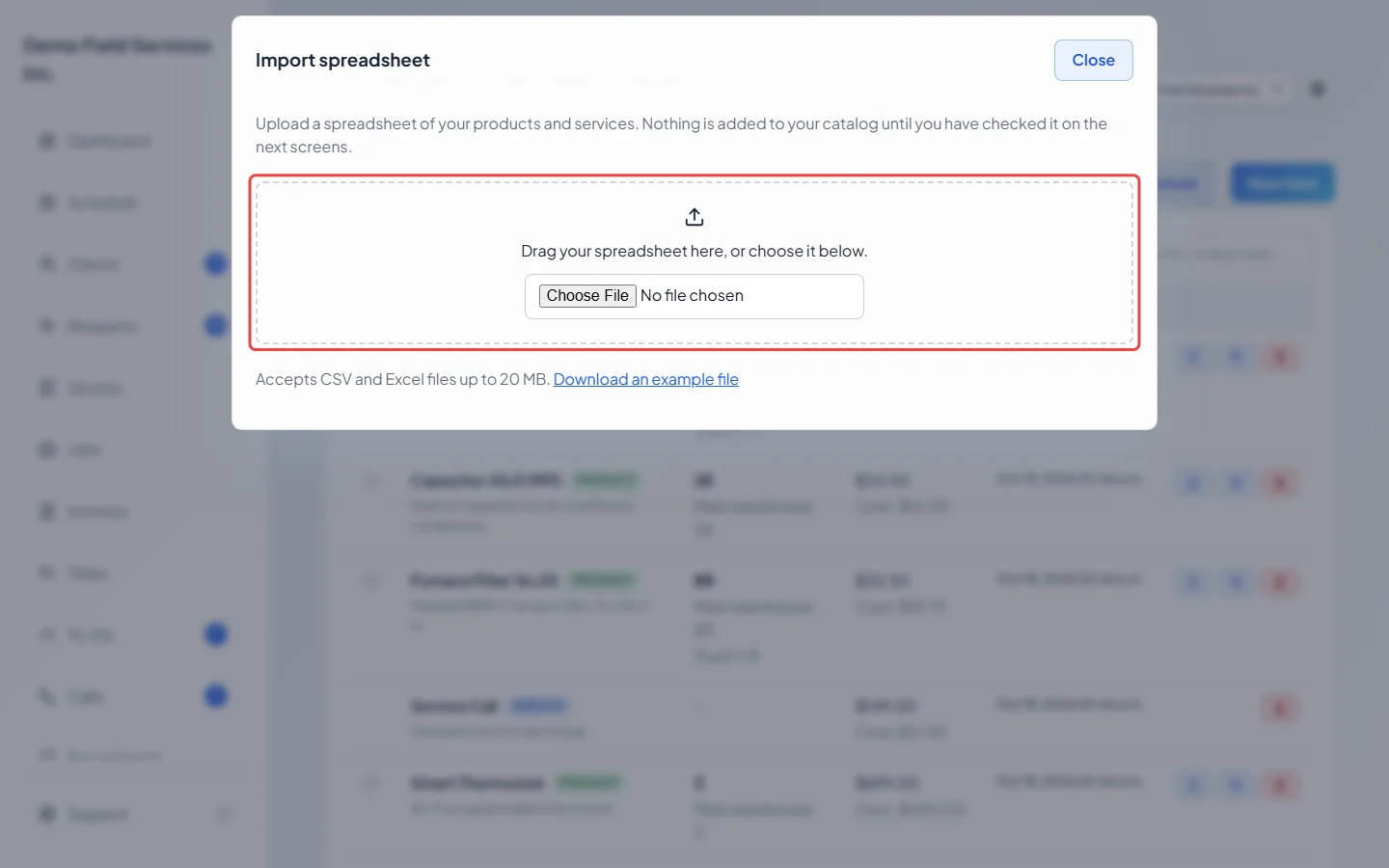
Drag your file onto the box, or choose it. CSV and Excel (.xlsx) files up to 20 MB and 20,000 rows work. Download an example file gives you a small sample with the right columns. Files you uploaded before are listed under Recent uploads, so you can pick up where you left off.
-
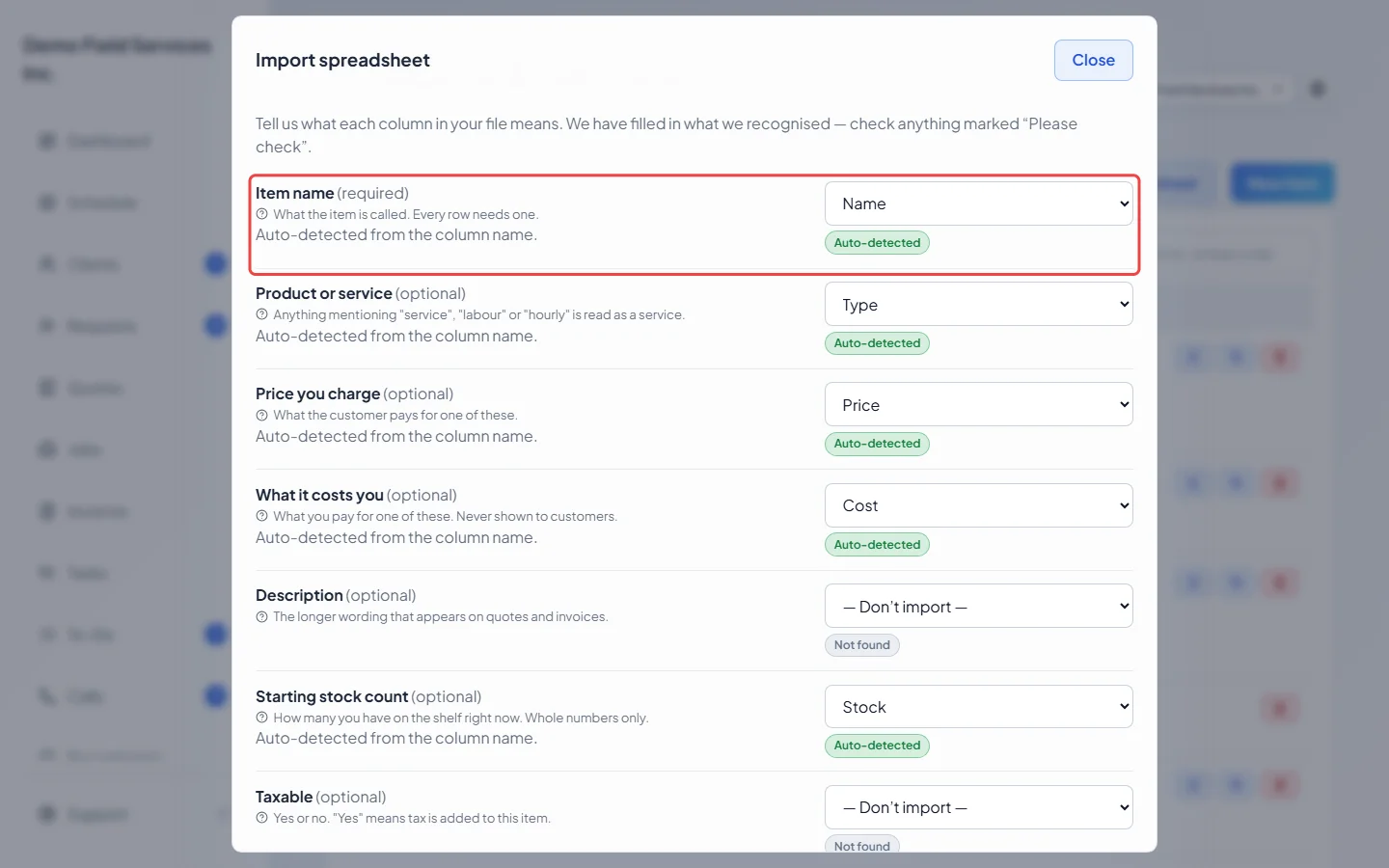
Check how each column was matched. Every catalog field has a list of your file’s columns: Auto-detected means Astragal is sure, Please check means look again (a column called “Unit Cost” can mean your price or your cost), and “Don’t import” skips a field. Only Item name is required. If your file has a stock column, pick where the counts go under Count these items at. The sample rows under How your file reads show your own data with the new labels. Click Continue (or Confirm mapping).
-
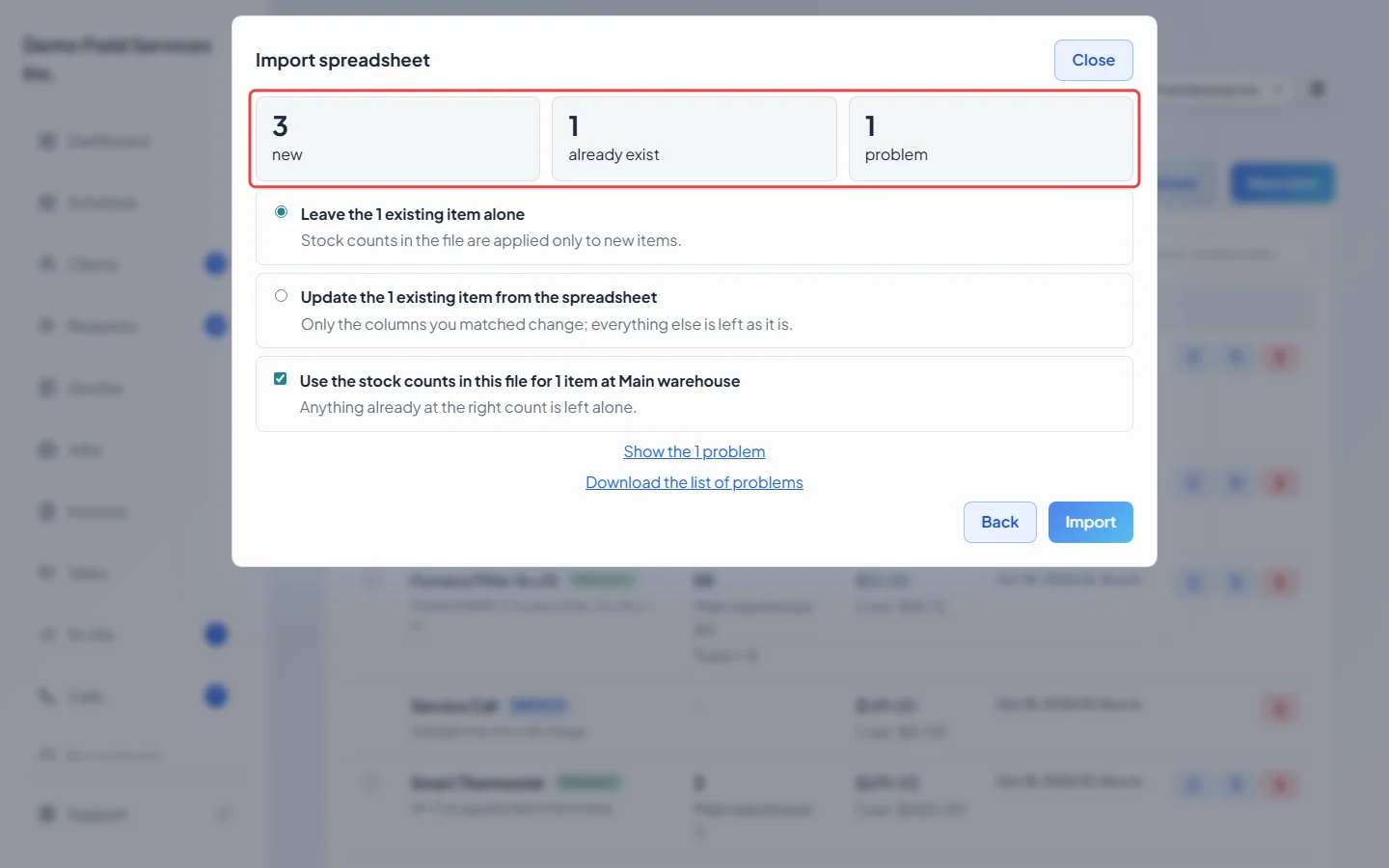
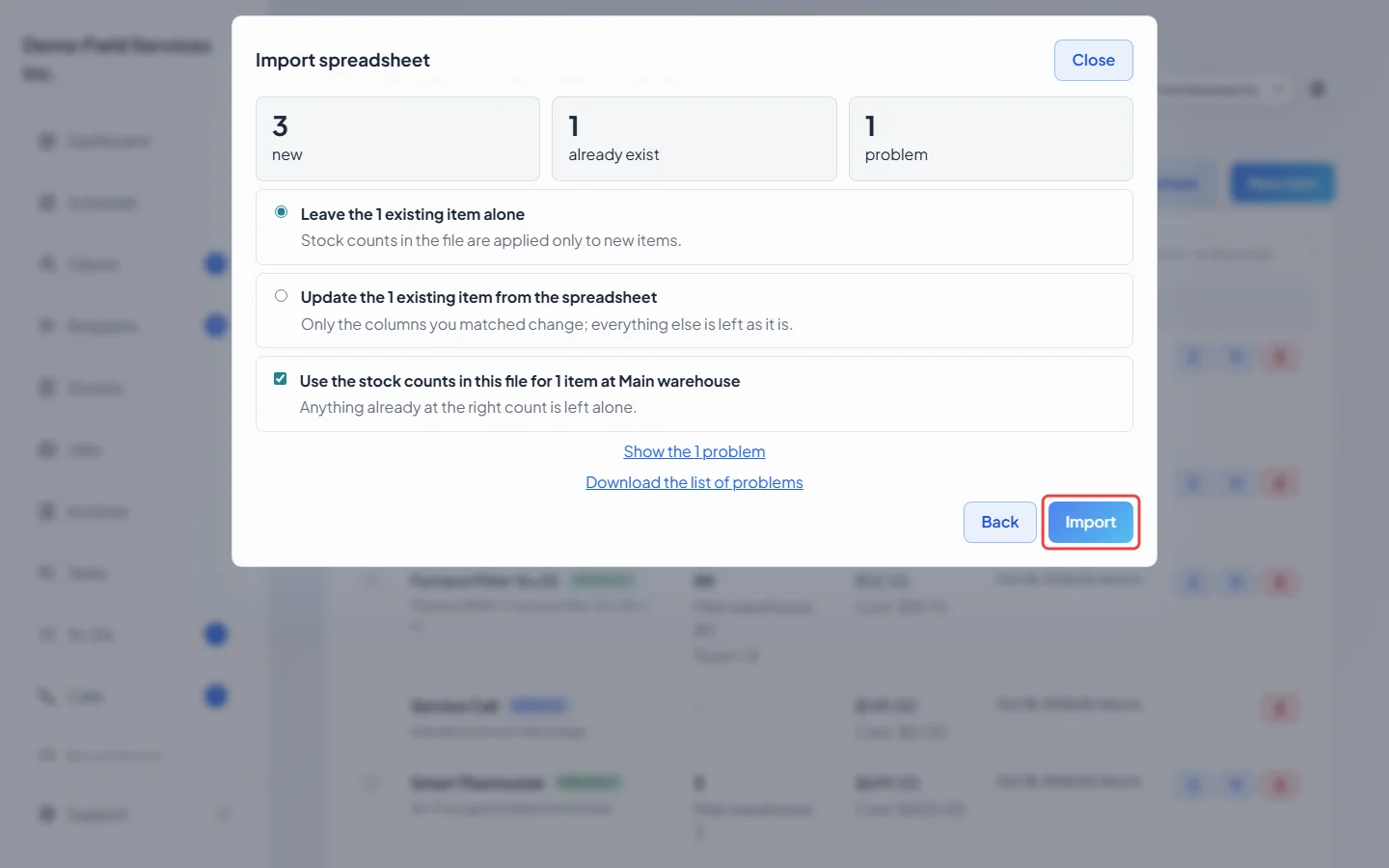
Read the summary: how many items are new, how many already exist, and how many rows have problems. Click the link (for example “Show the 2 problems”) to see them, or Download the list of problems. If some items already exist, choose whether to leave them alone (the default) or update them from the file. Updating only changes the columns you matched. If you matched a stock column, a tick box (“Use the stock counts in this file for…”) decides whether the counts are set; untick it to skip them.
-
Click Import. Astragal tells you how many items were added, updated and skipped. Nothing is written to your catalog until you press this button, so you can close the window before then without changing anything.
Filling an option price table from a price sheet
Section titled “Filling an option price table from a price sheet”-
Open the product, find the option group’s price table, and click Import from a spreadsheet under it. (The table only exists for a group set to Depends on other choices or Per unit of measure; a per-unit sheet needs a per-unit column too. See Product options and their prices.)
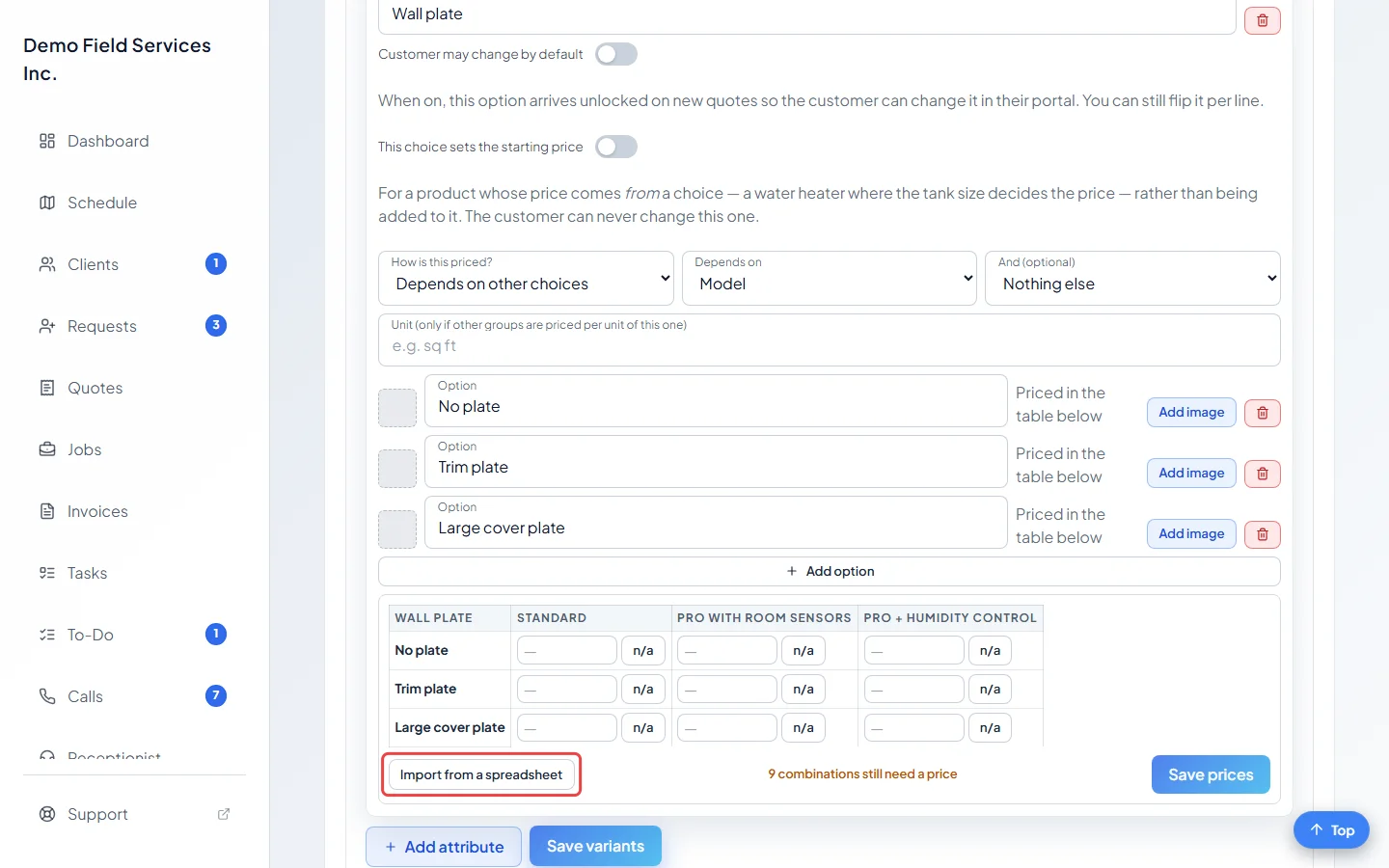
Then choose the file. It needs one row per combination: the choice, the choice it depends on, and the price. An optional yes/no column marks combinations you don’t offer. Match each column and click Review. Read how many prices will be added and changed, then click Import. The file replaces the group’s whole table: if prices you have now aren’t in the file, Astragal says how many will be removed, and you must tick the box to agree before it will run.
Good to know
Section titled “Good to know”- Items are matched to your catalog by name, ignoring capitals and extra spaces. Archived items count, so a re-import doesn’t bring back a copy of something you archived.
- If the prices look like another currency, Astragal offers to convert them once, showing the rate and a few examples first. Click Import the numbers as they are to skip it.
- Stock counts mean “this is how many I have”, so uploading the same file twice changes nothing. Counts only go to new items when you leave existing items alone, and they’re skipped for services and items that don’t track stock.
- Rows with a problem, such as an unreadable price, are skipped and listed. The rest of the file still imports.
- Suppliers and product options aren’t part of a catalog import. Add them on the item afterwards.
- Quotes, jobs and invoices you already made keep their prices.
Related articles
Section titled “Related articles”Checked against Astragal on October 17, 2026