

Services customers can book
Choose what customers can book online, how long each service takes, what it costs and who can do it.
Who can do this: Admins and dispatchers.
Also called: booking types, service menu.
-
Open Online booking in Settings and scroll to Services customers can book.
On a computer: Left menu → Settings → Online booking On a phone: More → Settings → Online booking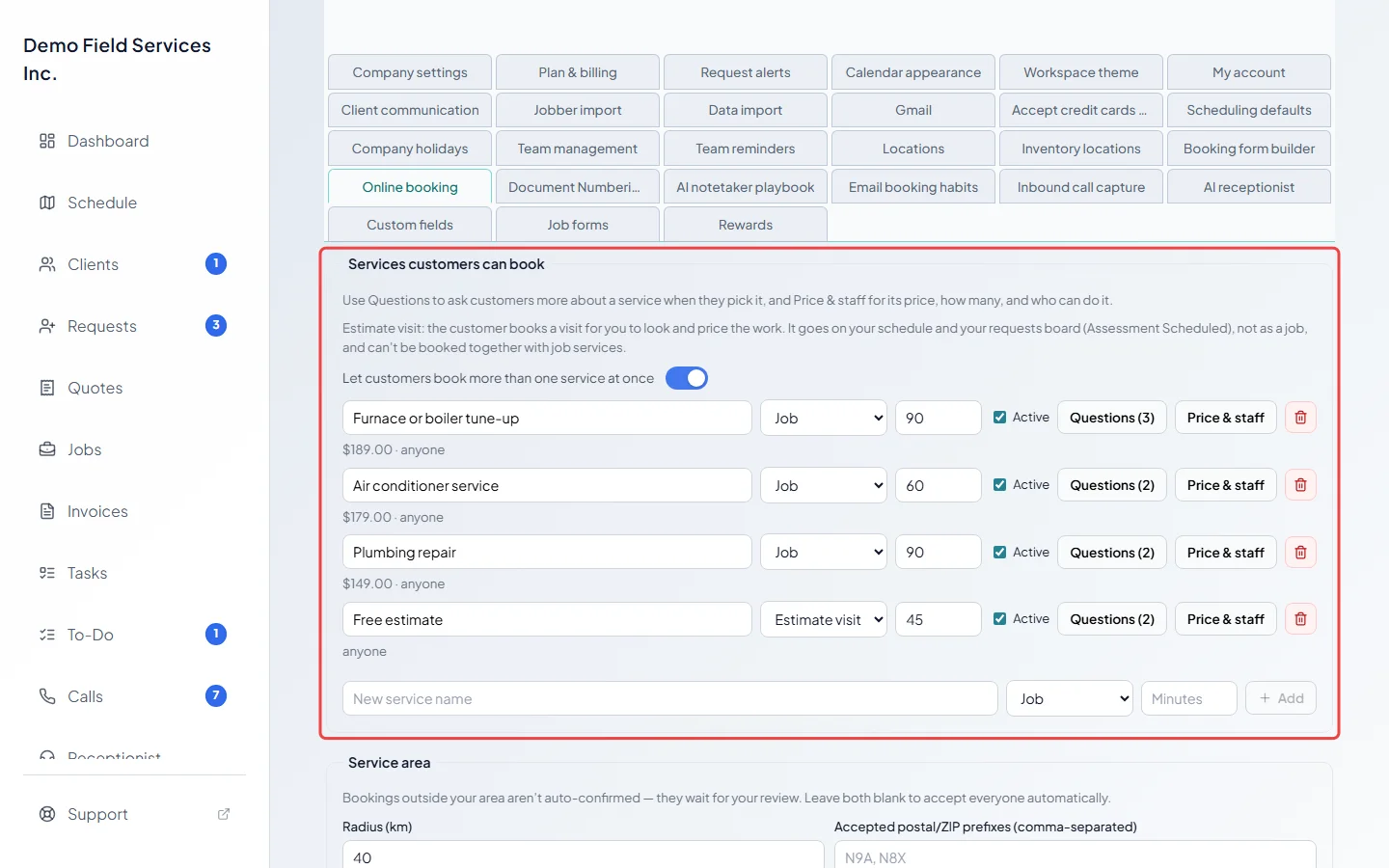
-
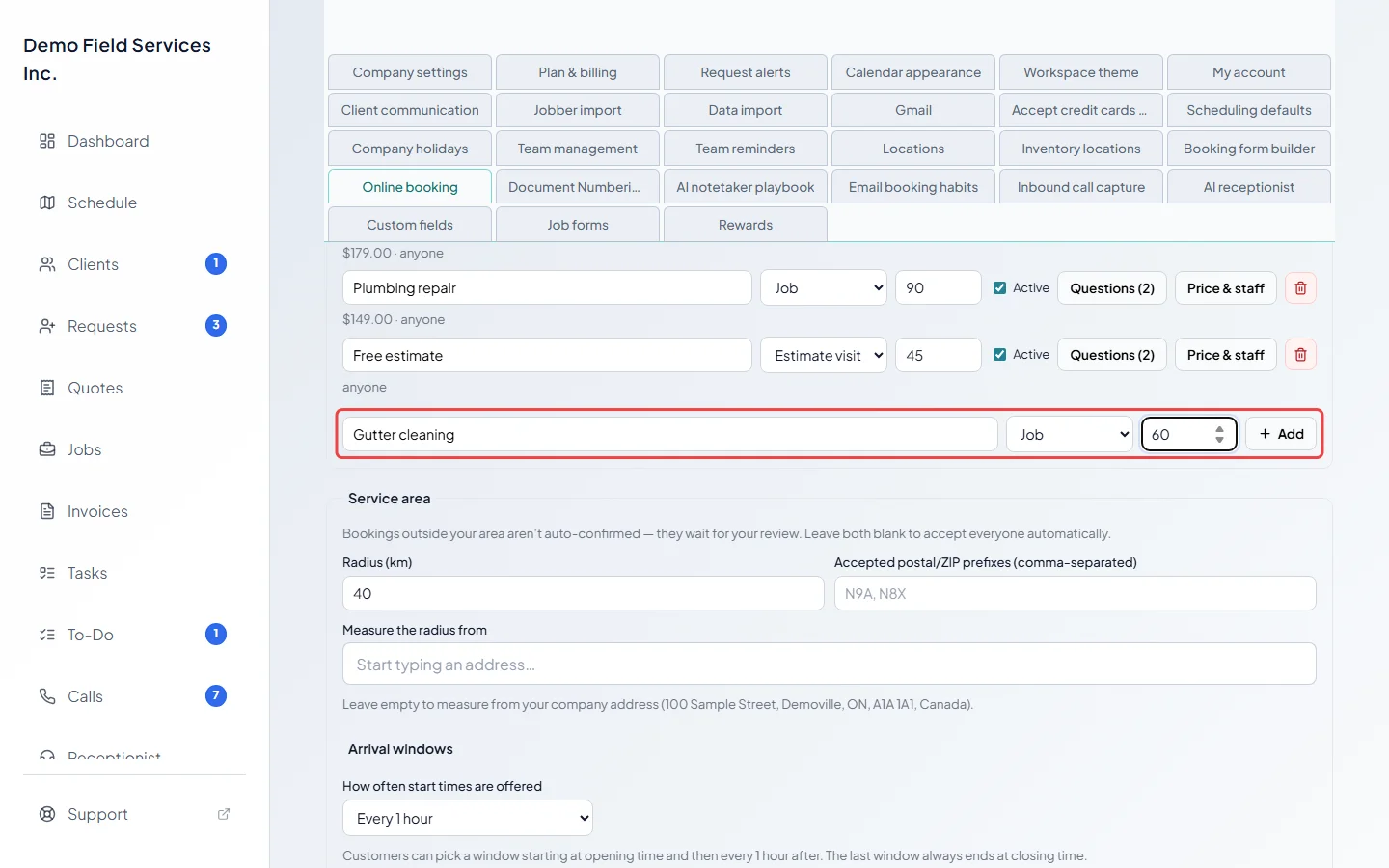
To add a service, type a New service name, pick Job or Estimate visit, type how many Minutes it takes (at least 15; leave it blank to use your company’s default length) and click Add.
-
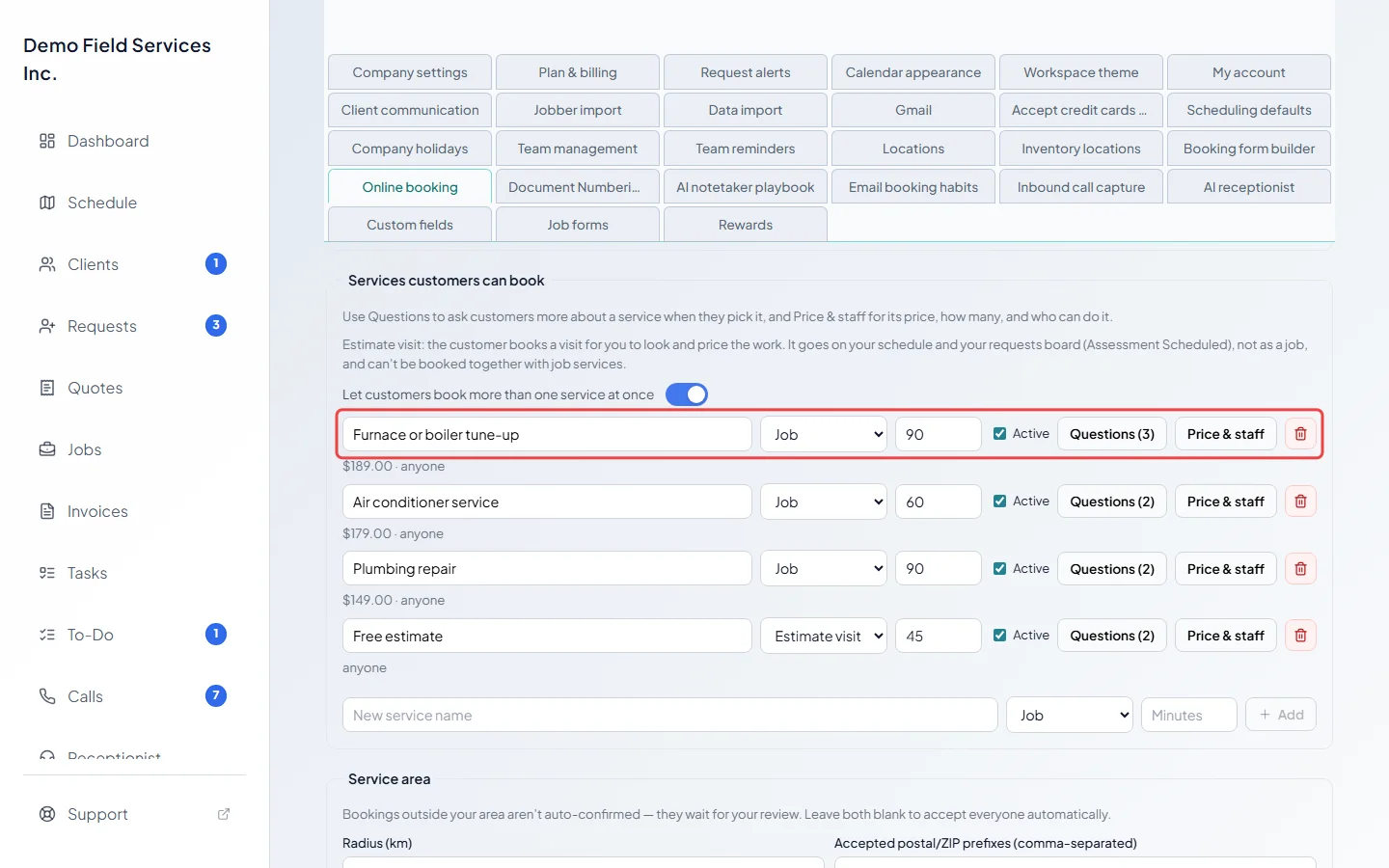
To change a service, edit it right on its row. A new name or a new length saves when you click out of the box (a length can be changed but not cleared). Untick Active to hide it from customers without deleting it. The bin deletes the service (and its questions) after you confirm.
-
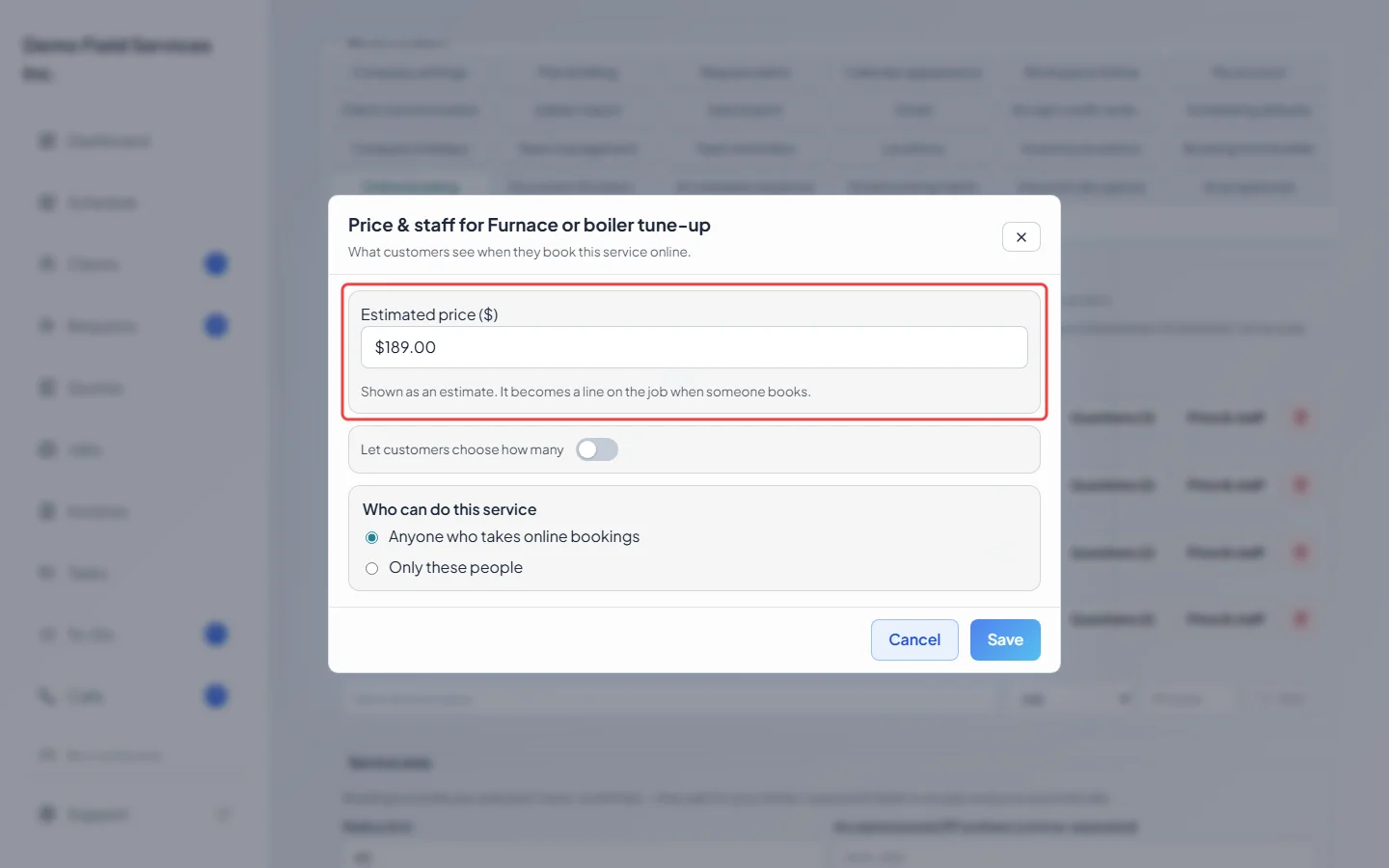
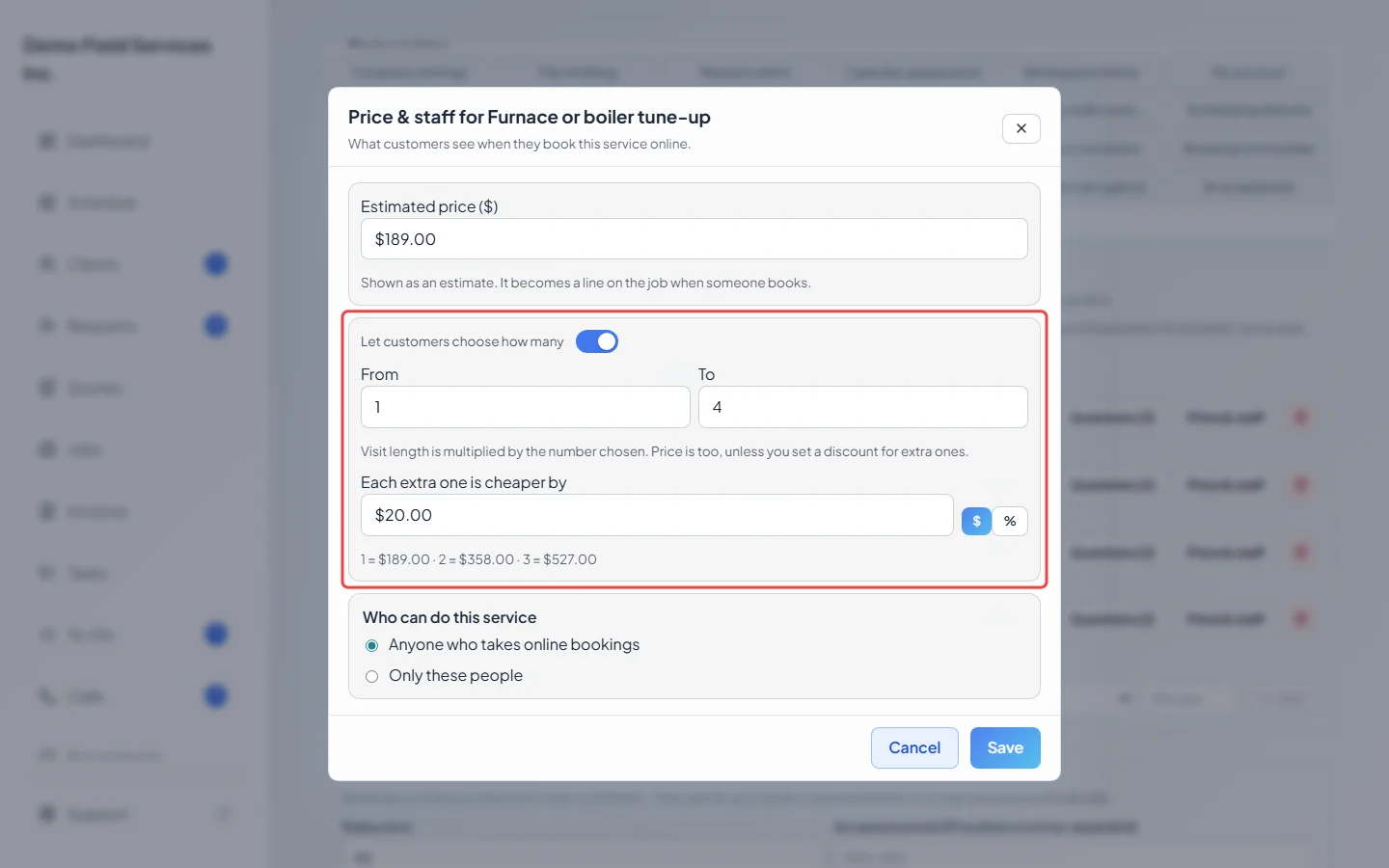
Click Price & staff beside a service. Type an Estimated price. Customers see it as an estimate, and when someone books it becomes a line on the job. Leave it blank to show no price, or type 0 to show it as Free.
-
Turn on Let customers choose how many and set From and To (for example 1 to 4). The visit length is multiplied by the number the customer picks, and so is the price. Once a price above zero is entered, Each extra one is cheaper by appears: type an amount and pick money or %. The first one is full price and every extra one costs less; the line under the box works out the first few totals for you. If the service has no length yet, you’re asked How long does one take? (minutes) first.
-
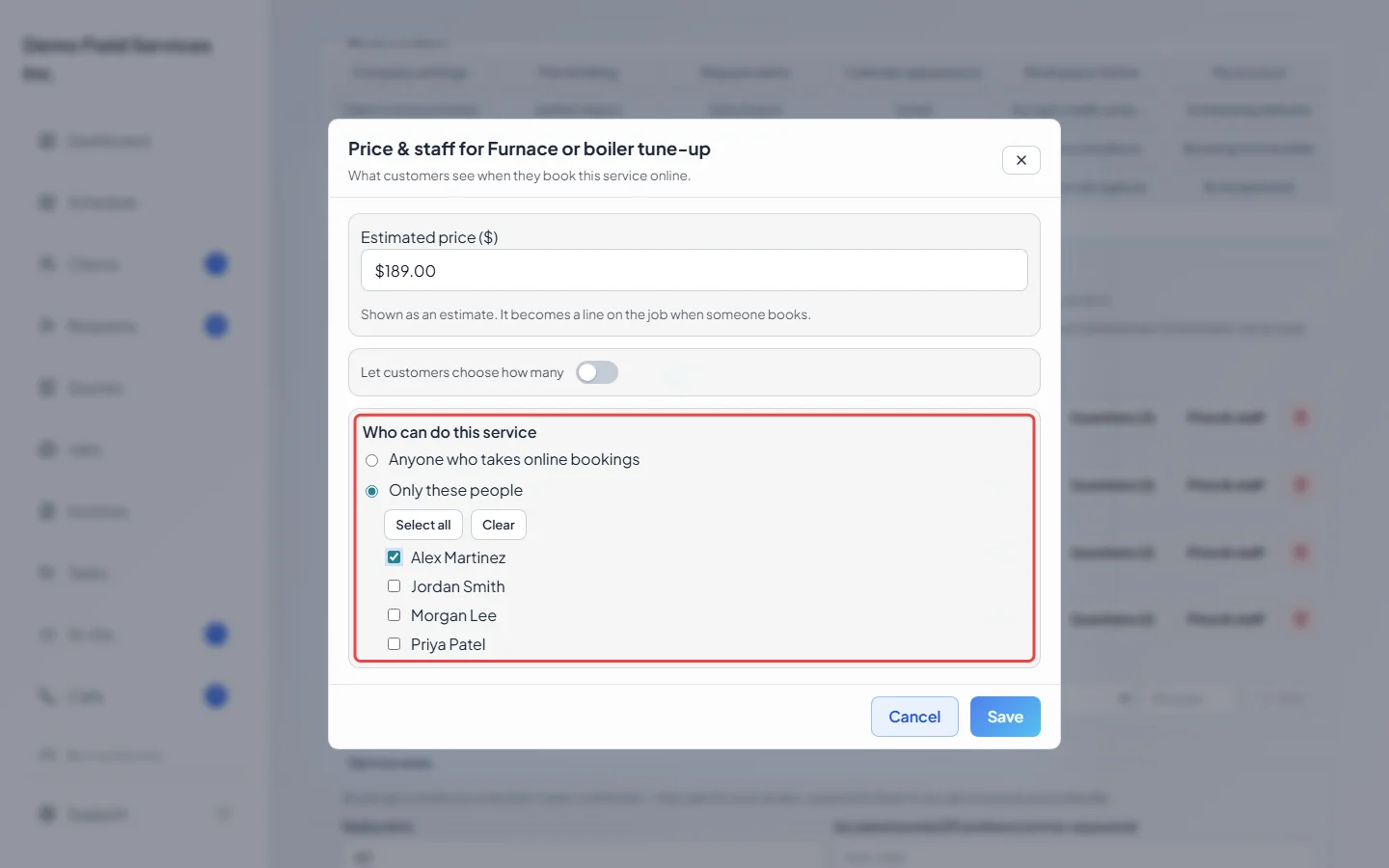
Under Who can do this service, choose Anyone who takes online bookings or Only these people and tick the people. Customers are only offered times when one of them is free. Click Save. A short line under the service sums up what you set (price, how many, extra-one discount, and who).
Booking several services in one visit
Section titled “Booking several services in one visit”Let customers book more than one service at once is on unless you turn it off. With it on, customers can pick up to 10 services (and how many of each) and book them as one visit. The page shows each service with its price and an estimated total, and only offers times long enough for everything picked, with one person who can do all of it. If nobody can, the other service is greyed out with “Can’t be booked together with … online”. Turn the switch off to let customers pick just one service.
On the job, the priced services become lines and the full length is already filled in. The customer’s confirmation and your office alert list the services, how many and the prices.
Estimate visits
Section titled “Estimate visits”A service set to Estimate visit lets a customer book a visit for you to look at the work and price it. No job is made:
- It goes on your schedule and on your requests board under Assessment Scheduled, marked as booked online. On the schedule it reads “Estimate:” and the customer’s name.
- The customer gets your booking confirmation with a private link to move or cancel it. The same cutoffs apply as for jobs.
- If the booking page waits for your approval, or the booking needs a look first, it comes in as a request instead. Confirm the time with Schedule assessment; see Booking an assessment visit.
- Estimate visits and job services can’t be booked together. Once a customer picks one kind, the other kind says “Estimate visits are booked on their own — book this one separately.”
- When you turn it into a job on the same day, the customer’s link moves to the job’s visit: they can still cancel online, but moving it asks them to call you. Turned into a job on another day, or into a quote, the old link stops working and tells the customer to contact you.
Good to know
Section titled “Good to know”- A service set to Only these people where nobody can be booked online shows a red Nobody can be booked tag, and customers are asked to call you to book it. Turn one of the people on under Technicians available for online booking, or change who can do it.
- Turning a person off asks first if it would leave a service with nobody.
- If your jobs add tax, prices on the booking page say “plus tax”. A price can be at most 1,000,000; use a dot for cents (whole amounts only in a currency without cents).
- The discount for extra ones can’t be more than the price.
- Changing a price or a length never changes a booking that was already made. A customer who has the page open when you change a service is asked to check their picks again.
- To ask more about a service when it’s picked, click Add questions, see Extra questions per service.
Related articles
Section titled “Related articles”Checked against Astragal on October 18, 2026