

Operations reports
Seven short reports that show how work is flowing through each part of the business.
Who can do this: Anyone who can open Reports (see The reports page). Workforce ops also needs an office role, or a technician allowed to View/record/edit everyone’s time.
Also called: ops reports.
-
Open Reports and pick Requests & leads. The figures are “Leads created”, Requests created, “Qualified rate” (leads now qualified, quoted or won) and “Follow-up backlog” (leads created in the period, not won or lost, whose follow-up date is on or before the End date). The Lead stages chart and Requests and leads by source table show where they came from.
On a computer: Left menu → Reports On a phone: More → Reports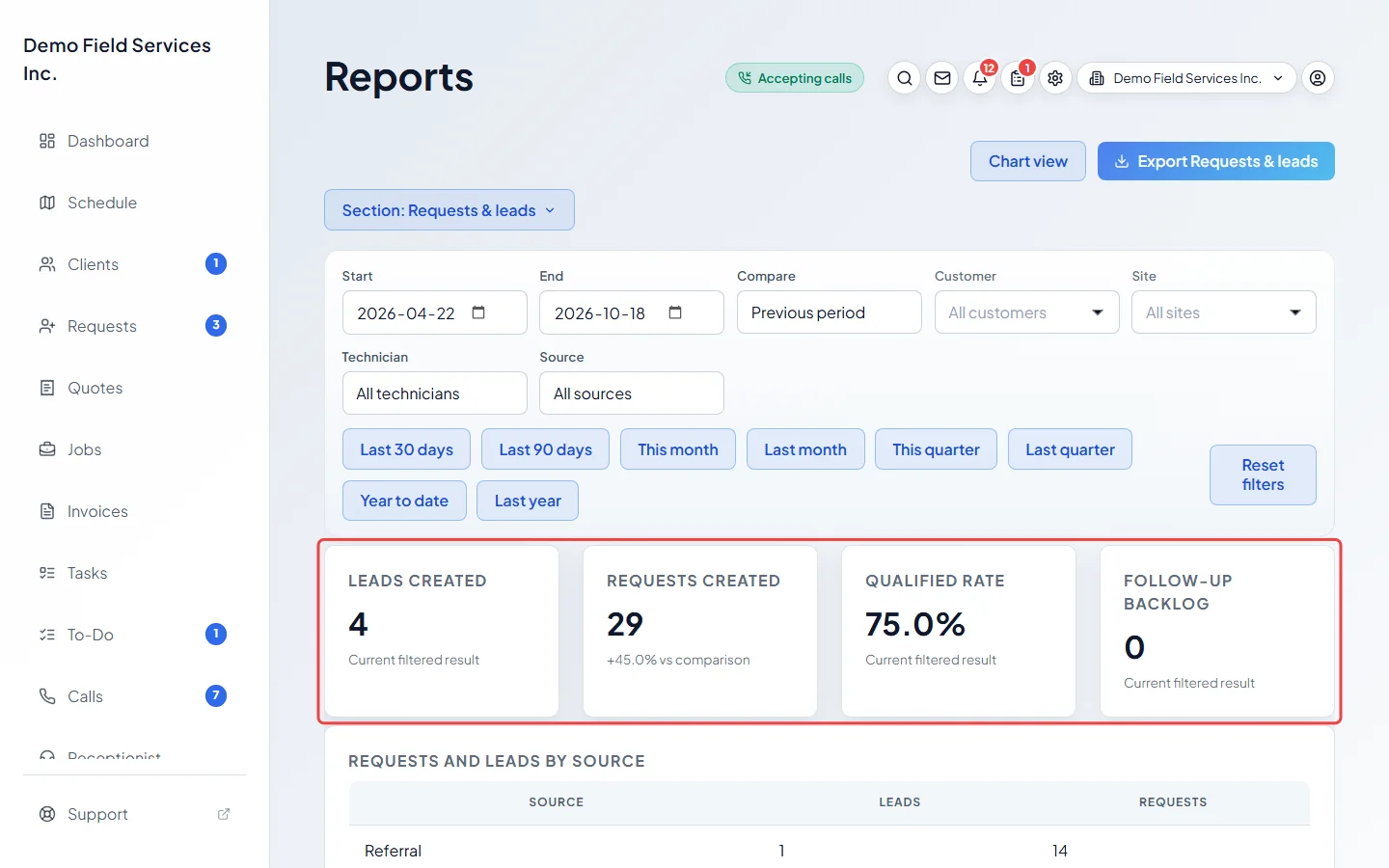
-
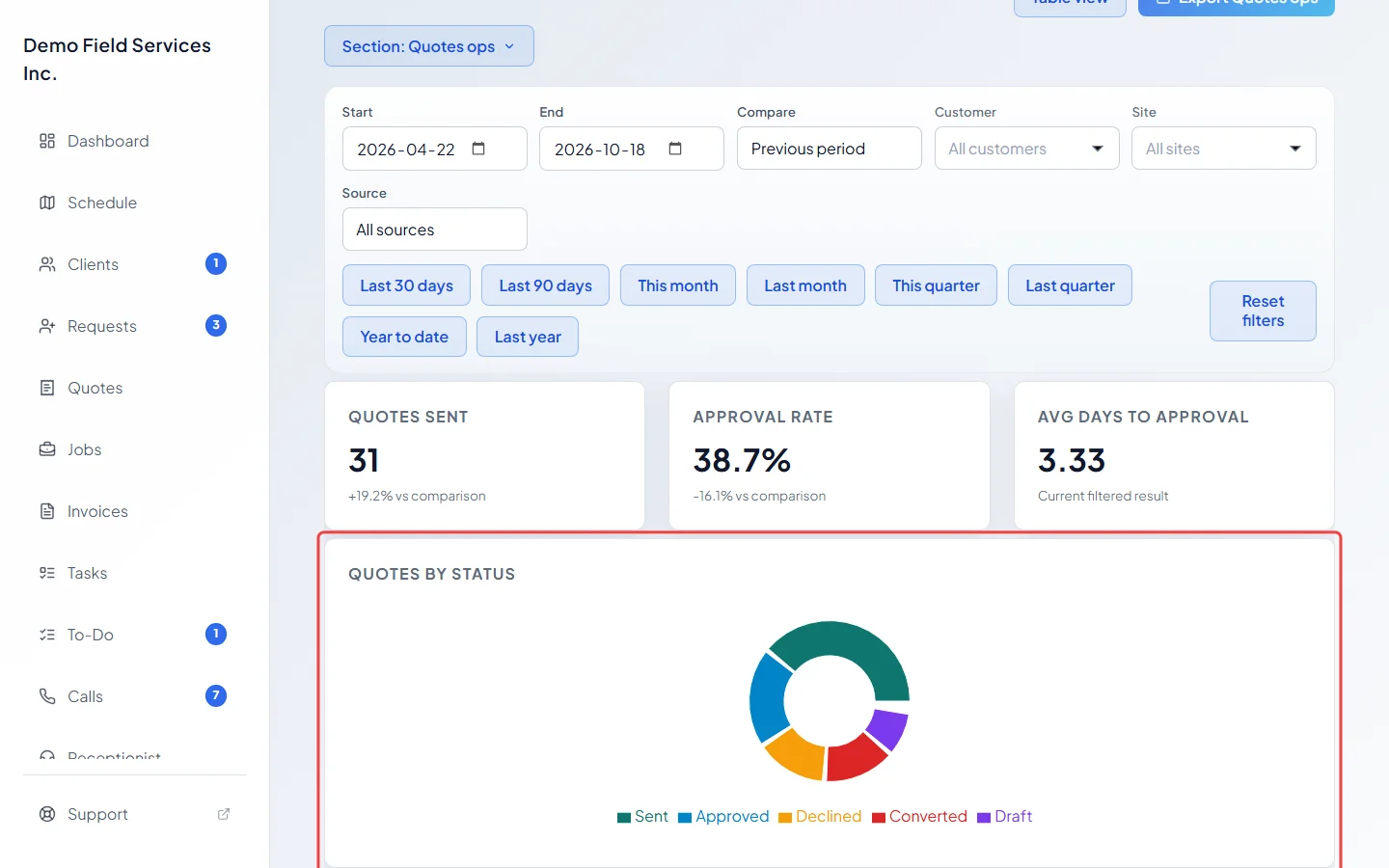
Pick Quotes ops. For quotes created in the period, “Quotes sent” counts those no longer drafts, “Approval rate” is how many of those were approved, and “Avg days to approval” is days from creation to approval. Quotes by status (chart view) and the Quote status breakdown give the count and total value per status.
-
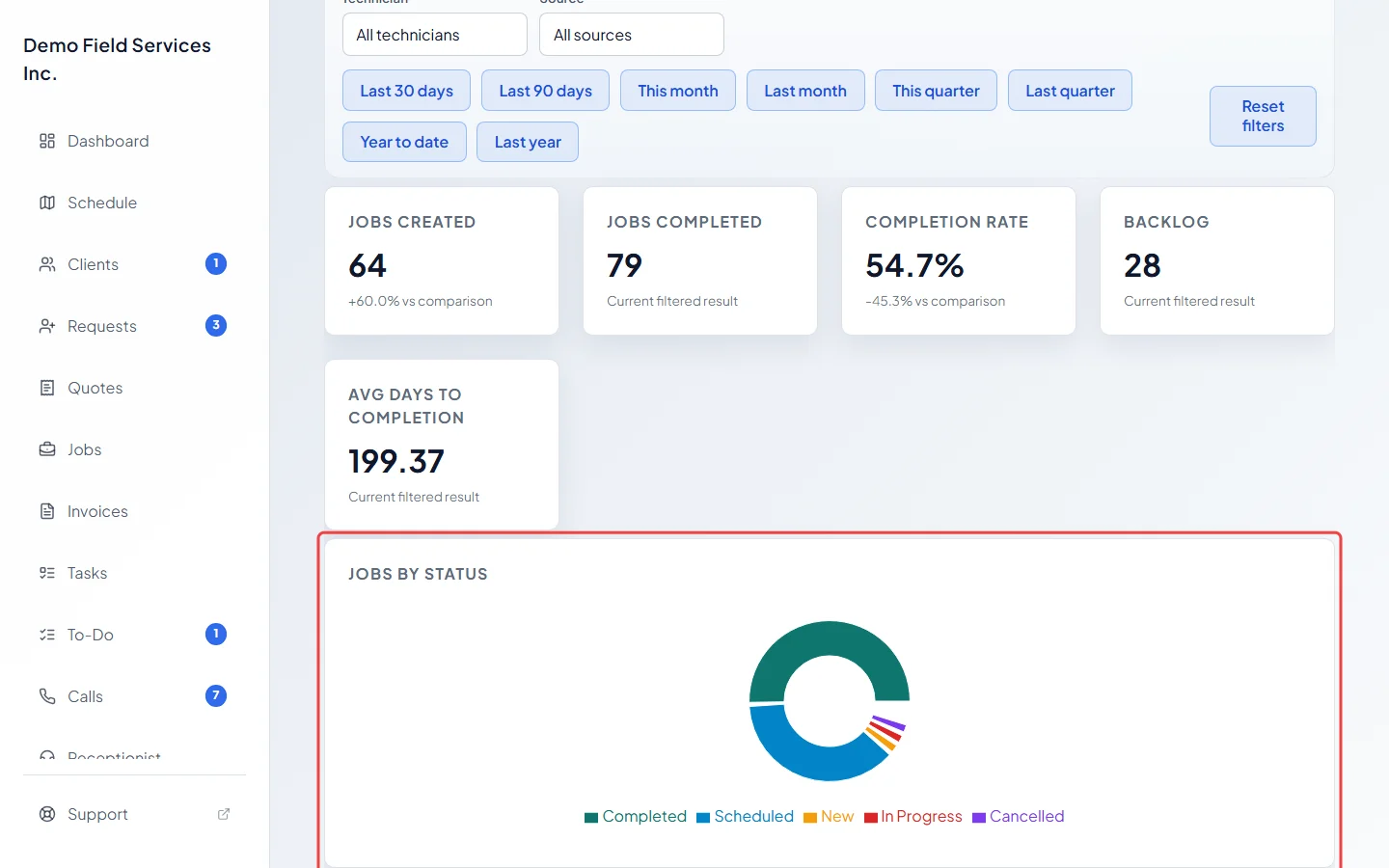
Pick Jobs ops for Jobs created, “Jobs completed”, “Completion rate” (of the jobs created in the period, how many are now complete), Backlog (jobs new, scheduled or in progress right now) and “Avg days to completion”, with Jobs by status (chart view) and the Job status breakdown table.
-
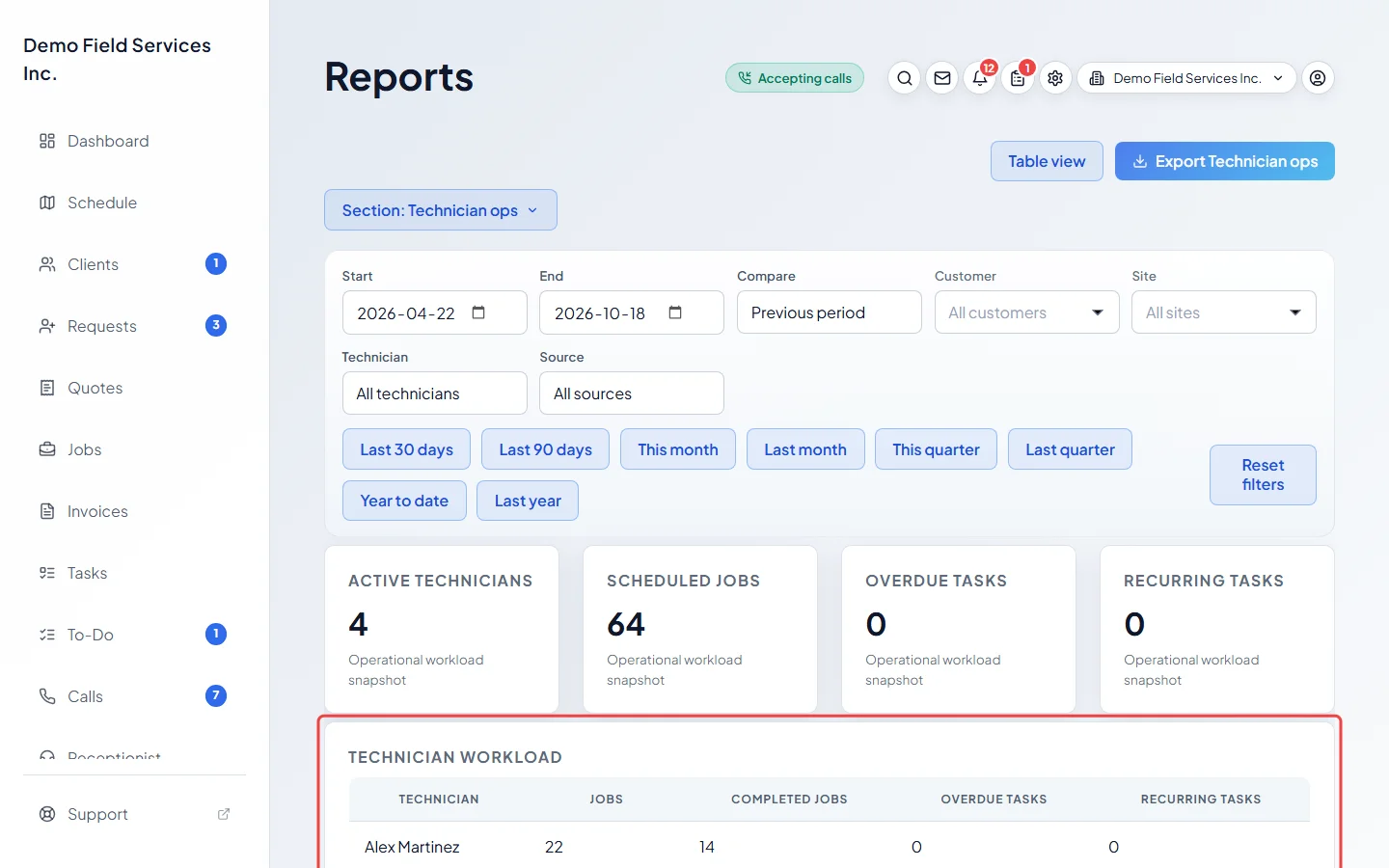
Pick Technician ops for each technician’s Jobs, Completed jobs, Overdue tasks and Recurring tasks. Jobs are counted under the job’s main technician. The figures at the top are “Active technicians”, “Scheduled jobs” (every job created in the period, whatever its status), “Overdue tasks” and “Recurring tasks”. Work with nobody assigned shows as “Unassigned”.
-
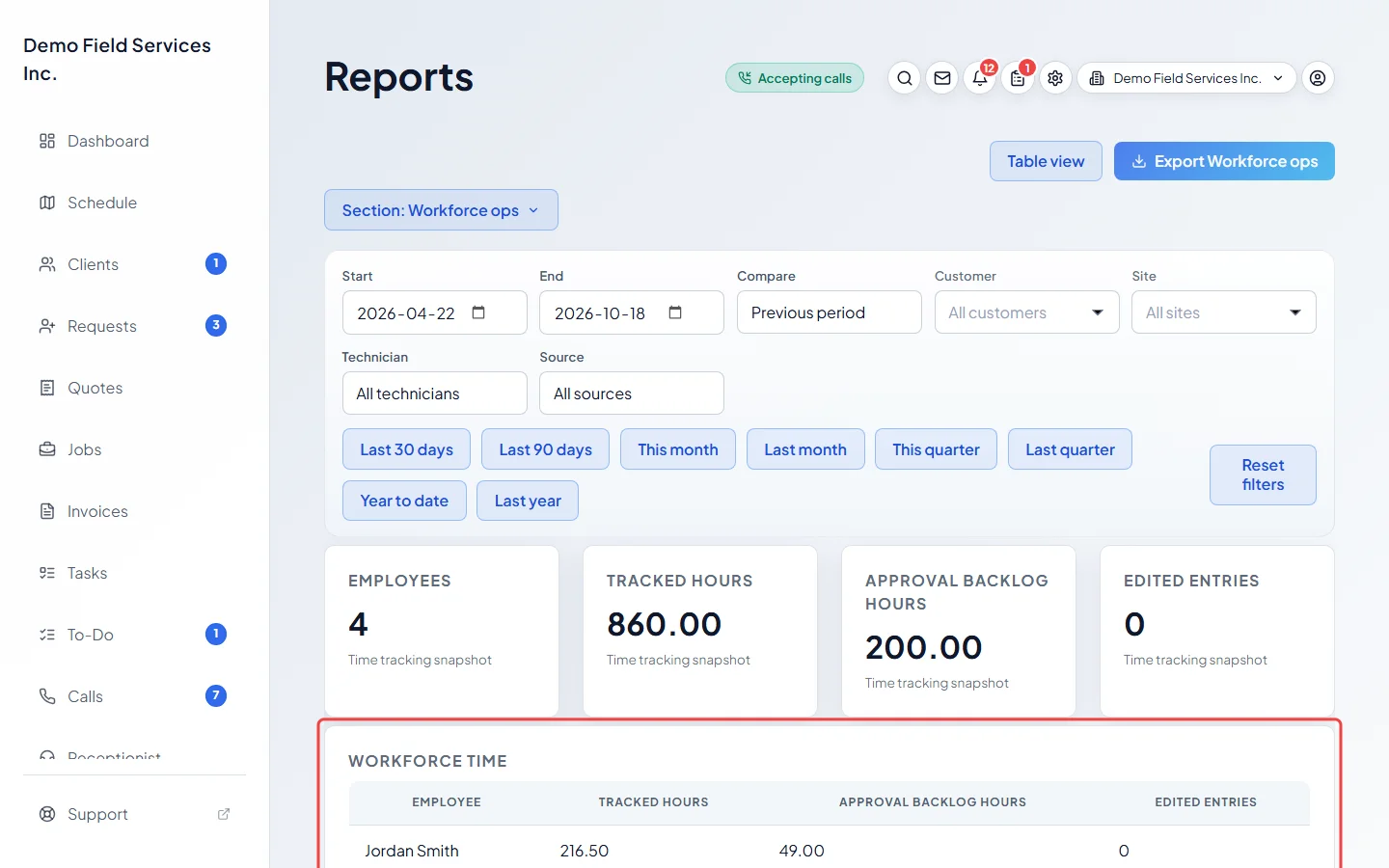
Pick Workforce ops for the time your team tracked: Tracked hours, Approval backlog hours (hours not yet approved) and Edited entries (how many changes were made to shifts, including shifts added by hand or clocked in or out by someone else), per person.
-
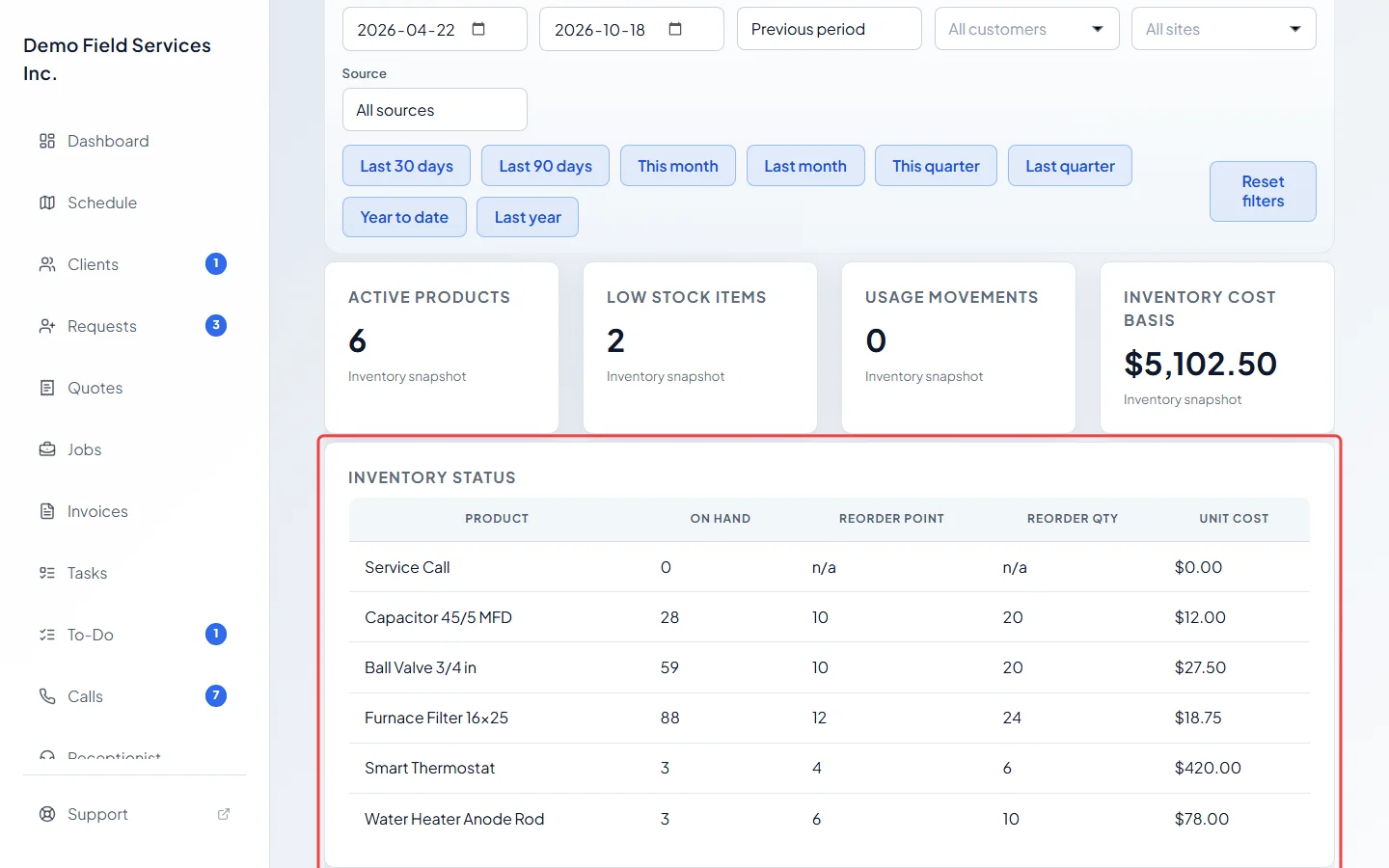
Pick Inventory ops for “Active products”, “Low stock items” (at or below their reorder point), “Usage movements” in the period and “Inventory cost basis” (on-hand quantity times unit cost). The Inventory status table lists every active product with On hand, Reorder point, Reorder qty and Unit cost.
-
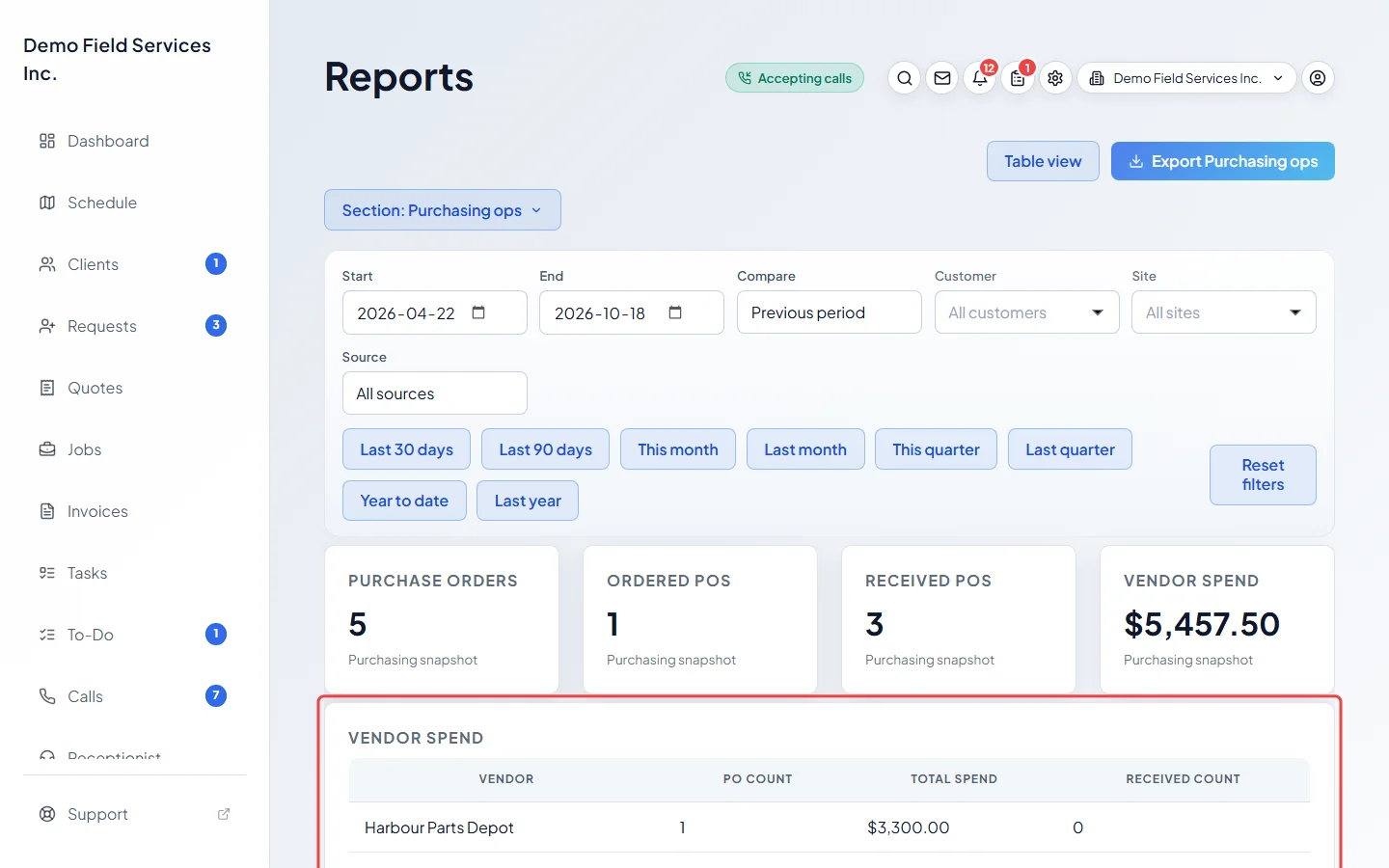
Pick Purchasing ops for Purchase orders, “Ordered POs” (ordered but not yet received), “Received POs” (received or closed) and Vendor spend (the total of every purchase order created in the period, drafts included), with Vendor spend per supplier.
Good to know
Section titled “Good to know”- “Jobs completed” (here and on Overview) dates a completed job by the last time it was changed, so editing an old completed job moves it into the current period.
- Technician ops counts jobs created in the period and tasks scheduled to end in it. A task is overdue when it isn’t done and its end is before the End date.
- Inventory ops and Purchasing ops ignore the client, property, technician and source filters. Stock figures are always today’s.
- Workforce ops counts shifts by their work day, and uses only the dates and Technician. Approved hours are approved in Approving timesheets.
- For every shift in detail, use Timesheets and team productivity.
Related articles
Section titled “Related articles”Checked against Astragal on October 17, 2026