

Importing from Jobber
Connect your Jobber account once and Astragal copies your records across for you, without any spreadsheets.
Who can do this: Admins.
Also called: Jobber sync, moving from Jobber.
For the big picture, and the spreadsheet route, see Moving your data from Jobber or another app.
-
Open Jobber import. Until you connect, the card says “No Jobber account connected yet.”
On a computer: Left menu → Settings → Jobber import On a phone: More → Settings → Jobber import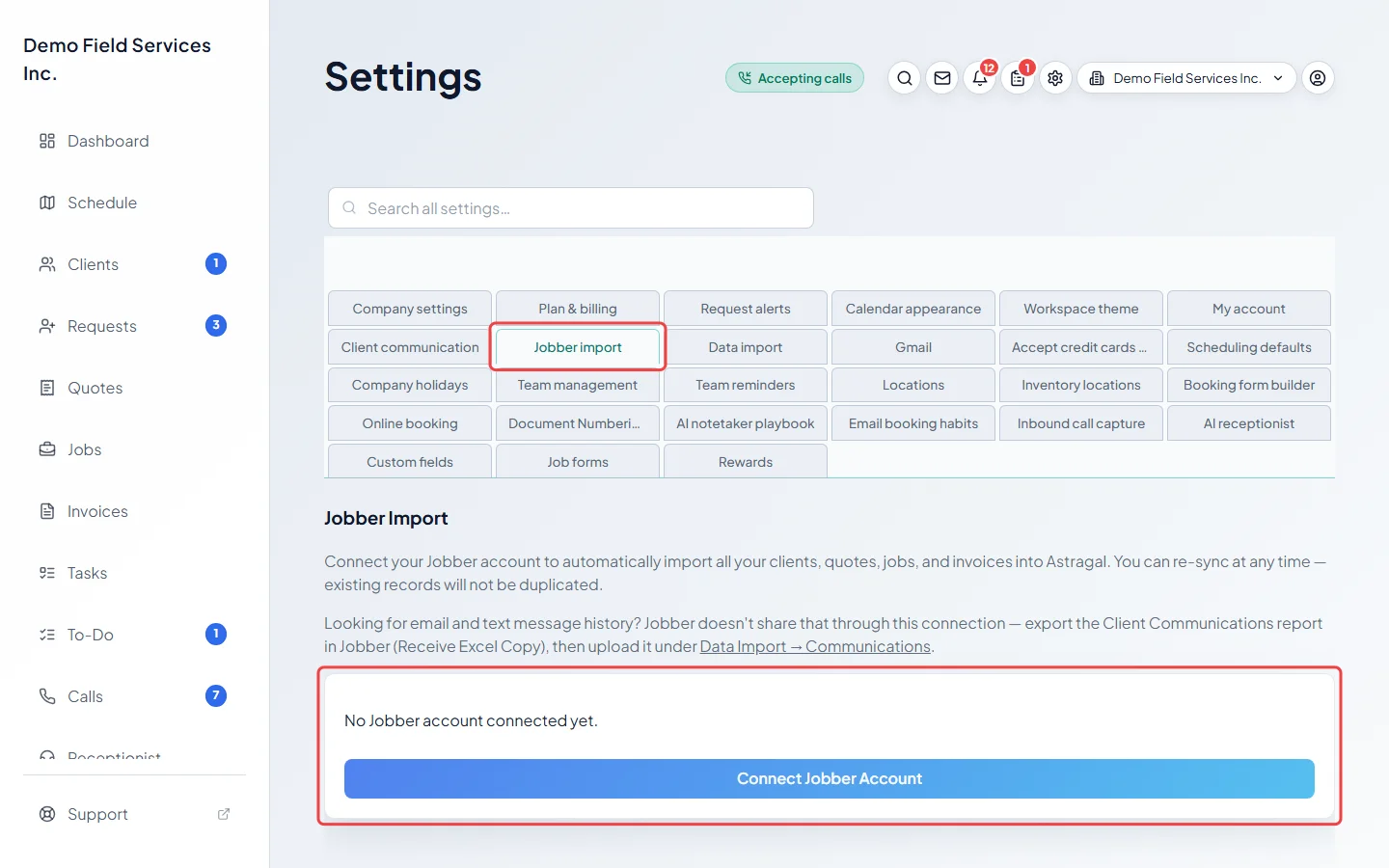
-
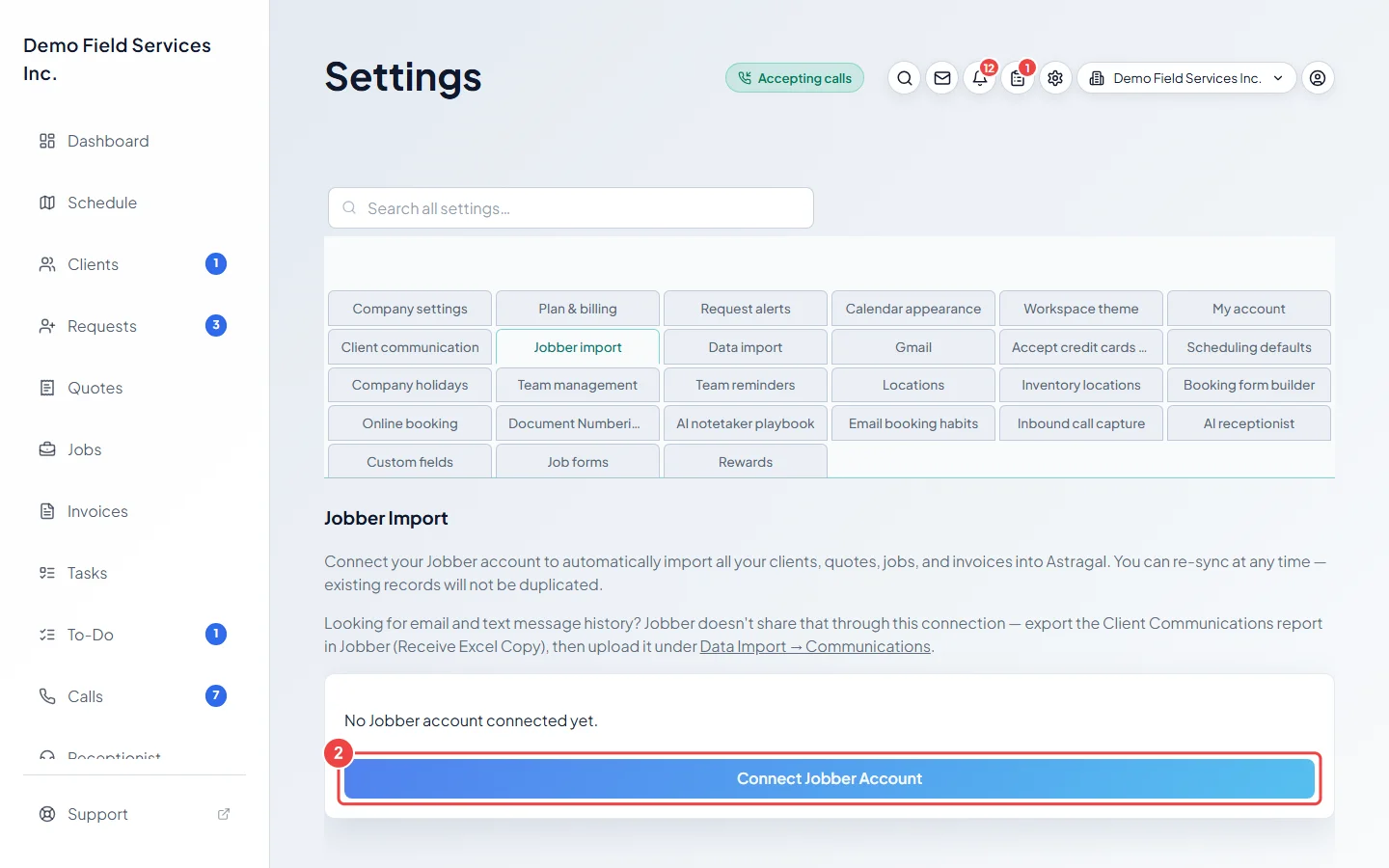
Click Connect Jobber Account. A small window opens: sign in to Jobber there and allow access. The button reads Waiting for Jobber… until you finish. When the window closes, the card changes to ✓ Connected to Jobber. Click Sync All to start copying. What each button does is explained below.
-
When your records are in, bring across your email and text history. Jobber doesn’t share it through the connection, so in Jobber export the Client Communications report (Receive Excel Copy). Then open Data import, set Import type to Communications, click Choose file, pick the report and click Upload and preview. Each message is matched to an existing client by name, email or phone. See Importing a spreadsheet.
On a computer: Left menu → Settings → Data import On a phone: More → Settings → Data import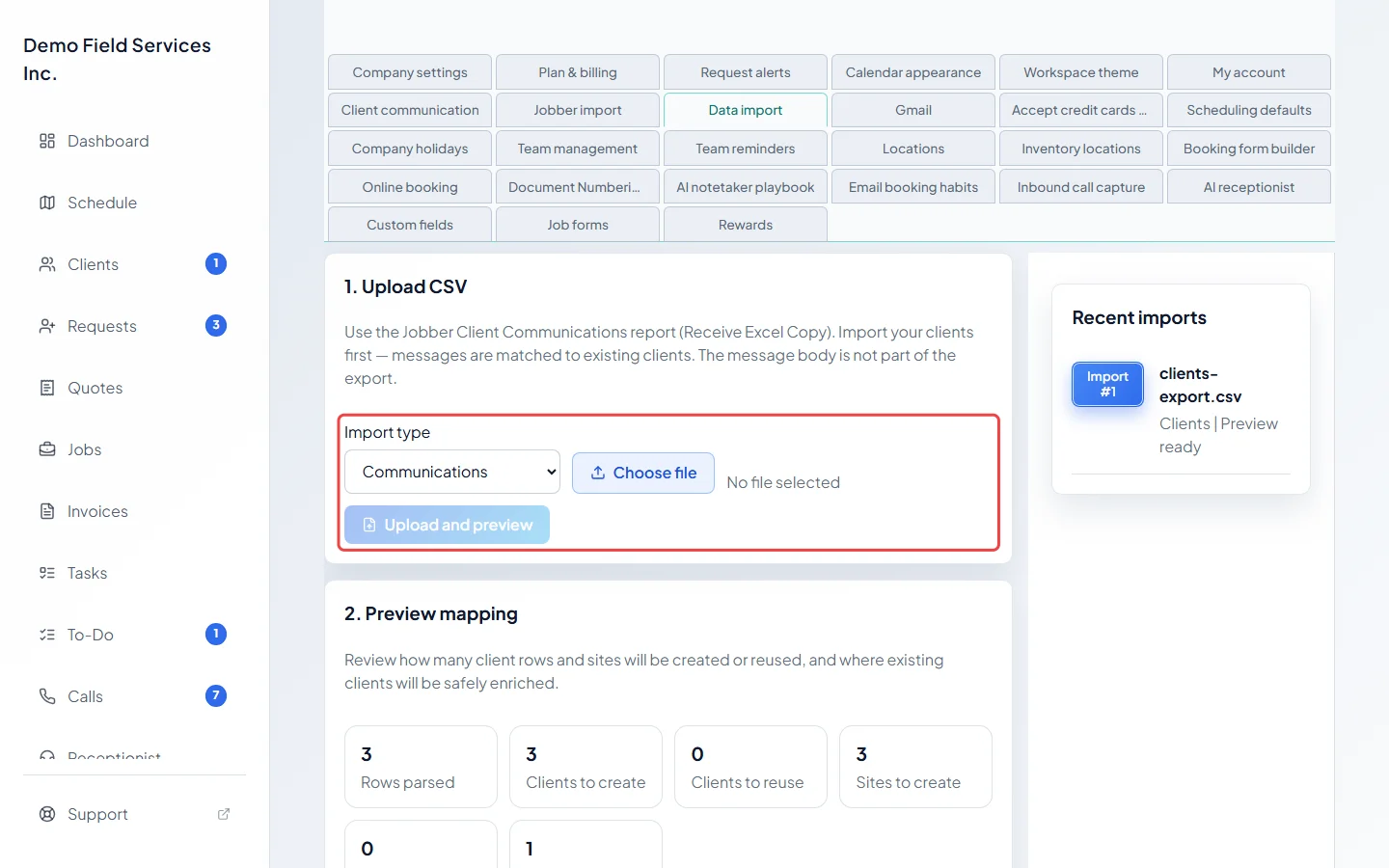
The buttons once you’re connected
Section titled “The buttons once you’re connected”- Sync All copies your clients, requests, quotes, jobs and invoices, and links them together at the end.
- Sync Products & Services copies your price list.
- Sync Files & Images copies the files and photos attached to your Jobber records.
- Sync tasks copies your tasks. Run it after your clients are in.
- Sync timesheets copies your team’s time entries.
- Import by client name (A–Z): pick one or more letters, then click the Import button (it shows how many letters you picked) to copy every client whose name starts with them, with all their requests, quotes, jobs and invoices. Use # for names that start with a number or symbol, and Clear to start your choice again. This lets you move a large account a few letters at a time.
- Clean up duplicates looks for requests, quotes, jobs and invoices that were copied twice (same client, title and time) and deletes the extra copies, keeping the most complete one. It asks before deleting.
- Disconnect unlinks your Jobber account. Everything already imported stays in Astragal.
While it runs
Section titled “While it runs”The card shows each kind of record with a count, a tick when it’s done, a progress bar and the time taken so far. You can leave the page; the import carries on. Cancel Import stops it, and what’s already been copied stays.
When it finishes, a summary shows how many new records were added of each kind. If an import stops part-way, the card says Import failed with the reason. Click Retry (or Retry letters for a letter import) to carry on; records already copied aren’t copied again.
Good to know
Section titled “Good to know”- Syncing again won’t copy records this connection already brought in. Clients you added yourself or imported from a spreadsheet aren’t matched, so pick one route per record; look-alikes appear in duplicate review.
- Each sync also brings over your Jobber custom fields and timesheets. Anyone on a timesheet is added as a team member who can’t sign in.
- Connecting Jobber has to be done on a computer. In the iPhone app the card explains this instead of showing the button.
- If the sign-in window doesn’t open, allow pop-ups for Astragal, reload the page, and click Connect Jobber Account again.
- Imported jobs keep your Jobber job numbers. To carry on numbering new work from where Jobber left off, see Document numbering.
Related articles
Section titled “Related articles”Checked against Astragal on October 18, 2026