

The map
The Schedule Map shows where a day’s work is, so you can see who is going where and plan the drive.
Who can do this: Admins, dispatchers and accountants see any team member’s day. Technicians see their own day.
Also called: route map, dispatch map.
-
Open the Schedule and click the Map button at the top. It opens the day you’re looking at.
On a computer: Left menu → Schedule → Map On a phone: Bottom bar → Schedule → Map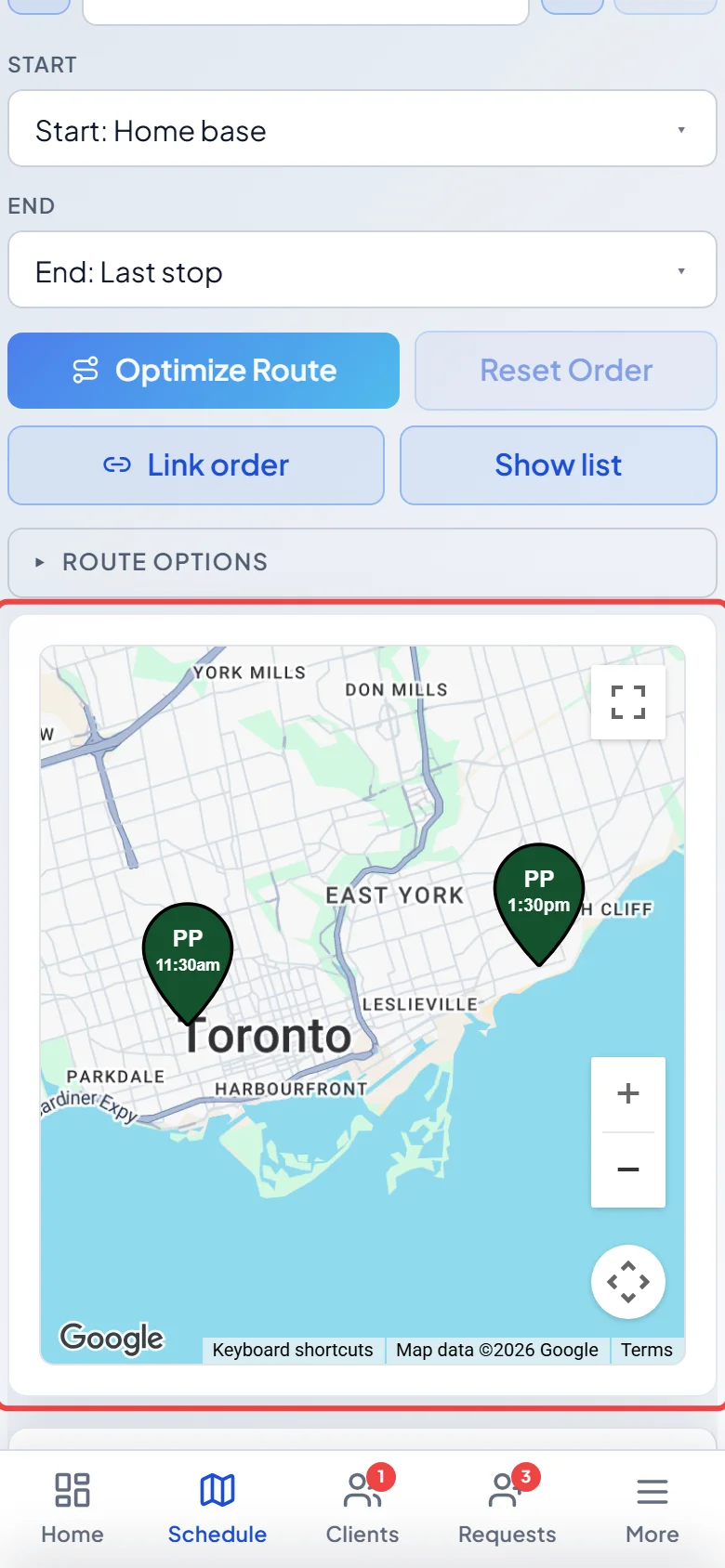
-
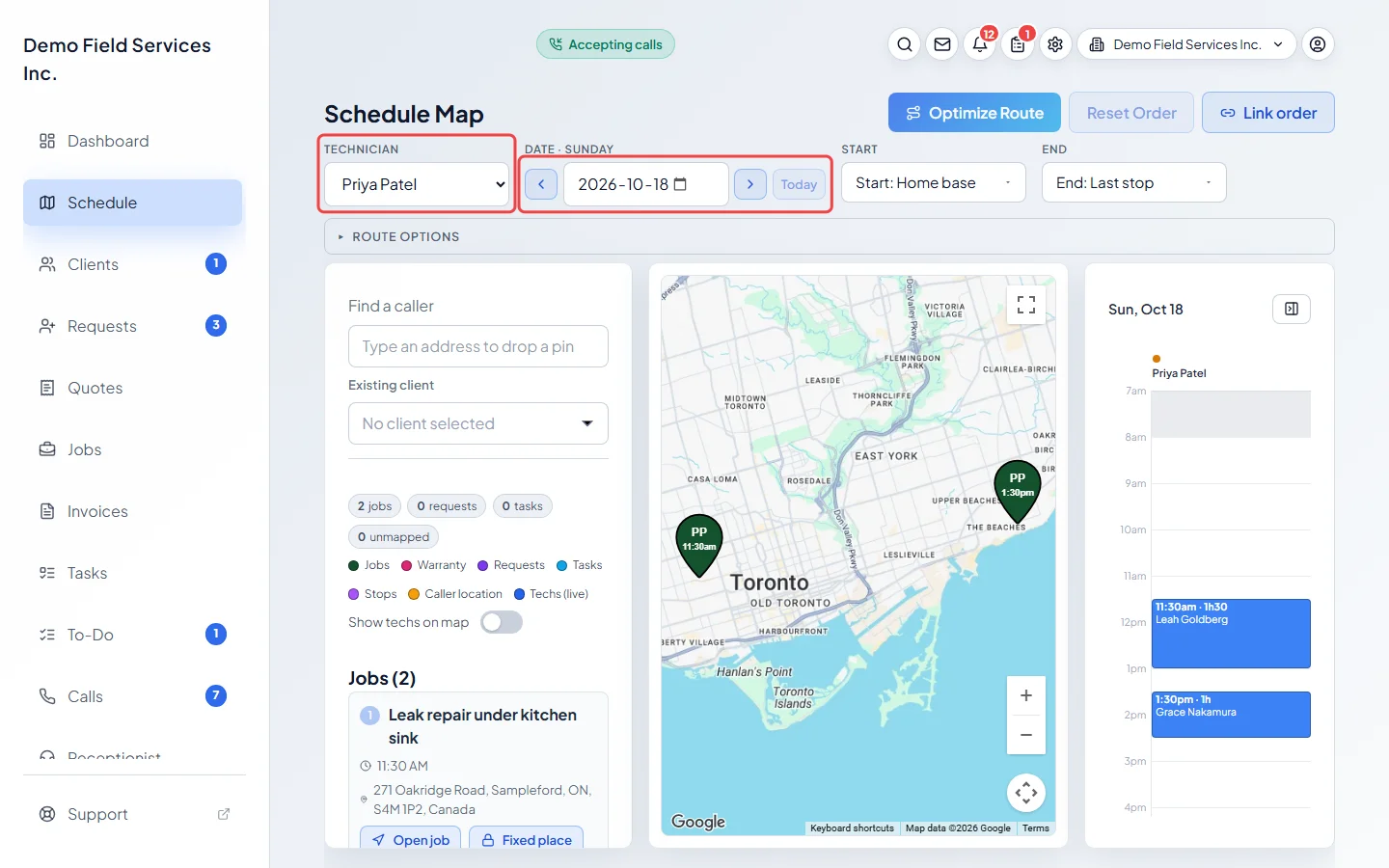
Pick a team member under Technician, or All technicians to see everyone. Use the arrows beside the date, or click Today, to change the day.
-
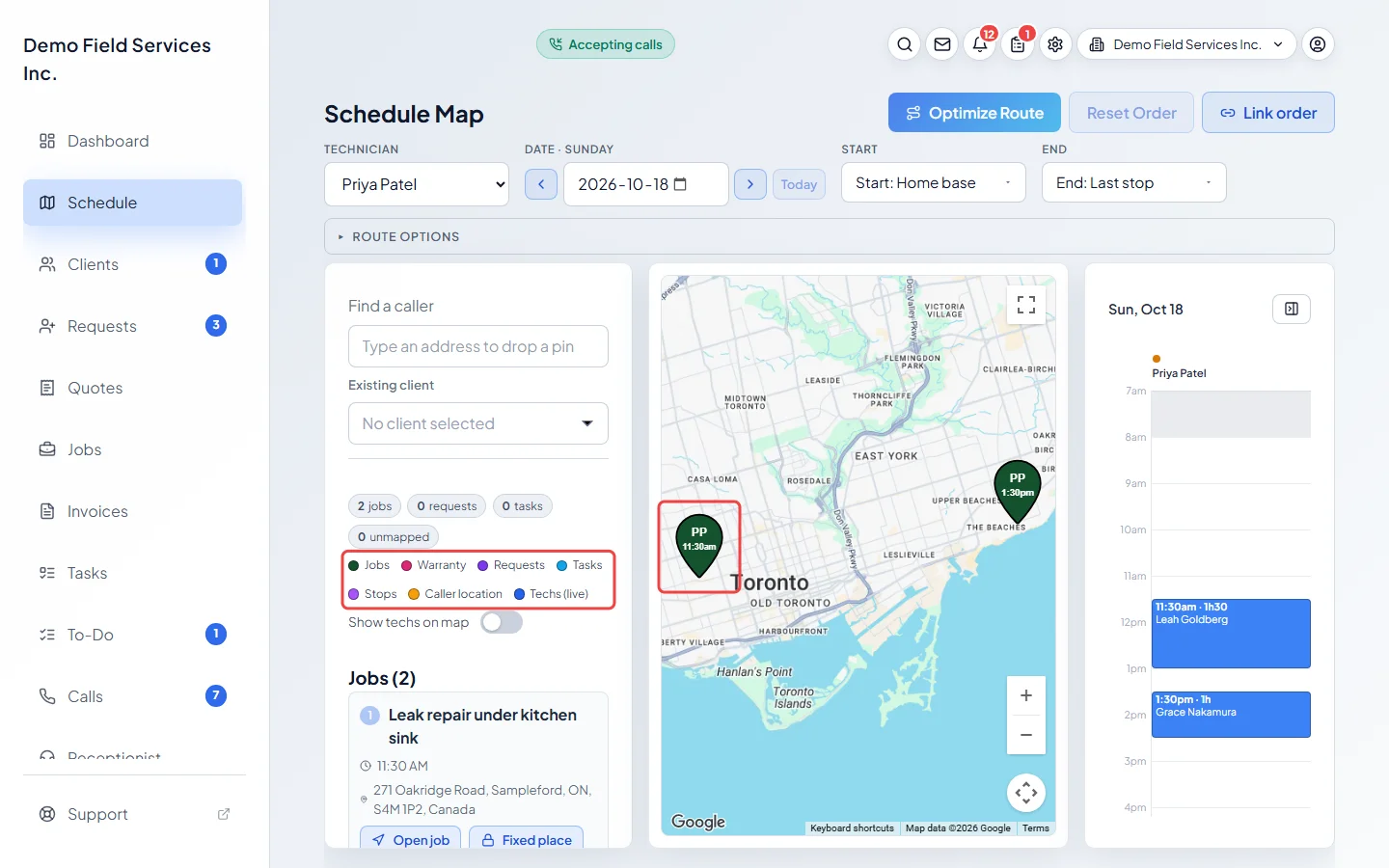
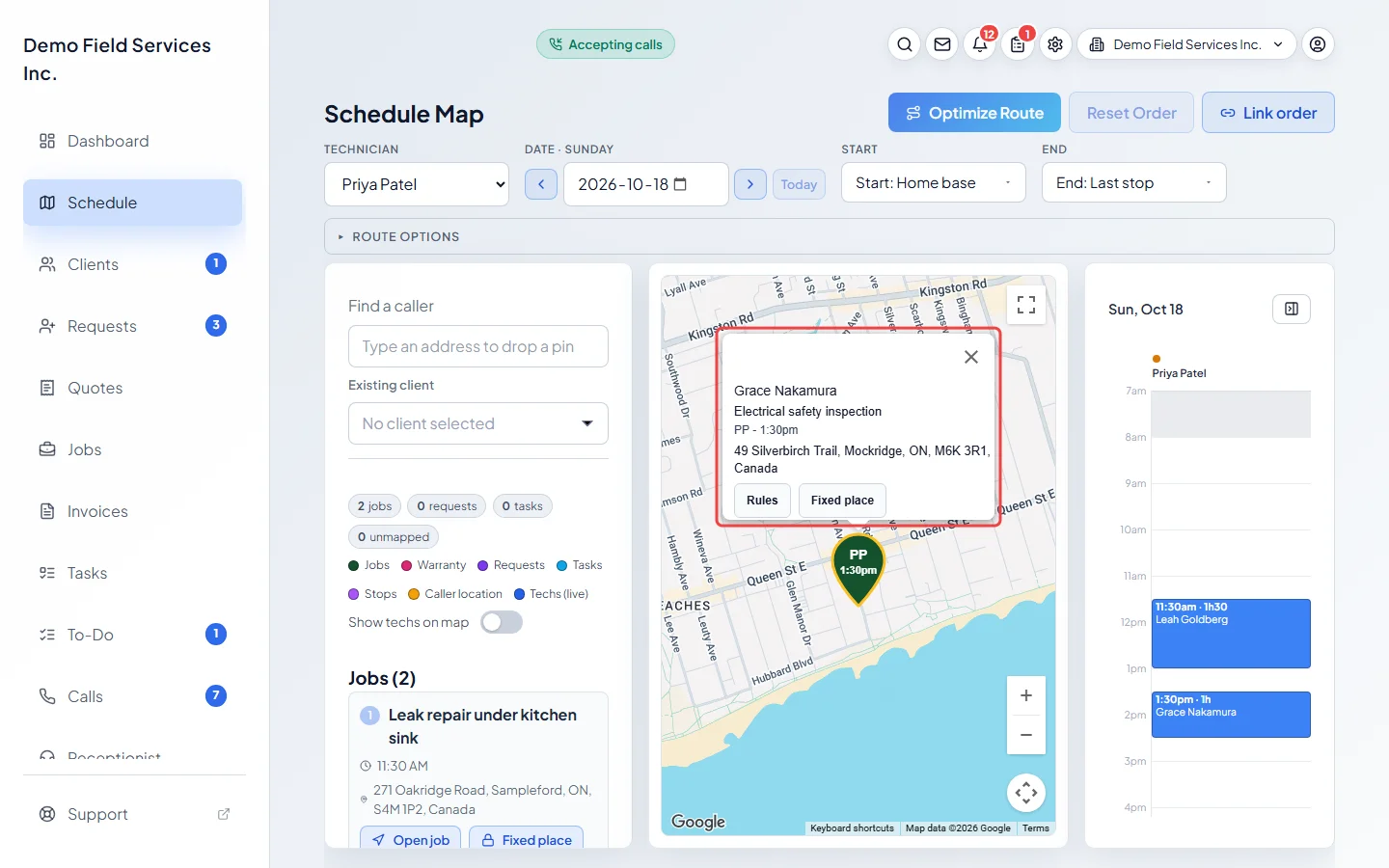
Read the pins. The legend shows what each colour means: Jobs, Warranty, Requests, Tasks, Stops and Caller location. Grey pins are finished. Each pin shows the team member’s initials and the time or arrival window. A blue padlock tag means the stop has a fixed place in the route.
-
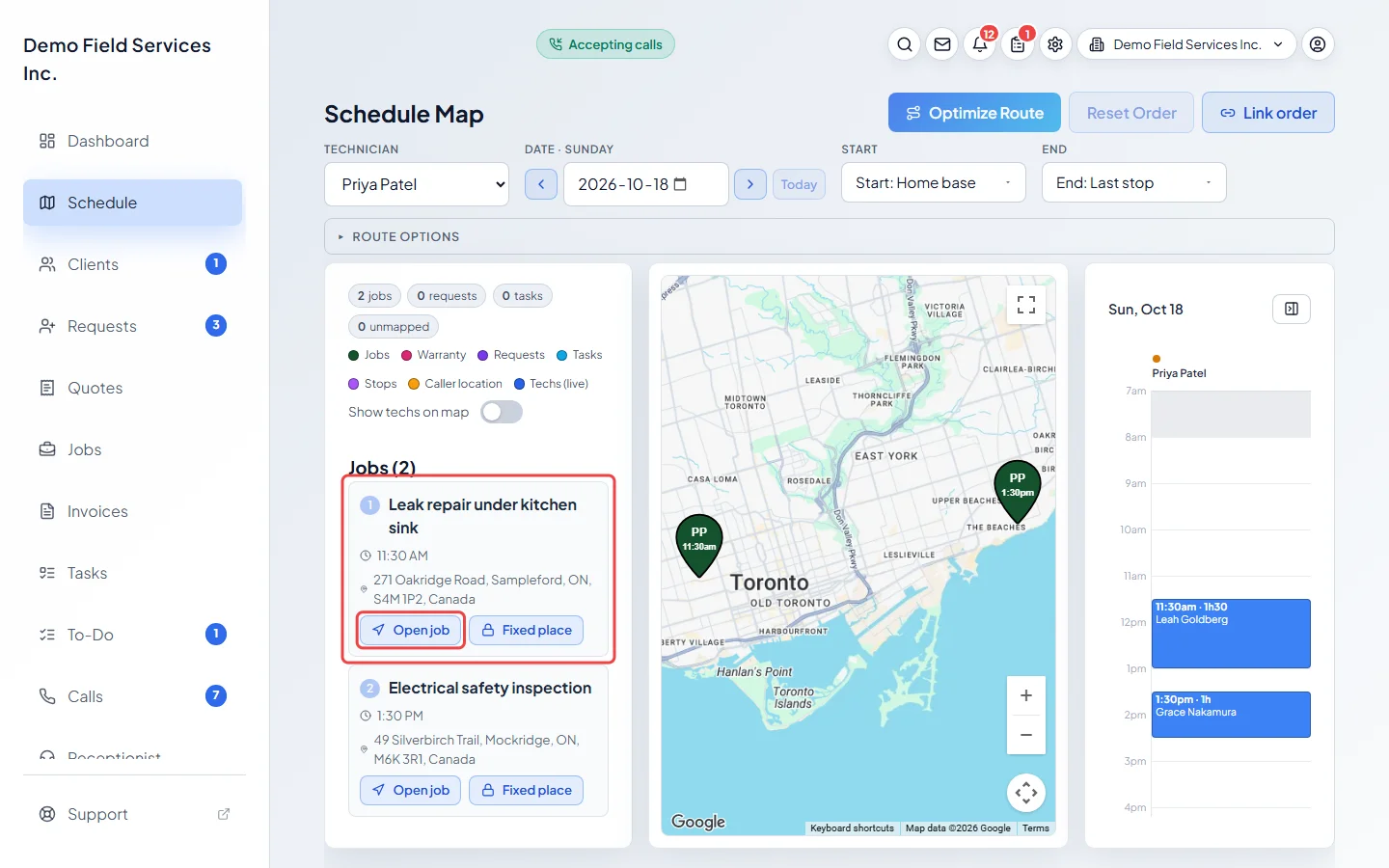
Beside the map, the day’s jobs and requests are listed in order. Click a row to find its pin, or Open job to open it. Anything without a map location is listed under Could not pin.
-
Click a pin to see the client, the job, the time and the address. With one team member picked, the bubble also has Rules and Fixed place for planning the route. If the bubble doesn’t open on the first click, click the pin again.
-
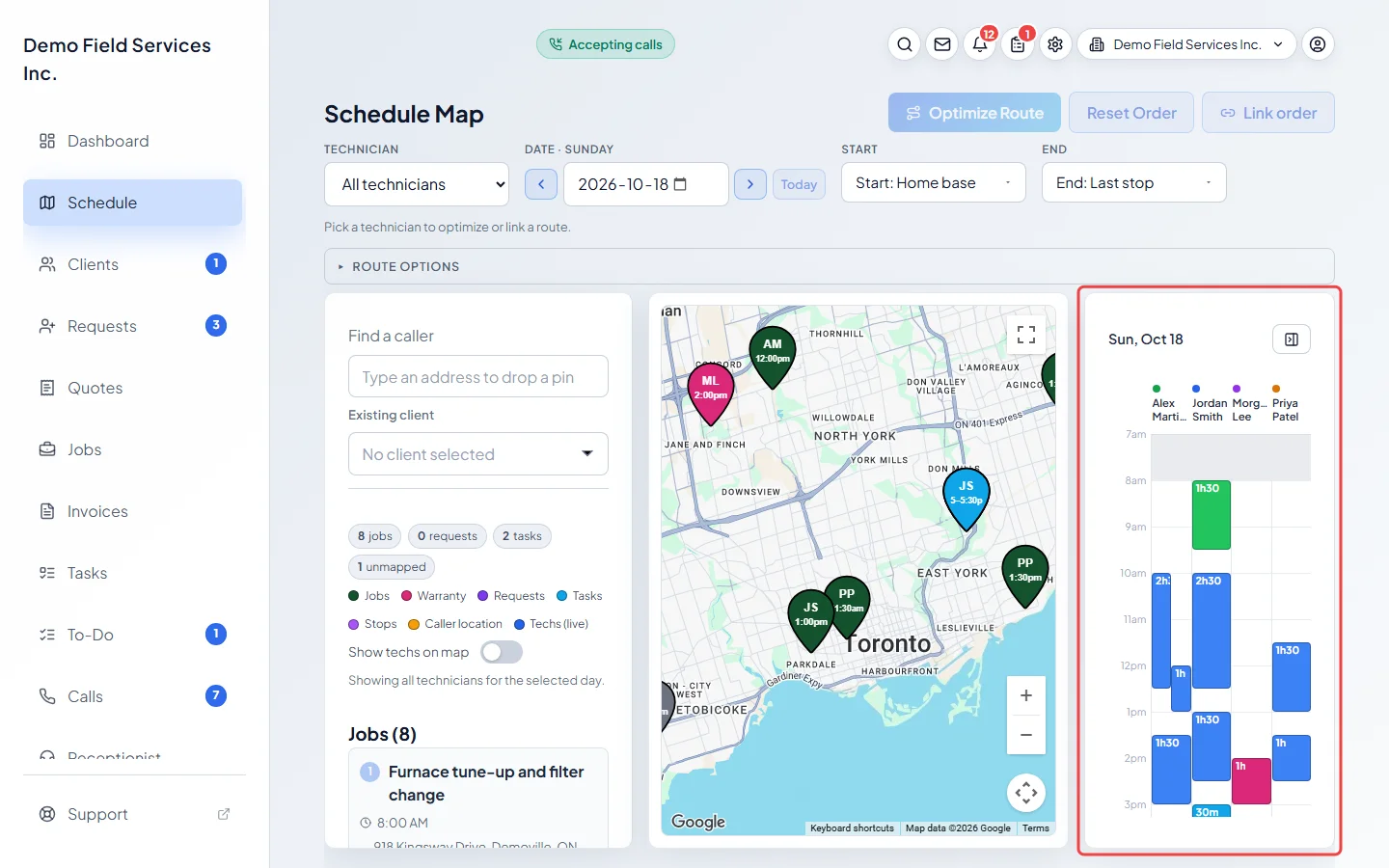
On a wide screen, the panel on the right shows the day at a glance, one column per team member. Point at a block to light up its pin. Hide it with the button at its top.
Good to know
Section titled “Good to know”- On a phone, the map comes first. Tap Show list to see the job and request lists under it.
- Admins and dispatchers can switch on Show techs on map to see where clocked-in team members are right now.
- To plan the order of a team member’s stops, see Optimizing a route.
- To see where a new client’s address would fit into the day, see Checking a new address on the map.
Related articles
Section titled “Related articles”Checked against Astragal on October 18, 2026