

The request form
Give customers a simple form to ask for a visit, without picking a time, and get each one as a request.
Who can do this: Admins, dispatchers and accountants.
Also called: booking form, contact form, website form.
The request form is different from online booking: customers describe what they need (and can suggest dates), and you confirm the time. Each form sent becomes a new request on your requests board.
-
Open Booking form builder in Settings. The form is made of sections, each with its own questions.
On a computer: Left menu → Settings → Booking form builder On a phone: More → Settings → Booking form builder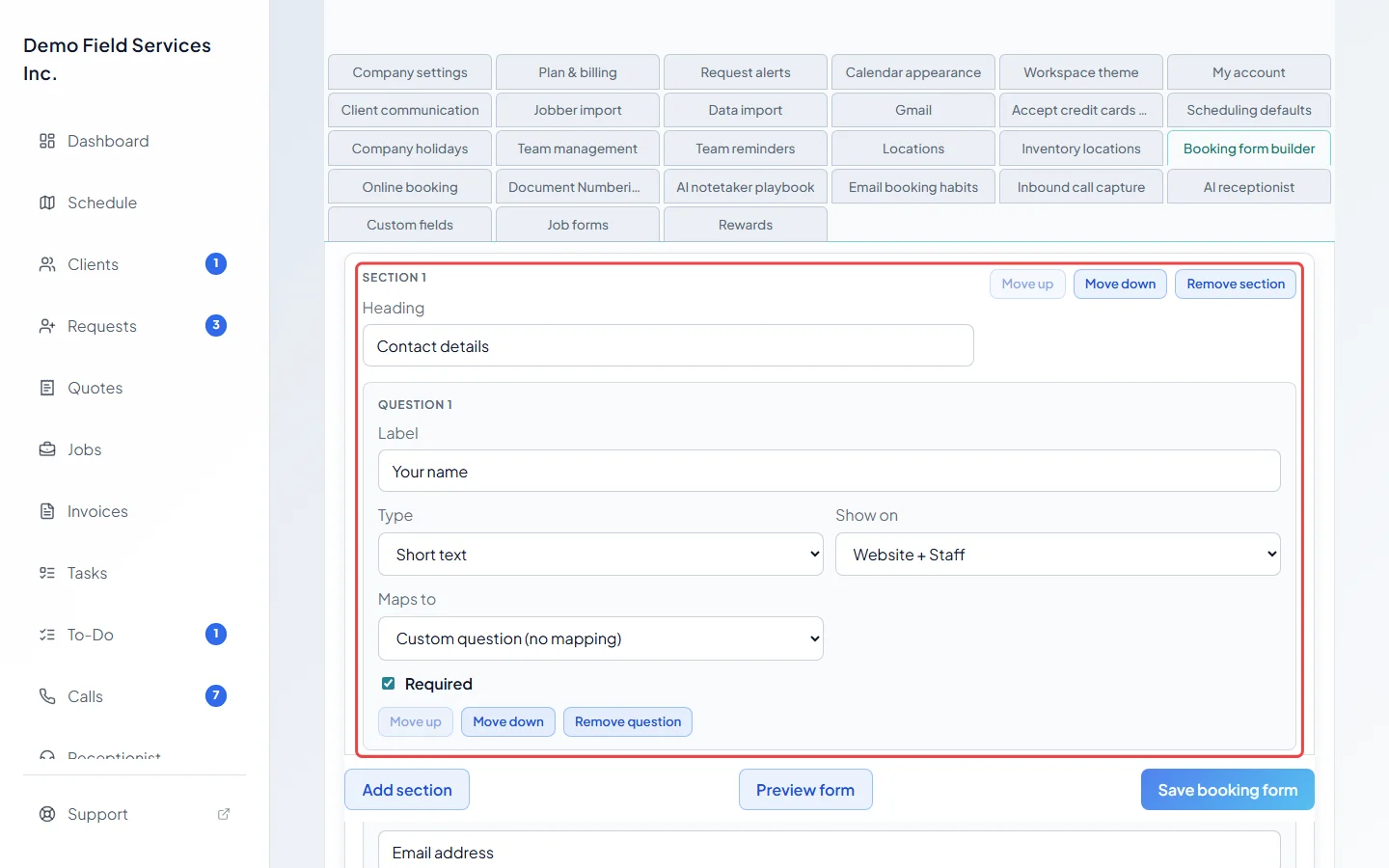
-
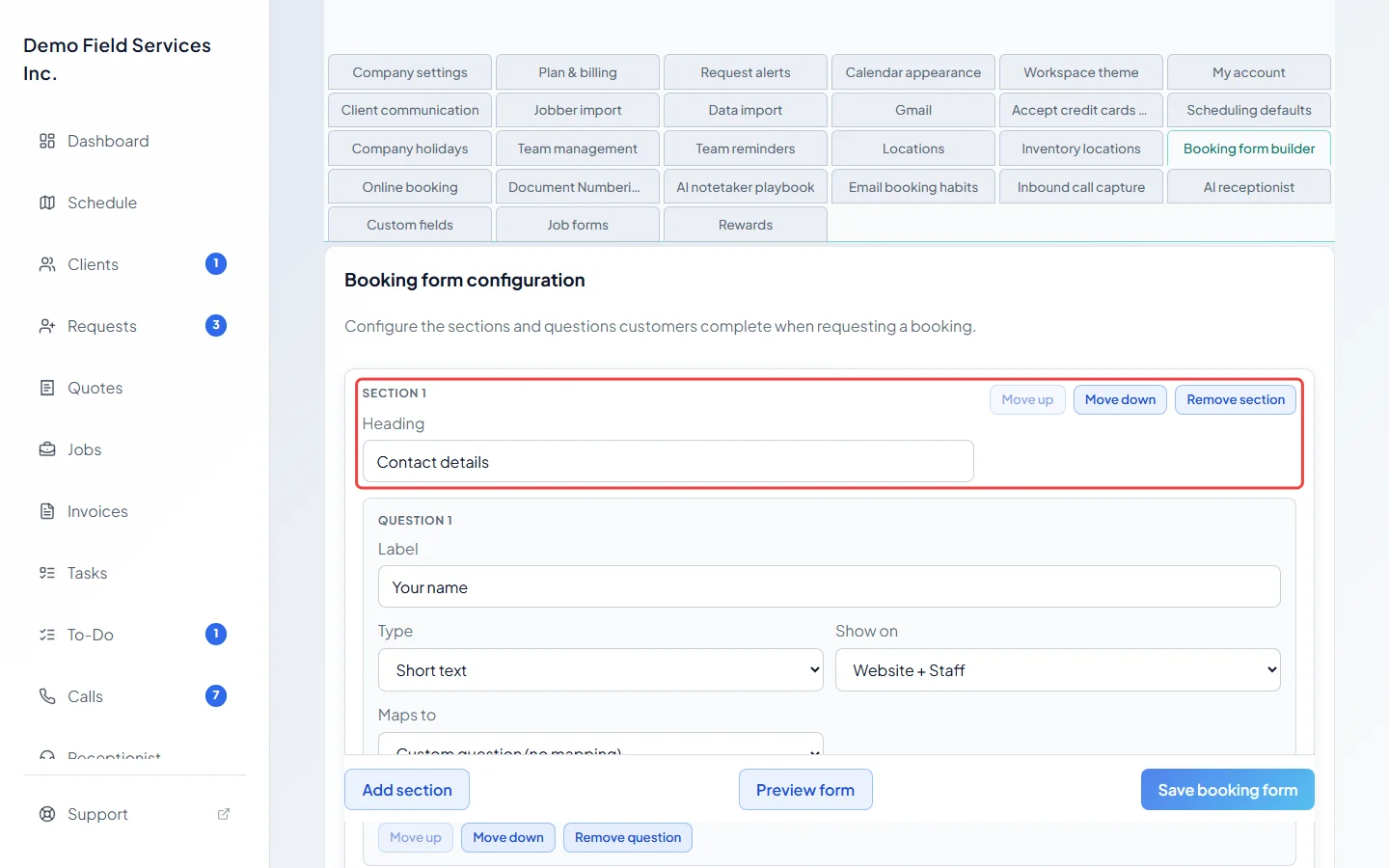
Give each section a Heading. Use Move up and Move down to reorder it, Remove section to delete it, and Add section at the bottom for a new one. A section whose heading includes “availability” treats its first two Date picker questions as the customer’s preferred dates: they can’t be today or in the past, and they must be different days.
-
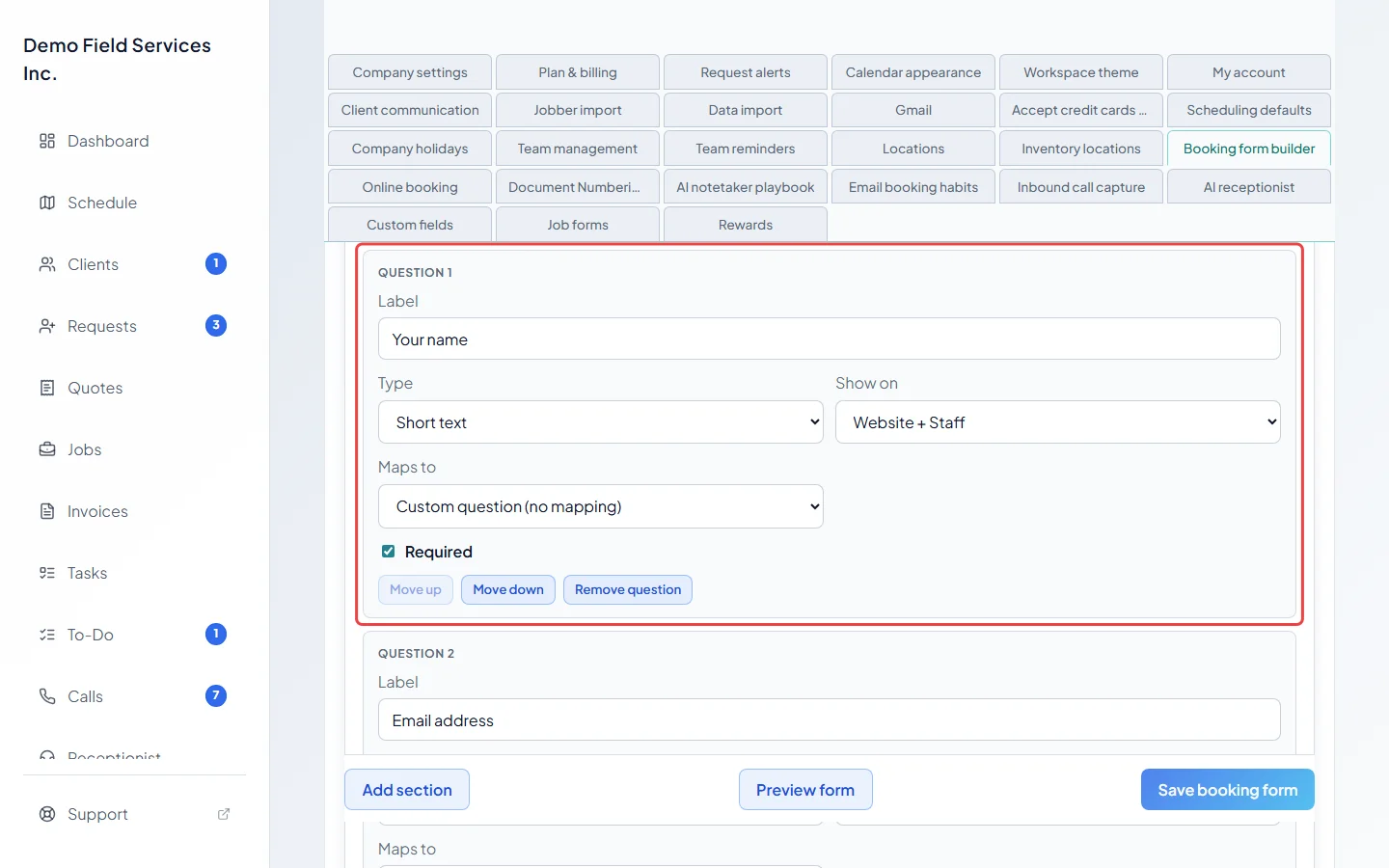
For each question, type its Label and pick its Type: Short text, Open text, Email, Phone number, Number, Yes / No, Length × width, Date picker, Image upload, Dropdown, Checkbox group, Radio buttons or How did you hear about us? (once per form). Tick Required if it must be answered. Dropdowns, checkbox groups and radio buttons need their choices: type each one and click Add option for more. Length × width questions also have a Unit box (ft by default). Each question has its own Move up, Move down and Remove question buttons. Click Add question for a new one.
-
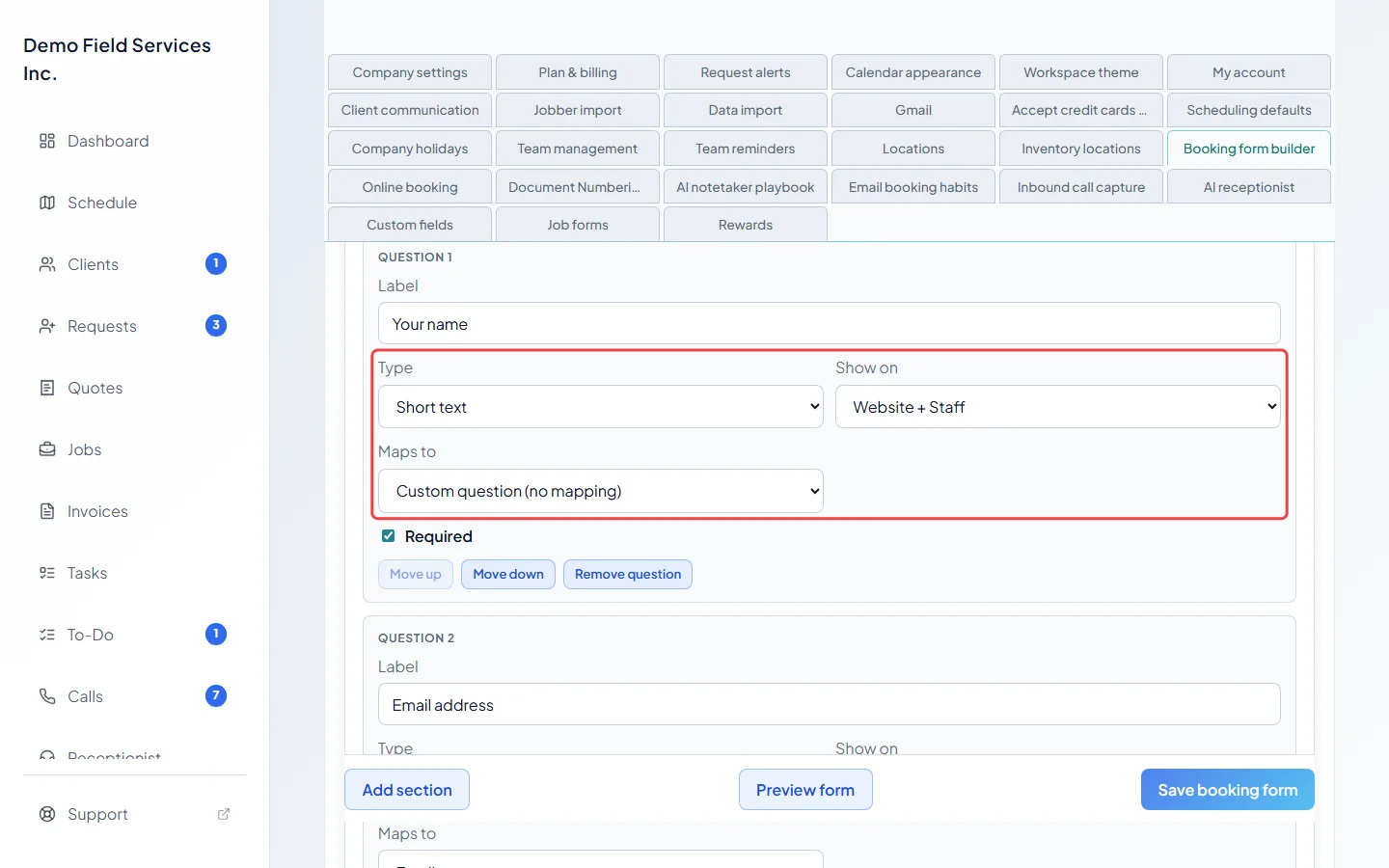
Under Show on, choose Website + Staff, Website only or Staff only (staff-only questions show on your own new request form, not the public one). For Short text, Open text, Email, Phone number and Dropdown questions, Maps to tells Astragal that the answer is the customer’s first name, last name, company, email, phone number or a part of their address, so it lands in the right place on the client. Leave it at Custom question (no mapping) for anything else.
-
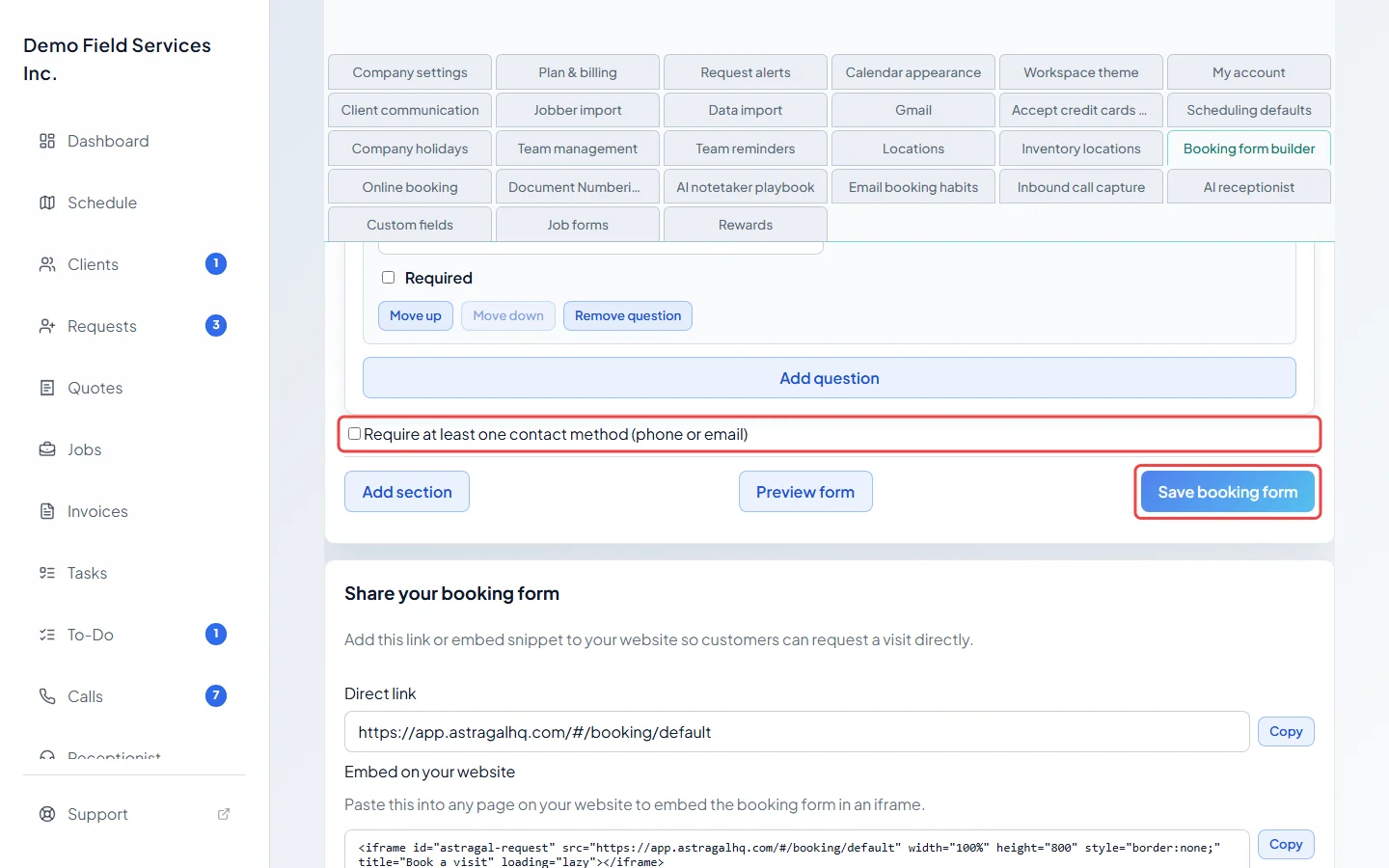
Tick Require at least one contact method (phone or email) if customers must leave one (the form needs a phone or email question for this), then click Save booking form. Preview form opens it the way customers see it.
-
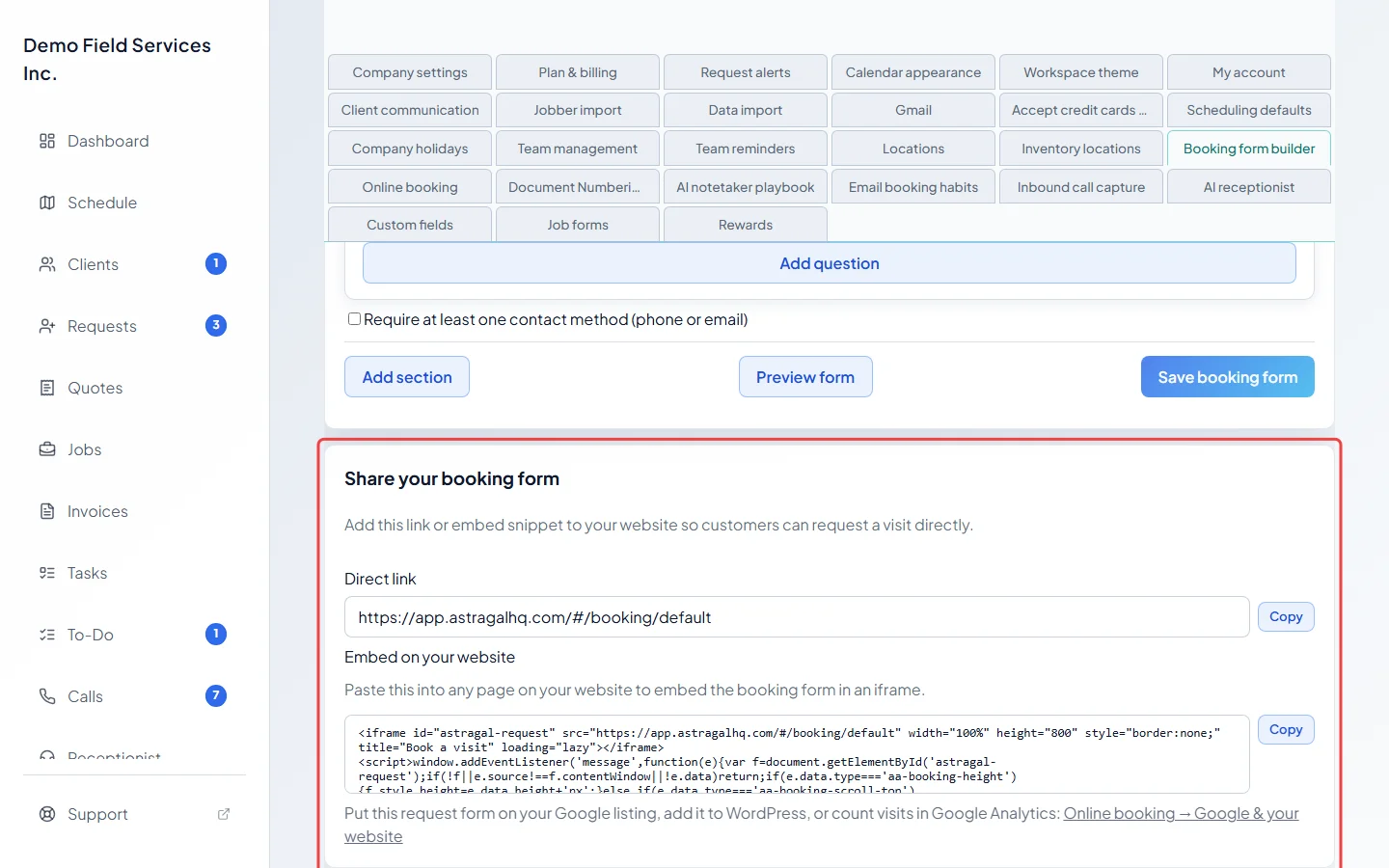
Under Share your booking form, copy the Direct link for your website, emails or social media, or the code under Embed on your website to show the form inside a page of your website.
What customers see
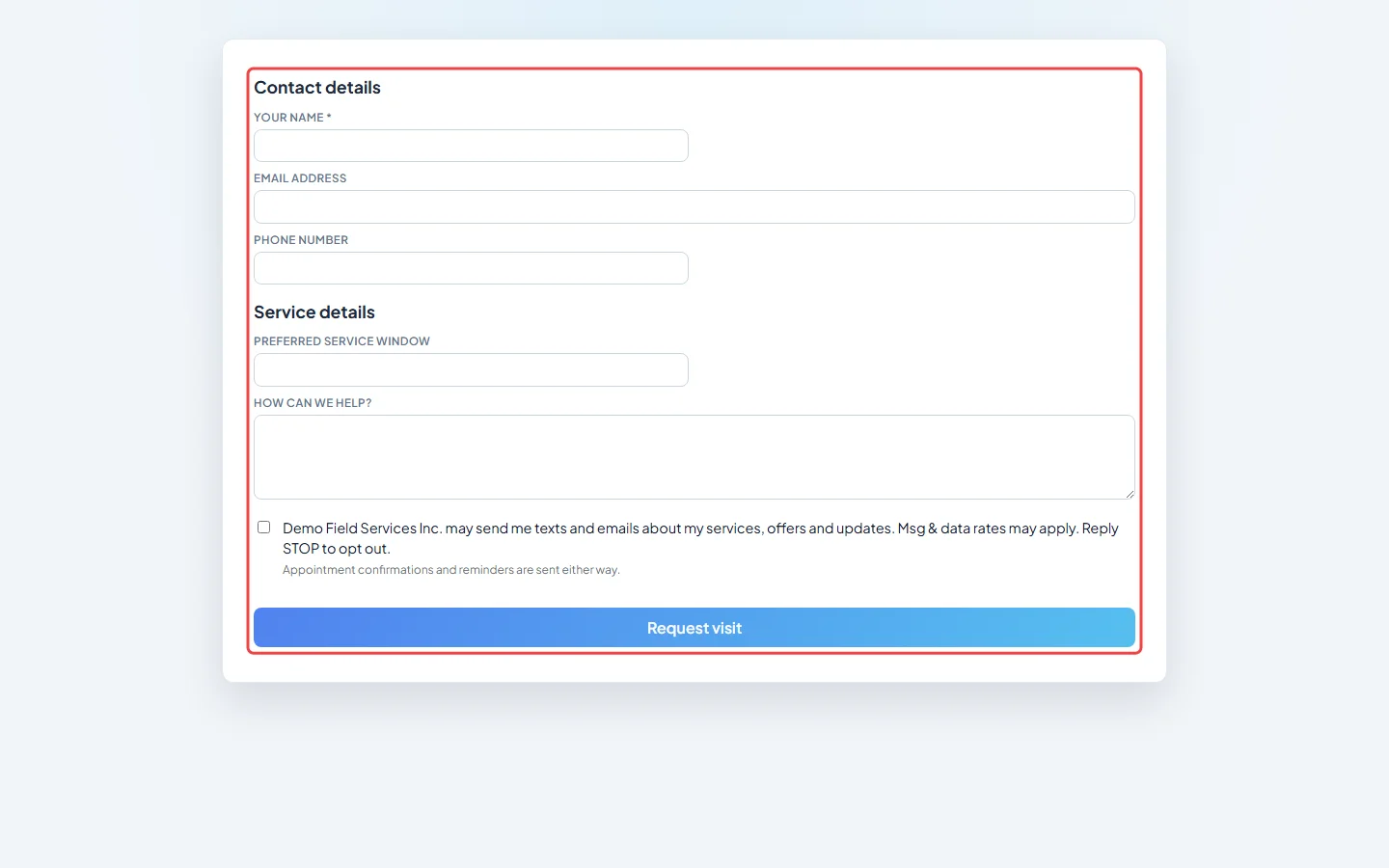
Section titled “What customers see”Your sections and questions, a tick box to agree to your texts and emails (confirmations and reminders are sent either way), and a Request visit button. A required question left empty (including a required name, street address or preferred date) or a bad email stops the form with a short message. If the form has an Image upload question, customers can attach up to 5 photos (30 MB in all). When it’s sent they see “Request received!”, and a customer who gave an email gets a confirmation email. Your office gets a new-request alert if request alerts are on.
Good to know
Section titled “Good to know”- The Date picker has Limit date to enabled business days to stop customers picking days you’re closed. Company holidays can never be picked.
- A new customer’s answer to How did you hear about us? becomes their lead source. It’s always optional for customers.
- Put this form on your Google listing, a WordPress site, or count its visits in Google Analytics, see Google and your website.
- Clients in your client portal see the website questions when they ask for an appointment.
Related articles
Section titled “Related articles”Checked against Astragal on October 18, 2026