

App lock and app details
Check what your phone is running and allowed to do, and lock the app with Face ID.
Who can do this: Everyone. Each person sets their own.
Also called: Face ID lock, Touch ID, diagnostics.
Both live in Settings → My account, which also has deleting your account. See My account.
-
Open My account. If you’re not an admin, tap the gear at the top of the screen and scroll down to My account. The App details card lists what this device is running: You are using (Android app, iPhone app or Web browser), Web app version, App version (phone apps only), Notifications, Location access, Location accuracy, Sharing your location right now and Last location sent. Rows only appear when this device can report them. In the Android app, App version says Not reported by this app, and Notifications, Location accuracy, Last location sent and Recent app log don’t show. In the phone apps, App features on this phone shows which parts of the app are Ready. In the iPhone app, Recent app log shows the latest app activity. The picture shows the card in a phone’s web browser.
On a computer: Left menu → Settings → My account On a phone: More → Settings → My account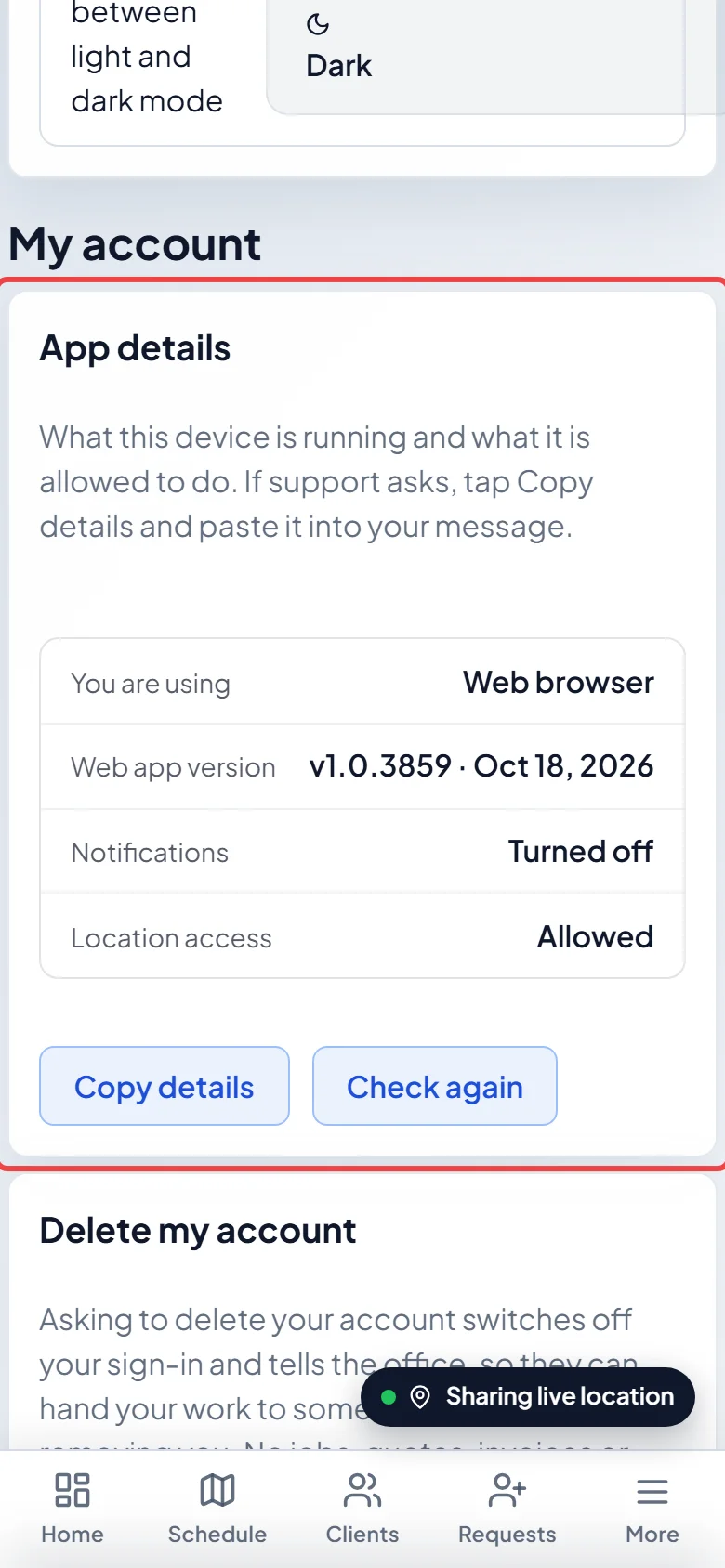
-
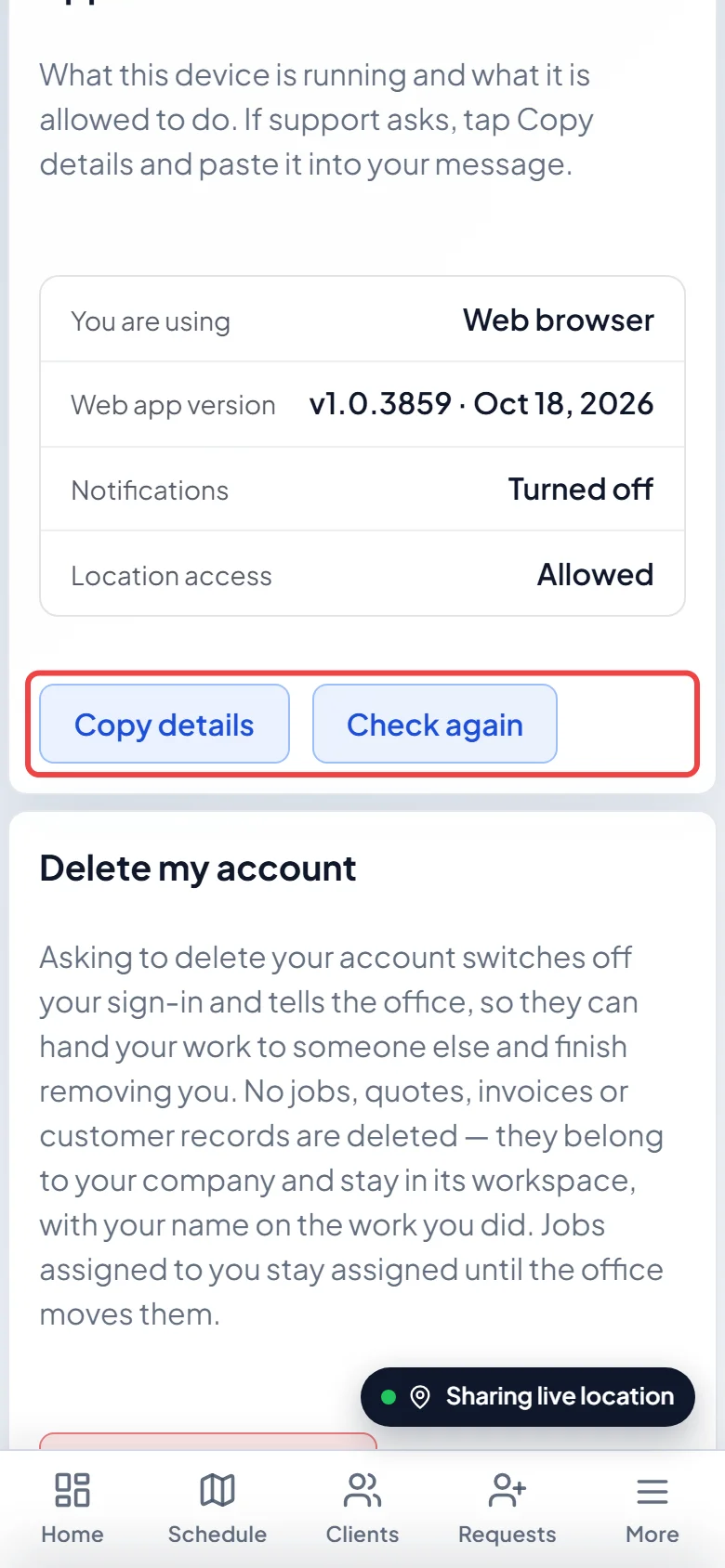
If support asks for your app details, tap Copy details and paste them into your message. Tap Check again after changing a phone setting to see the new answers.
Locking the app with Face ID
Section titled “Locking the app with Face ID”The App lock card appears only in the iPhone app, above App details. The Android app has no app lock.
- Turn on the Require Face ID switch. On an iPhone with Touch ID it says Require Touch ID, and on a phone with neither it says Require passcode.
- From then on the app asks for Face ID when it opens, and again after it has been closed for 30 minutes. If Face ID doesn’t work (gloves, sunglasses), your phone passcode opens it instead.
- On an iPhone, coming back from directions or a phone call that Astragal opened for you doesn’t ask again.
- The setting follows you to a new iPhone. It’s off unless you turn it on.
- If your phone has no passcode set up, the lock can’t turn on and Astragal says This phone could not turn the lock on. Check that a passcode is set up on this phone.
Good to know
Section titled “Good to know”- If Alerts says Not set up in this version of the app. Tell support., alerts can’t reach this phone until the app is updated. Email support@astragalhq.com.
- Not in this app next to a feature means your installed app doesn’t include it. In the Android app several always show this, which is normal. In the iPhone app it can mean the app needs updating. See Updating the app.
- If Copy details doesn’t work, take a screenshot of the card instead.
Related articles
Section titled “Related articles”Checked against Astragal on October 18, 2026