

Job forms and checklists
Set up the checklists your technicians fill in on a visit, from simple ticks to readings, photos and the client’s signature.
Who can do this: Admins, dispatchers and accountants. Dispatchers and accountants also need access to Jobs and Schedule, or the section doesn’t show.
Also called: checklist, service report, inspection form, sign-off sheet.
-
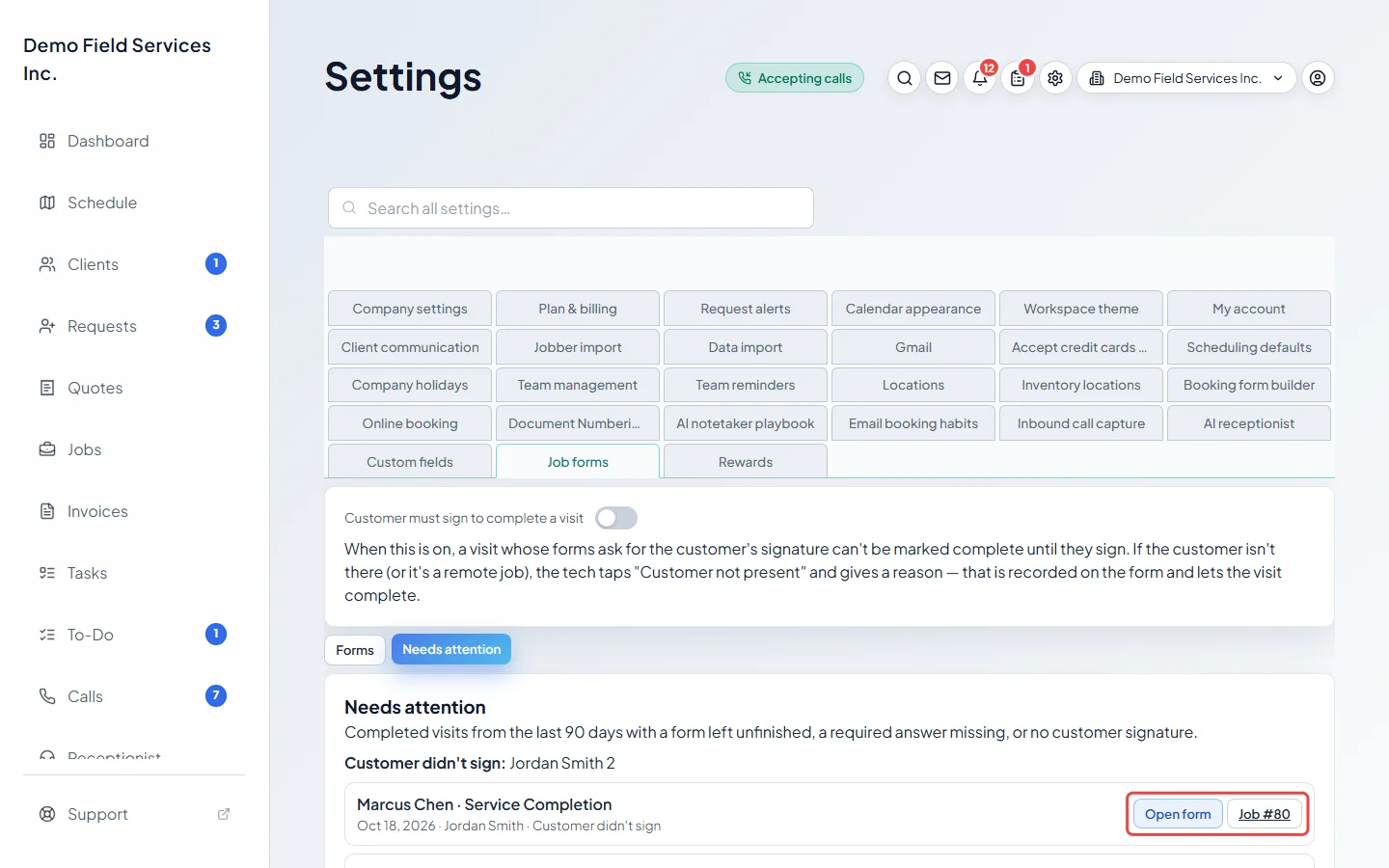
Open the job forms page. At the top, turn on Customer must sign to complete a visit if a visit should not be marked complete until every form that asks for the client’s signature is signed. If the client isn’t there, the technician taps Customer not present and gives a reason, which lets the visit complete.
On a computer: Left menu → Settings → Job forms On a phone: More → Settings → Job forms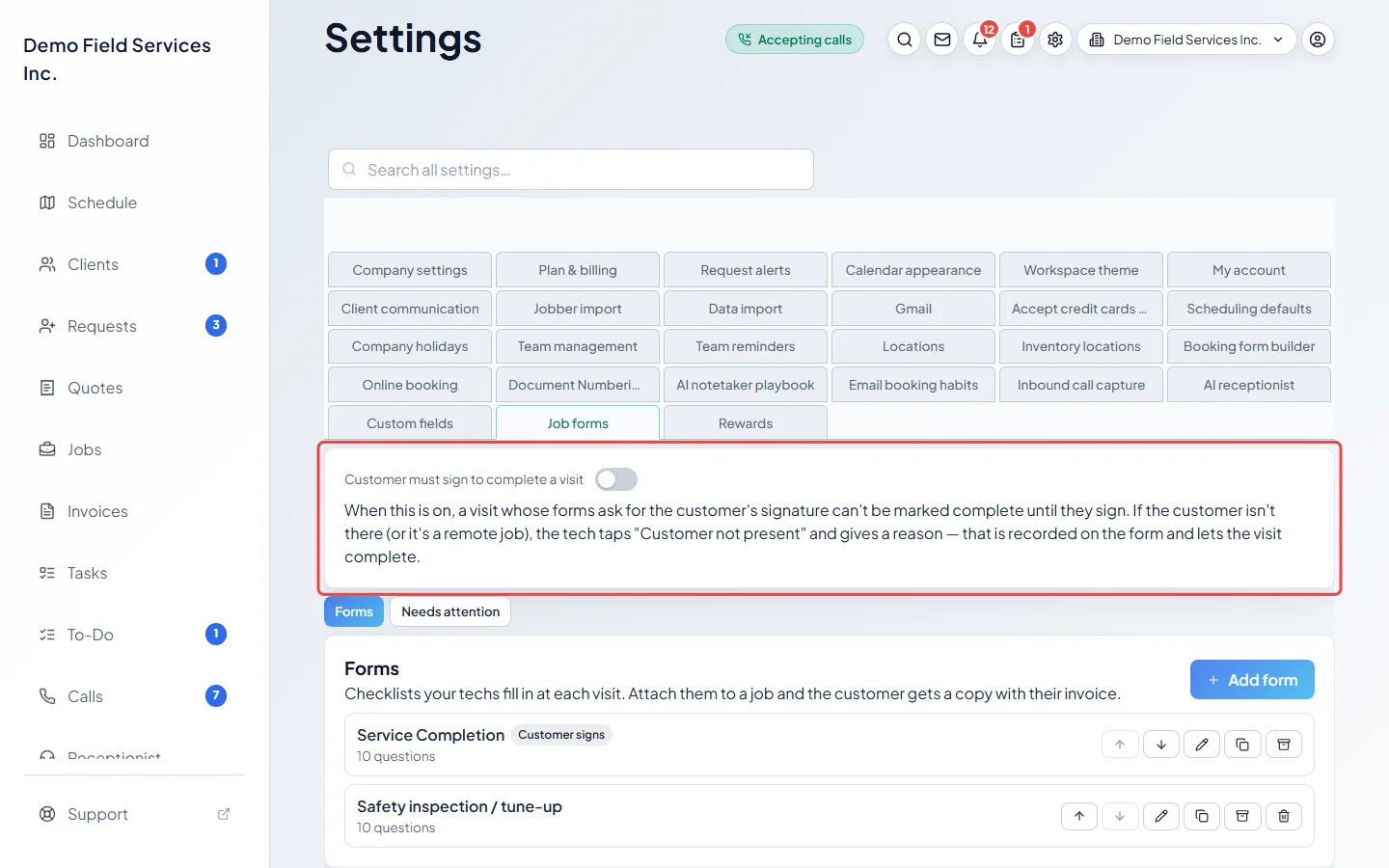
-
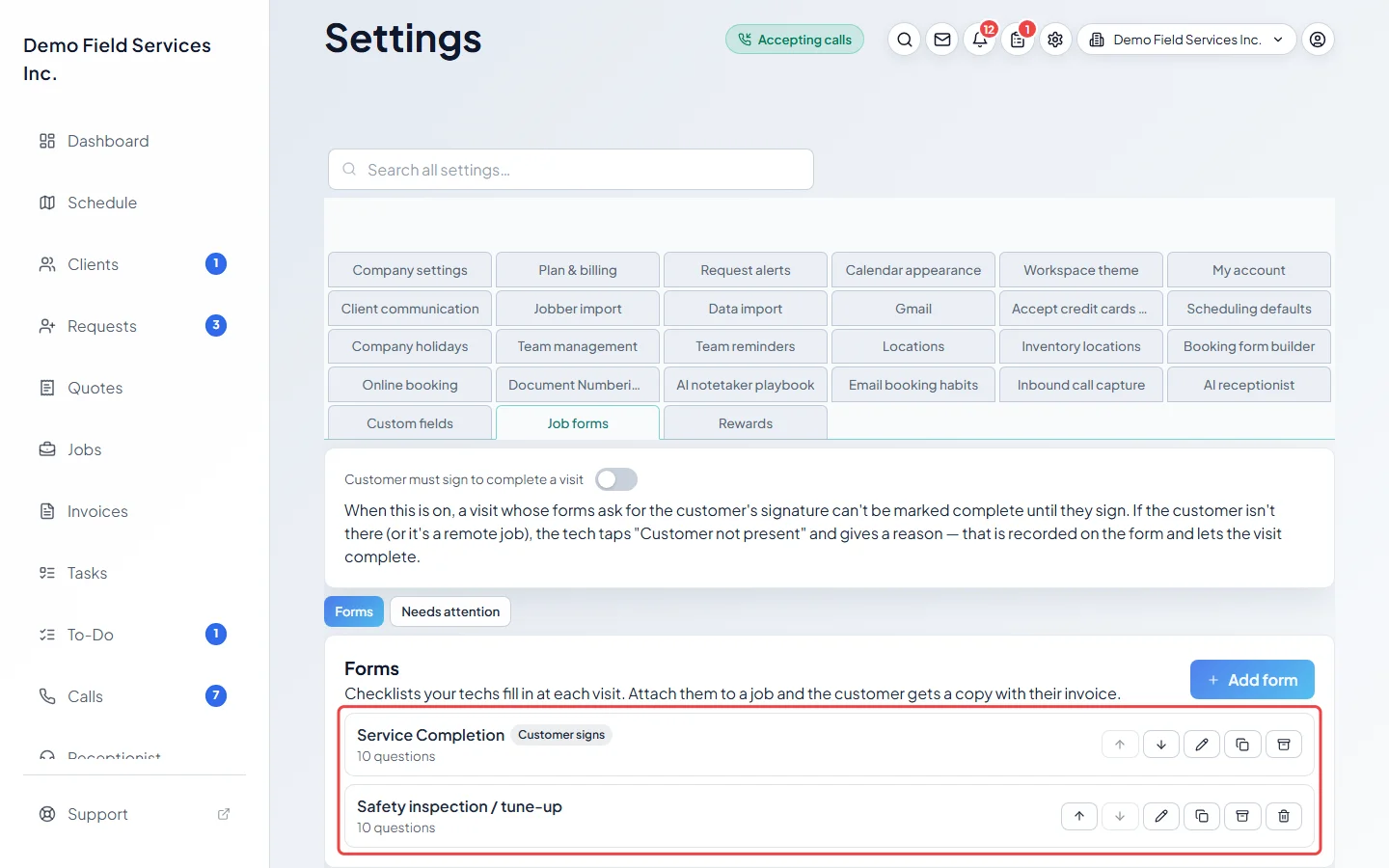
The Forms tab lists your forms with how many questions each has. Customer signs marks a form with a client signature, and Internal a form the client never gets. Use a form’s buttons to move it up or down, edit, duplicate, archive or delete it.
-
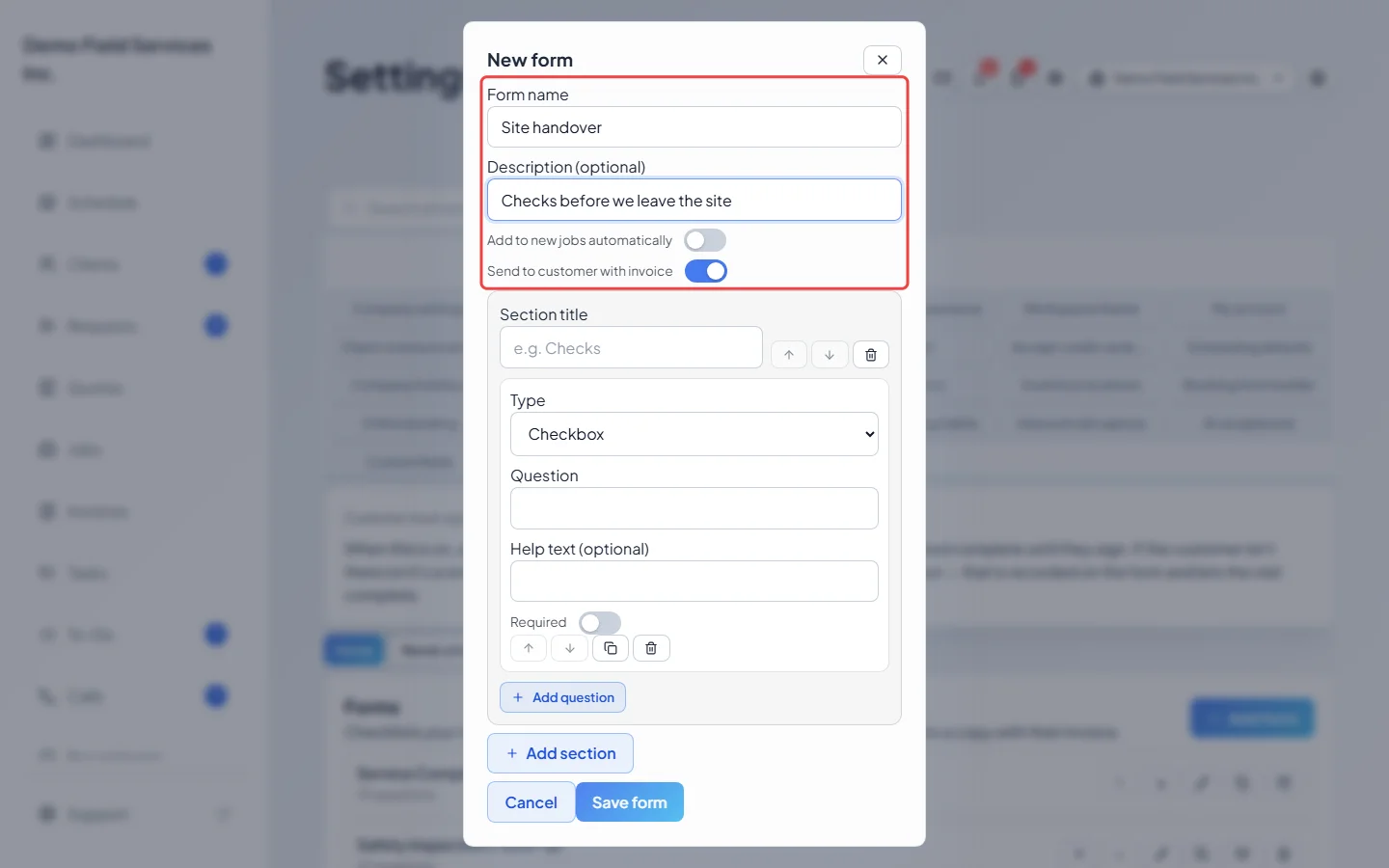
Click Add form. Type a Form name and an optional description. Turn on Add to new jobs automatically to have the form ticked on every new job, including jobs booked online or made from a quote. Leave Send to customer with invoice on to email the finished form with the invoice and show it in the client portal; turn it off for office-only forms.
-
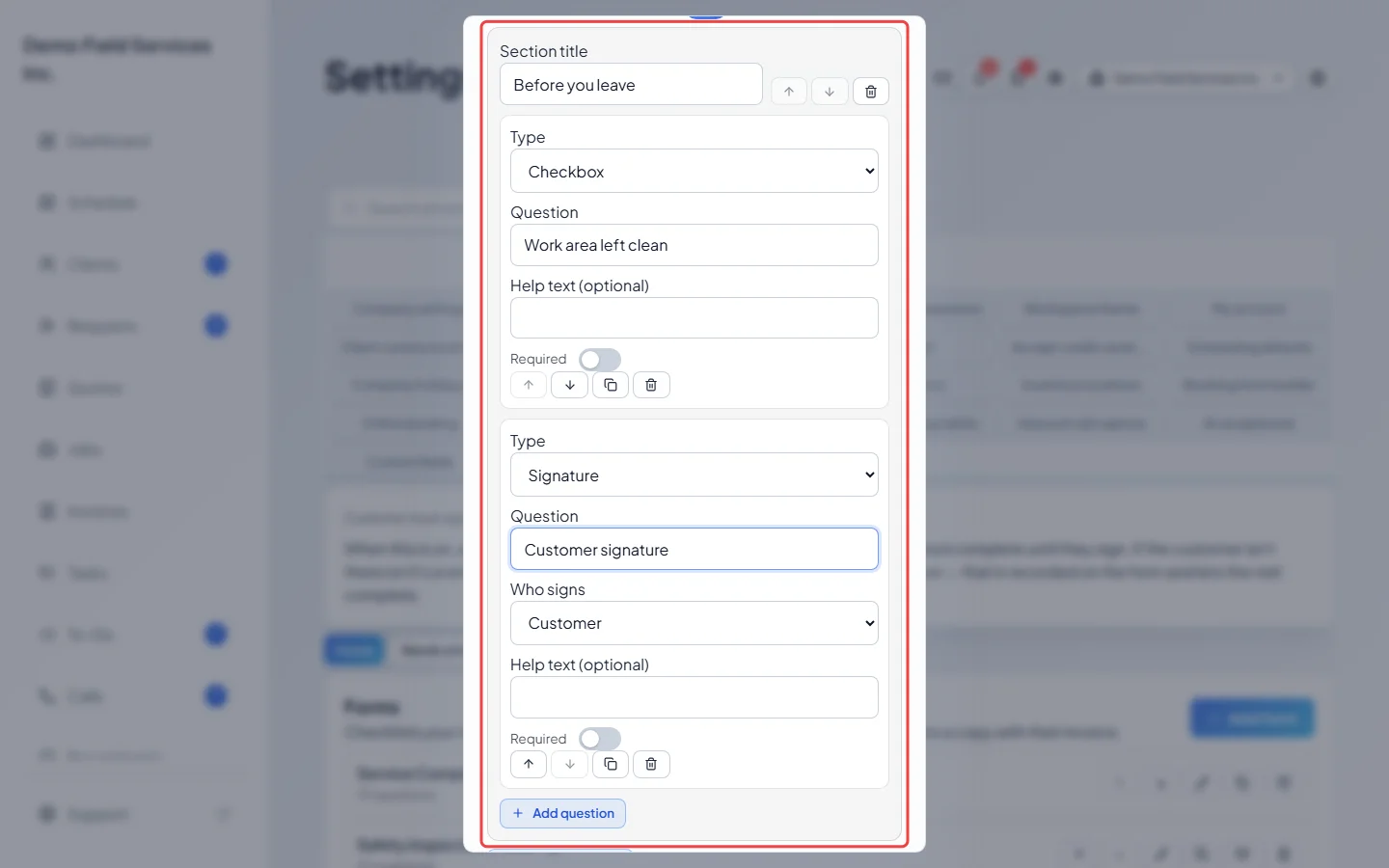
Give the section a Section title, then set up each question: pick its Type, write the Question (or, for text to read, the Text to show), add Help text (optional), and turn on Required if it must be answered. A signature question asks Who signs: the customer or the technician. Click Add question or Add section for more, then Save form.
-
Click the Needs attention tab to see completed visits from the last 90 days where a form was left unfinished, a required answer is missing, or the client didn’t sign. Click Open form to finish it, or the job number to open the job. The Customer didn’t sign: line at the top shows how many times each person marked the customer as not present.
Question types
Section titled “Question types”Short answer, Long answer, Checkbox, Number (with an optional unit), Date, Dropdown (pick one), Pick several, Photos, Signature, a Condition (Good / Needs attention / Unsafe) rating, and Text to read (no answer) for instructions. For a dropdown or pick-several question, type the Choices (one per line). A form can have up to 30 sections and 100 questions.
Good to know
Section titled “Good to know”- Every company starts with a Service Completion form. It isn’t added to new jobs until you turn on Add to new jobs automatically on it. A second ready-made form, “Safety inspection / tune-up”, starts archived: click Show archived and restore it to use it.
- Editing a form never changes forms already filled in; they keep the questions they were filled in with.
- A form that has been used on a job can’t be deleted, only archived. The Service Completion form can be archived but never deleted. Archived forms aren’t offered on new jobs.
- In a question’s row you can also duplicate it, move it to another section with Move to section…, or remove it. If you close the window with unsaved changes, you are asked first.
Related articles
Section titled “Related articles”Checked against Astragal on October 18, 2026