

Service area and booking limits
Decide which online bookings go straight onto your schedule, which wait for you, and which times and days customers can pick.
Who can do this: Admins and dispatchers.
Also called: service radius, booking rules, booking window.
Each box saves on its own when you click out of it. Leave a box blank for no limit. These limits only apply to online booking; you can still book anything yourself.
-
Open Online booking in Settings and scroll to Service area. Set a Radius (km), or list Accepted postal/ZIP prefixes (comma-separated) (for example the first three characters of your postal codes), or both. A booking from inside your area can be confirmed automatically; one from outside waits for your review. Leave both blank to accept everyone automatically.
On a computer: Left menu → Settings → Online booking On a phone: More → Settings → Online booking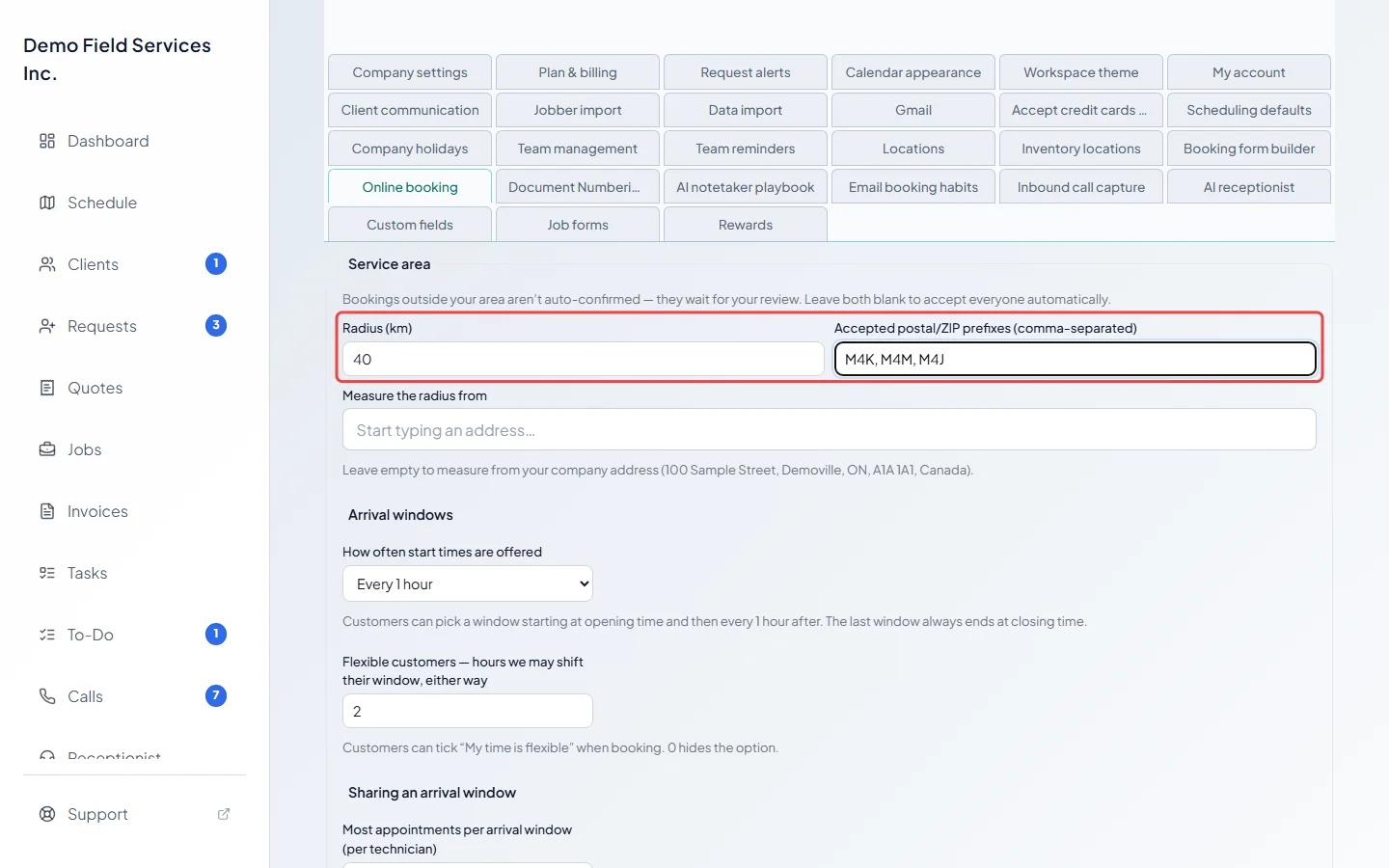
-
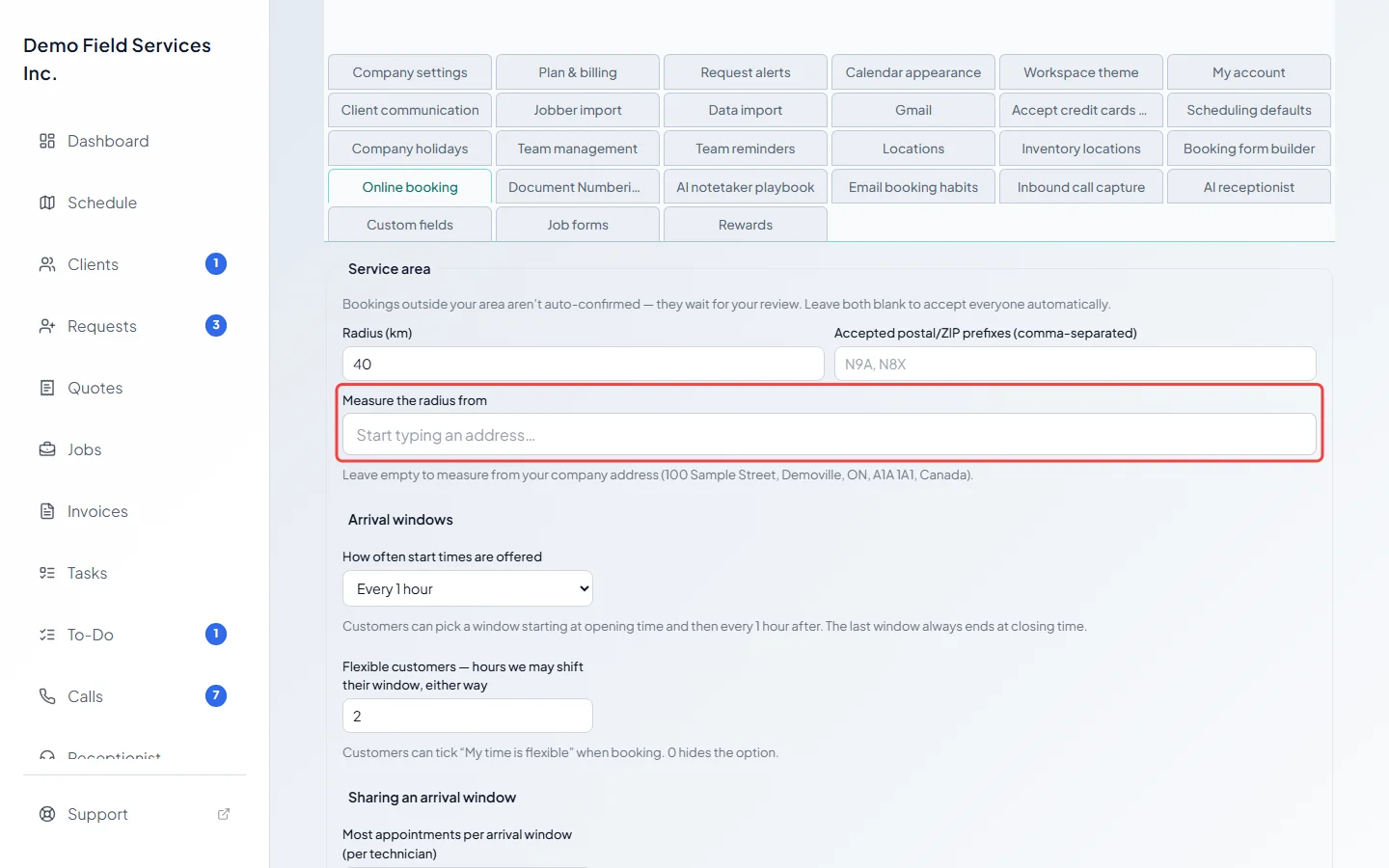
The radius is measured from your company address unless you type another address under Measure the radius from (your shop, the middle of town) and pick it from the suggestions. It saves straight away and shows the full address the map found. If the map can’t find it, you’re told and the old one is kept. Leave it empty to measure from your company address, which is named under the box.
-
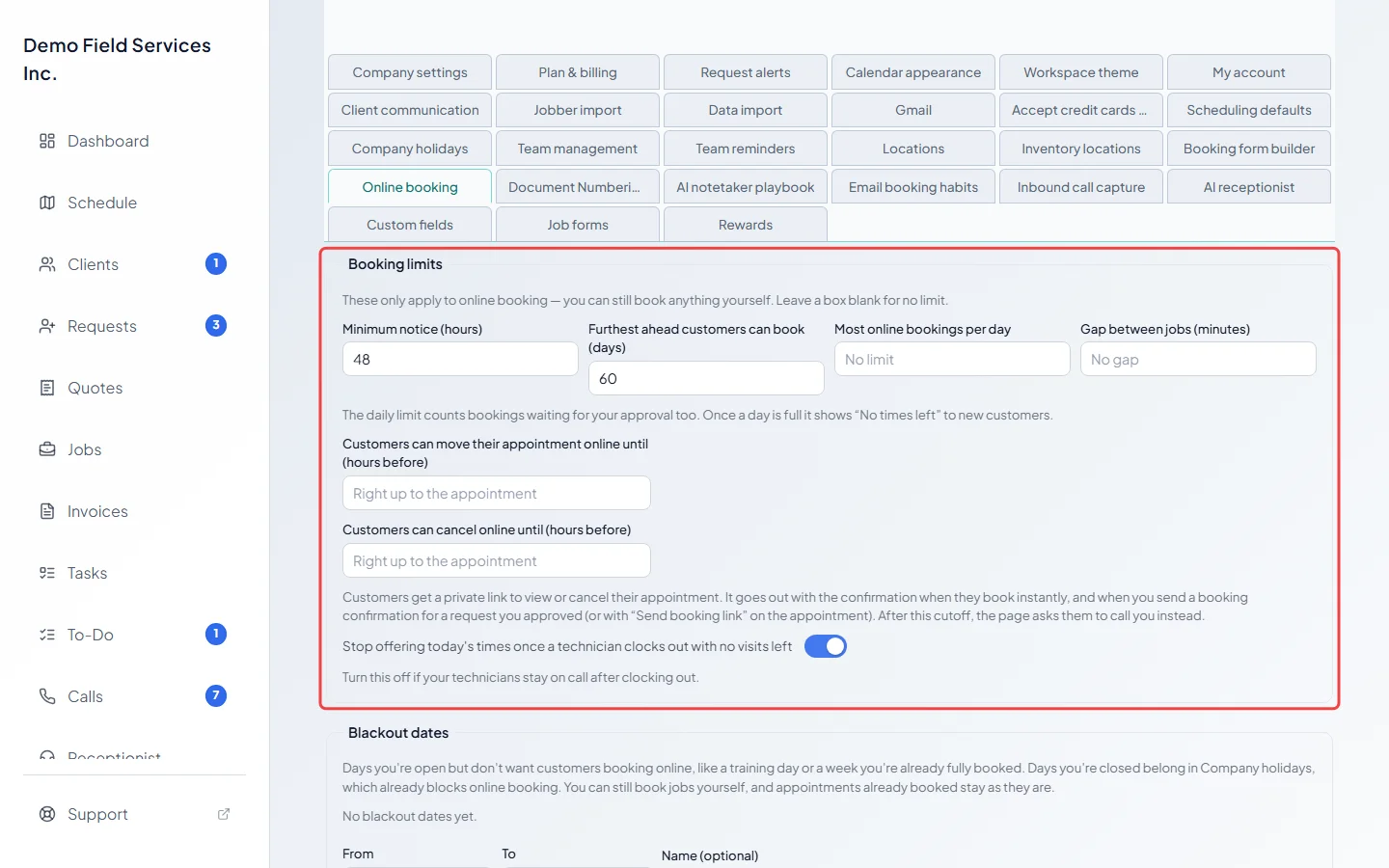
Scroll back up to Booking limits (just under Booking pages) and set:
- Minimum notice (hours): how soon a customer can book.
- Furthest ahead customers can book (days).
- Most online bookings per day: requests waiting for your approval count too. A full day shows “No times left”.
- Gap between jobs (minutes): time kept free between visits.
- Customers can move their appointment online until (hours before) and Customers can cancel online until (hours before): after this, their page asks them to call you. Blank means right up to the appointment.
- Stop offering today’s times once a technician clocks out with no visits left: on unless you turn it off. Turn it off if your technicians stay on call after clocking out.
-
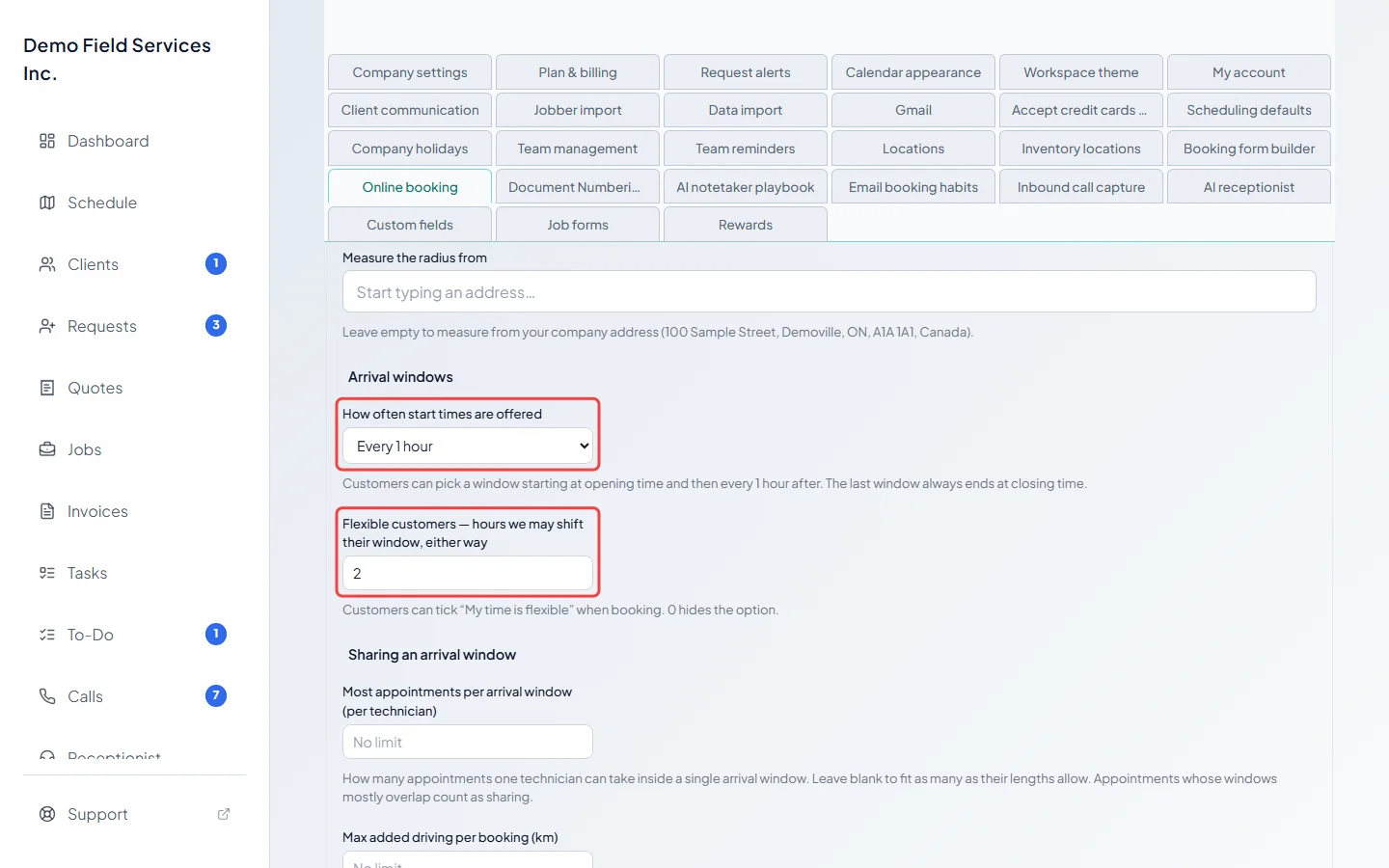
Under Arrival windows, pick How often start times are offered, from every 30 minutes to every 5 hours. Customers can pick a window starting at opening time and then at that spacing; the last window always ends at closing time. In Flexible customers — hours we may shift their window, either way, type 0 to 12. Customers who tick “My time is flexible” agree you may move their window by up to that many hours. 0 hides the tick box.
-
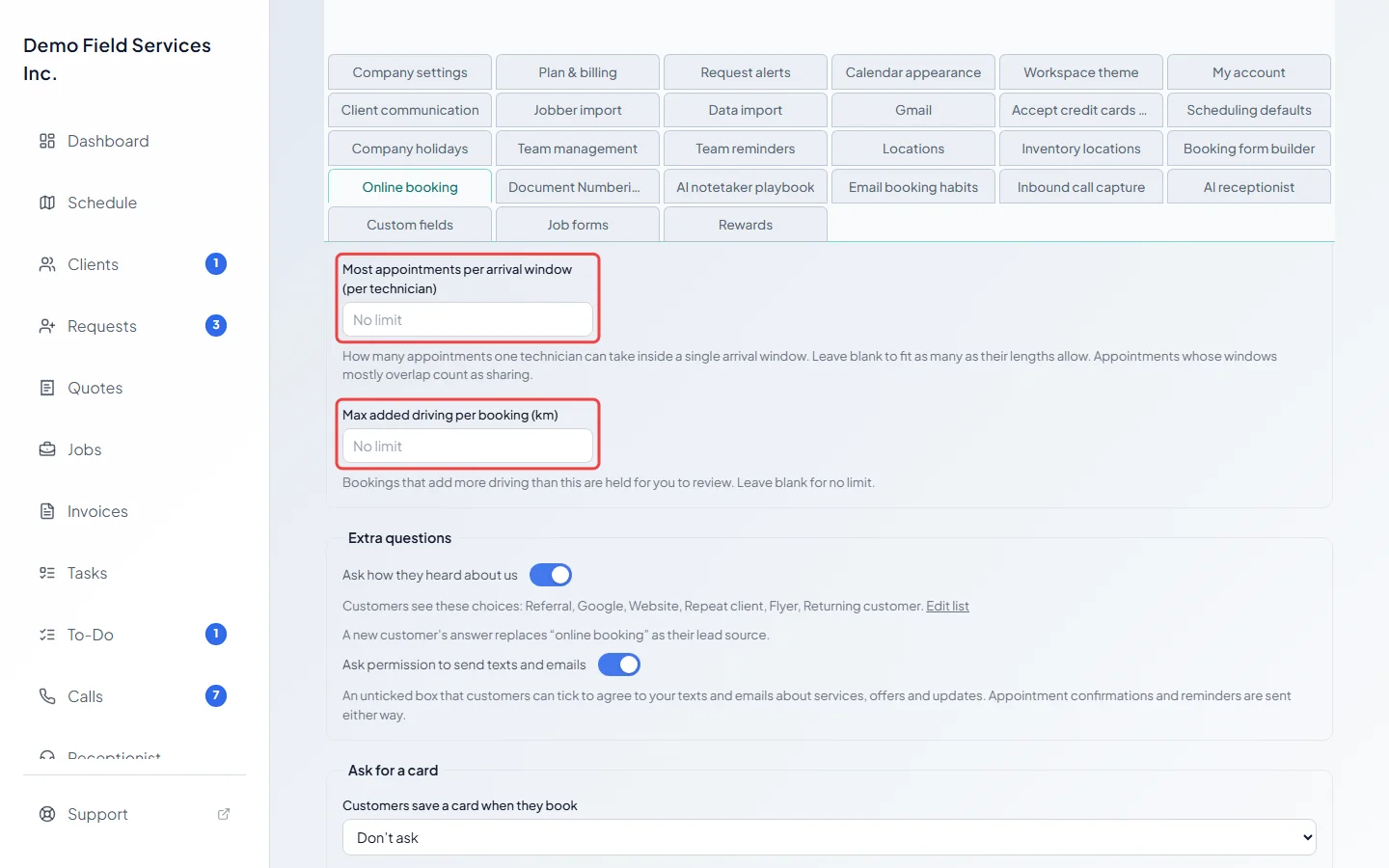
Under Sharing an arrival window, set Most appointments per arrival window (per technician) (blank fits as many as their lengths allow; windows that mostly overlap count as sharing). Set Max added driving per booking (km) to hold any booking that adds more driving than that for your review.
-
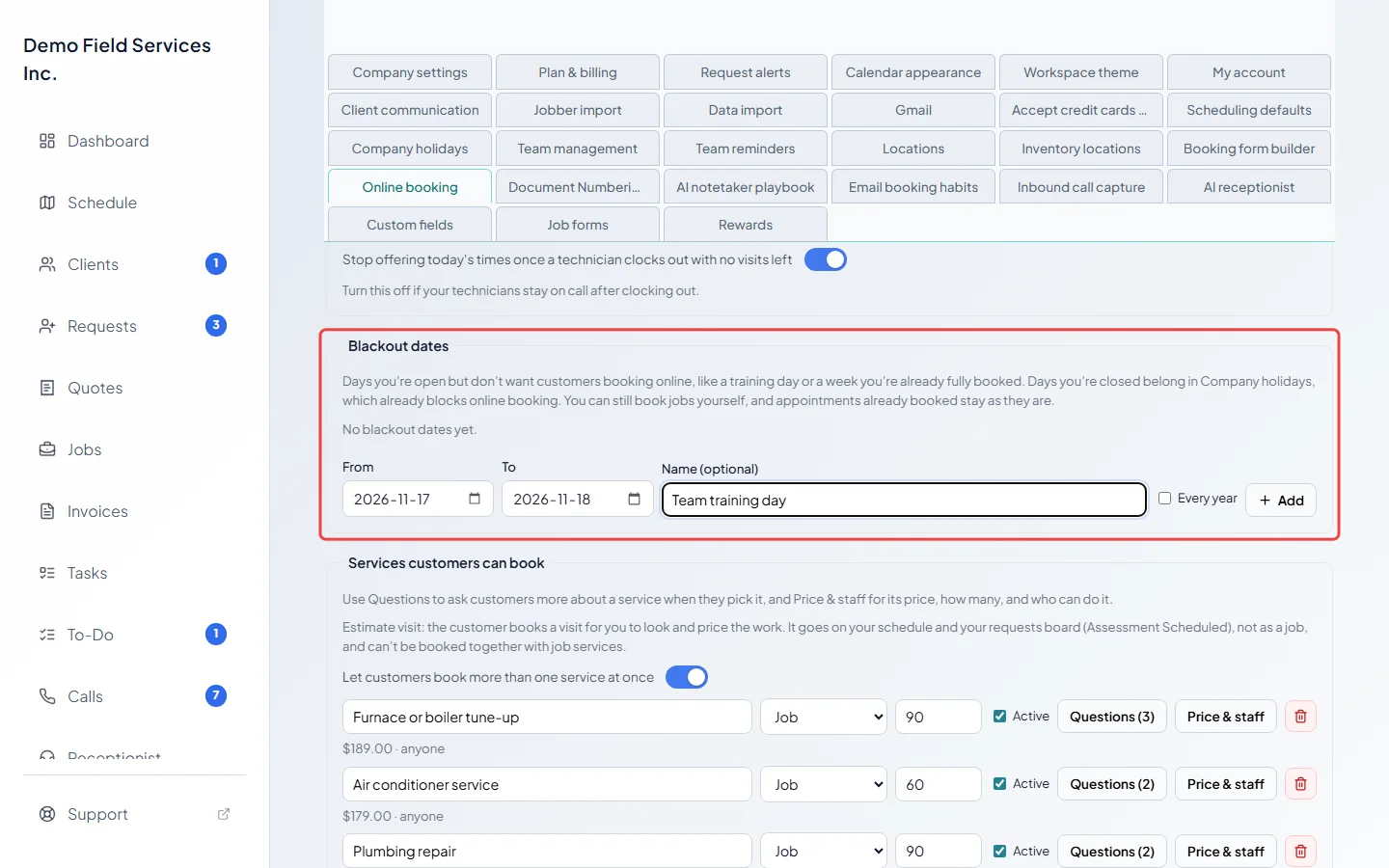
Under Blackout dates (just under Booking limits), add days you’re open but don’t want online bookings, like a training day or a week that’s already full. Pick From and To, give it a Name (optional), tick Every year if it repeats, choose under Repeats whether it’s on the same dates or the same weekday rule (for example the 4th Thursday of November), and click Add. The bin removes one after you confirm.
-
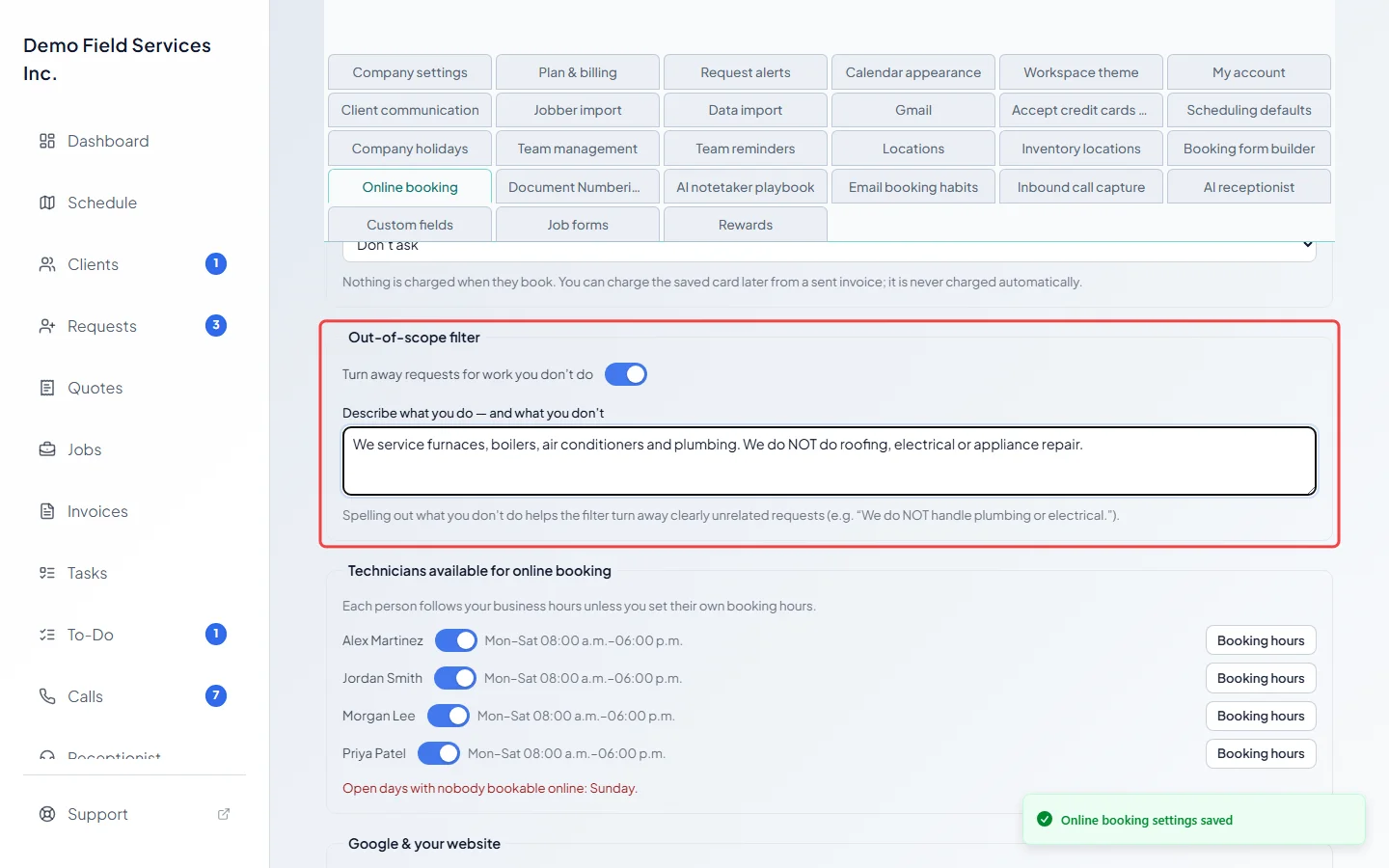
Under Out-of-scope filter, switch on Turn away requests for work you don’t do and fill in Describe what you do — and what you don’t. Spelling out what you don’t do (for example “We do NOT handle roofing”) helps the filter turn away clearly unrelated requests.
What customers see
Section titled “What customers see”- After typing their address and picking it from the suggestions, customers see whether they’re inside your service area. Outside it, they can still book, but the booking waits for you.
- Blackout days stay in the calendar with “We’re closed on this date” (or “We’re closed for” and the name you gave it), so customers see why there are no times.
- When the out-of-scope filter decides their description is work you don’t do, they’re told before they book, with your phone number if you have one. Editing the description clears the warning until it’s checked again.
Good to know
Section titled “Good to know”- Days you’re closed belong in Company holidays, which already blocks online booking. Blackout dates are for days you’re open.
- Blackout dates never move or cancel appointments already booked.
- Changing your company address moves the starting point for the radius too, as long as Measure the radius from is empty. If the new company address can’t be found on the map, the old starting point is kept and the line under the box says so.
- The service area only decides which bookings are confirmed automatically. It doesn’t change where technicians’ routes start.
- Every setting here is shared by all your booking pages, and a busy page uses up the same daily limit as the others.
Related articles
Section titled “Related articles”Checked against Astragal on October 18, 2026