

Adding or editing time
Correct a work period that has the wrong times, or add hours that never got recorded.
Who can do this: Admins and dispatchers can add, change and delete anyone’s time. Accountants can change, delete and clock out existing time. Technicians set to View/record/edit own time can edit their own work periods.
Also called: fixing a missed punch, correcting a timesheet.
Fix a work period
Section titled “Fix a work period”-
Open Timesheets and click the person’s name under the pay period. Their work periods open underneath.
On a computer: Left menu → Timesheets On a phone: More → Timesheets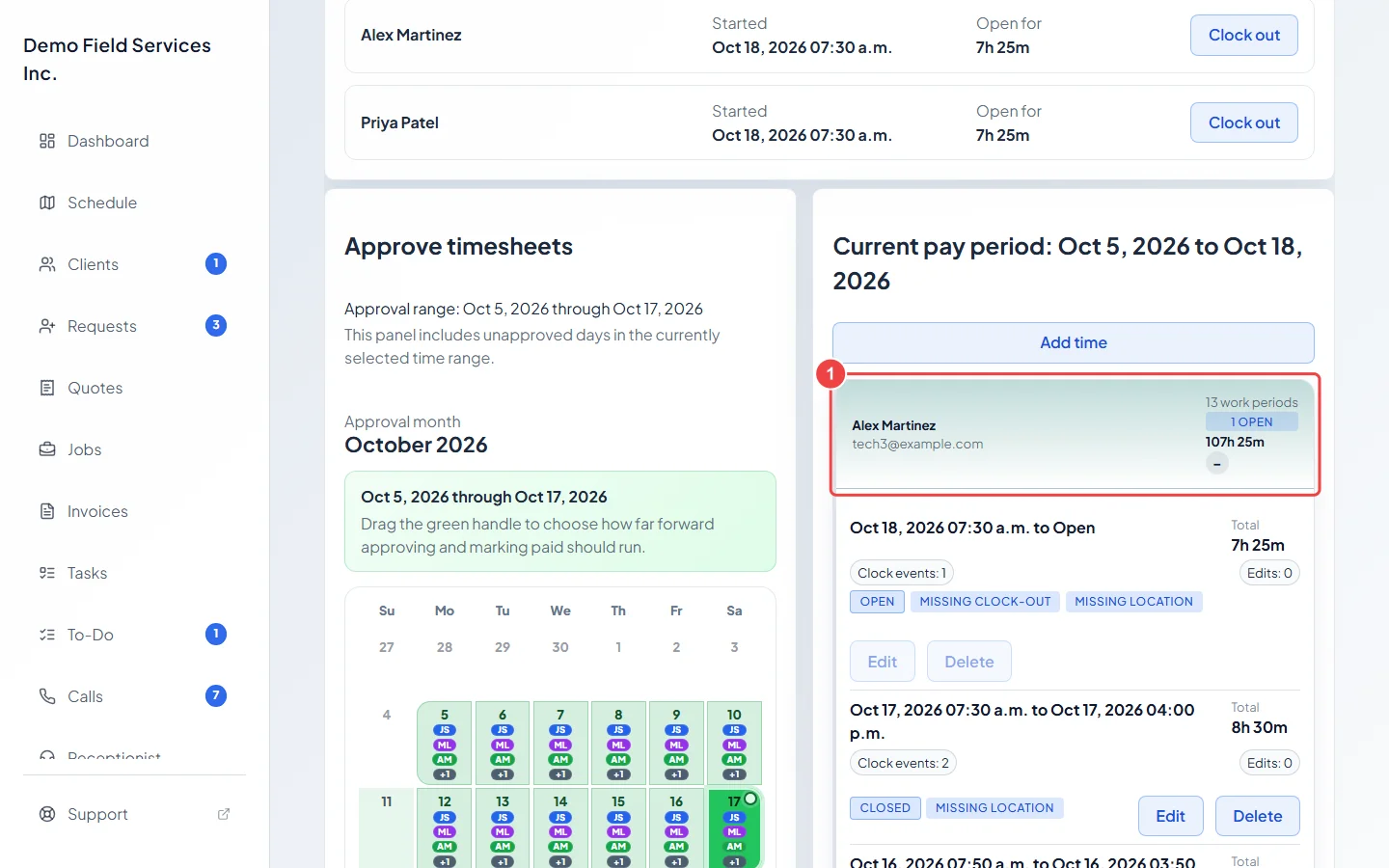
-
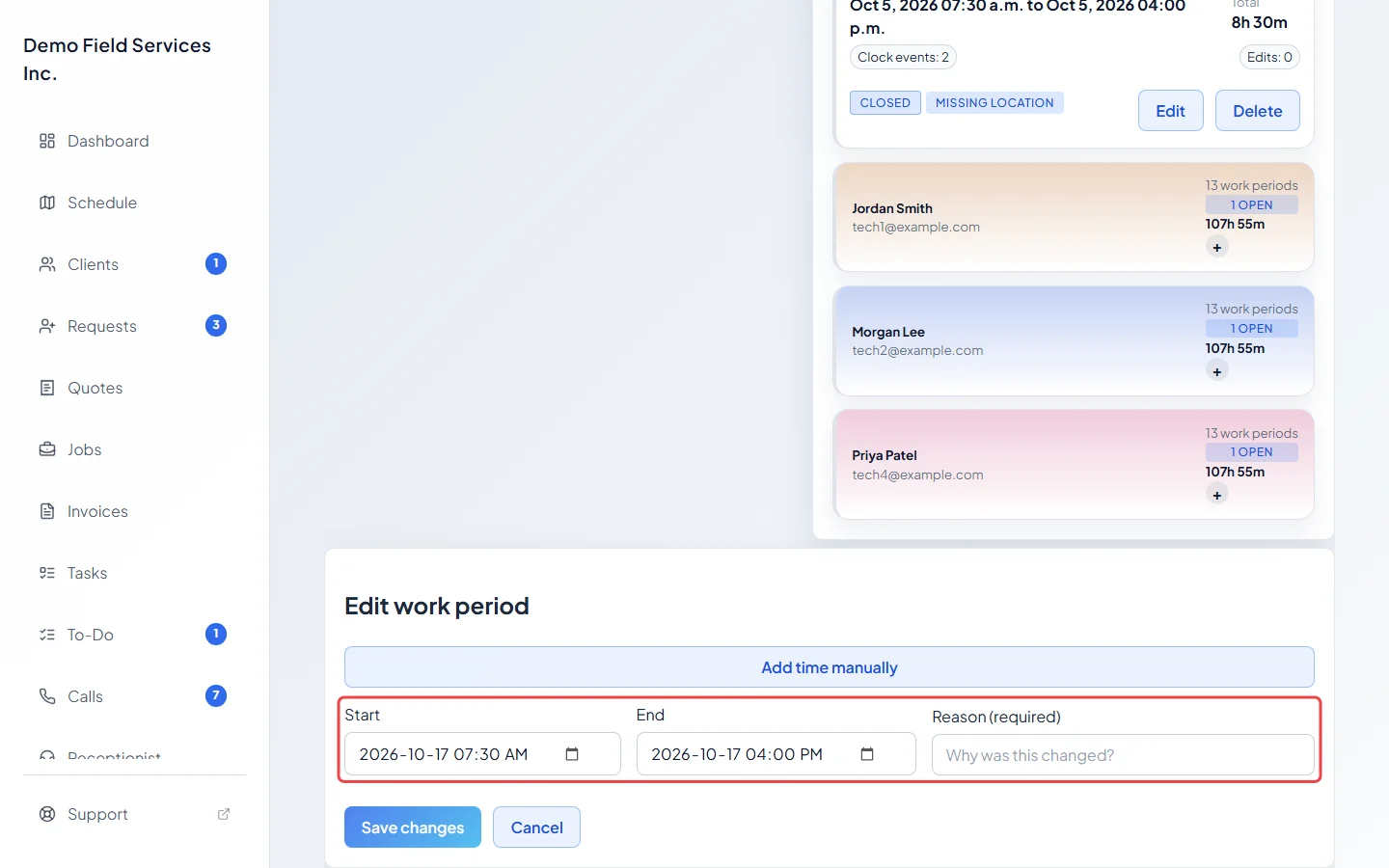
Click Edit on the work period. The Edit work period box opens below the list.
-
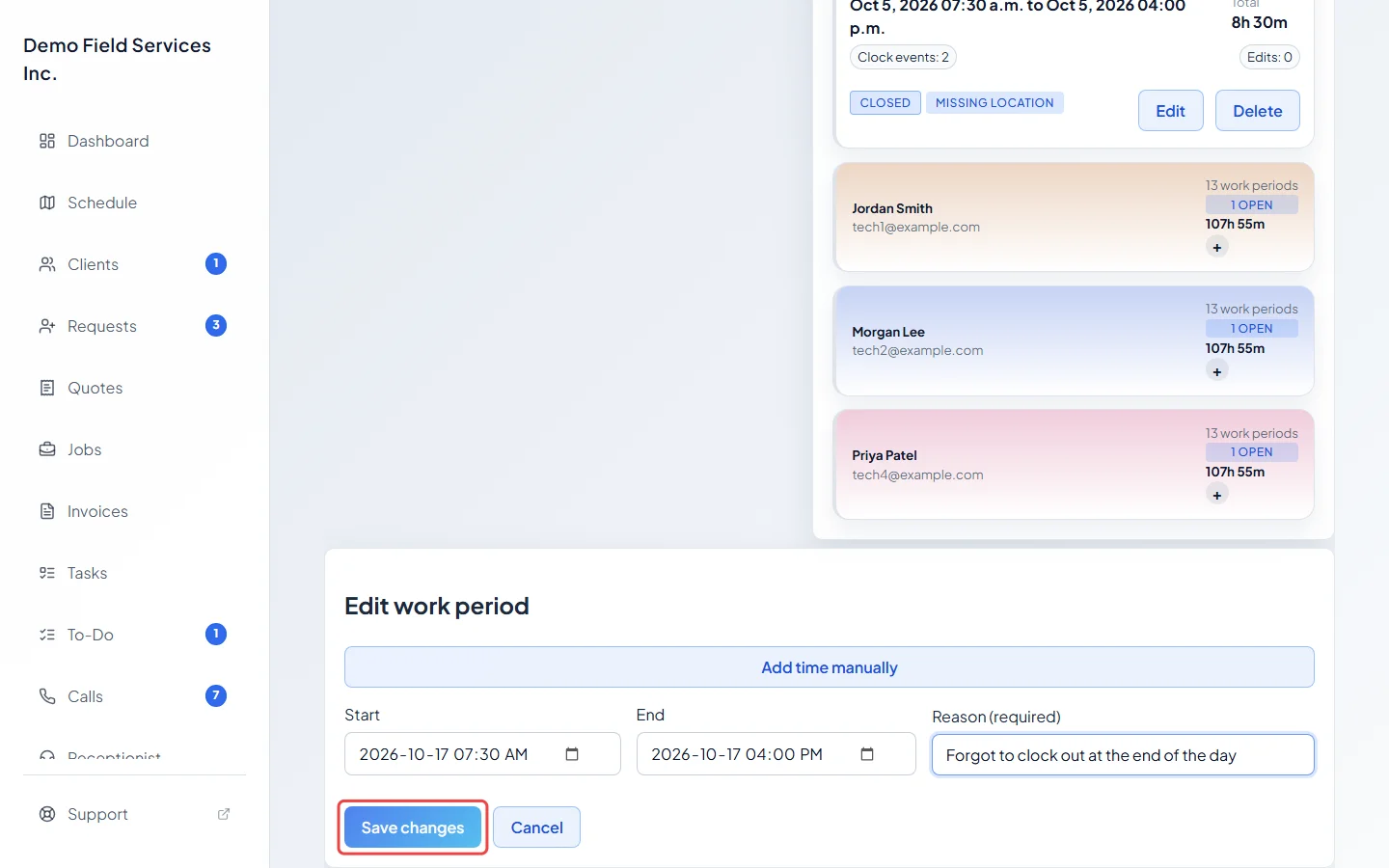
Change Start or End, type why in Reason (required), and click Save changes. You see “Time entry updated.” The period now shows a Manual edit flag, and its Edits count goes up so the change can be traced.
Add time someone forgot
Section titled “Add time someone forgot”-
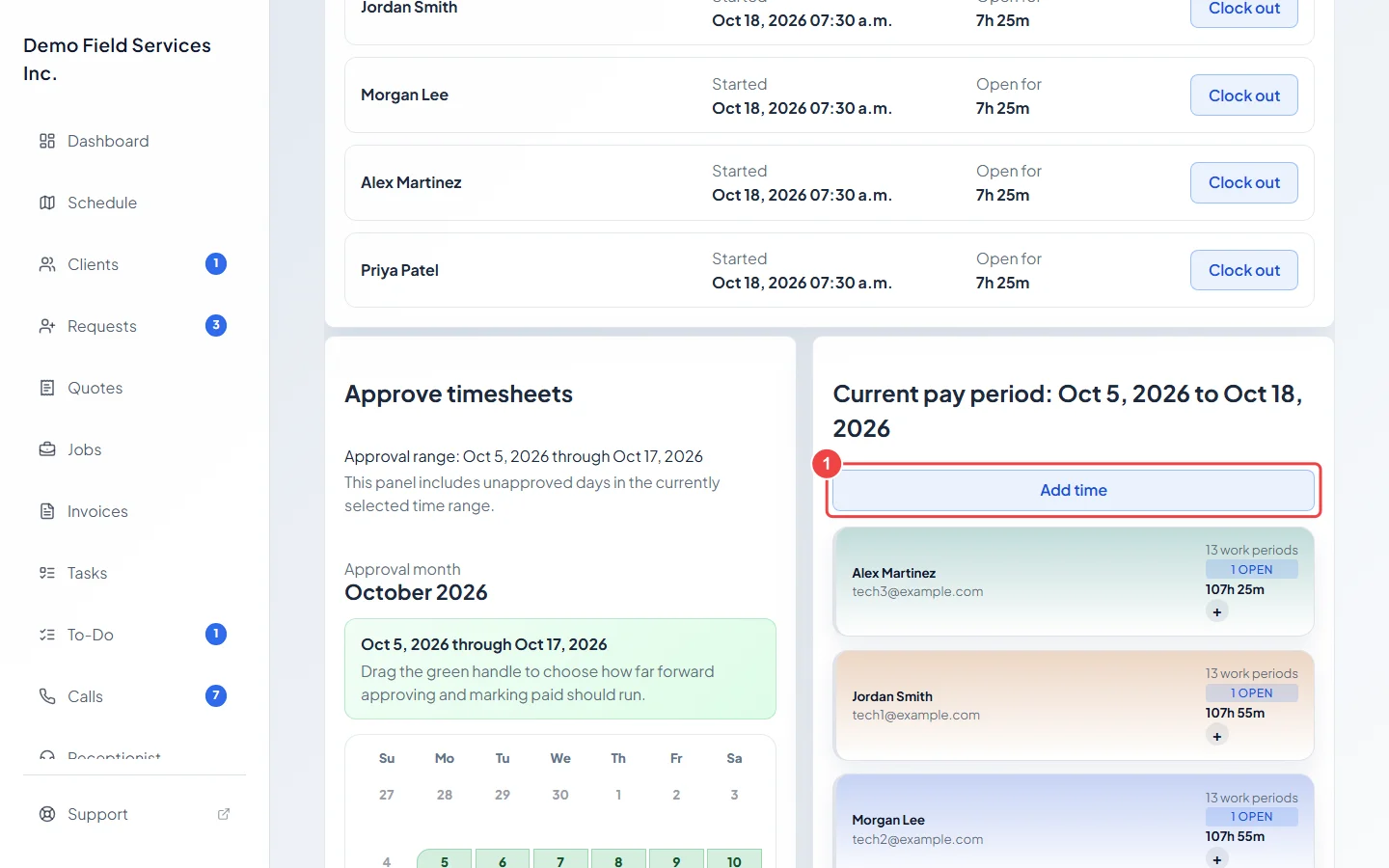
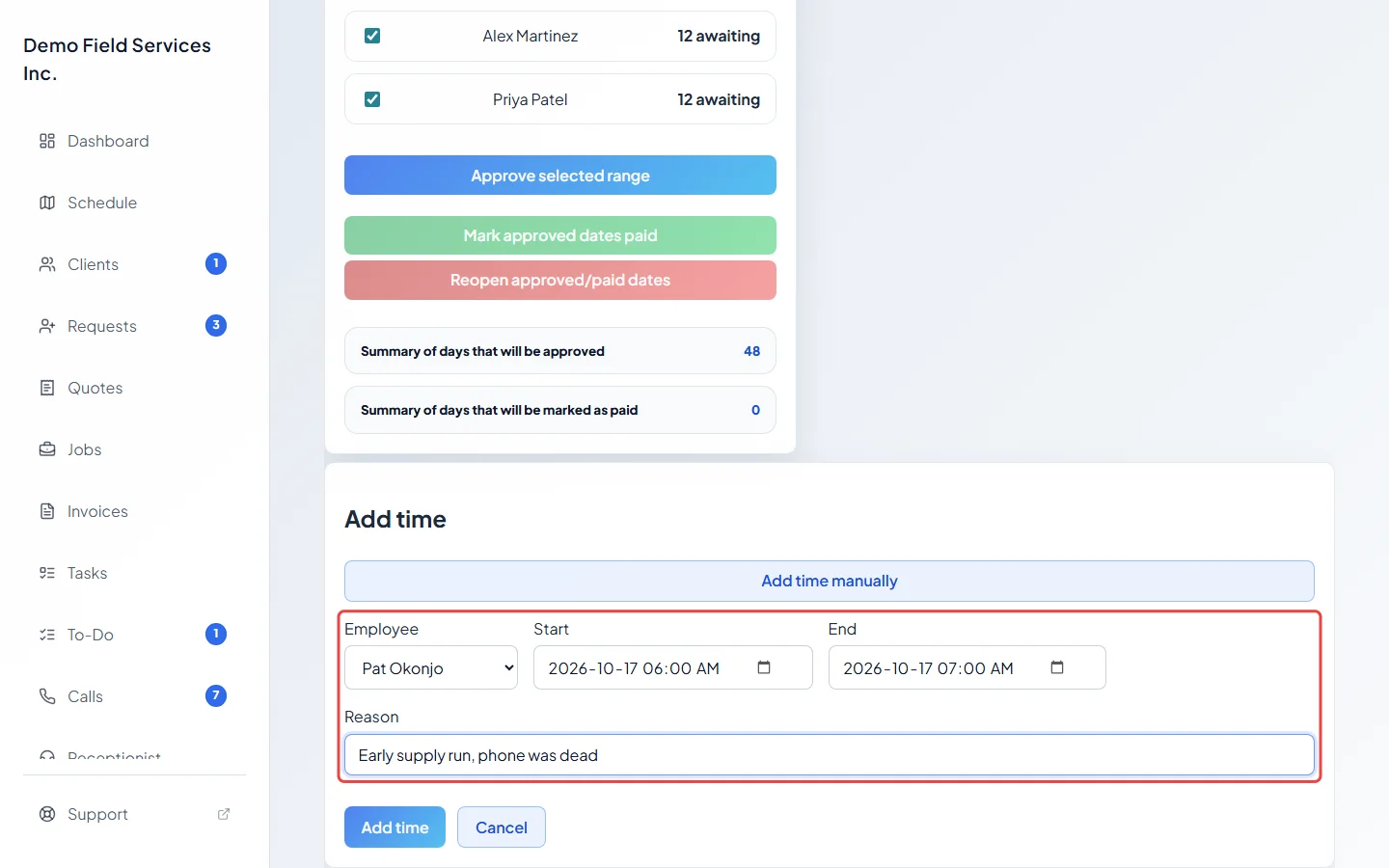
Click Add time at the top right of the pay period.
-
Pick the Employee, set the Start and End, add a Reason if you like, and click Add time. You see “Time added.” and the hours appear under that person.
Clock someone in or out for them
Section titled “Clock someone in or out for them”-
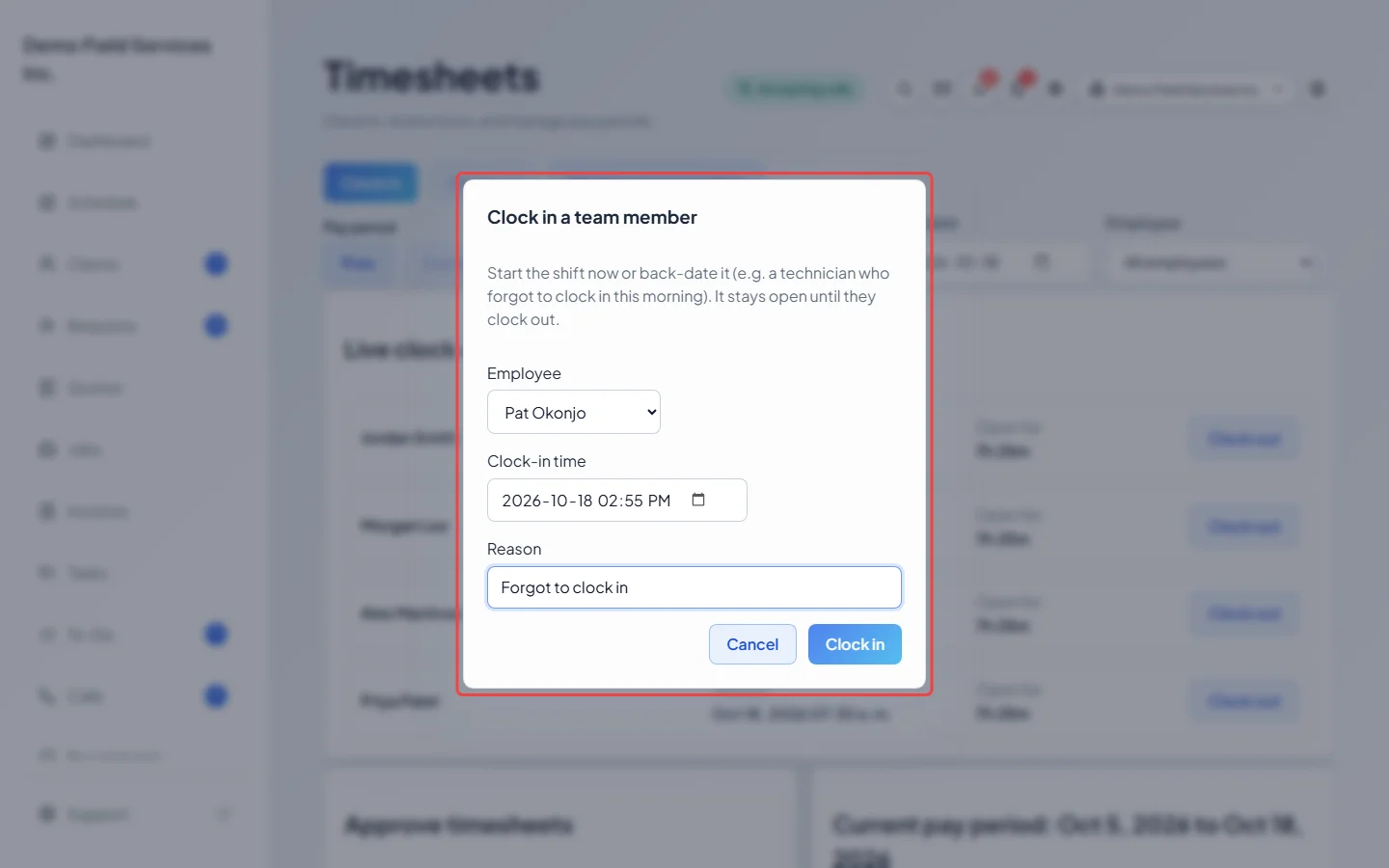
To start a shift for someone who forgot, click Clock in a team member at the top of the page. Pick the Employee, set the Clock-in time (now or any earlier time, never in the future), add a Reason and click Clock in. The shift stays open until they clock out.
-
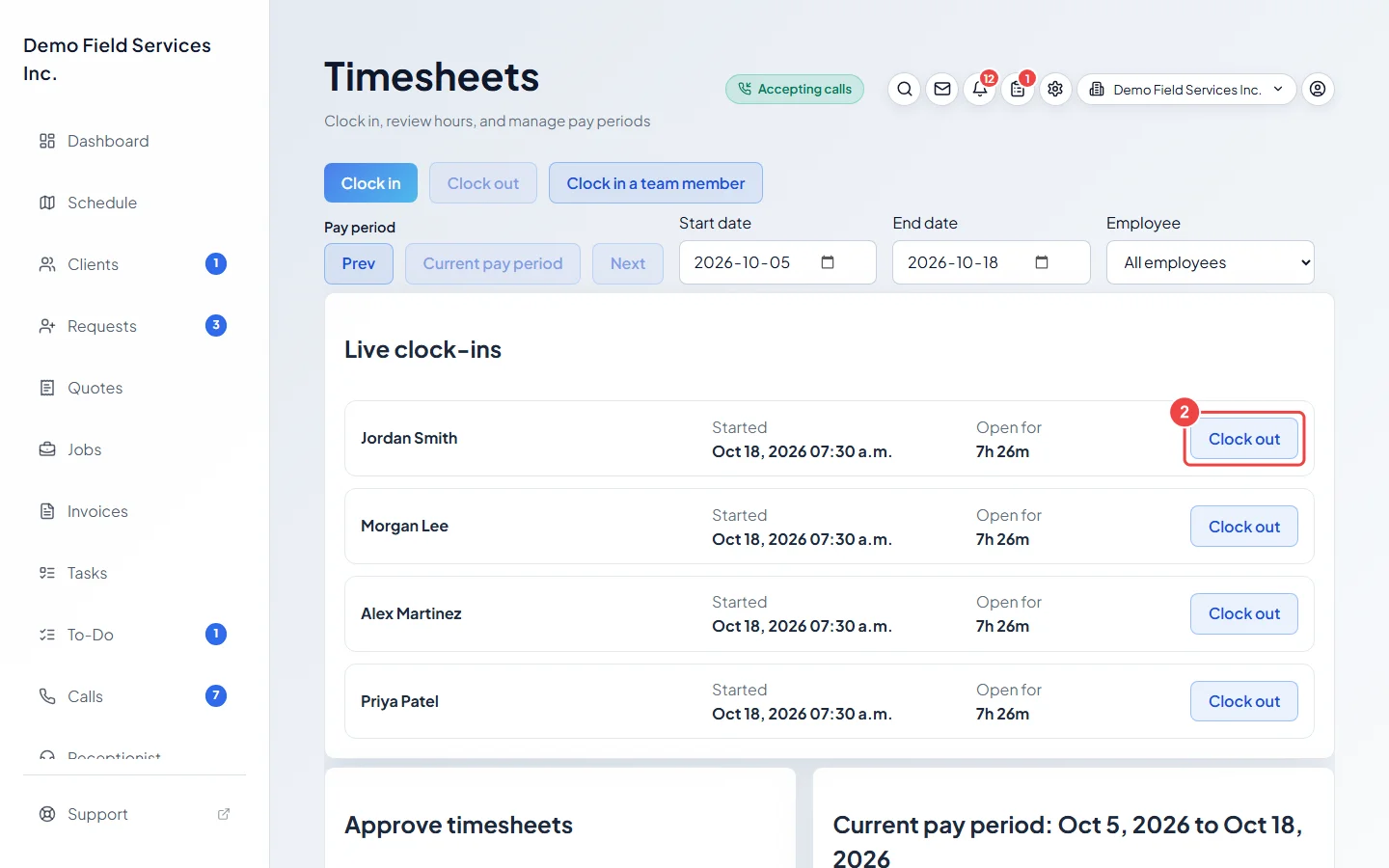
To end a shift someone left open, find them under Live clock-ins and click Clock out. Astragal asks first, then closes the shift at the current time.
Good to know
Section titled “Good to know”- Edit and Delete are greyed out on a shift that is still open. Clock it out first.
- Approved and paid days are locked, so their work periods have no Edit button. Reopen them first: see Marking hours paid.
- Reopen an approved or paid day before using Add time on it, or the added hours are counted as already approved or paid.
- Astragal won’t save time that overlaps time the same person already has. You see “This employee already has time recorded during the selected period.”
- Admins, dispatchers and accountants can click Delete on a work period to remove it. Astragal asks first, and it can’t be undone.
- Add time only lists current team members. Former team members’ old timesheets stay visible but you can’t add new time for them.
- Technicians with View/record/edit everyone’s time can also edit other people’s work periods and clock them out, but can’t add or delete time.
Related articles
Section titled “Related articles”Checked against Astragal on October 17, 2026