

The estimate calculator
Add up a price in front of the client without saving anything, like a scratchpad.
Who can do this: Everyone on your team. Turning the estimate into a quote needs permission to create quotes.
Also called: price calculator, quick quote.
-
Open the estimate calculator. A note at the top reminds you that nothing here is saved.
On a computer: Left menu → Estimate Calculator On a phone: More → Estimate Calculator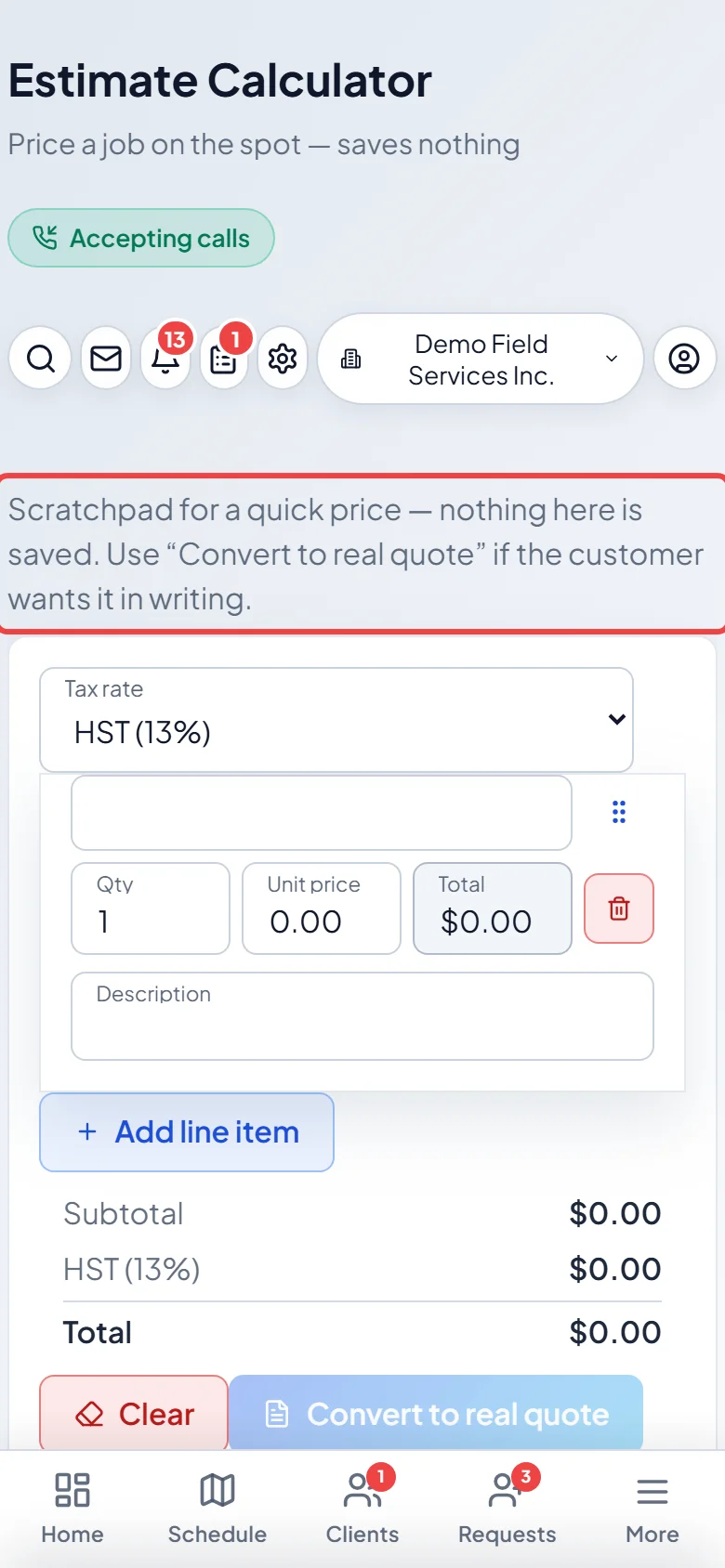
-
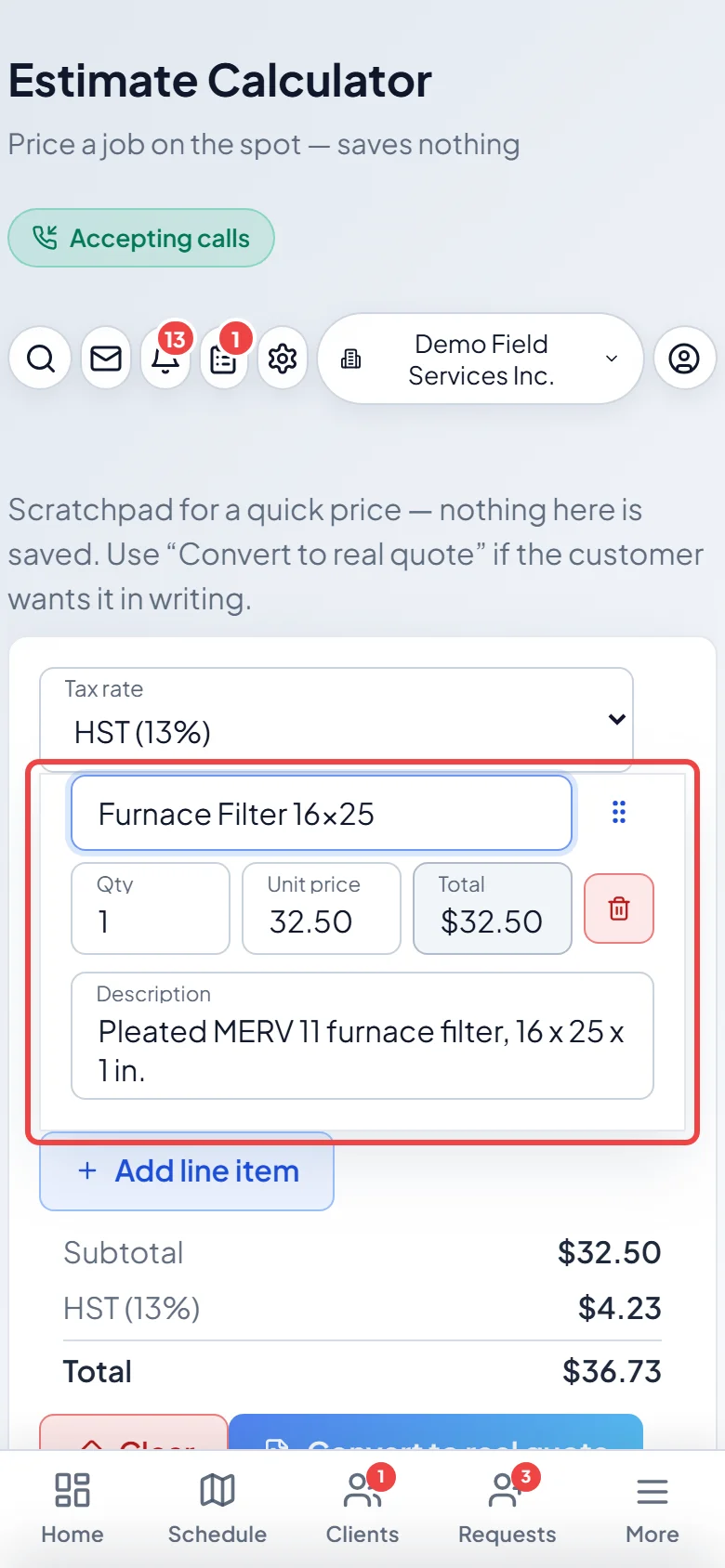
In Product/Service, type and pick an item from your catalog, or type your own. Set Qty and the price. Click Add line item for more lines.
-
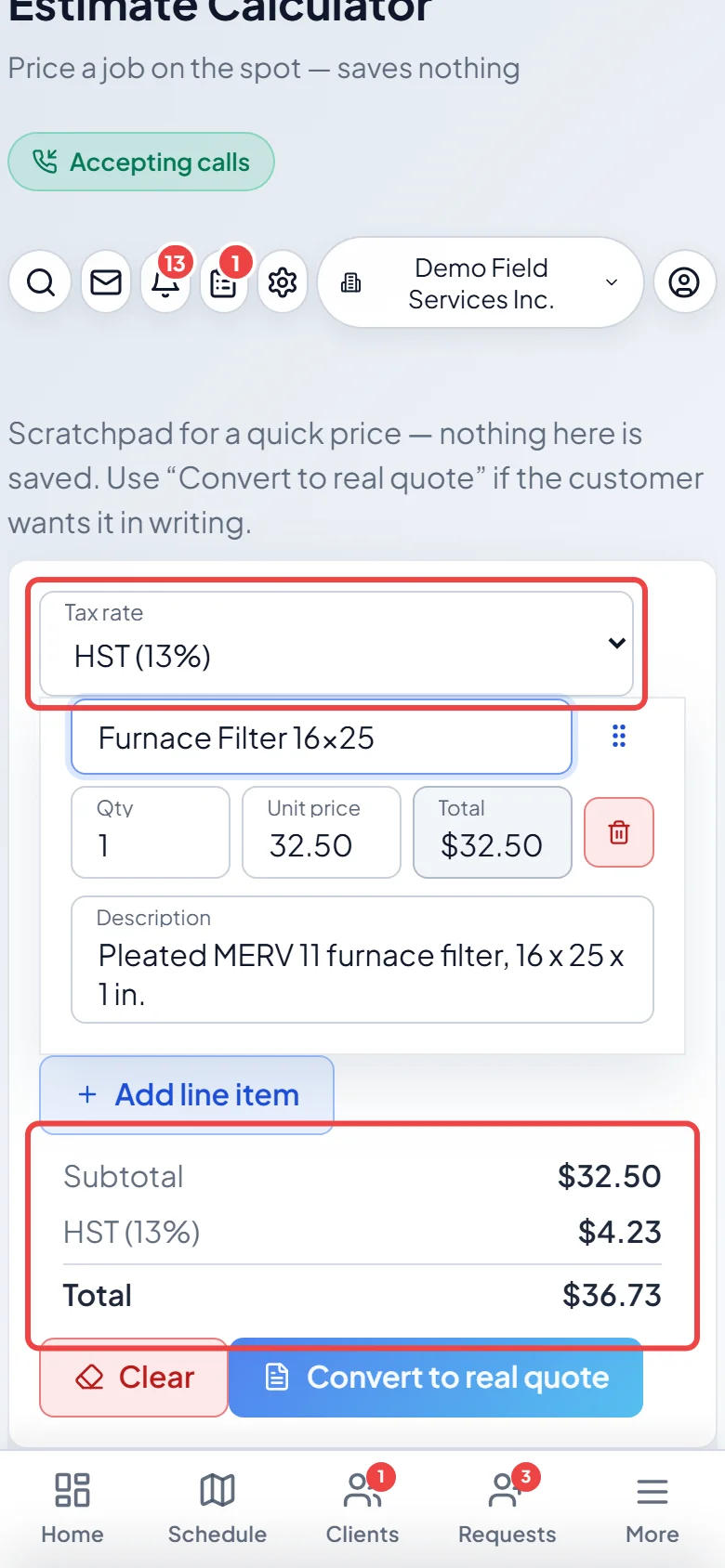
At the top, pick the Tax rate if it isn’t your usual one. The subtotal, tax and Total update as you go.
-
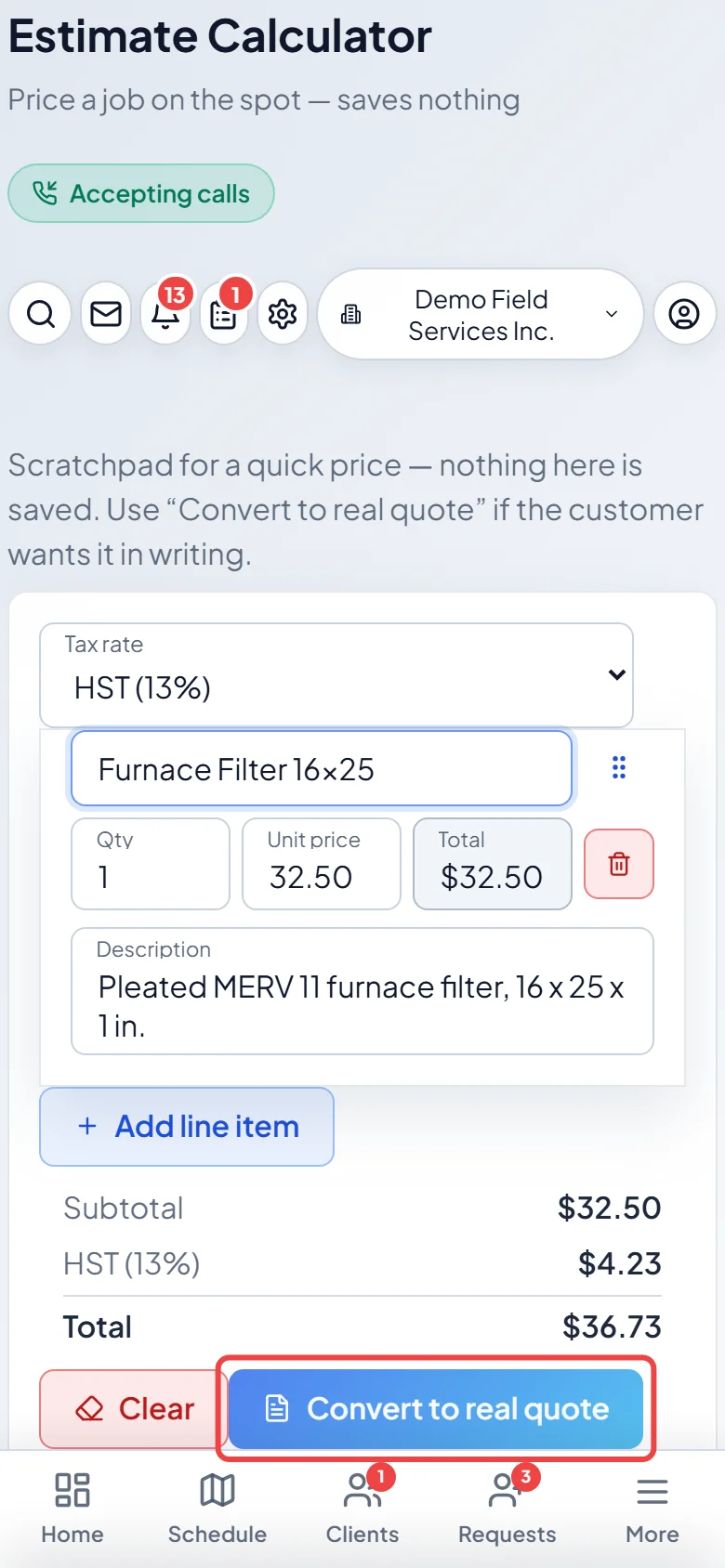
If the client wants it in writing, click Convert to real quote. A New quote form opens with your lines and tax rate. Pick the client and click Create quote.
Good to know
Section titled “Good to know”- Nothing in the calculator is saved. Leaving the page or clicking Clear throws the estimate away, and Clear asks first.
- After you convert, your lines stay in the calculator, so a slip doesn’t lose your work.
- Convert to real quote only shows for people allowed to create quotes, and stays greyed out until at least one line is filled in.
Related articles
Section titled “Related articles”Checked against Astragal on October 17, 2026