

The products & services catalog
The catalog is one list of everything you sell: products you keep in stock and services such as labour or a call-out.
Who can do this: Admins, dispatchers and accountants.
Also called: price list, price book, items.
-
Open the catalog. Each row shows the item’s name with a Product or Service tag, how many you have in stock (the total, then the count at each stock location), the price you charge with your cost underneath, and when it was last changed. A product marked Not tracked doesn’t count stock.
On a computer: Left menu → Inventory → Products & Services On a phone: More → Products & Services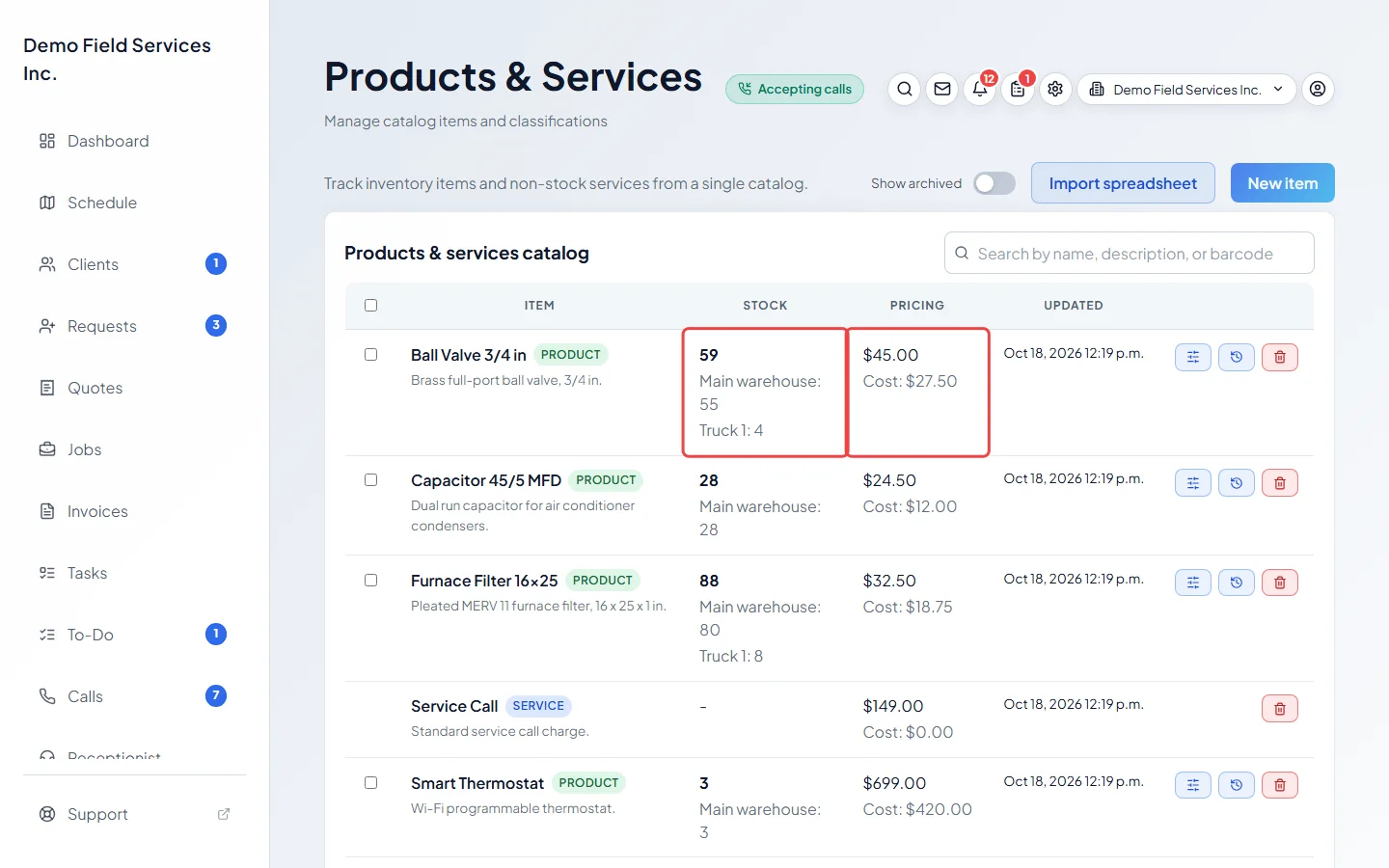
-
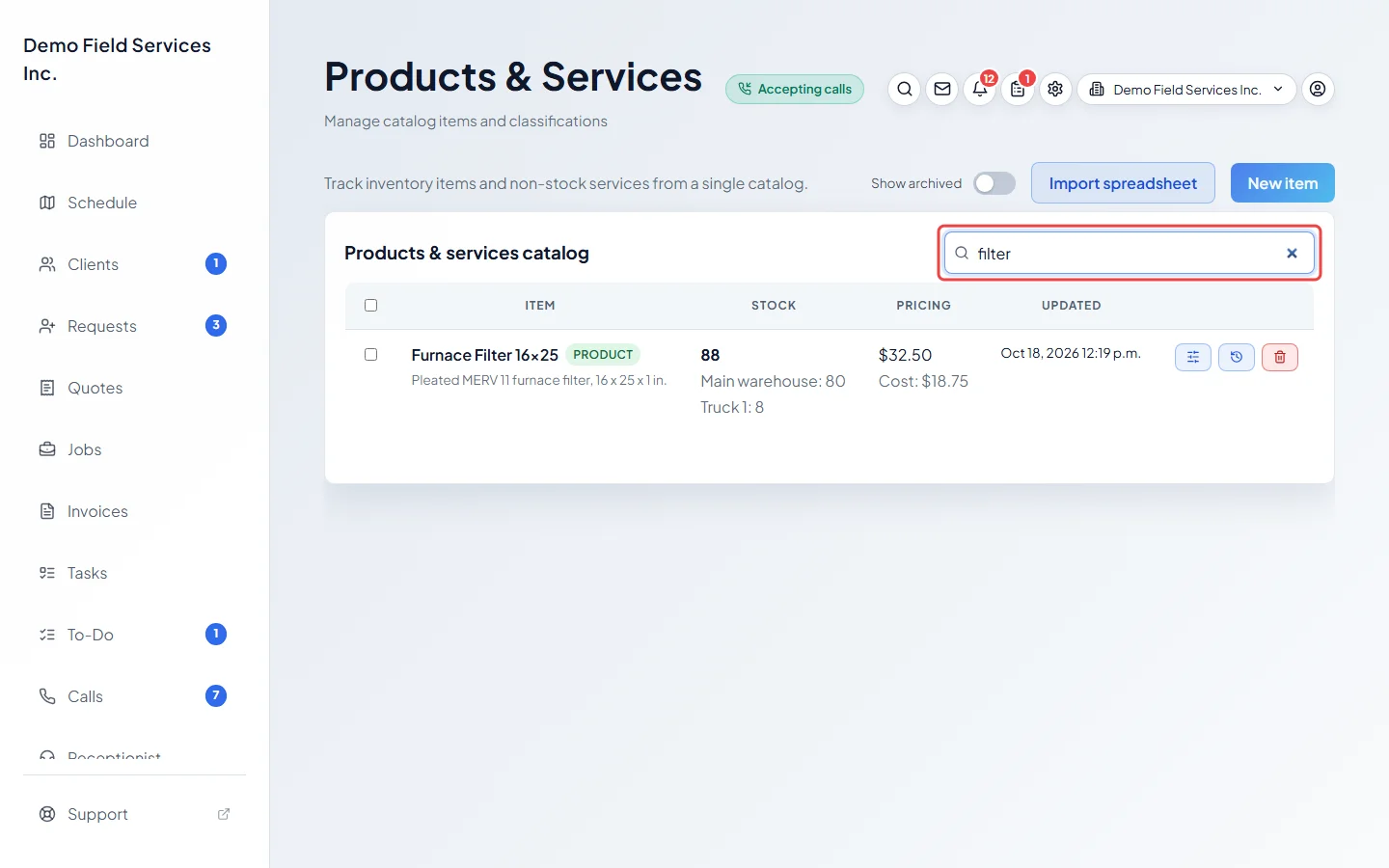
To find an item, type in the search box. It looks through names, descriptions and barcodes. The list keeps loading more items as you scroll, and a Top button takes you back up.
-
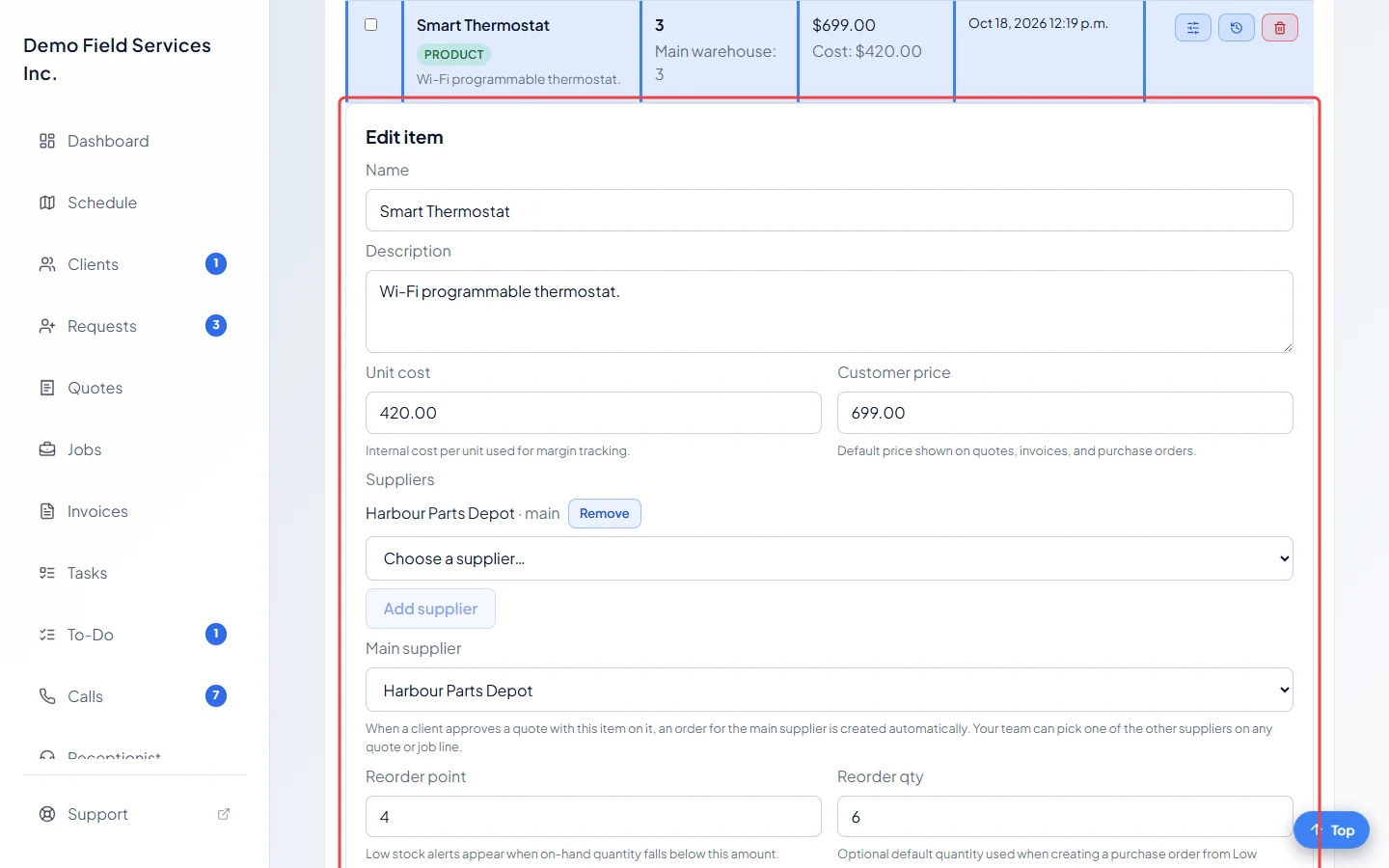
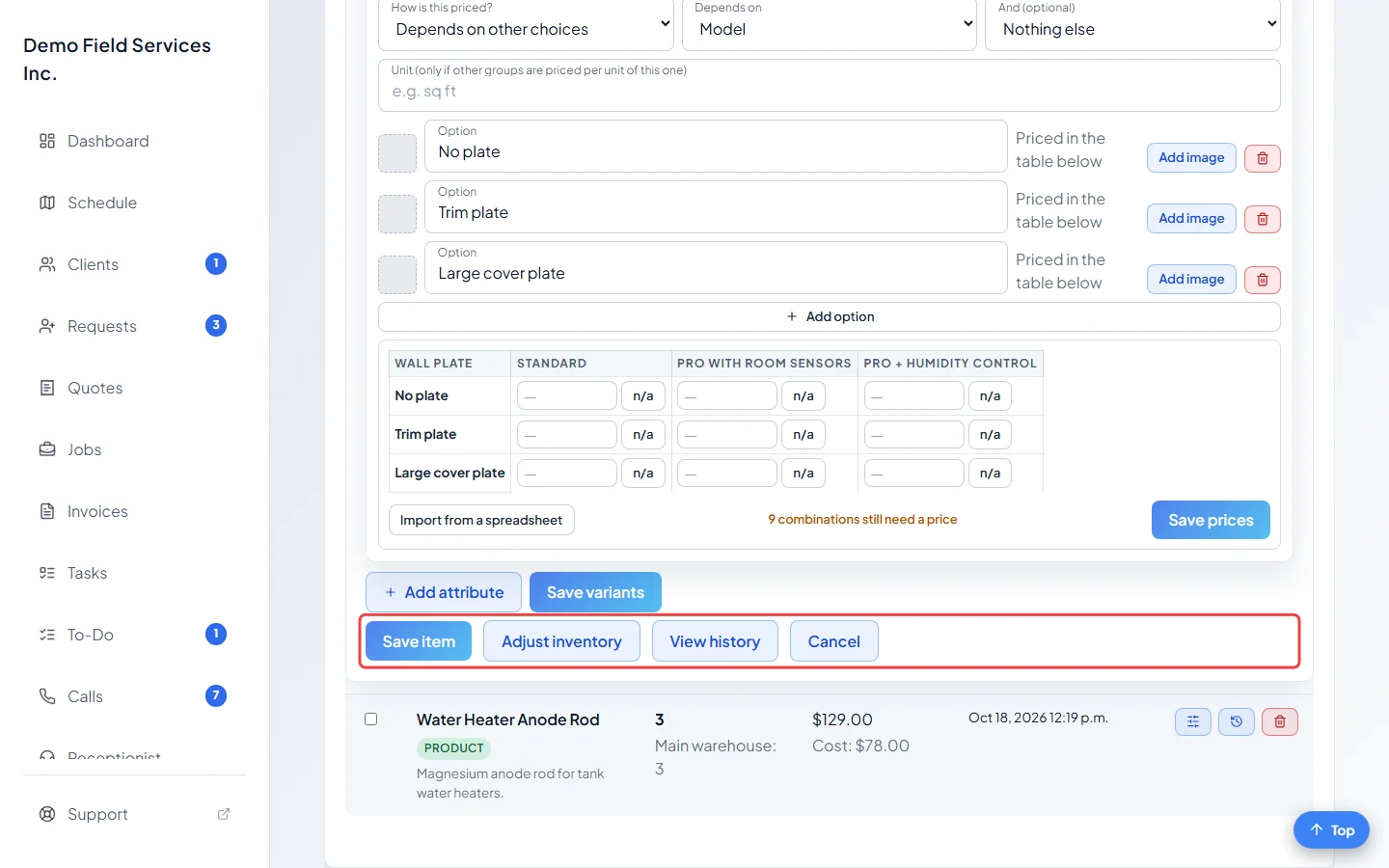
Click a row to open its details right under it. Change what you need and click Save item. For a stocked product you can also click Adjust inventory or View history here. Click the row again, or Cancel, to close it.
-
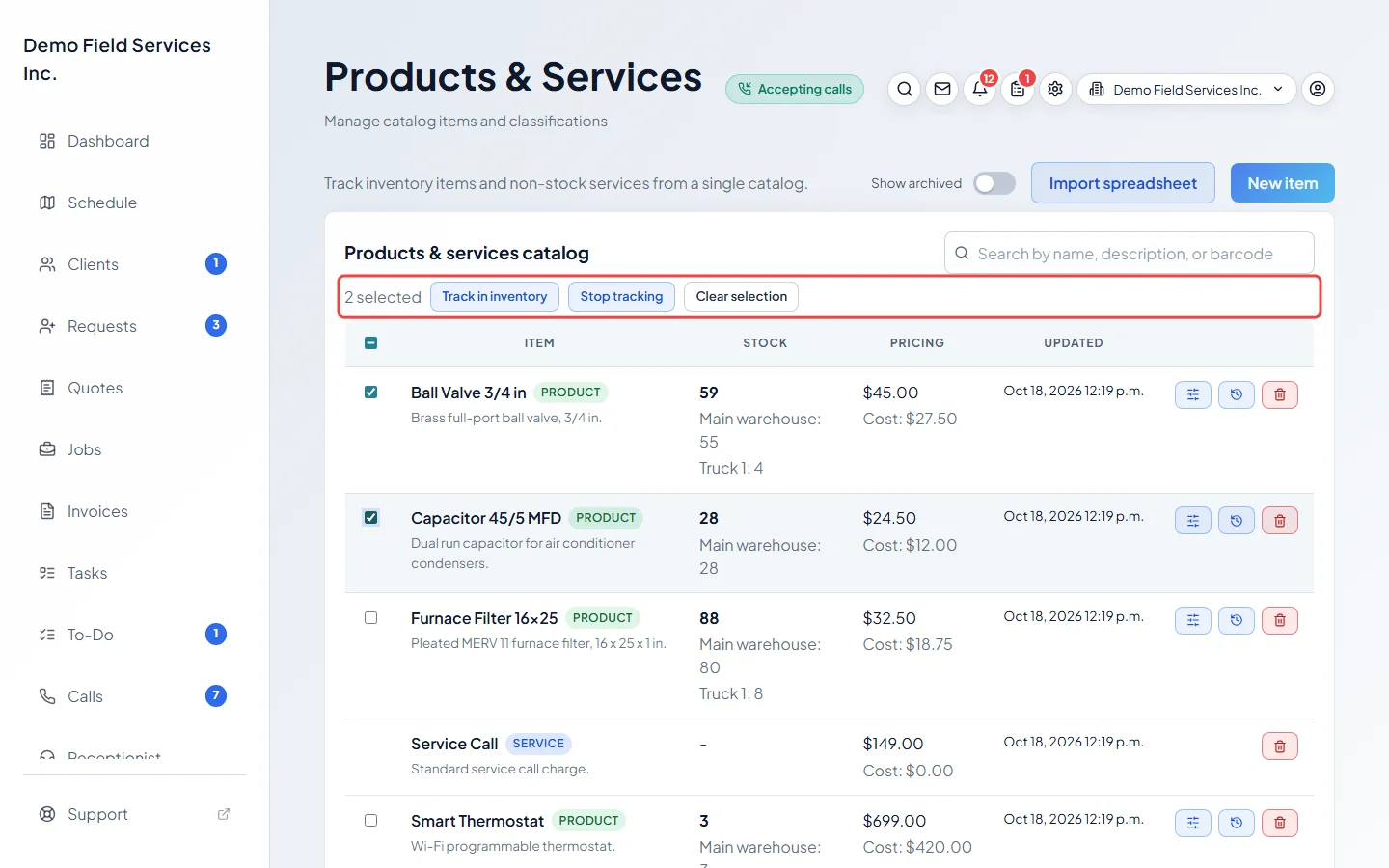
To switch stock counting on or off for many products at once, tick the boxes next to them (services have no box). Then click Track in inventory or Stop tracking. Stopping asks first, because any stock held for quotes and jobs is given back and counts stop for those items. Clear selection unticks everything.
-
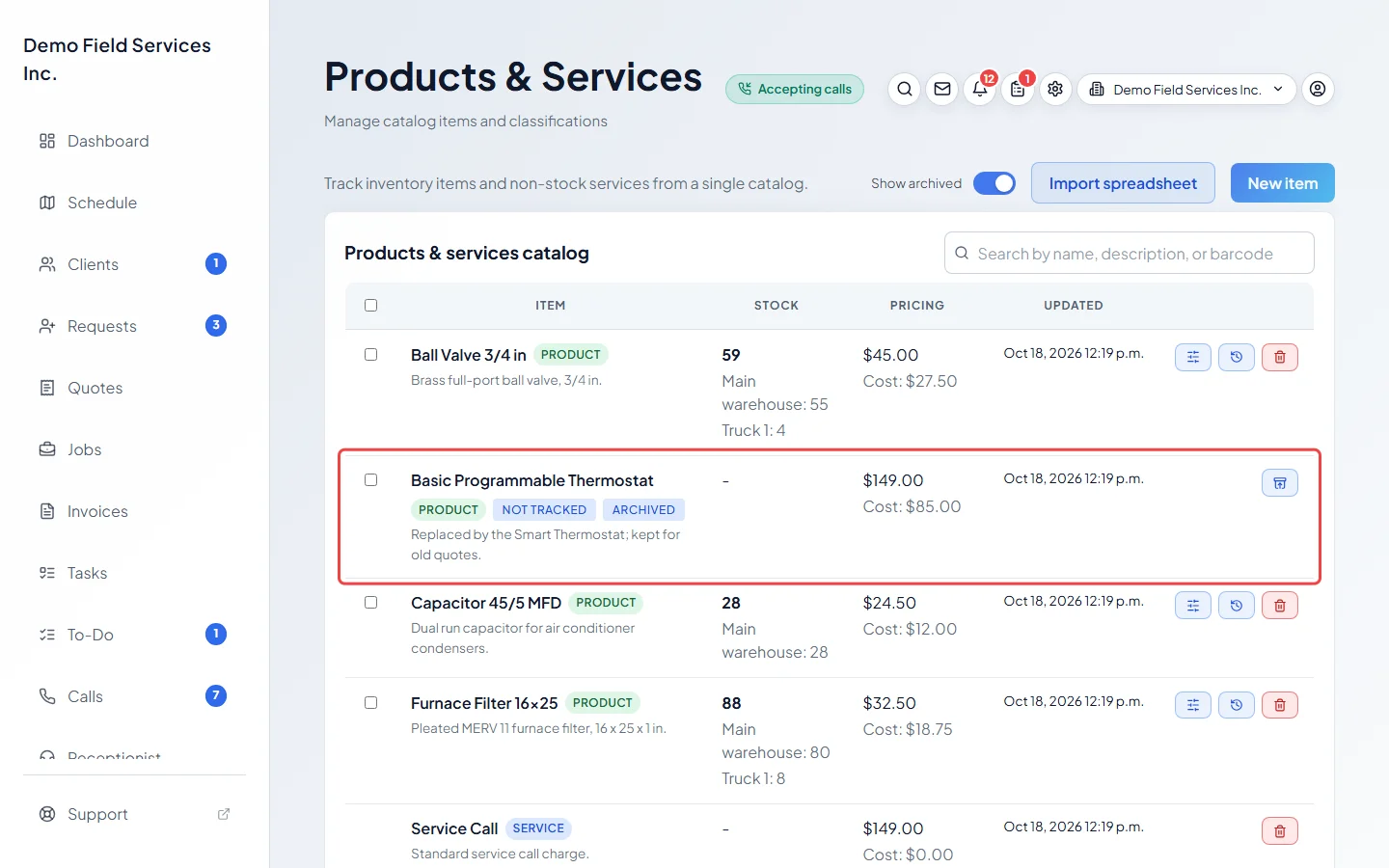
To remove an item, click the red bin at the end of its row and confirm. An item that was never used is deleted. One that appears on a quote, job, invoice, purchase order or stock record is archived instead, so your history stays correct. Turn on Show archived to see archived items, and click the restore button on a row to bring one back.
Good to know
Section titled “Good to know”- On a phone, tap an item to open it, then tap Edit, Adjust or History. An archived item shows History and Restore instead.
- The two small buttons on a stocked product’s row are shortcuts for adjusting the count and seeing the history. See Stock tracking and locations.
- Changing a price here never changes a quote, job or invoice you already made. Only new lines get the new price.
- When you pick an item on a quote or job, the number next to its name is how many you have in stock.
- A red number next to Low stock in the menu counts the products that are running out. See Low stock alerts.
Related articles
Section titled “Related articles”Checked against Astragal on October 17, 2026